

Expensify month-end failures rarely belong to one screen. A missing card transaction can be a feed or posting-timing issue; a duplicate can be a receipt that did not merge; an approved report may still be unpaid or unexported; an export error can reflect a stale category, incompatible account type, currency mismatch, or changed integration setting. Repeated syncs and broad re-exports can add duplicates while hiding the original boundary.
Define the population before changing it. Record the workspace, card feed or Expensify Card program, statement or withdrawal period, accounting connection, last known successful sync, export date policy, close date, ledger accounts, report states, and owners. Current Expensify guidance distinguishes company-card statement matching from Expensify Card withdrawal reconciliation. Do not compare a withdrawal batch with an external card statement total or force one settlement to equal one expense report.
Use this playbook with ALLMSP's [Expensify software support library](https://www.allmsp.com/category/software-support/software-support-expensify/), [CPA and Financial Firms resources](https://www.allmsp.com/category/cpa-and-financial-firms/), and broader [Software Support guidance](https://www.allmsp.com/category/software-support/). The close should end with a reconciled population, explained exceptions, controlled accruals where the firm's policy requires them, and evidence that a reviewer can reproduce.
Key decisions at a glance
- Choose the correct reconciliation model: external company cards are statement-based, while current New Expensify Card reconciliation is withdrawal-based.
- Preserve imported card transactions, receipt images, approval state, report history, export confirmation, and ledger evidence before repairing a mismatch.
- Treat accounting sync as a governed mapping exchange; categories, tags, currencies, export types, account types, and preferred-exporter authority must agree.
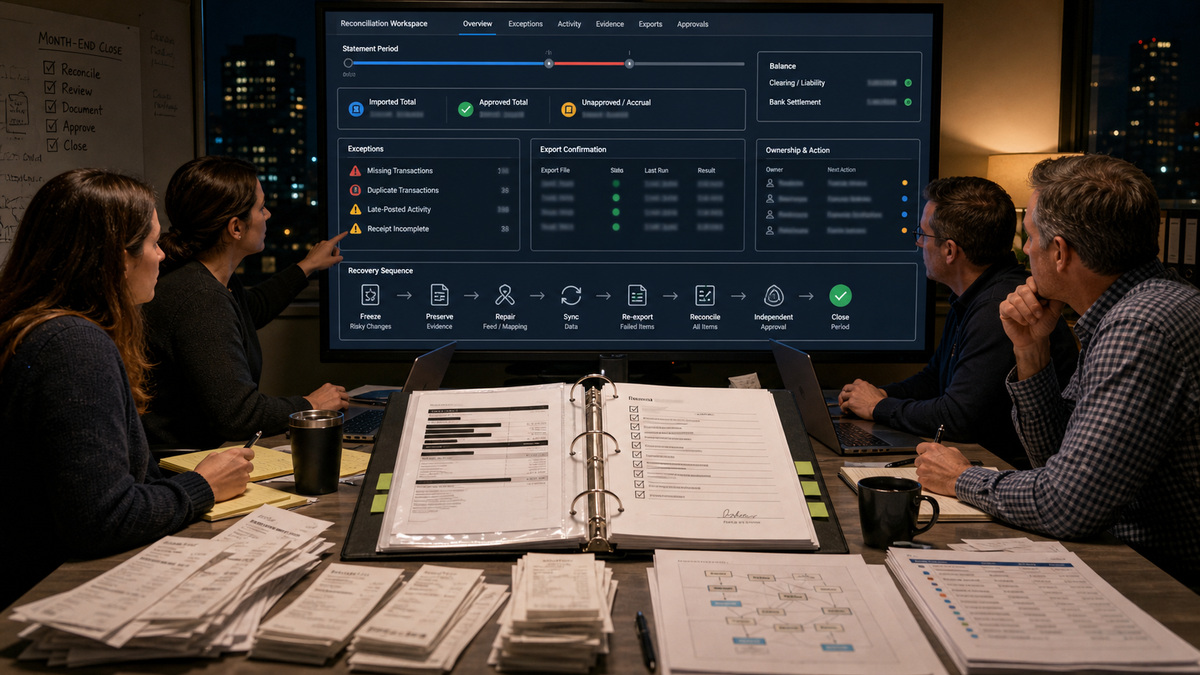
- Recover in a bounded sequence—freeze risky changes, preserve evidence, repair the root cause, sync, retry only failed items, reconcile, review, and sign off.
Choose the Reconciliation Population and Cutoff Before Investigating

For an external company-card feed, current New Expensify guidance uses statement matching. Select the feed and a Posted date range that matches the card statement, compare total spend, expand card groups, and investigate missing, duplicate, or differently posted items. Capture the statement period, statement total, Expensify total, filters, feed, run time, and reviewer. If the view is unavailable, confirm that the workspace has an active company-card feed and that the administrator has the current required access.
For the Expensify Card, current New Expensify guidance uses withdrawal-based reconciliation. Select the withdrawal period, expand each bank withdrawal, review the grouped expenses, and compare the withdrawal with the bank charge. That differs from external company-card statement matching. Established Classic configurations may also use documented reconciliation and Continuous Reconciliation procedures tied to settlement cadence and accounting integration; record the surface and configured model rather than combining instructions from both paths.
Build a close control table with beginning boundary, posted transaction population, imported total, approved total, unapproved or unsubmitted population, reimbursable payments, card settlements or withdrawals, exported reports, ledger entries, clearing or liability balance, late-posted items, and ending exceptions. Use transaction and report identifiers in protected evidence, not in public tickets. Separate transaction date, posted date, submitted date, approval date, reimbursement date, export date, and ledger period because one date cannot explain every cutoff difference.
- Lock the card feed, workspace, currency view, period, filters, and accounting connection used for the close packet.
- Reconcile external company cards to their statement and Expensify Card activity to its documented withdrawal or configured settlement model.
- Track imported, approved, unapproved, paid, exported, and reconciled states separately.
- Identify late-posted transactions and cutoff differences before calling them missing.
- Assign one owner and one independent reviewer to every unresolved amount or population difference.
Resolve Receipt Matching, Duplicates, Rules, and Missing Card Activity

When a receipt and card transaction remain separate, inspect the conditions Expensify currently uses for matching rather than guessing. Review SmartScan completion, amount, date, currency, posting timing, whether only one eligible pair exists, whether either item was edited, and whether the receipt is already attached elsewhere. Preserve the imported card transaction as the reconciliation anchor. A receipt-created cash expense is not a substitute for the bank-originated line when finance must prove completeness.
Differentiate personal expense rules from workspace-wide merchant rules and connected accounting behavior. A personal rule can standardize one member's entries, while current Workspace Merchant Rules can apply consistent coding across members. Company-card rules or accounting imports can have their own precedence. Document which layer set the category, tag, description, reimbursable flag, billable flag, or report assignment before changing it; otherwise a local fix may be overwritten on the next sync or new expense.
For a truly missing card item, verify that it posted at the issuer, that the correct feed and cardholder assignment are active, that the date range uses posted dates, and that the connection is healthy. Use the supported update or fix-card procedure for that feed, then rerun the same bounded reconciliation view. Preserve before-and-after totals. If escalation is necessary, provide only the minimum details requested through verified Expensify support channels and avoid transmitting full card data or client information.
- Create exception types for missing, duplicate, unmatched receipt, unsubmitted, unapproved, late posted, and connection failure.
- Compare one candidate pair at a time and record why it was merged, retained, corrected, or escalated.
- Do not delete an imported card expense to make a report total look correct.
- Snapshot rule and mapping layers before changing a merchant, category, tag, reimbursable, or billable outcome.
- Rerun the identical period and filters after repair so the difference is measurable.
Diagnose Accounting Sync and Export Errors at the Mapping Boundary
Snapshot the accounting connection before troubleshooting: vendor and company file, workspace, connected entity, last successful sync, chart-of-accounts categories, classes or projects imported as tags or fields, taxes when used, disabled values, export date, out-of-pocket export type, company-card export type and account, reimbursement settings, preferred exporter, auto-sync state, and card-specific exports. QuickBooks Online, Xero, NetSuite, and other supported integrations have different options; use the current official page for the firm's exact connector.
Classify the failure before reconnecting. Current QuickBooks Online troubleshooting examples distinguish an expense missing a valid synced category, an export option without a compatible account type, currency incompatibility, inactive customers or projects, insufficient external permissions, and other connector-specific conditions. A mapping error does not automatically mean the connection is broken. Refresh the connection when the official correction requires it, repair only the affected mapping or report, and retain the error message and report history.
Control retries. Current Expensify integration guidance warns that manually exporting a report already exported can create a duplicate in the accounting system. Confirm export history, related chat confirmation where applicable, and the destination ledger before retrying. Select only reports that failed, re-export through the supported action, then verify the exact journal, bill, check, bank, credit-card, vendor, employee, class, project, tax, and date behavior configured for that integration. Do not toggle auto-sync repeatedly to clear a queue.
- Preserve the error code or message, report ID, workspace, connector, configuration snapshot, and last successful event in protected evidence.
- Re-sync imported accounts and dimensions after authorized accounting changes, then correct invalid report values.
- Match the selected export type to a compatible destination account and required external record type.
- Check report, workspace, and ledger currency before treating a currency error as a network problem.
- Verify destination history before any retry and reprocess only the failed population.
Run a Controlled Month-End Recovery and Independent Sign-Off
Freeze risky changes long enough to establish a stable boundary. Preserve the statement or withdrawal evidence, Expensify filters and totals, receipt and matching exceptions, member and card assignments, approval and payment states, mapping snapshot, sync history, export history, ledger entries, clearing or liability balance, bank evidence, and issue timeline. Do not disconnect the integration, delete reports, bulk-merge expenses, or export the entire month again before determining scope.
Repair in dependency order. Restore a broken feed or assignment, resolve receipt and duplicate cases, complete required coding, obtain missing approvals, repair authorized accounting mappings or account types, sync once, retry only failed exports, and reconcile the destination ledger. If unapproved card expenses remain at cutoff, apply the firm's approved accrual policy using the current reconciliation population and reverse or clear it through the normal close process. Expensify guidance can explain product states; the firm's accounting owner decides journal treatment and materiality.
Obtain independent sign-off on the corrected population, exceptions carried forward, accrual, duplicate prevention, bank or settlement match, export destination, and closing balance. Record root cause, control gap, corrective action, owner, due date, and validation. Use ALLMSP's [Cybersecurity guidance](https://www.allmsp.com/category/cybersecurity/) if unauthorized access or unrecognized card, bank, or integration changes appear, and [Contact ALLMSP](https://www.allmsp.com/contact-us/) for coordinated technical recovery.
- Freeze only the risky configuration or automation needed to protect evidence; keep unrelated expense operations available when safe.
- Use a before-and-after control total for every repaired feed, merge, mapping, sync, export, or journal action.
- Never paste card data, bank details, credentials, receipt PII, or client information into a general incident ticket.
- Document every manual adjustment and ensure it is reversed, cleared, or retained through the firm's normal accounting process.
- Close only when finance and an independent reviewer can reproduce the reconciliation and explain every exception.
Vendor documentation and ALLMSP resources
- Expensify: Statement Matching and Reconciliation
- Expensify: View and Reconcile Expensify Card Expenses
- Expensify: Prevent Duplicate Expenses
- Expensify: Configure QuickBooks Online
- Expensify: Configure Xero
- Expensify: ONL056 Export Error
- Expensify: ONL493 Sync Error
- Expensify: How to Export Expenses
- Expensify: Troubleshooting Company Cards
- Expensify: Expensify Card Reconciliation
- ALLMSP: Expensify Software Support
- ALLMSP: CPA and Financial Firms
- ALLMSP: Software Support
- ALLMSP: Cybersecurity
- ALLMSP: Contact
Frequently Asked Questions
What should an Expensify month-end reconciliation start with?
Start with a defined population: workspace, card program or feed, statement or withdrawal period, posted-date filters, currency view, accounting connector, close date, ledger accounts, and owners. Capture Expensify totals and external evidence before changes. Separate imported, approved, unapproved, reimbursed, exported, and reconciled states. A stable boundary lets the team prove what changed and prevents an unbounded sync or re-export from creating new exceptions.
How does company-card reconciliation differ from Expensify Card reconciliation?
Current New Expensify guidance treats external company-card reconciliation as statement-based: select the feed and posted period, then compare Expensify total spend with the card statement. Expensify Card reconciliation is withdrawal-based: expand each bank withdrawal and review its grouped expenses. Established Classic configurations may use documented settlement and Continuous Reconciliation procedures. Record the actual surface and model; do not force a statement total and a withdrawal batch into the same equation.
Why did a receipt and card transaction become duplicate Expensify expenses?
The receipt-created expense may not have met Expensify's matching conditions with the imported card transaction. Review SmartScan completion, amount, date, currency, posting timing, candidate uniqueness, edits, and whether the receipt is already attached elsewhere. Preserve the imported card line as the reconciliation anchor. Merge or correct through the supported workflow and document unusual changes rather than deleting the card transaction merely to make the report look clean.
What should the team check when a company-card transaction is missing?
Confirm that the transaction is posted at the issuer, the correct card and feed are assigned, the connection is active, and the reconciliation uses the right posted-date range. Compare the statement line with Expensify, use the supported update or fix-card action for that feed, and rerun the same bounded view. Preserve before-and-after totals. Escalate through verified support channels with only the minimum requested details, never full card or client information.
Why can SmartScan or receipt matching fail at month-end?
The receipt may be unreadable or incomplete, SmartScan may not have finished, required details may have been edited, the card transaction may not have posted, or amount, date, currency, and candidate conditions may not align. Replace a poor image, correct authorized fields, and wait for or refresh posted card activity through the supported process. Treat the original receipt and imported transaction as evidence and record why a manual match or exception was accepted.
How should accounting mapping changes be controlled in Expensify?
Snapshot the connection, categories, tags or fields, disabled values, currencies, export types, destination accounts, preferred exporter, auto-sync state, and card-specific exports. Approve the accounting-system change first, sync through the documented action, test a representative report, and verify the exact destination entry. Record renames and inactive values so draft reports can be corrected. Avoid free-form replacements that will be overwritten by the next integration sync.
Does an Expensify export error mean the accounting connection is broken?
Not necessarily. Current connector troubleshooting documents failures caused by missing or stale categories, incompatible account types, currency differences, inactive customers or projects, permissions, and other report-level or configuration issues. Preserve the message, classify the cause, correct the affected mapping or report, sync if the official procedure requires it, and retry only the failed item. Reconnecting the entire integration can expand the incident and erase a useful boundary.
How can a team avoid duplicate accounting entries when re-exporting?
Check Expensify export history, related confirmation messages, and the destination ledger before any retry. Current integration guidance warns that manually exporting a report that already exported can create a duplicate. Select only reports proven to have failed, correct the root cause, re-export once, and verify the destination transaction type, account, entity, dimensions, date, amount, and report reference. Record the validation and reconcile the control total afterward.
Should a firm turn Auto Sync off and on during month-end recovery?
Do not toggle Auto Sync as a general reset. First capture its current state, last successful sync, pending reports, mapping snapshot, and export history. Identify whether the issue is a feed, receipt, approval, mapping, permission, account-type, currency, or export problem. Follow the current connector-specific correction, sync deliberately, and validate a bounded population. Change Auto Sync only through approved change control with a rollback and evidence of downstream behavior.
What belongs in an Expensify month-end recovery packet?
Include the period and filters, statement or withdrawal evidence, imported and approved totals, unapproved population, receipt and duplicate exceptions, card assignments, approval and reimbursement status, mapping snapshot, sync and export history, destination ledger entries, clearing or liability balance, bank or settlement evidence, accrual and reversal plan when used, issue timeline, corrective actions, owners, reviewer, and sign-off. Protect identifiers and redact card, bank, credential, employee, receipt, and client details not needed for review.