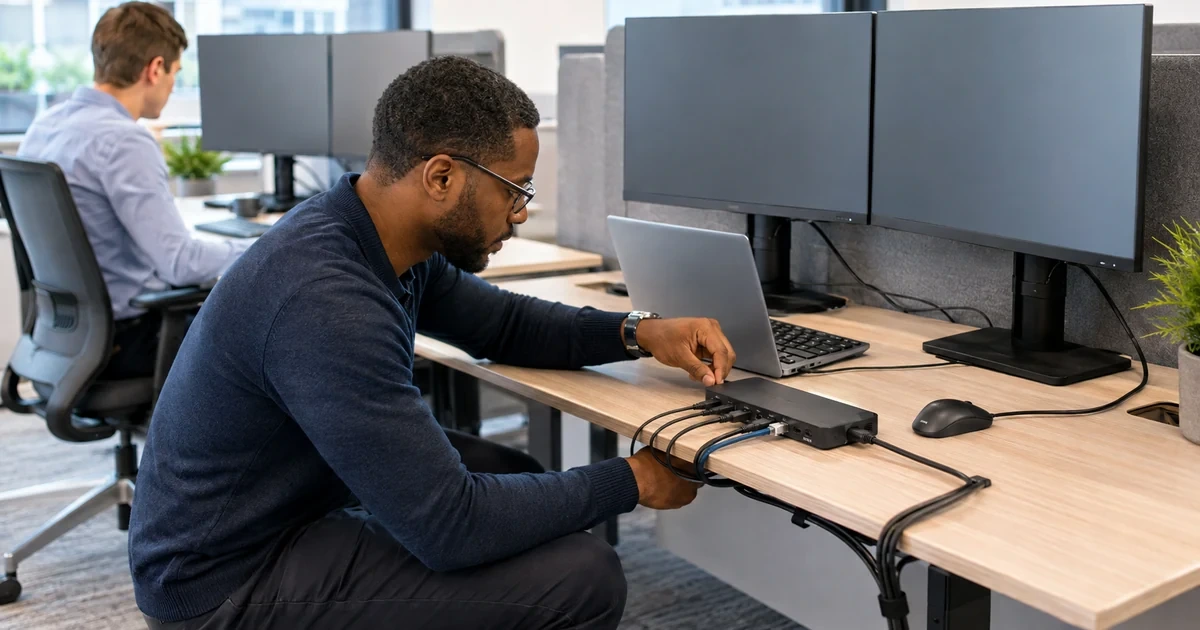
An Anker dock is not a generic box that converts any USB-C connector into every port pictured on its enclosure. Anker’s hub FAQs repeatedly require a host USB-C port with DisplayPort Alternate Mode for native video, distinguish data-only USB-C ports from display outputs, and warn against extending the included upstream cable. Its A83C2 guide separately defines the host connection, PD input, data ports, Ethernet, card readers, VGA, HDMI, supported operating systems, and model-specific display limits. Support must begin with that exact topology.
Multi-monitor behavior also depends on how pixels reach the dock. Some Anker products use native DisplayPort Alternate Mode and MST, macOS commonly mirrors MST-created display paths where compatible Windows systems can extend them. Other models combine a native output with DisplayLink outputs that require software, and Anker’s A8395 guidance says macOS needs DisplayLink Manager plus Screen Recording permission. A service desk that says only ‘install the dock driver’ cannot explain which outputs are native, which are virtual, or which privacy permission is being granted.
This playbook makes the complete desk observable. It covers model identification, host-port capability, cable and power budgets, display maps, security review, firmware, pilot scenarios, safe troubleshooting, known-good spares, and returned-device acceptance. Hostnames, user names, monitor asset numbers, IP addresses, MAC addresses, application contents, support case IDs, and screenshots of real desktops remain in protected records rather than public instructions or images.
ALLMSP's in-house team helps organizations in Lawrenceville, Suwanee, Gwinnett County, Metro Atlanta, and across Georgia operate Anker USB-C docks and multi-monitor desks reliably, then validates the result and documents the support path.
Key decisions at a glance
- Identify the exact Anker hub or dock model and map every physical port, a USB-C data or PD input port may not provide video, and the host laptop port must expose the required DisplayPort or Thunderbolt capability.
- Treat the included upstream cable and documented power adapter as part of the qualified configuration, then calculate the power available to the laptop after dock consumption and attached loads.
- Separate native DP Alternate Mode and MST behavior from DisplayLink-driven outputs, operating-system support, application permissions, graphics drivers, and display limits differ by model.
- Apply dock firmware only to the exact Anker model, from the official support path, with its required operating system, power, upstream connection, rollback expectation, and acceptance test.
- Troubleshoot by reducing to one display and known-good components, then add monitors, Ethernet, storage, audio, camera, and other peripherals individually while tracking the symptom’s path.
Qualify the Exact Host, Anker Dock, Cable, Power, and Display Path
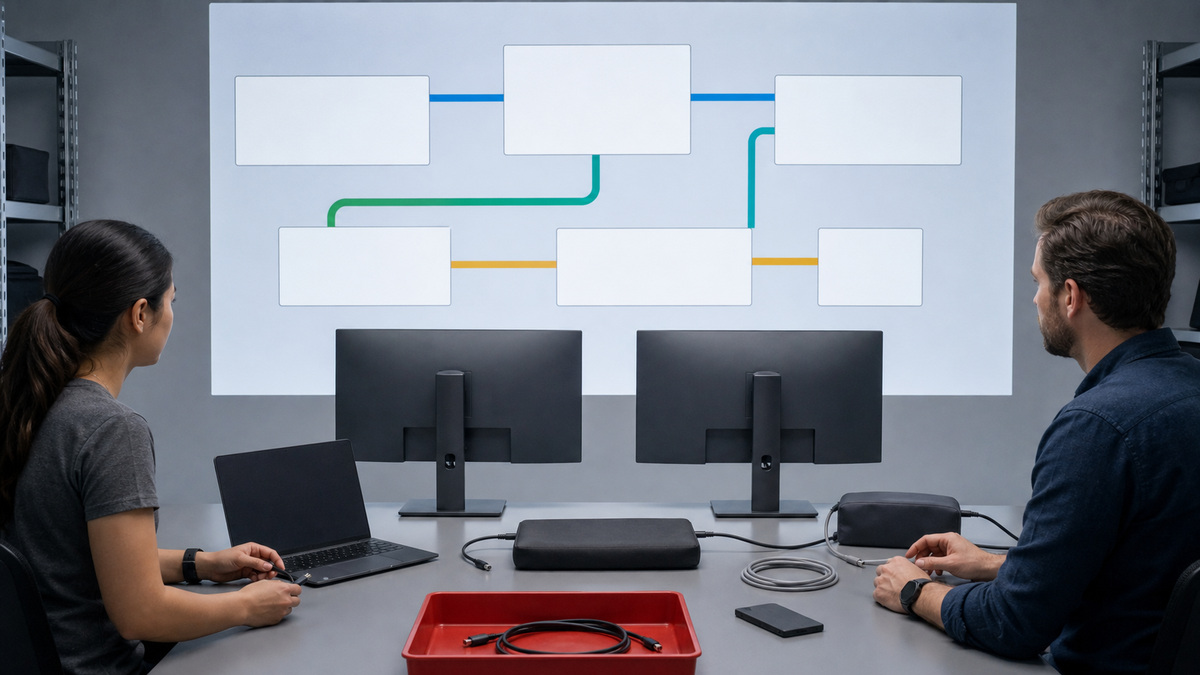
Record the Anker model number, revision, serial in a restricted inventory, purchase evidence, warranty basis, supplied power adapter, upstream cable, firmware version if exposed, and every port’s documented purpose. Photograph port layout only after masking serials and barcodes. Build a topology row for each approved laptop: exact laptop model, operating system, graphics capability, USB-C or Thunderbolt port used, DisplayPort Alternate Mode support, Power Delivery behavior, upstream cable, dock power source, each monitor connection, resolution, refresh, scaling, orientation, Ethernet, storage, audio, camera, smart-card or security devices, and intended business application. Do not assign capabilities from connector shape. Anker’s 10-in-1 FAQ says its host requires both DP Alt Mode and PD, its USB-C data port does not output video, and its PD input accepts up to a named ceiling while the hub retains part of that budget for itself. The A83C2 guide maps similar distinctions for a specific hub. Apply each statement only to the named model. Connect the supplied or explicitly approved short upstream cable directly between the laptop’s qualified port and the dock’s upstream port. Avoid extension cables, USB-A adapters, intermediary hubs, monitor USB-C cables of unknown capability, and convenience couplers unless the exact topology has been validated. Anker warns that extensions can reduce performance and that USB-A-to-USB-C paths block video on models requiring DP Alt Mode. Calculate charging headroom after dock consumption, attached bus-powered storage, phones, displays, and peripherals. A nominal 100W input is not automatically 100W at the laptop. Prove that the battery remains stable under the real desk workload, especially when the notebook also powers two monitors, a camera, network, storage, and audio.
- Inventory exact Anker model, protected serial, revision, power adapter, upstream cable, port map, firmware, purchase evidence, warranty, and owner.
- Map the exact laptop port, DP Alt Mode or Thunderbolt capability, OS, graphics, display path, power budget, monitors, refresh, scaling, Ethernet, storage, audio, camera, and workload.
- Distinguish host, PD-input, data-only, video, downstream charging, and removable-hub ports from the model guide.
- Use the qualified upstream cable directly and reject unsupported extensions, adapters, couplers, and ambiguous USB-C cables.
- Measure laptop charging headroom after dock consumption and every attached bus-powered load rather than quoting charger input alone.
Control Native Display, MST, DisplayLink, Permissions, and Firmware Separately
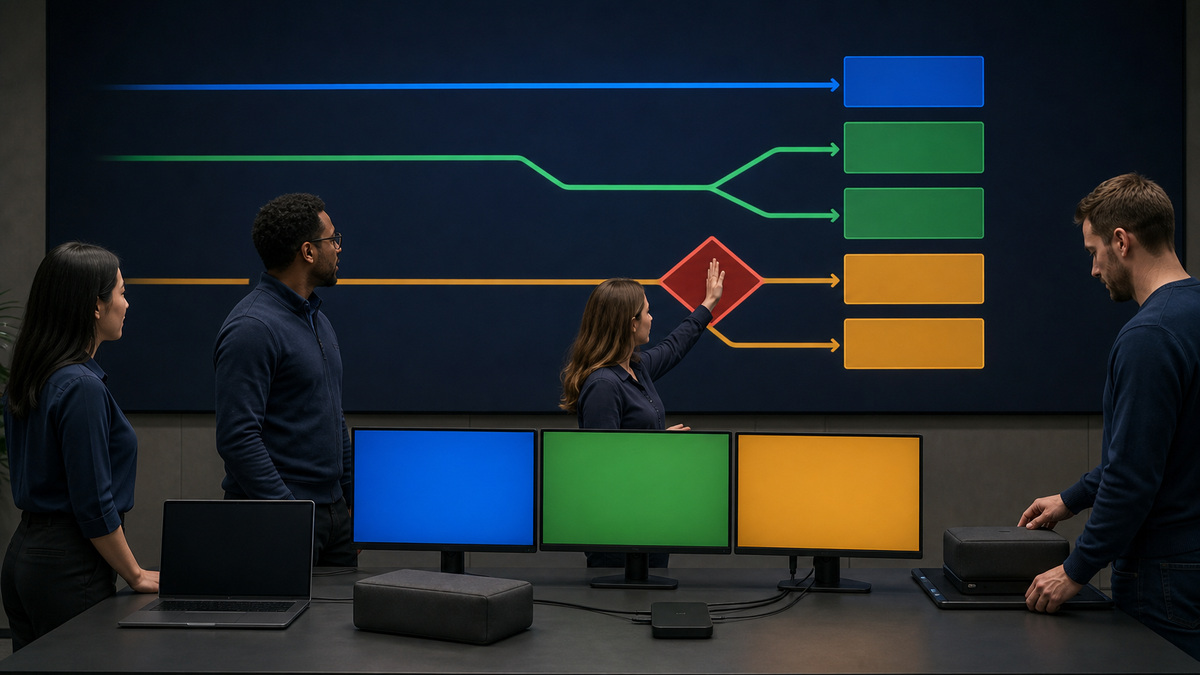
Document how each output is produced. A native DP Alt Mode path uses the laptop’s graphics engine and supported host port. MST can split a native stream into multiple outputs, but operating systems do not present MST in the same way, Anker’s triple-display hub FAQ says the named model supports distinct displays on compatible Windows systems while macOS and iPadOS mirror through its SST behavior. DisplayLink is different: it transports compressed display data over USB and requires supported software. Anker’s A8395 instructions identify one native 4K HDMI output plus separate DisplayLink-powered 2K HDMI and DP outputs, require current DisplayLink software, and call for Screen Recording permission on macOS. Treat that permission as a security and privacy change. Approve the software source, package version, update owner, permission scope, local administrator path, logging, application exclusions, and offboarding or removal procedure. Test protected video, conferencing, graphics-sensitive applications, accessibility tools, color requirements, CPU load, network load, sleep, wake, screen lock, remote support, and security agents, a desktop that lights up can still fail the user’s work. Keep dock firmware in a different change lane. Anker publishes a Windows-only firmware procedure for a specific A8394 revision that requires the included upstream cable, external power, the correct dock connection, a named utility, and post-update version confirmation. Do not apply that package to a near-match product or assume every Anker dock uses the same utility. Preserve the official source, file hash, exact model and revision, tool platform, current and target versions, power conditions, attached-device requirements, failure behavior, support route, and pilot evidence. Disconnect unnecessary peripherals, prevent sleep or power loss, and schedule a window with a known-good spare. After any DisplayLink, graphics, OS, BIOS, or dock firmware change, repeat the whole acceptance suite rather than checking one monitor.
- Label every output as native DP Alt Mode, MST-derived, DisplayLink-derived, or unsupported for the exact dock and host.
- Record the expected Windows and macOS mirror or extend behavior by named model rather than applying a general rule.
- Govern DisplayLink package source, version, macOS Screen Recording permission, update ownership, security review, testing, removal, and offboarding.
- Flash firmware only for the exact Anker model and revision with its documented cable, external power, required operating system, utility, version check, and support route.
- Requalify displays, protected media, conferencing, accessibility, CPU use, network, sleep, wake, lock, remote support, security controls, and business applications after every material change.
Troubleshoot by Reduction, Cross-Substitution, and a Known-Good Desk
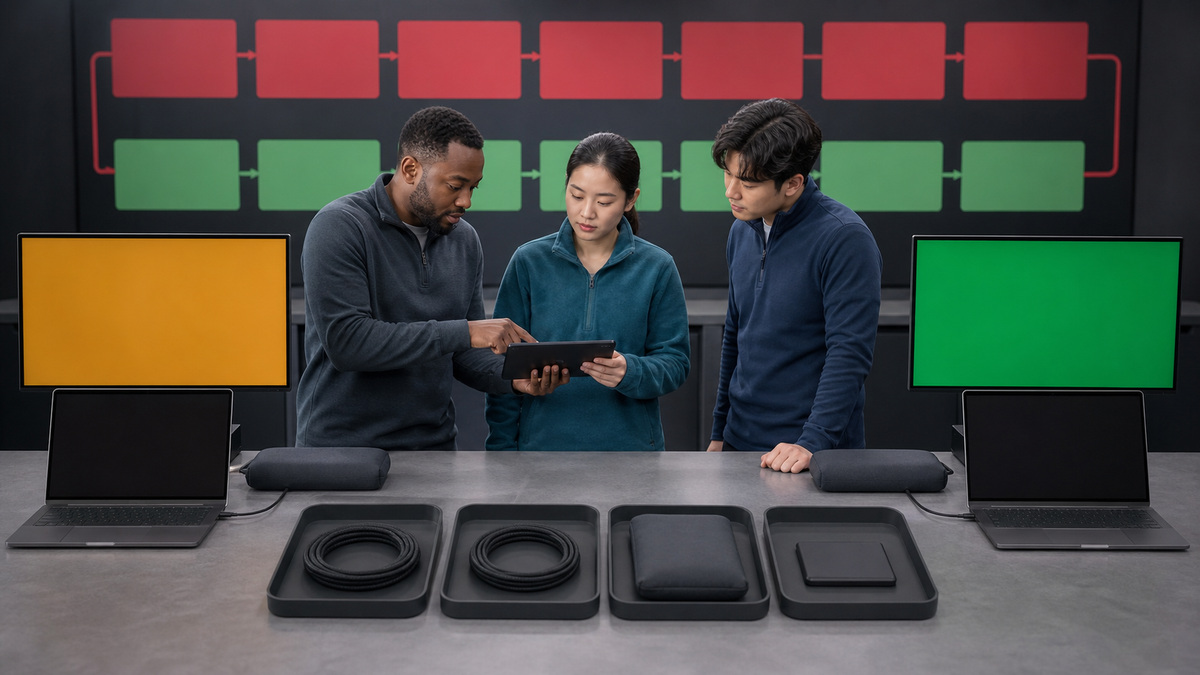
Capture the failure before changing it: affected laptop and port, dock model, cable, power adapter, monitor paths, current resolutions, display mode, OS, graphics and DisplayLink versions, firmware, peripherals, battery state, timing, and whether the symptom appears at boot, sign-in, hot-plug, sleep, wake, or load. Then reduce the setup to the approved laptop port, direct dock power, approved upstream cable, and one monitor on the intended native output. Confirm the dock indicator, monitor input, cable seating, and host DP Alt Mode support. Anker’s HDMI and DisplayPort troubleshooting guides recommend comparing another cable, monitor, compatible laptop, and hub or dock, which creates a useful cross-substitution matrix. Test the suspect monitor directly from the laptop when supported. Compare the affected laptop with a known-good desk, then the affected desk with a known-good compatible laptop. Add the second display, Ethernet, audio, camera, storage, and other devices one at a time. If a DisplayLink output fails, confirm the correct current software is running and its required permission is active before changing firmware. Power-cycle only after preserving the original state: disconnect host and peripherals, remove dock power, wait the model’s documented interval or the support-directed interval, restore power, attach the host, then add devices in the tested order. Do not repeatedly yank an active storage device or flash firmware as a first diagnostic. Track recurring incidents by exact laptop, OS, dock revision, cable batch, display model, port, firmware, and DisplayLink build. A cluster that follows one upstream cable batch or OS update should change the approved standard, not create dozens of isolated tickets. Maintain tested spares for dock, power adapter, upstream cable, HDMI or DP cable, and one monitor. On replacement, verify model and revision, inspect ports and enclosure, record the returned state, update controlled inventory, repeat acceptance, and remove the failed component from circulation.
- Preserve the failing topology and timing before changing cables, power, software, permissions, firmware, or ports.
- Reduce to qualified host port, direct power, approved upstream cable, one native monitor, and no optional peripherals.
- Cross-test one variable at a time with known-good cable, monitor, compatible laptop, dock, adapter, outlet, and display input, record where the symptom follows.
- Add displays and peripherals individually and separate native-output faults from DisplayLink software or permission faults.
- Maintain a known-good desk and spares, analyze incident clusters by exact bill of materials, and quarantine failed or ambiguous components so they cannot re-enter service.
Govern Desk Changes, User Handoffs, and Standard Renewal
A desk that passed once can drift quietly. Users exchange upstream cables, add monitor adapters, charge phones from downstream ports, move the dock to a different laptop port, install a new display, change resolution, or carry the dock home. Operating-system, graphics, DisplayLink, BIOS, and dock firmware updates can change timing and behavior without a physical alteration. Keep a privacy-safe desk record that identifies the approved bill of materials, port topology, display modes, software and firmware baselines, last acceptance, exception owner, and next review. At user handoff, inspect the dock, adapter, upstream cable, video cables, and ports, remove saved device associations where applicable, confirm software permissions belong to the new managed user context, and run the same boot, sign-in, lock, sleep, wake, hot-plug, network, audio, camera, storage, charging, and application tests. Do not let an old macOS Screen Recording approval or local DisplayLink installation persist without the new user’s and security team’s intended policy. Review incident data monthly for wake failures, display dropout, slow charging, network resets, storage disconnects, camera or audio loss, and high CPU use. Group by exact laptop, dock revision, cable lot, monitor, OS, graphics, DisplayLink build, firmware, and topology. Requalify after any clustered issue or component change. Procurement should buy the approved revision through traceable channels and sample deliveries for power adapter, upstream cable, port layout, model identity, and acceptance behavior. Near-match Anker products stay outside the standard until tested. A mature desk program can rebuild a failed station from known-good parts, prove every display path, state who owns every software and firmware update, and retire obsolete equipment without leaving mystery adapters in circulation.
- Maintain an approved desk bill of materials, topology, display modes, software and firmware baseline, acceptance date, exception owner, and review date.
- Re-run full acceptance at user handoff and remove or reapprove DisplayLink software, permissions, saved associations, and local exceptions for the intended identity context.
- Analyze incidents by exact host, dock revision, cable lot, displays, OS, graphics, DisplayLink, firmware, power, and peripheral map.
- Requalify after updates, monitor or cable changes, clustered faults, workspace moves, and new laptop models.
- Purchase traceable approved revisions, sample incoming hardware, and keep untested near-matches and mystery adapters out of the support pool.
Official product documentation and ALLMSP resources
- Anker: USB-C Hub 10-in-1 dual-display FAQ
- Anker: USB-C Hub A83C2 user guide
- Anker: Triple-display USB-C Hub FAQ
- Anker: Hub or dock DisplayPort troubleshooting
- Anker: Hub or dock HDMI troubleshooting
- Anker: A8395 monitor and DisplayLink troubleshooting
- Anker: A8394 dock firmware update instructions
- Anker: A83C3 first-time dock setup
- ALLMSP Anker Hardware Support
- ALLMSP Hardware Support
- ALLMSP IT Consulting
- ALLMSP Managed IT Services
- ALLMSP Cybersecurity Services
- Contact ALLMSP
Frequently Asked Questions
Does every laptop USB-C port support an Anker dock and monitors?
No. The host port must expose the exact functions the dock needs, such as DP Alt Mode, Thunderbolt, data, and Power Delivery. Check the laptop guide and Anker model guide, then test the selected port.
Can an Anker dock's USB-C data port drive a monitor?
Not necessarily. Anker documents data-only USB-C ports on named hubs. Use only a port explicitly documented for video, connector shape does not grant display output.
Why should the original Anker upstream cable be used first?
It establishes the vendor-tested host path. Anker warns that extensions can reduce performance, while USB-A adapters and under-specified USB-C cables can remove video, speed, or charging capability.
Why does a laptop receive less power than the dock charger's input rating?
The dock consumes part of the input and attached devices can consume more. The remaining negotiated budget reaches the laptop only if its port and upstream cable support that profile.
Why do Anker multi-monitor results differ between Windows and macOS?
Some docks rely on MST, which compatible Windows systems can use for distinct displays while macOS may mirror that path. Exact behavior depends on the named dock, host graphics, ports, OS, and resolutions.
When does an Anker dock require DisplayLink software?
Only models and outputs documented as DisplayLink-based require it. Anker’s A8395 guidance separates one native output from DisplayLink outputs and requires DisplayLink Manager plus Screen Recording permission on macOS.
Should support install any Anker dock firmware it finds?
No. Firmware is model- and revision-specific. Use the official support page, required platform, cable, power, utility, current and target versions, pilot result, and support route for the exact dock.
What is the first step for an Anker dock with no display?
Preserve the failing state, then reduce to the qualified host port, direct dock power, approved upstream cable, and one monitor on the intended native output. Confirm DP Alt Mode and monitor input before adding complexity.
How should intermittent sleep-wake failures be isolated?
Cross-test known-good laptop, dock, upstream cable, monitor, and power adapter, then add each display and peripheral separately. Track OS, graphics, DisplayLink, BIOS, and firmware versions so recurring combinations become visible.
How can ALLMSP help operate Anker dock fleets?
ALLMSP can qualify exact topologies, document native and DisplayLink paths, govern software permissions and firmware, run multi-monitor acceptance, maintain known-good spares, isolate incidents, and reconcile replacements.