


















































































































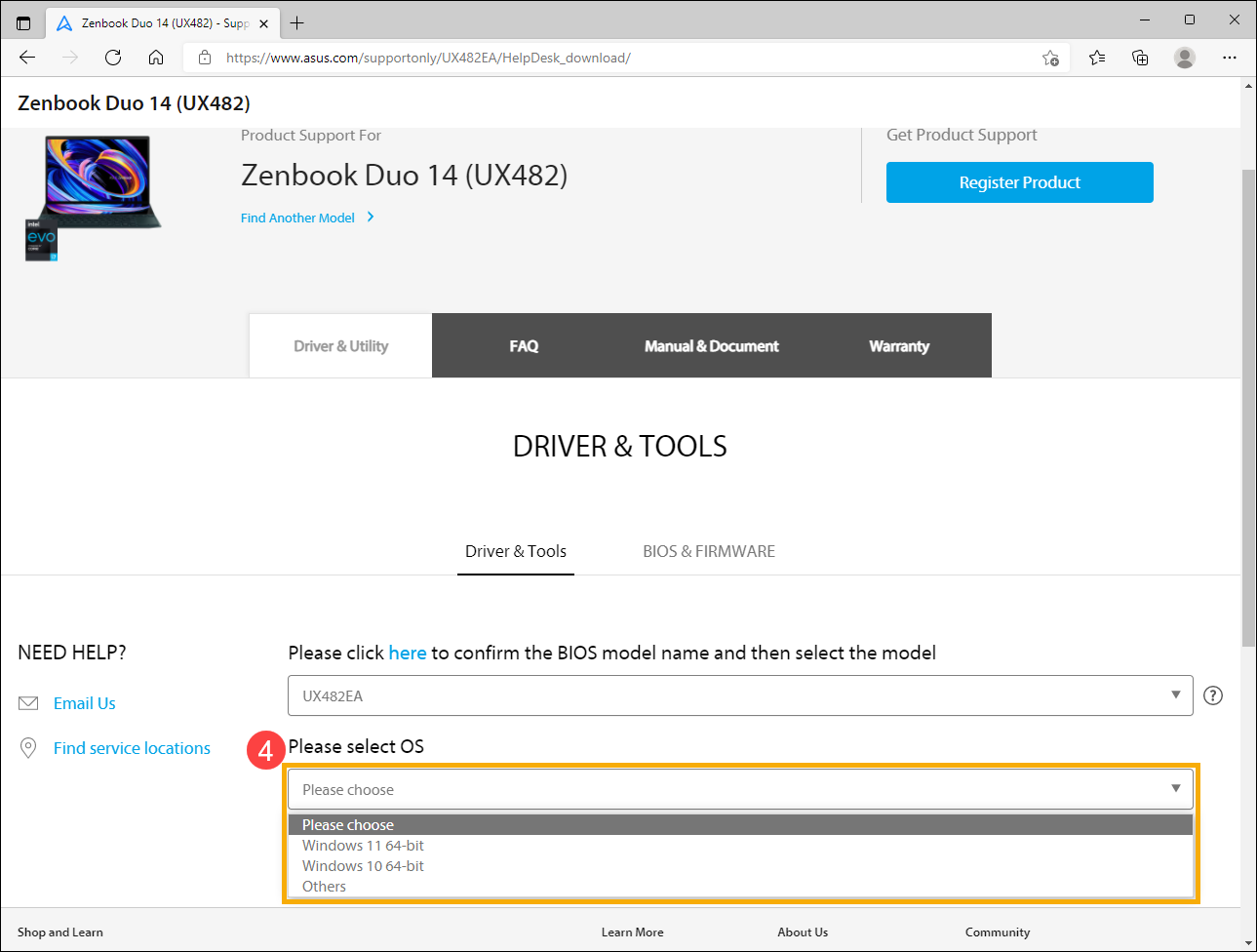
ASUS uses a UX482EA/Zenbook example to show the exact-model and operating-system selectors. Use those controls on the support page for your own ExpertBook or ExpertCenter; the pictured model and OS choices are an example, not a compatibility list for your fleet.[2] View full-size image
Deploy an ASUS ExpertBook or ExpertCenter by its exact support model, processor architecture and supported Windows version. A family name or matching chassis is not enough to select a BIOS package, driver set or recovery method. Build one approved configuration record, pilot its real dock and application workload, and promote that tested combination through deployment rings.
A reliable rollout therefore starts with identity and evidence, continues through model-matched firmware and driver staging, and ends with representative workflow testing. The target is not merely a device that reaches the desktop, it is an endpoint that can be patched, recovered, repaired, replaced, and audited without rediscovering its history.
This runbook covers Windows-oriented ASUS business PCs while preserving model-specific decisions. It does not apply consumer gaming utilities, motherboard procedures, or settings copied from another ASUS family unless the exact product support page and organizational change record authorize them.
Businesses in Lawrenceville, Suwanee, Gwinnett County, Metro Atlanta, and across Georgia can use ALLMSP to deploy ASUS ExpertBook and ExpertCenter business fleets. Our in-house team handles planning, technical work, testing, and documentation.
Key decisions at a glance
- Treat the full model identifier, configuration, serial, warranty territory, and purchase record as deployment controls, not clerical details.
- Source BIOS, firmware, utilities, and drivers from the support page for the exact model and supported operating system.
- Separate a reproducible corporate baseline from optional vendor utilities and device-specific exceptions.
- Pilot docks, displays, charging, network, audio, cameras, sleep, updates, recovery, and line-of-business workflows before broad release.
- Accept each endpoint only after management, encryption, recovery, asset, user, and support ownership records agree.
Establish Exact ASUS Identity, Ownership, and Support Scope
Open an asset record before imaging or enrollment. Capture the purchase order, reseller, received date, full ASUS model name, configured SKU, serial number in a restricted field, processor architecture, memory and storage configuration, display, wireless adapter, power adapter rating, included accessories, warranty territory and expiration, assigned location, intended user, and operational owner.
ASUS documents several ways to locate model and serial details, including packaging, the chassis, BIOS, and MyASUS, but technicians should reconcile at least two views so a swapped carton or system board does not silently poison the record. Preserve the device identifier that the management platform will use and distinguish the commercial family name from the exact support model. Photograph asset labels only into the restricted evidence store, never into a public ticket or article.
Check warranty status and service coverage before deployment so the team knows whether the unit has depot, on-site, accidental-damage, or reseller-managed service and which proof of purchase must be retained. Record whether the unit arrived new, as a replacement, from another user, or from repair because each path changes the required custody and data checks. Quarantine any device whose chassis, packaging, firmware-reported identity, or purchasing record disagrees until the variance is resolved. This intake record becomes the join key for downloads, change history, support cases, spares, and eventual retirement.[1]
Build a Model-Matched BIOS, Driver, and Utility Baseline
Create a support matrix for every exact model and operating-system combination in scope. ASUS directs administrators to MyASUS or the official product support site for verified drivers, utilities, BIOS, and manuals, and its download workflow requires selection of the model and supported operating system. Save the support-page URL, package title, published version, release date, file hash, approval state, test ring, deployment mechanism, reboot behavior, and rollback or recovery plan.
Separate platform requirements such as chipset, storage, graphics, wireless, Bluetooth, audio, camera, touchpad, hotkey, and ASUS System Control Interface components from optional user-facing tools. Do not install every utility merely because it appears in a download list. Establish which MyASUS features are permitted, whether System Update is used interactively or superseded by managed deployment, and which package authority owns each component to avoid conflicting update channels. Review release notes and applicability against the actual hardware IDs in a pilot.
For a new model, test the factory baseline first, then add approved changes in dependency-aware stages so a failed dock, network, or sleep test can be traced to a small change set. Keep the original recovery path and known-good packages accessible during staging. A green matrix names the tested versions and exceptions, it never says only that devices are current.[2][3]
Treat missing vendor controls as a model-capability decision. ASUS says an absent MyASUS System Update tab means that feature is unsupported; use the exact model’s support page rather than installing an unrelated utility. Its optional one-click website workflow requires supported hardware with ASUS System Control Interface and may require ASUS Support Agent. Neither that button nor a list of newer packages replaces your test ring and change approval. ASUS separates x86/x64 and ARM BIOS procedures, so record architecture before selecting the update route.[2][4]
An ASUS package is a candidate until its configuration passes
Fictional deployment-review examples. These are release decisions to make, not results from an ALLMSP or ASUS fleet.
| Intake finding | Decision before deployment | Acceptance evidence |
|---|---|---|
| Two units share the ExpertBook name but report different support models | Create separate model/OS rows. Do not reuse the first unit’s BIOS archive by appearance. | Chassis/firmware identity reconciled; each package’s exact model applicability and published version captured. |
| MyASUS has no System Update tab | Use the supported model’s manual download route. Do not count an absent feature as a failed deployment. | Exact model and OS selected, required packages approved, and versions verified after installation. |
| A proposed BIOS update targets an ARM unit | Follow ASUS’s ARM-specific method for that model, rather than copying x86/x64 steps. | Correct architecture/method, stable power, matching recovery key, approved change window and a completed pilot restart. |
| Dock works at idle but the notebook loses charge during meetings | Hold that dock/adapter/cable combination in the pilot. | Representative meeting/display workload, battery trend and sleep/wake transitions pass before the ring expands. |
A driver download proves availability, not compatibility with every configuration or a successful rollout. Store actual version and workflow results with the row that was tested, including any unresolved exception.[2][4]
Pilot Enrollment, Power, Docks, Displays, and Real Workflows
Select pilot units that represent every material configuration, not merely one visually typical laptop and desktop. Include processor architecture, graphics, panel resolution, camera type, wireless chipset, memory and storage size, USB-C or Thunderbolt capability, power adapter, dock, monitor count, conference equipment, smart-card or security-key use, and any specialized application. Enroll the units through the organization’s approved identity and endpoint-management path, then verify device name, ownership, compliance, encryption escrow, local administrator policy, endpoint security, certificates, VPN, Wi-Fi, printers, update rings, and remote-support tooling.
Exercise cold boot, restart, sleep, wake, lid behavior, AC removal, battery use, docking and undocking, wired and wireless network transitions, external displays, audio, camera, Bluetooth, USB devices, and charging under realistic load.
Confirm that the supplied adapter and approved dock negotiate expected power without intermittent discharge. Test line-of-business applications with representative files, meetings, peripherals, browser policies, and authentication. Run ASUS-supported diagnostics where available and record the result rather than treating an apparently healthy desktop as proof. A pilot passes only when failures are reproducible, corrected, retested, and linked to the affected model or accessory combination.[5]
Scale with Rings, Maintenance Windows, and Measurable Stop Conditions
Promote the baseline from lab to technical pilot, business pilot, and broad deployment only when each ring meets written criteria. Define sample size, observation period, acceptable failure rate, deployment duration, reboot communication, battery and AC requirements, service-desk coverage, and a stop threshold for boot, encryption, driver, dock, display, network, or application incidents.
Keep firmware actions distinct from routine application updates because BIOS changes may restart outside Windows, surface BitLocker recovery, alter device behavior, or become difficult to reverse. ASUS notes that some BIOS interfaces and update methods vary by model, so the rollout record must identify the approved method for each model rather than publishing a universal click path. Schedule remote devices only when power, network, recovery-key access, and user coordination are credible. Pause a ring when telemetry becomes ambiguous instead of interpreting incomplete reporting as success. Sample completed endpoints manually to confirm that inventory and compliance data are not merely stale. Publish a concise decision log for every promotion, hold, rollback, and model exception.[4]
Design Spares and Exceptions Around Whole Configurations
A useful spare pool matches the failed workflow, not just the diagonal screen size. Stock approved adapters, docks, display cables, storage or memory parts only where ASUS documentation and warranty terms permit field service, and complete replacement units for configurations that cannot tolerate a long depot cycle. Record firmware and driver readiness, battery condition, enrollment state, encryption state, warranty, physical location, and last validation for every spare. Keep dormant devices on a maintenance cadence so a replacement does not arrive with an expired credential chain, stale firmware, depleted battery, or unsupported operating-system build.
For deviations, record the affected model, hardware ID, accessory, symptom, evidence, approved workaround, compensating control, owner, review date, and closure test. Never let a one-off dock workaround become an undocumented fleet standard. When a repaired or replacement unit returns, reconcile its serial and system-board identity before rejoining it to an existing asset record. Measure spare consumption and incident clusters by exact configuration to improve future purchasing decisions.
Accept Each Device with Evidence and an Operational Handoff
Create a per-device acceptance record that binds the asset, user, management identity, baseline version, encryption escrow, security state, recovery path, peripheral tests, warranty, support route, and date. Confirm that the user receives the correct adapter and accessories and knows how to report a lost device, power problem, docking failure, or recovery prompt without bypassing controls.
Give the service desk the exact-model lookup method, common symptom questions, supported diagnostic route, escalation evidence checklist, spare policy, and vendor case path. Store public-facing documentation separately from restricted serial, invoice, key, and user data. Require the technician to resolve or formally accept every variance between intended and observed state. Close the deployment only when management and physical inventory agree and the endpoint survives a final restart, update check, network transition, and critical application test. The handoff should make the next incident faster because the device’s supported baseline and ownership are already known.
Operate the ASUS Fleet Through Changes and Retirement
Review model support pages, approved versions, open defects, warranty status, battery and storage health, spare readiness, and exception age on a defined cadence. Correlate incidents with model, firmware, driver, dock, display, adapter, operating-system build, and change window so the team can distinguish a fleet defect from a single damaged unit.
Before offboarding, confirm authorization, preserve business data, and choose reuse, repair, return, resale, or recycling. Keep the recovery key and required management access available until data access, retention and the approved sanitization outcome are verified; then remove organizational accounts, management and recovery associations and revoke device-bound credentials through the disposition procedure. Use an approved sanitization method that reflects storage type, encryption state, contractual requirements, and the next custody path. If a motherboard or storage device changed during service, treat trust and encryption identity as new until verified. Update purchasing and lifecycle records so retired units cannot remain as phantom managed assets. A closed device record should show who approved disposition, which controls were removed, how data was handled, and where the hardware went.
For an encrypted device, verify the key ID and actual recovery-key access before firmware work or disposition. Microsoft notes that hardware or security changes can trigger recovery and that support cannot recreate a lost key. A management record saying “escrowed” is not a substitute for checking that the authorized team can retrieve the matching key.[6]
Official product documentation and ALLMSP resources
- ALLMSP Asus Hardware Support
- ALLMSP Hardware Support
- ALLMSP IT Consulting
- ALLMSP Managed IT Services
- ALLMSP Cybersecurity Services
- Contact ALLMSP
Prepare the support handoff and the first incident with: ASUS diagnostic, recovery and RMA workflow.
When a pilot uses third-party USB-C power, validate its exact port and cable combination with: Anker charger and cable qualification.
Frequently Asked Questions
Why is the exact ASUS model more important than the family name?
ExpertBook and ExpertCenter names cover many generations and configurations. The exact model determines supported BIOS files, drivers, utilities, operating systems, ports, power requirements, diagnostics, parts, and warranty path.
Where should an MSP obtain ASUS drivers and BIOS packages?
Use MyASUS System Update only where the model supports it, or select the exact model and supported operating system on ASUS’s official support page. If System Update or one-click download is absent, use the supported manual route. Record package applicability, version, hash and approval before installation; a newer download is not a completed pilot.
Supporting documentation: [2]
Should every ASUS utility be installed on business PCs?
No. Approve utilities according to a defined operational need, exact-model support, security review, update ownership, and interaction with enterprise management. Optional consumer or gaming software does not belong in a business baseline by default.
What must an ASUS deployment pilot test?
Test enrollment, encryption, security controls, BIOS and drivers, restarts, sleep and wake, charging, approved docks, displays, wired and wireless networking, audio, camera, USB, authentication, recovery, and real business applications.
How should BIOS updates be rolled out to ASUS endpoints?
Choose the exact model and architecture-specific ASUS procedure, verify stable power and access to the matching BitLocker key, then test one controlled ring before expanding. Retain the approved recovery path and stop on boot, encryption or workflow failures. Do not promise that a BIOS downgrade will be available.
Can one spare laptop cover every ExpertBook configuration?
Usually not. A useful spare must satisfy the user’s processor architecture, ports, adapter, dock, display, authentication, application, and performance needs and must already be maintained to a deployable state.
What evidence closes an ASUS endpoint deployment?
A per-device record must tie the physical unit and management identity to the approved model/OS baseline, matching recovery-key access, security state, tested peripherals and business workflow. Retain actual version and restart results. Hold or explicitly accept unresolved exceptions instead of treating a download or inventory check-in as proof that deployment passed.
How should serial numbers and warranty documents be stored?
Keep serials, invoices, proof of purchase, warranty details, and label photos in restricted asset or evidence systems. Routine tickets and public documentation should use non-sensitive references.
What should happen when an ASUS unit returns from repair?
Reconcile the chassis, serial, system-board identity, storage, firmware, encryption trust, management registration, warranty record, and accessories before returning the unit to production or an existing asset record.
How does ALLMSP support ASUS business fleets?
ALLMSP can help inventory exact configurations, engineer deployment baselines, test peripherals and workflows, stage updates, maintain evidence and spares, troubleshoot incidents, and coordinate supported repair or replacement.