A Canon incident described as ‘the copier is broken’ can originate in a Windows port, a stale device address, Driver Information Assist Service, missing finisher options, Department ID rejection, a changed SMB credential, damp paper or color gradation that drifted from the accepted baseline. Resetting the MFP or reinstalling every package at once can move the symptom while concealing the failed layer.
Canon’s current FAQ for connecting imageRUNNER ADVANCE DX drivers to the device centers the port on the machine’s IP address. Canon’s driver FAQ separately lists conditions that block device information retrieval and authentication, including absent Driver Information Assist Service on a print server and unsupported connection choices. Its device manuals provide model-specific print-quality, cleaning and gradation procedures rather than one universal maintenance sequence.
This runbook reduces the environment to one reproducible transaction and restores complexity carefully. It preserves queued and stored documents, uses non-sensitive print and scan samples, and distinguishes configuration from mechanical service so a technician can escalate with exact evidence rather than a vague report that color or scanning sometimes fails.
When an organization in Lawrenceville, Suwanee, Gwinnett County, Metro Atlanta, or elsewhere in Georgia needs to troubleshoot Canon imageRUNNER printing, scanning, paper, and color, ALLMSP handles the work in house from initial review through validation and ongoing support.
Key decisions at a glance
- Capture the exact Canon model, firmware, controller, installed options, Remote UI state, queue, driver, port, identity and recent change before restarting services.
- Use an internal print or local copy to separate engine and paper-path faults from client rendering, port, driver and authentication layers.
- Check Canon device information retrieval and manually configured options when trays, finishing or Department ID functions disappear.
- Trace scan-to-SMB from feeder mechanics through DNS, identity, share, folder, permissions and file properties using synthetic pages.
- Apply Canon’s model-specific cleaning or gradation procedures only after media, supply and mechanical evidence points to the device.
Capture Canon Status, Installed Options, and the Exact Failed Transaction
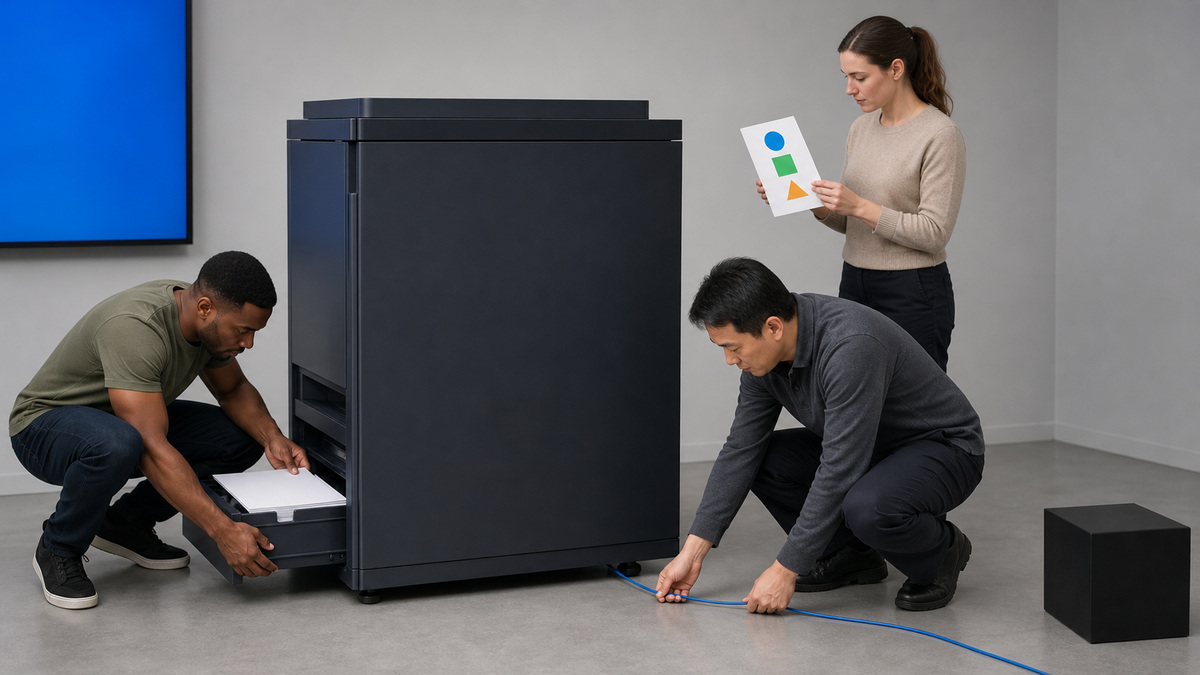
Record the full imageRUNNER model, firmware, controller, feeder, cassettes, deck and finisher, network method, address or name, queue, Canon driver and version, port, client operating system, application, Department ID or user-auth path, paper and supply state. From Remote UI, capture status, errors, jobs and logs without exposing document names, addresses, users or stored-file content.
Determine what still works: internal configuration print, local copy, simple client print, secure release, feeder scan, platen scan, email scan or SMB scan. Identify affected users, queues, subnets, applications, page sizes, trays and finishing functions. Note the onset, frequency, last-known-good state and recent firmware, driver, certificate, identity, file-server or network changes.
Write one reproducible symptom with expected result. Preserve confidential held jobs, Mail Box data and scan documents, cancel only authorized test jobs. Do not initialize settings, clear all queues or erase stored content at the beginning. A local copy that succeeds narrows the problem but does not prove the print server, driver, network, authentication or destination.
- Capture exact hardware options, firmware, driver, port, identity and workflow state.
- Use Remote UI evidence without disclosing document or user details.
- Separate internal print, local copy, client print, release and scan results.
- Record affected scope, onset, frequency and recent infrastructure changes.
- Protect held documents and avoid destructive initialization before diagnosis.
Prove the Engine, Paper Path, Queue, and Network Port

At the device, confirm Ready state, closed covers, seated cassettes, correct paper size and type, output capacity and no jam or service condition. Print an internal report or make a local copy with a synthetic page. If that fails, keep Windows drivers out of the investigation until the Canon engine, supply, paper or finisher condition is understood.
On the print server or client, verify the intended queue, pause and offline state, owned stuck jobs, Canon driver, port and current device address. Canon’s current network FAQ directs administrators to connect the driver port to the machine’s IP address. Compare DNS, DHCP and queue data with Remote UI and authoritative network records. A stale Standard TCP/IP port may reach an old device or nothing at all.
Submit a tiny shape-only document from a simple application through one known-good queue. If it fails, change only one of client, queue, port, driver or network path. Test reachability and the required print path separately, opening Remote UI proves browser management, not print protocol or authentication. Remove temporary bypass queues after diagnosis.
- Prove Ready state, paper, output and an internal print or local copy first.
- Check the intended queue, stuck jobs, driver and current destination port.
- Reconcile address and DNS information with Remote UI and network records.
- Use one simple synthetic document through a known-good managed queue.
- Make one client, queue, port, driver or network substitution at a time.
Restore Canon Device Information and Authentication Functions
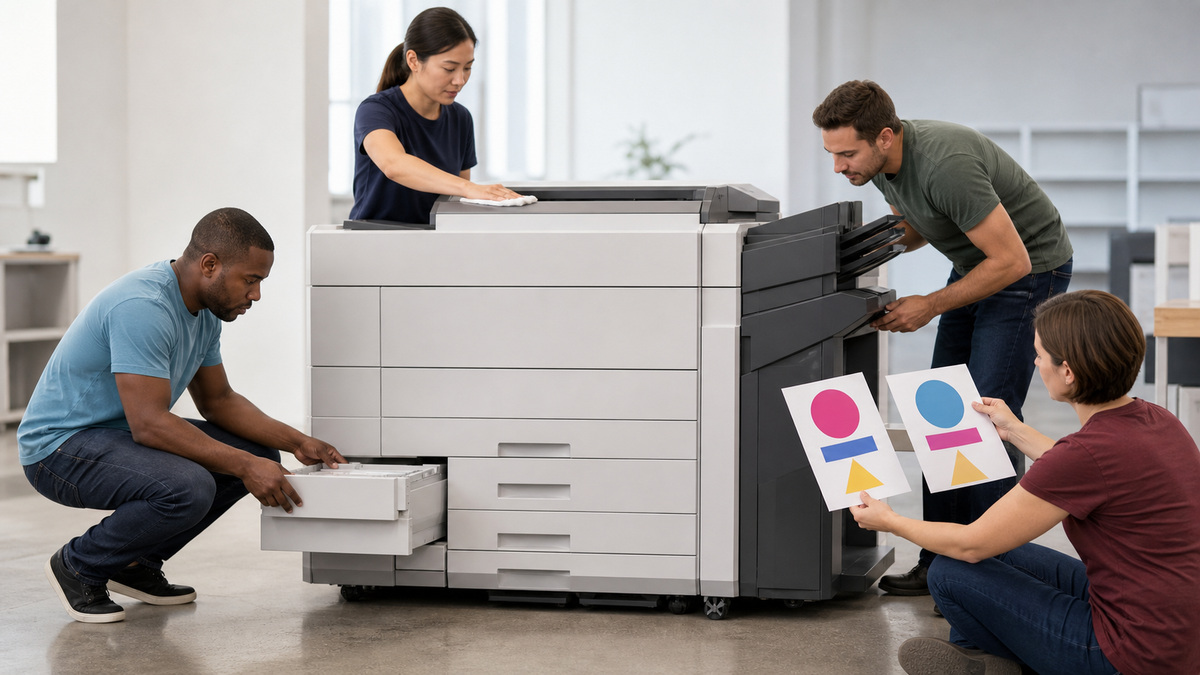
Open the Canon driver’s Device Settings and attempt Get Device Status from the approved administrative context. Compare retrieved cassettes, deck, finisher and authentication capabilities with the physical record. If options are missing, determine whether retrieval failed or the queue was built with the wrong package or address. Do not enable finishing functions that are not physically installed.
Canon documents several retrieval limitations. In a shared print-server environment, Canon Driver Information Assist Service may need to be installed on the server. USB, direct SMB, WSD, printer pooling and other connection designs can prevent retrieval or Department ID and authentication functions in specific circumstances. Device and share names that exceed documented limits can also contribute. Verify the actual design before reinstalling.
If retrieval cannot be used, set verified options manually and record the reason. For Department ID or user authentication, test a known valid identity, an invalid one and the unknown-job policy. Separate a rejected credential from a driver communication failure. After correction, confirm page accounting, secure release and every option that support staff expect the queue to expose.
- Compare Get Device Status results with the actual feeder, trays and finisher.
- Verify Driver Information Assist Service on supported shared-server designs.
- Check whether USB, SMB, WSD or pooling limits retrieval or authentication.
- Set options manually only from a confirmed physical configuration.
- Test valid, invalid and unknown identity cases after communication is restored.
Trace Canon Scan-to-SMB from the Feeder to the Received File
Prove the platen and automatic feeder separately with synthetic pages. Test simplex, duplex, skew, multi-feed detection if equipped and a local or simple destination path. A feeder-only line or skew points toward guides, glass or feed components, while a platen success does not validate file-server credentials.
Open the registered Canon Address Book destination and verify SMB host, share, folder path, domain or workgroup syntax, service identity and permissions. Check DNS, time, account lockout, password rotation, server policy, storage capacity and recent folder moves. Test the service identity from an authorized workstation without pasting its password into the ticket.
Reduce the route to one page, moderate resolution, standard PDF and a short file name. Observe Canon’s send result and the server’s authentication and file evidence. Confirm arrival, ownership, time, naming and readability from the recipient’s role. Restore OCR, multi-page, duplex and production naming only after the basic route works.
- Test platen and feeder mechanics independently with synthetic pages.
- Verify Canon Address Book host, share, folder, identity and permission fields.
- Check DNS, time, lockout, password rotation, server policy and free space.
- Start with one moderate PDF and a short non-sensitive name.
- Validate the received file before restoring OCR and complex scan settings.
Diagnose Media, Finishing, Streaks, and Color Gradation
For feeding and finishing faults, record cassette, bypass or deck, paper size and type, guides, moisture or curl, duplex state, finisher path and exact jam location. Load a known-good supported paper sample and remove scraps according to the model guide. Verify that the driver and device agree on paper attributes, a type mismatch can hold a job without indicating a failed engine.
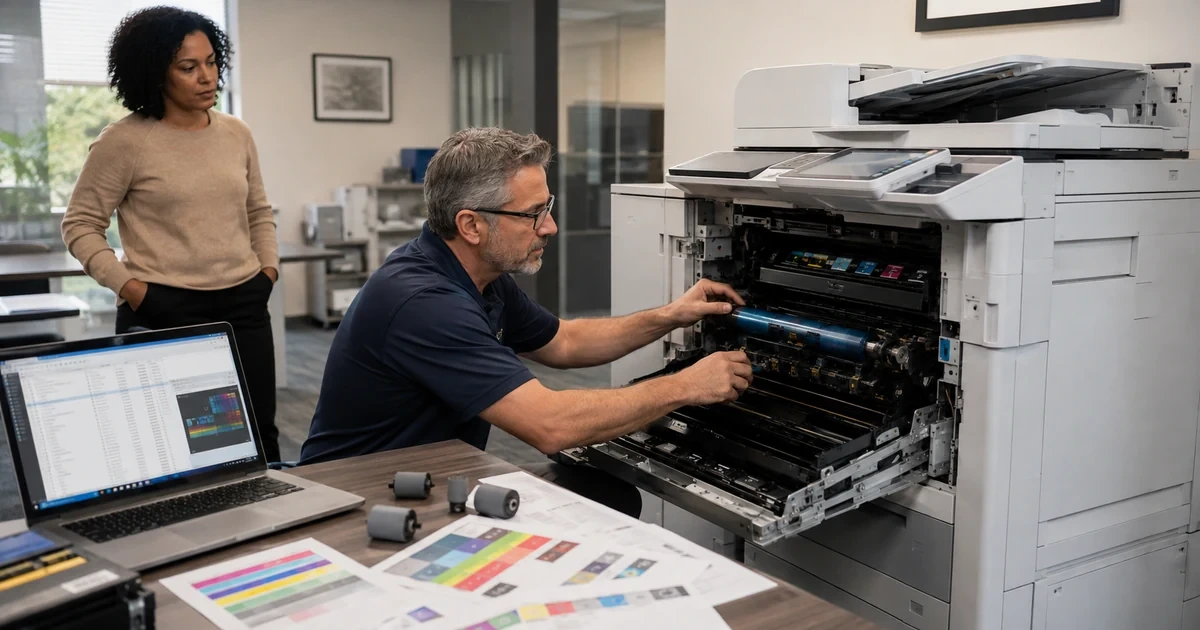
For streaks, faint areas, smudges or skew, compare an internal print, local copy and client print. Inspect the platen and the narrow feeder scan glass for contamination using Canon’s approved cleaning method. Use model-specific drum, wire, fixing or feeder cleaning only where the current guide directs it. Do not touch imaging surfaces or improvise solvents.
For color drift, first confirm correct supplies, sufficient toner, supported paper and stable environmental conditions. Canon’s imageRUNNER manuals distinguish Quick, Full, Visual and Automatic gradation procedures by model. Run only the supported method, with the specified test paper and platen sequence, then compare a controlled output. Calibration cannot repair a damaged component or an application color-management mismatch.
- Match paper source, size, type, guides and finishing path to the job.
- Compare internal, copy and client outputs to locate the imaging layer.
- Clean feeder glass, drum, wire or fixing paths only by model instructions.
- Verify supplies, paper and environment before adjusting color.
- Use the exact model’s Quick, Full, Visual or Automatic gradation method.
Validate the Original Workflow and Escalate with Canon Evidence
Return to the original user, queue, identity, document class, paper, finishing and scan destination. Test repeated pages, duplex, color, secure release, sleep and wake, network interruption, print-server restart, feeder scan and the prior failure interval. A single test page does not close an intermittent high-volume, heat, network or authentication problem.
Record the proven root cause, conditions, disproved layers, exact change, versions and before-and-after results. For Canon or servicing-dealer escalation, collect model and protected serial context, firmware, controller, options, Remote UI error, job and send results, driver, port, operating system, authentication method, reproduction steps, timestamps and safe samples. Redact credentials, network reports and customer documents.
Correct the fleet record when the cause can recur: update a port, package Driver Information Assist Service, fix retrieved options, rotate a scan identity, repair Address Book data, replace unsuitable paper or schedule model-specific cleaning or gradation. Quarantine unreliable components and preserve evidence. ALLMSP can coordinate device, print server, identity, network and file-server owners until the business transaction remains stable.
- Retest the original Canon print or scan transaction through production controls.
- Observe across volume, sleep, restart, network recovery and prior failure timing.
- Document root cause, excluded layers, exact fix and measured result.
- Escalate with model, option, driver, port, job and safe sample evidence.
- Update the fleet baseline and quarantine intermittent hardware or accessories.
Official product documentation and ALLMSP resources
- Canon: Connecting the Printer Driver to the Device Network
- Canon: Device Information Retrieval or Authentication Is Unavailable
- Canon: Registering a File Server Folder in the Address Book
- Canon: Problems with Printing Results
- Canon: Adjusting Gradation
- Canon: Managing Status and Logs with Remote UI
- ALLMSP Canon Hardware Support
- ALLMSP Hardware Support
- ALLMSP IT Consulting
- ALLMSP Managed IT Services
- ALLMSP Cybersecurity Services
- Contact ALLMSP
Frequently Asked Questions
What should be captured before troubleshooting Canon imageRUNNER?
Capture the exact model, firmware, controller, options, Remote UI state, queue, Canon driver, port, identity, paper, supplies, affected scope and recent changes.
What does a successful local copy prove on a Canon MFP?
It proves several engine, scanner and paper-path functions, but not the client driver, print queue, network port, Department ID or SMB destination.
Why might a Canon queue point to the wrong device?
A stale Standard TCP/IP port, changed address, DNS error or copied queue can send jobs to an old address or a different device than Remote UI shows.
Why can Canon trays or finishing options disappear?
Device information retrieval may fail, the wrong package may be installed, Driver Information Assist Service may be absent, or options may be configured incorrectly.
Which connections can limit Canon device information retrieval?
Canon documents limitations for specific USB, direct SMB, WSD, pooling and server arrangements, confirm the current driver guide for the actual design.
What should be checked when Canon scan to SMB fails?
Check feeder or platen, Address Book host, share, path, service identity, permissions, DNS, time, lockout, password rotation, policy, space, format and size.
How should Canon paper and finisher faults be isolated?
Record source, size, type, guides, curl, duplex, driver attributes, finishing path and jam location, then retest with supported known-good paper.
When should Canon gradation adjustment be used?
Use the exact model’s supported Quick, Full, Visual or Automatic process after supplies, paper, environment and other image-quality causes are checked.
What evidence helps a Canon escalation?
Provide model, firmware, controller, options, Remote UI error and job results, driver, port, identity path, reproduction, timing and non-sensitive samples.
How can ALLMSP troubleshoot Canon imageRUNNER systems?
ALLMSP can isolate engine, Remote UI, queue, port, driver retrieval, identity, SMB scan, paper, finishing and color layers and update the fleet standard.