





























































































































































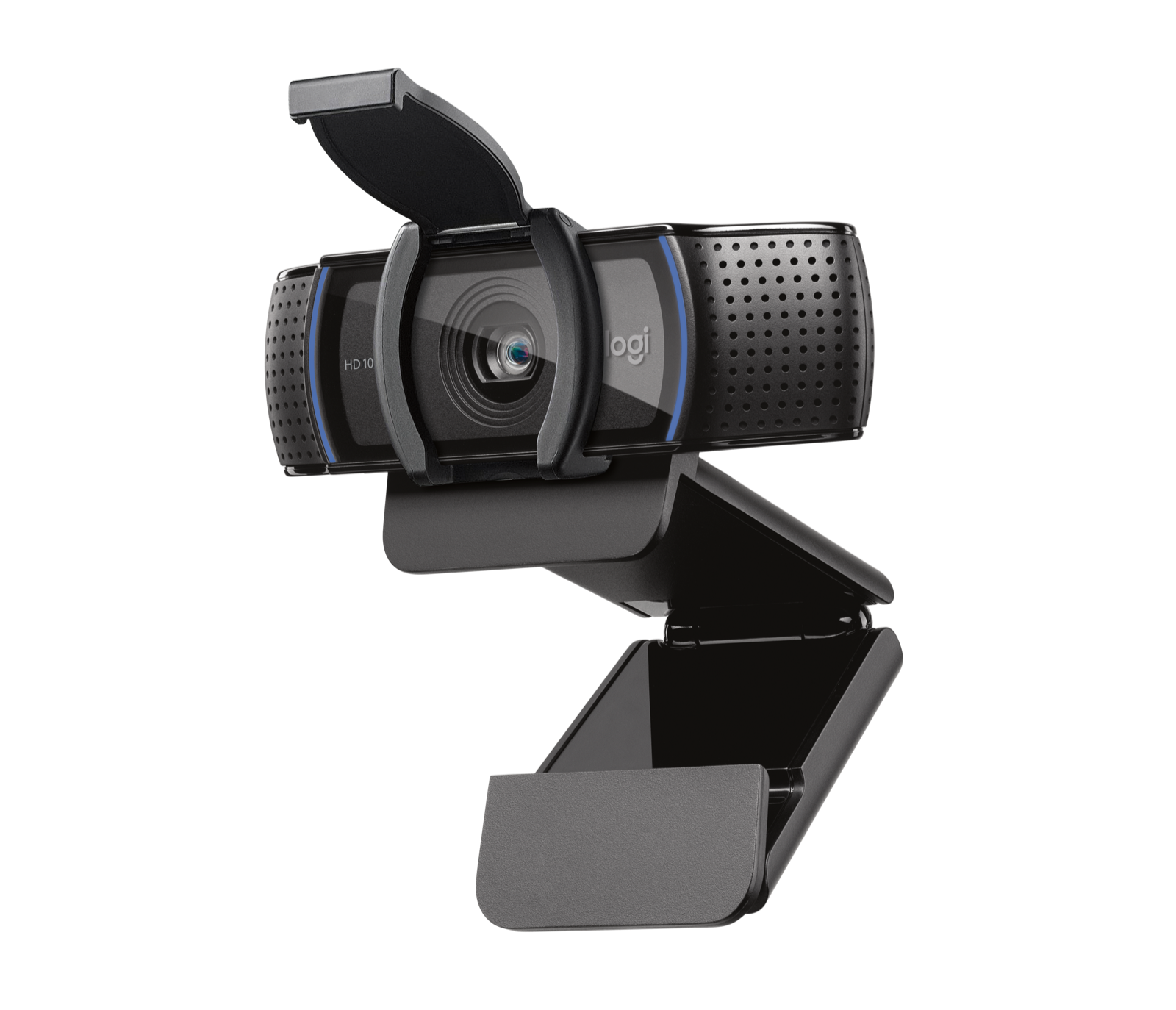
Logitech’s C920s manufacturer image shows the privacy shutter raised above the lens. Check that your camera’s lens is uncovered before changing drivers. This C920s example does not mean every C920-family model has a shutter.[1]
When a Logitech webcam is missing or shows black video, first separate not detected from detected but unable to show the scene. Check the physical connection and lens, confirm the intended camera is present, then compare a local preview with the affected meeting app. This order gives each change a test instead of treating every symptom as a driver problem.[1][2][4]
The physical example here is the C920s, which has a privacy shutter. An original C920, C920e and another model can have different hardware; read the label instead of assuming the whole family has the same cover. The Windows instructions use Windows 11. On Mac, current System Settings labels may differ from an older support screenshot.[1][3]
Classify the symptom before changing the computer
| Observation | Controlled next check | Useful conclusion |
|---|---|---|
| Camera absent from device lists | Reconnect outside an update; compare a direct computer USB port | An absent endpoint needs a connection/detection investigation before app image tuning. |
| Camera listed, preview completely black | Inspect the actual lens/shutter and select that camera in a local preview | Being listed does not establish that the lens can see the room. |
| Local preview works, one meeting app fails | Close the preview; check the meeting app camera selection and access | The next comparison is app-specific, rather than immediate hardware replacement. |
| Works directly, fails through a dock | Compare the same camera and computer with only the USB path changed | The dock, adapter or shared USB path needs investigation; the comparison does not name a failed component. |
| Video works, microphone silent | Check the selected microphone independently | A webcam image is not a microphone test. |
Check the lens and USB path without disturbing an update
On a C920s, open the privacy shutter and confirm that the lens is unobstructed. Position the camera securely and provide usable room light. A cover, dark room or the wrong selected camera can produce a black or misleading image while USB detection still succeeds. A C920s shutter blocks the lens; it is not evidence that microphone capture has stopped.[1]
If no firmware update is running, reseat the webcam connection and try a known working direct port on the computer. Remove the dock, hub or extender for this comparison when practical. Logitech specifically recommends a direct connection and a second-computer test for detection issues. Keep the camera and test app constant so the USB path is the variable.[4]
If the device is absent on two approved computers through known working direct ports, record those results and contact support. This supports further hardware investigation; it does not prove whether the cable, connector or internal camera is the cause. Do not repeatedly install unrelated webcam packages to compensate for an endpoint that never appears.[4]
Check access in the operating system, then the app
In Windows 11, review Settings > Privacy & security > Camera. Check device camera access, the relevant app permission and desktop-app access as applicable. Desktop apps are not controlled like individual Microsoft Store app toggles. If a setting is greyed out or managed, give the administrator the failed test and message rather than trying to bypass the policy.[2]
On Mac, open System Settings > Privacy & Security > Camera and review the application that needs access. The list contains apps that have requested access. A browser meeting also needs the appropriate website permission. Reopen the affected app after an authorized permission change if requested.[3]
Close other camera-using apps for a clean comparison. In Windows, test the intended device in Camera. On Mac, use a suitable local camera app and explicitly select the external device when a selection is offered. Then close that preview before opening the meeting app. A local pass narrows the problem; only a receiver check confirms the meeting video path.[2][3]
Select the physical webcam rather than a plausible-looking default
In the affected meeting app, choose the actual Logitech webcam rather than the laptop camera or a virtual camera. If you use a browser, check both the site camera choice and the browser permission. Turn video on, then ask another participant to describe a harmless visible test object. That checks what is sent, not just the self-view.
If Windows detects the camera but a driver warning persists, record the Device Manager status and use the current Microsoft troubleshooting path or your administrator’s approved driver process. Save the error before changing a driver. Do not disable security software or install an unverified driver bundle as a routine first step.[2][4]
Use a comparison record to decide what to change next
The following is a fictional diagnostic example, not a client result. It shows why one passing preview should change the next test rather than end the investigation.
| Test and unchanged conditions | Recorded result | Next decision |
|---|---|---|
| C920s, same Windows laptop, direct USB, shutter open | Camera app shows the test card | Basic image capture works in this comparison. |
| Close Camera; same USB path, browser meeting | Website camera permission denied | Review that site’s permission under the approved browser policy. |
| After authorized site change; same camera selected | Remote participant reads the test-card value | Record the successful app path; do not credit an unperformed driver repair. |
| Return to the original dock after the browser test | Result still needs to be measured | Test the dock path separately before calling the original setup restored. |
Know when Tune is the next step
Current Logitech Tune documentation lists HD Pro Webcam C920 and C920s HD Pro, but controls vary by device. A supported listing does not mean every model has the same framing controls or an available firmware update. Use the Logi Tune detection and change guide when the OS can see the camera but Tune or a supported setting needs attention.[5]
In Windows 11, camera defaults can be stored per device and user, but an app may apply different adjustments. If the picture changes only when the meeting opens, compare that app’s framing settings rather than assuming the hardware changed.[6]
For a shared conference-room bar instead of a personal USB webcam, use the Rally Bar USB and BYOD checks. If video works and sound does not, follow the Zoom microphone and speaker test or the Jabra physical-mute and audio-path guide for the equipment actually in use. ALLMSP’s Logitech support page provides the related support context.
Frequently asked questions
Why is my Logitech webcam listed but the picture is black?
Does every C920 webcam have a privacy shutter?
No. The C920s product example has one. Read the exact model label and inspect its hardware; do not apply the C920s cover instructions to every C920-family camera.
[1]What should I try when the webcam works through direct USB but not my dock?
Repeat with the same computer, camera and app while changing only the connection path. Record the dock, adapter and port. A direct-pass/dock-fail comparison narrows the path without identifying a specific failed part.
[4]Where do I allow camera access in Windows 11?
Review Settings, Privacy & security, Camera. Check device access, the relevant app and desktop-app access as applicable. Ask the administrator about greyed-out or managed settings.
[2]Why is my meeting app missing from the Windows camera toggle list?
Many meeting apps and browsers are desktop apps rather than Microsoft Store apps. Check desktop-app camera access and the app’s own selection or browser website permission.
[2]How do I check camera access on a Mac?
Open System Settings, Privacy & Security, Camera and review the requesting app. Browser meetings can also require website permission.
[3]Does a working webcam preview prove my client can see me?
No. Close the local preview, select the intended webcam in the actual meeting, turn video on and ask a recipient to identify a harmless visible test object.
Does closing the C920s shutter mute its microphones?
Do not assume that it does. The shutter covers the lens; choose and mute the microphone separately in the actual audio path.
[1]Should I install every Logitech camera utility to fix detection?
What information should I send support if two computers cannot detect it?
Send the exact model, direct USB ports tested, approved computers and OS versions, device-list results, error text and whether any update was active. Avoid calling the camera defective solely from one failed app.
[4]Sources
- Logitech: C920s product and physical privacy shutter ↩
- Microsoft: camera troubleshooting in Windows ↩
- Apple: control camera access on Mac ↩
- Logitech Support: diagnose a product not detected by Tune ↩
- Logitech Tune Admin Guides: supported devices and device-dependent capabilities ↩
- Microsoft: Windows 11 camera settings and app overrides ↩


