





























































































































































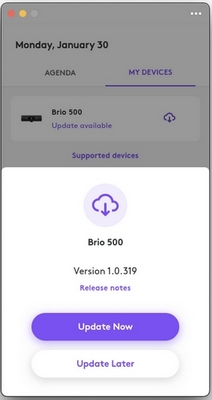
Logitech’s older Tune example offers Brio 500 firmware 1.0.319. It illustrates a device-specific Update Now prompt, not a recommended current version or an update for every webcam. Check your exact model and offered version; do not unplug the camera during an update.[5]
If a webcam works in a meeting app but is absent from Logi Tune, treat that as a different result from “the computer cannot detect a webcam.” Confirm the exact model and current Tune requirements, then investigate the device connection and application state. Tune support, available controls and firmware eligibility are separate questions.[1][2][3]
This guide uses personal desktop devices. The firmware example is specifically Brio 500/501; it is not a universal C920 or all-Logitech update recipe. Rally Bar room systems have a separate management path. Keep organizational deployment and update controls in place.[5]
Resolve the three compatibility questions first
| Question | What to record | What it does not establish |
|---|---|---|
| Is the exact model supported in Tune Desktop? | Model label and current Logitech supported-device entry | Similar model names do not establish identical features. |
| Does the computer meet the current app requirements? | OS release, CPU architecture and installed Tune version | A webcam working in an app does not prove the Tune installer supports that OS. |
| Which controls are offered for this device? | Visible controls and current values after selecting the correct device | A product-wide feature description does not promise every setting on every webcam. |
| Is a device firmware update actually offered and documented? | Device identity, current firmware, offered version and model-specific instructions | A supported device list is not a firmware release list. |
Use the current supported-device list, rather than an old screenshot or a similarly named model. Logitech currently lists C920 and C920s in Tune Desktop, while noting that customization varies by device. The current Tune product page also publishes desktop OS and architecture requirements. Check both before spending time on a reinstall.[1][2]
Determine whether the missing layer is USB or Tune
First look for the hardware in the operating system and perform a local preview outside a meeting. If it is absent there too, pause Tune customization and resolve the webcam USB and black-video paths. A stable direct USB comparison and, when authorized, a second computer are more useful than changing every image slider.[3]
If the OS and a meeting app can use the camera, record that pass before troubleshooting Tune. Close competing preview apps, confirm that the installed Tune build is current and approved for the computer, then reopen Tune and select the intended device. If the supported device remains absent, save the app version, exact model, connection path and comparison results for support. Do not delete organization-managed configuration to make a device appear.[1][3][4]
If access is uncertain, use the webcam guide’s Windows and Mac permission walkthrough, then return to the same Tune detection test. Record whether the computer sees the device before changing its settings.
Change one available setting and test the actual receiving app
Choose a representative task before adjusting image settings: keep a face in frame, read a demonstration label or show a physical document without exposing private information. Record the starting state. Change only an offered control, such as zoom or an image adjustment, then compare the same scene. Do not promise a C920s an adjustable optical field of view simply because another Logitech model offers one.[1][2]
Close Tune’s preview when needed and test the intended meeting app. Windows documents that apps may apply different settings while using a camera and that not every app uses the OS defaults. If framing changes only in the meeting app, examine its framing, crop or background features before repeatedly resetting Tune. Check the recipient’s view, because self-view can be mirrored or framed differently.[6]
The table below is a proposed comparison record. Its observations are illustrative, not measurements from a customer installation.
| Step | Illustrative observation | Decision |
|---|---|---|
| Record model, Tune build and starting frame | The subject and test label fit the local preview | Keep a reference before changing software. |
| Adjust one supported zoom control | The local preview shows a tighter frame | The control changed this preview; a meeting test is still required. |
| Start the approved meeting app | Its automatic framing changes the crop | Inspect that app’s setting; do not infer Tune failed to save. |
| Repeat after one authorized app change | Recipient confirms the intended frame | Record both app and Tune settings, then test another launch. |
Use a model-specific firmware procedure, outside a live meeting
Logitech’s Brio 500/501 Teams support procedure says to close Teams before updating. If Teams was running with the webcam connected, the procedure calls for reconnecting it before starting the update. Tune then offers the device update. Once updating has begun, do not use the webcam or unplug it; wait for the procedure to finish.[5]
The official screenshot is an older Brio 500 example showing Version 1.0.319 and Update Now. That number is not a recommended current target. Identify your actual model and offered update; follow its current instructions. A Tune application update and firmware stored on a webcam are different changes, and the existence of one does not establish that the other is required.[5]
Schedule the change when the webcam is not needed, keep the computer powered and connected, and record the before/after firmware where the device exposes it. If an update fails, capture the exact message and connection state. Do not interrupt an active update, repeat unknown recovery/reset steps or install firmware intended for a similar-looking model.
Verify the original task and preserve an escalation record
After the application or device reports completion, reopen the device view, verify the reported version where available and test the original camera task in the intended app. Include a recipient check of picture and a separate microphone/speaker check. An Update complete message is not the same result as a successful client call.
Provide support with the model, OS/architecture, Tune version, USB or dock path, whether the OS sees the device, before/after values and the failed test. Keep a small change record for another technician: what changed, when, who approved it and whether the original symptom returned after reconnecting or restarting the app.
For shared rooms, follow the Rally Bar USB/BYOD guide instead of applying personal-webcam instructions to a room appliance. If a separately selected Jabra headset is the remaining problem, use the headset input and physical-mute checks; Logitech Tune does not configure Jabra Direct devices.
Frequently asked questions
Why does my webcam work in Zoom but not appear in Logi Tune?
Does current Tune support the original C920 and C920s?
The current Tune Desktop supported-device list names HD Pro Webcam C920 and C920s HD Pro. Available customization still varies by model; the listing does not promise every control or a firmware update.
[1]Does a device shown in Tune always have a firmware update?
Can a webcam work on an OS that the current Tune app does not support?
Basic camera use and installation of the current Tune app have separate requirements. Check both the webcam’s documentation and Tune’s current desktop OS and architecture requirements.
[2]Why does my frame change when I open the meeting app?
The meeting app may apply its own crop, framing or camera settings. Compare one change at a time and ask a recipient to confirm the result; a changed meeting view alone does not show that Tune failed to save.
[6]Can I apply the Brio 500 firmware instructions to every C920-family webcam?
No. The cited procedure is for Brio 500/501 with Teams. Follow the current instructions and offered firmware for your exact model rather than borrowing a similar device’s update package.
[5]Should I unplug the webcam while its firmware update is running?
No. The Brio 500/501 procedure says not to use or unplug the webcam during the update. Its reconnect step occurs before the update starts, after closing Teams when the stated condition applies.
[5]Is the Version 1.0.319 in the screenshot the version I should install?
No. It is the value in Logitech’s older illustrative Brio 500 prompt. Use the actual update offered for your supported device and record the version reported after completion.
[5]Does an Update complete message prove the meeting problem is fixed?
No. Confirm the reported device version where available, then repeat the original app test and a recipient picture check. Test microphone and speaker paths separately.
What should I collect before reporting a Tune detection problem?
Sources
- Logitech Tune Admin Guides: supported devices and device-dependent capabilities ↩
- Logitech: current Tune desktop requirements and device controls ↩
- Logitech Support: diagnose a product not detected by Tune ↩
- Logitech Tune Admin Guides: install and distribute Tune ↩
- Logitech Support: Brio 500/501 Teams firmware procedure and update prompt ↩
- Microsoft: Windows 11 camera settings and app overrides ↩


