





























































































































































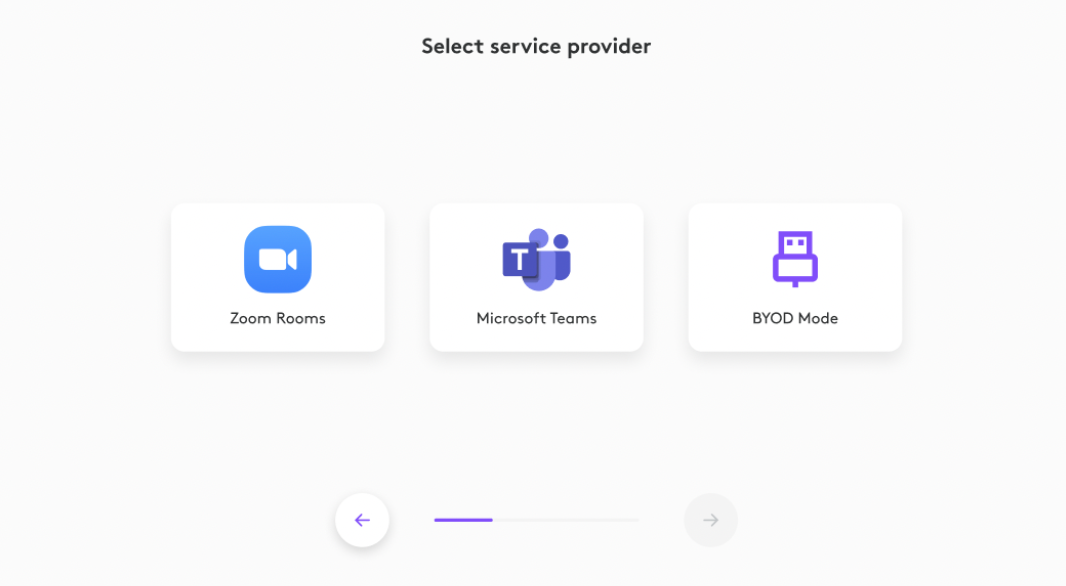
Logitech’s CollabOS example shows Zoom Rooms, Microsoft Teams and BYOD Mode choices before one is selected. Identify the room’s intended mode with its owner; do not reset a managed provider to troubleshoot a guest laptop. This setup screen does not prove camera or audio operation.[2]
When a laptop shows a meeting on the room display but cannot use Rally Bar’s camera or microphones, separate the display path from the USB peripheral path. First identify which computer owns the call: the room appliance, a dedicated room PC or the guest laptop. A picture on the display alone does not establish a working USB camera or audio connection.[1][2][3]
This guide uses Rally Bar. Rally Bar Mini, Huddle, MeetUp 2 and accessories have their own compatibility details. Check the exact room inventory and current wiring guide. Do not reset the service provider, remove a room account or change a managed appliance into a permanent BYOD room simply to troubleshoot a guest meeting.[2][3]
Identify the intended meeting owner
| Room arrangement | Where the meeting runs | First useful check |
|---|---|---|
| Appliance room | The room service-provider app runs on the bar | Check the room’s approved guest-laptop/BYOD capability before connecting. |
| Dedicated room PC with USB peripherals | The room PC runs the meeting app | Confirm the bar’s USB path reaches that PC rather than assuming a guest HDMI cable transfers ownership. |
| Guest laptop in an approved BYOD arrangement | The laptop runs its own meeting app | Check that the laptop detects the bar and explicitly selects its camera, mic and speaker. |
| Laptop content displayed while room joins separately | The room and laptop may be doing different jobs | Decide which one provides meeting audio to avoid competing in-room microphones and speakers. |
Ask the room owner how guest use is intended to work and note the current provider, approved cables and return procedure. Logitech’s CollabOS guide distinguishes BYOD configured as the service provider from provider-managed room settings. A service-provider selection screen is setup evidence, not proof that a laptop has joined a call.[2]
Check USB data and the display as separate paths
Use the exact room configuration in the current wiring guide. The CollabOS guide lists USB plus HDMI, Swytch and Extend arrangements. For Rally Bar, do not infer that an arbitrary USB-C lead carries the laptop display as well as camera/audio: Logitech’s technical FAQ says the Rally Bar family does not support DisplayPort Alt Mode for BYOD. The Alt Mode cable exception named in the guide is MeetUp 2, not Rally Bar.[2][3][4]
Identify the laptop’s USB data connection to the room system and the HDMI/display connection separately. A charge-only or incorrect cable, an unapproved extender or a dock can obscure which path failed. Outside any update, compare the approved direct connection where practical. Do not rearrange a production room’s fixed wiring without the owner’s approval.
If HDMI displays the laptop but no Rally Bar endpoint appears on the laptop, investigate the USB data path. If the bar appears as camera/audio but the display is blank, investigate the display selection and approved HDMI path. These observations guide a comparison; neither proves a defective bar.[2][3]
Select camera, microphone and speaker on the laptop
In the laptop meeting app, explicitly select the intended room camera, microphone and speaker. A laptop webcam, dock audio device or personal headset may remain selected even after the bar connects. Test each direction separately: local camera preview, microphone input and speaker playback. Check the current OS permission for the meeting app if a listed camera cannot be opened.[6][7]
Use one intended in-room audio system for the test. If a second laptop joins for observation, keep its microphone and speakers muted or use an appropriate isolated listening setup to avoid creating a feedback loop. Confirm with a remote participant that they hear a test sentence and see the intended room view, then confirm the room can hear their reply.
If Zoom is the laptop app, the Zoom microphone/speaker test provides a focused next step. If only the shared document is wrong, use the screen-sharing permission and recipient checks; a working room camera does not verify shared-content delivery.
Do not confuse room administration with a camera test
Logitech documents the Sync App on the connected computer for accessing Rally Bar settings in USB mode. Logi Tune is the personal-device workflow, not a general replacement for Rally Bar room management. Use the Tune compatibility guide for an individual supported desktop webcam; use the room owner’s approved management path for the bar.[5]
If the room’s own meeting works while the guest laptop fails, preserve that useful comparison. Record which host sees the camera and each audio endpoint. A controller display or a familiar room home screen is not a substitute for a test from the guest laptop’s actual meeting app.
Work through a guest-laptop failure without resetting the room
This is a fictional room test. No device was reset and no customer result is claimed. Keep the same laptop, app and room while testing one path at a time.
| Observed result | Next controlled action | Acceptance check |
|---|---|---|
| Laptop picture appears on the room display; bar absent in app lists | Check the approved USB data path separately from HDMI | Laptop detects the intended room camera/audio endpoints. |
| Bar camera selected; app microphone still shows laptop array | Select the intended room mic, then check input and mute | Remote participant hears a test sentence from the intended room position. |
| Remote participant hears the room; room cannot hear reply | Check selected app speaker, mute and reasonable playback level | Room hears the recipient’s reply through the intended output. |
| Guest meeting ends | Disconnect through the documented room procedure and restore the original arrangement | Room owner confirms the normal room meeting path is available again. |
Leave the next meeting a usable room
Record the model, room provider/configuration, CollabOS version where available, laptop OS, app, USB/HDMI or accessory path, selected endpoints and each test result. After the guest call, follow the room’s return procedure and verify the original room workflow rather than assuming that removing a cable restored it. Escalate an unavailable return path to the room owner before changing provider settings.
A personal webcam that is absent on one laptop belongs in the Logitech USB-webcam detection guide. If a guest deliberately switches to a Jabra headset instead of room audio, test that separate headset input, output and physical mute path and tell participants which audio system is in use. ALLMSP’s Logitech support page connects this room work to broader support.
Frequently asked questions
Why does the room display show my laptop but Rally Bar is missing in the app?
Is permanently configured BYOD the same as a temporary guest connection?
No. Logitech documents BYOD as a service-provider configuration as well as provider-managed room behavior. Ask the room owner for its approved guest workflow instead of resetting the provider to troubleshoot a call.
[2]Does any USB-C cable carry the laptop picture through Rally Bar?
Why does the app still use my laptop microphone after the bar connects?
The app can retain an earlier input. Select the intended room microphone and test it, then choose and test the speaker separately. Selecting the room camera alone does not select every audio path.
Do I manage Rally Bar USB settings in Logi Tune?
Logitech’s USB-mode support instruction names the Sync App on the connected computer. Tune is the separate personal-device workflow; follow the approved room management process.
[5]Why can the room’s normal meeting work while my guest laptop fails?
The room system and guest laptop can have different USB, app and permission paths. Record the successful room-host test, then test the guest connection and its selected camera, microphone and speaker without resetting the working room.
Does a working room camera prove my shared document reaches the client?
No. A camera stream and shared content are different paths. Ask the recipient to identify the intended document and read a harmless test value; check shared sound separately.
Should a second laptop in the room join with its speakers and microphone on?
Use one intended in-room audio path for the test. Keep an observing laptop’s speakers and microphone muted or use an isolated listening setup so the test does not create a feedback loop.
Does a successful video preview prove both sides can hear the meeting?
No. Have a remote participant confirm the room’s test sentence, then confirm the room hears their reply through the intended output. Camera, microphone and speaker results are separate.
What should I verify after the guest laptop disconnects?
Sources
- Logitech: Rally Bar product and USB/appliance requirements ↩
- Logitech CollabOS Admin Guide: BYOD mode and controls ↩
- Logitech: Rally Bar and Rally Bar Mini wiring guide ↩
- Logitech: Rally Bar technical compatibility FAQs ↩
- Logitech Support: access Rally Bar settings in USB mode ↩
- Microsoft: camera troubleshooting in Windows ↩
- Apple: control camera access on Mac ↩


