The fastest-looking Dahua troubleshooting step is often the one that destroys the best evidence. A reboot can clear an alarm, move a DHCP address, overwrite a short log or hide whether the fault began at the camera, switch, recorder or disk. Preserve the event sequence and business impact before changing state.
Current Dahua recorder specifications expose anomaly classes such as no disk, disk error, low space, abnormal disk health, network disconnection, address conflict, video loss and camera offline. Dahua manuals also provide camera registration, time synchronization, recording and network diagnostics. Those signals support a layered workflow rather than repeated deletion and re-addition of a channel.
This runbook protects required coverage first, then proves each dependency from lens and PoE through recording, retention and export. ALLMSP can coordinate camera, cabling, switching, storage and vendor teams with one timeline so escalation begins with reproducible facts.
Businesses in Lawrenceville, Suwanee, Gwinnett County, Metro Atlanta, and across Georgia can use ALLMSP to troubleshoot Dahua camera offline, video loss, PoE, and storage problems. Our in-house team handles planning, technical work, testing, and documentation.
Key decisions at a glance
- Record exact alarm, affected channels, timestamps, firmware, topology, recent changes and NVR health before rebooting or resetting devices.
- Separate camera power and link, IP reachability, credentials, NVR registration and stream negotiation instead of treating every offline channel as a bad camera.
- Distinguish live-view, recording, playback and export failures, each uses different recorder, bandwidth, codec, storage and client resources.
- Use Dahua disk, abnormality and camera status evidence to isolate no-disk, disk-error, low-space, RAID, network and camera-offline conditions.
- Close the incident with production tests, restored monitoring and a vendor-ready evidence bundle rather than a temporary green status icon.
Capture Scope, Timeline, Health, and Recent Change
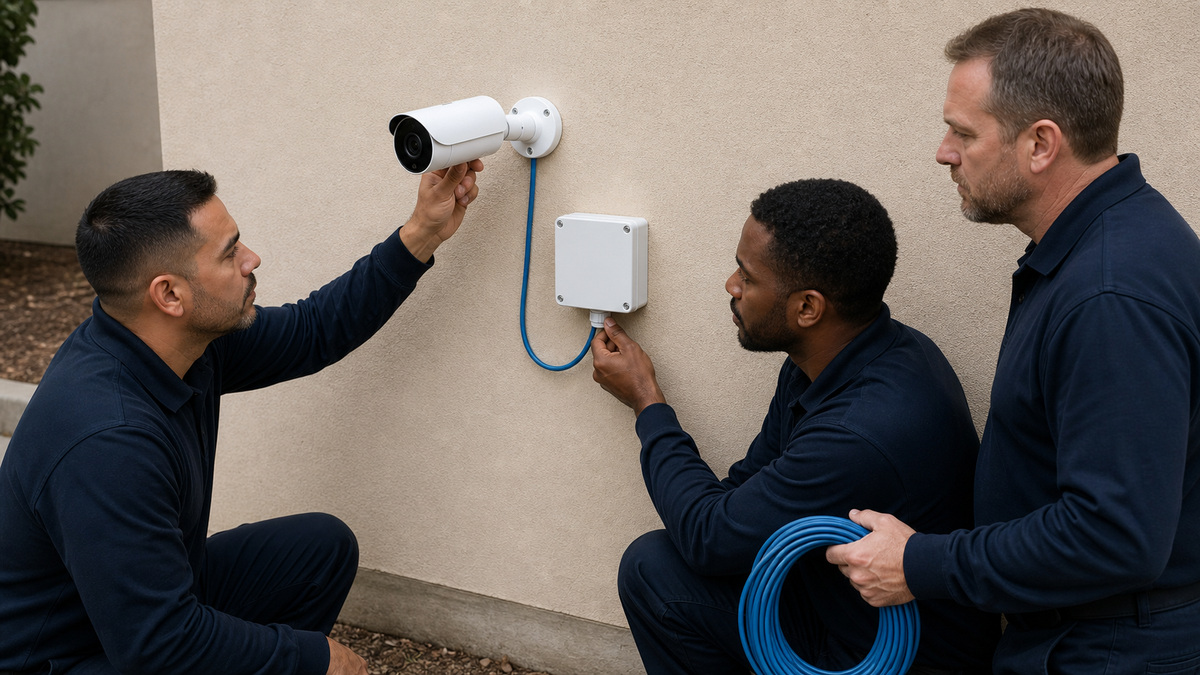
Record the affected site, NVR, camera channels, physical areas, first known time, last known good recording and whether the failure affects live view, recorded video, playback, export, analytics or alerts. Photograph device and cable context without capturing credentials or private scenes. Save NVR abnormality, camera registration, network, disk and system logs before a restart can roll them over.
Capture exact NVR and camera models, firmware versions and build times, addresses, switch ports, PoE state, recording schedule, stream profile, disk status, time source and current users. Compare the event with maintenance, password rotation, certificate renewal, switch change, power work, storage replacement, firmware update or a newly added camera. A recent change is a hypothesis, not proof, but it helps order tests.
Protect required coverage. If the incident affects a critical area, use an approved temporary camera, alternate recorder channel or physical control while troubleshooting. Preserve relevant recordings before storage overwrites them, and do not factory-reset or format a disk during triage. Escalate electrical damage, water intrusion, heat, smoke or swollen components to qualified personnel immediately.
- Separate live, record, playback, export, analytic and alert impact.
- Save logs and status before rebooting equipment.
- Correlate the fault with power, network, identity and firmware changes.
- Preserve incident video before normal overwrite continues.
- Use temporary coverage or physical controls for critical scenes.
Prove Camera Power, Link, PoE Budget, and Cable Path
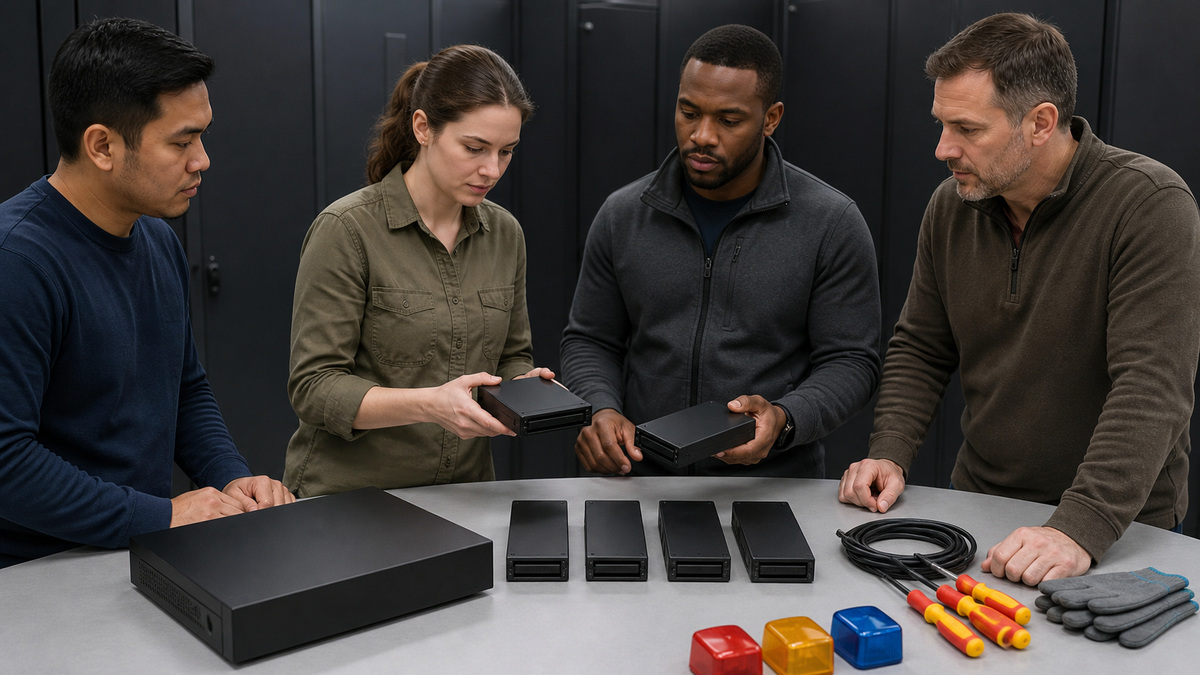
At the switch or integrated NVR PoE interface, record link state, negotiated speed, PoE class or draw, error counters and restart history where available. Confirm that total and per-port PoE limits are not exceeded when infrared, heaters or PTZ motors activate. A camera that fails only after dark may be exposing marginal power or cable loss rather than a software problem.
Inspect patching, connectors, junction boxes, surge protection and outdoor seals. Look for corrosion, water, crushed cable, tight bends, mixed conductor quality or an undocumented extender. Certify or test the run with approved equipment, then compare the camera on a known-good short cable and adequate PoE source. Change only one variable at a time so the result identifies the failing layer.
If power is present but the camera does not boot normally, compare current draw and indicator behavior with a matching known-good device without opening sealed hardware. Verify the approved power method and polarity for non-PoE models. Do not repeatedly cycle a wet, overheated or damaged unit. Preserve model, serial context and environmental evidence for Dahua support or replacement processing.
- Record link, speed, PoE draw, errors and restart timing.
- Check total switch budget and individual port capability.
- Inspect outdoor seals, surge path and junction condition.
- Compare on a known-good short cable and power source.
- Stop cycling equipment that shows damage or water ingress.
Isolate Addressing, Credentials, Registration, and Stream Access

Confirm the camera address, mask, gateway, MAC and NVR-facing network from the documented management path. Look for duplicate IP or MAC alarms, DHCP changes, overlapping NVR PoE and LAN subnets, and routing or firewall changes. Test reachability from the correct video zone, a successful ping from an unrelated user network does not prove that the recorder can reach the camera.
In the Dahua camera registration view, distinguish network timeout, invalid credentials, account lockout, uninitialized device, unsupported protocol and resource-limit conditions. Validate the stored camera credential without unnecessarily changing it. When ONVIF or another integration is used, test the dedicated integration account and service separately from the local web administrator.
Confirm that the requested main or substream exists and that codec, resolution, frame rate, bit rate and encryption are supported by the NVR and viewing client. A camera can respond to management while its stream fails negotiation. Compare with a conservative supported profile, then restore the required evidence settings after identifying the incompatible parameter.
- Verify the recorder-to-camera path, not only general network reachability.
- Check for duplicate addressing and subnet overlap.
- Read the exact registration status before removing a channel.
- Test local and ONVIF identities independently.
- Validate codec and stream compatibility with the recorder and client.
Separate Live View, Recording, Playback, and Bandwidth Failures
A healthy live image with missing history points toward recording schedule, event trigger, storage or retention rather than camera power. Existing recordings with a blank live tile can involve client decoding, substream, display resources or network congestion. Playback that fails only with many channels may exceed decoding or workstation capacity. State the exact failing workflow and test it directly.
Compare aggregate camera bit rate with the NVR incoming bandwidth and network uplinks. Look for recent resolution, frame-rate, smart-codec, audio or variable-bit-rate changes. Use Dahua’s calculator with the current production settings and compare results with observed traffic. Packet loss, duplex errors, oversubscribed wireless bridges or a saturated recorder interface can create intermittent video without taking the camera fully offline.
Review recording schedules, holiday profiles, motion or analytic dependencies, pre-record and post-record settings, channel mapping and overwrite policy. Trigger a controlled event and follow it from camera detection to NVR recording and playback. Preserve a short test clip. If the system uses edge storage or automatic recovery, confirm that the gap is reconciled and that timestamps remain coherent.
- Name the failed workflow before changing configuration.
- Compare current streams with recorder and uplink capacity.
- Inspect packet loss, errors and congestion during the event window.
- Verify schedules and event dependencies with a controlled trigger.
- Test edge-recovery behavior where the model supports it.
Diagnose Disk, RAID, Low-Space, and Retention Problems
Record NVR storage inventory, disk health, capacity, temperature context, read-write state, SMART or health information where exposed, RAID condition, quota and abnormality alarms. Distinguish no disk, disk error, low space, abnormal health and RAID exception. Do not initialize, format or rebuild media until required incident footage and the failure evidence are protected.
Compare expected retention with observed oldest available video and actual production bit rates. A shorter window can result from higher resolution, frame rate, scene complexity, added channels, continuous schedules, audio, degraded array capacity or a changed overwrite policy. Re-run the storage model with current settings instead of assuming a disk is losing data merely because the historical estimate is no longer met.
If hardware replacement is needed, follow the exact NVR installation and supported-drive requirements, maintain safe power and handling, and preserve array or drive order. Rebuilds can consume resources and expose a second weak disk. Monitor recording during the procedure and verify normal health, capacity, alarms, playback and retention afterward. Treat exported incident video separately from recorder redundancy.
- Capture exact storage and abnormality state before repair.
- Protect required video before format or rebuild actions.
- Recalculate retention from current streams and schedules.
- Use supported media and model-specific service procedures.
- Verify recording, playback, health and alerts after storage work.
Correct Time, Export the Evidence, and Close with a Reproducible Test
Compare NVR and camera time, time zone, daylight-saving rule and NTP reachability with a trusted reference. Determine whether the displayed timestamp comes from the camera, recorder or client workflow. Correct the authoritative source, use supported camera synchronization and avoid manual time changes that create overlapping or missing recording indexes without documenting the effect.
Repeat the original business workflow: live view, event trigger, recording, search, multi-channel playback and export. Verify the exported file on an authorized workstation, confirm timestamps and channel identity, and retain a checksum or custody note when required. Test across the former failure period, such as night illumination or peak network load, rather than closing immediately after a green icon returns.
Prepare Dahua escalation with exact models, build times, topology, PoE and cable evidence, addressing, registration status, stream settings, bandwidth, disk health, logs, screenshots or photographs with sensitive data redacted, and steps already tested. Remove temporary accounts, broad firewall rules, bypass power and suppressed alerts. ALLMSP can update the as-built record and monitoring threshold so the same fault becomes easier to detect and resolve.
- Align recorder and camera time with the approved source.
- Retest the full evidence workflow under the prior conditions.
- Verify exported clips independently and preserve custody notes.
- Send Dahua support a concise model, version and evidence package.
- Remove emergency changes and update the lifecycle record.
Official product documentation and ALLMSP resources
- Dahua NVR5208-8P-XI Product Details
- Dahua Network Video Recorder User',s Manual
- Dahua Disk and Bandwidth Calculator
- Dahua NVR5416-16HP-EI2 Product Details
- Dahua Network Camera Web 3.0 Operation Manual
- Dahua Download Center
- ALLMSP Dahua Hardware Support
- ALLMSP Hardware Support
- ALLMSP Managed IT Services
- ALLMSP Cybersecurity Services
- ALLMSP Network Security
- Contact ALLMSP
Frequently Asked Questions
What should be saved before rebooting an offline Dahua camera?
Save the affected channels, timestamps, last good recording, registration status, NVR alarms, network and disk logs, PoE state, stream settings, firmware and recent changes.
Why might a Dahua camera fail only at night?
Infrared illumination or a heater can raise power draw, while darkness changes exposure and bit rate. Check PoE reserve, cable loss, environmental condition and night image settings.
What causes a Dahua camera to show offline on the NVR?
Possible layers include power, cable, PoE budget, addressing, routing, duplicate IP, credentials, lockout, initialization, ONVIF service, stream compatibility or recorder resources.
Should an offline Dahua channel be deleted and added again first?
No. Read the registration status and preserve settings before removal, deleting the channel can obscure credentials, mapping and the original failure evidence.
Why can live Dahua video work while recordings are missing?
Check recording schedules, event triggers, channel mapping, disk state, quotas, overwrite policy and retention rather than assuming the camera path is healthy end to end.
How can bandwidth cause intermittent Dahua video?
Aggregate streams, variable scene rates, packet loss, interface errors or an oversubscribed uplink can exceed NVR or network capacity without keeping a camera permanently offline.
What do Dahua NVR disk alarms mean?
Current recorders distinguish conditions such as no disk, disk error, low space, abnormal disk health and RAID exception, capture the exact state before formatting or rebuilding.
Why is Dahua retention shorter than planned?
Production bit rates, added channels, longer schedules, audio, complex scenes, reduced array capacity or overwrite changes can consume more storage than the original estimate.
How should Dahua timestamp drift be corrected?
Fix time zone, daylight-saving and NTP at the authoritative source, use supported camera synchronization, and document any index effect before changing production time.
What should a Dahua support escalation include?
Provide exact models and build times, topology, PoE and cable tests, addresses, registration errors, stream and bandwidth data, disk health, logs, incident timing and reproducible steps.