A server that does not serve an application can be failing at several different checkpoints. Dell distinguishes no power from no POST, no boot and no video. A host that completes POST but cannot find an operating system needs a different investigation from one whose fans never start or whose iDRAC records a hardware safeguard during initialization.
Dell’s current PowerEdge guidance uses the Lifecycle Log, System Event Log, POST codes and SupportAssist Collection,also called a Technical Support Report,to preserve platform evidence. Current articles also separate memory events, predictive drive warnings and thermal or fan conditions. Those records are most valuable before repeated restarts, log clearing or component movement changes the state.
This runbook protects the workload and evidence, then narrows the fault with controlled substitutions and model-specific service instructions. ALLMSP can coordinate application, virtualization, network, facilities and Dell support teams around one timeline instead of starting each handoff with another power cycle.
ALLMSP supports Lawrenceville, Suwanee, Gwinnett County, Metro Atlanta, and Georgia businesses that need to troubleshoot Dell PowerEdge no POST, storage, memory, and thermal faults, with local assistance available when the work requires an on-site component.
Key decisions at a glance
- Separate no power, no POST, no boot and no video, then record the last known good state, business impact and recent change.
- Preserve iDRAC health, System Event Log, Lifecycle Log, POST codes and a filtered or full SupportAssist Collection before clearing logs or swapping hardware.
- Isolate power, cooling, memory and PERC storage with the exact PowerEdge service manual and approved maintenance safety procedure.
- Treat predictive drive warnings, correctable memory events and high fan speed as evidence to investigate, not permission for unplanned replacement or sensor suppression.
- Close with restored redundancy, updated inventory, diagnostics, monitoring and a concise Dell escalation bundle.
Classify No Power, No POST, No Boot, or No Video
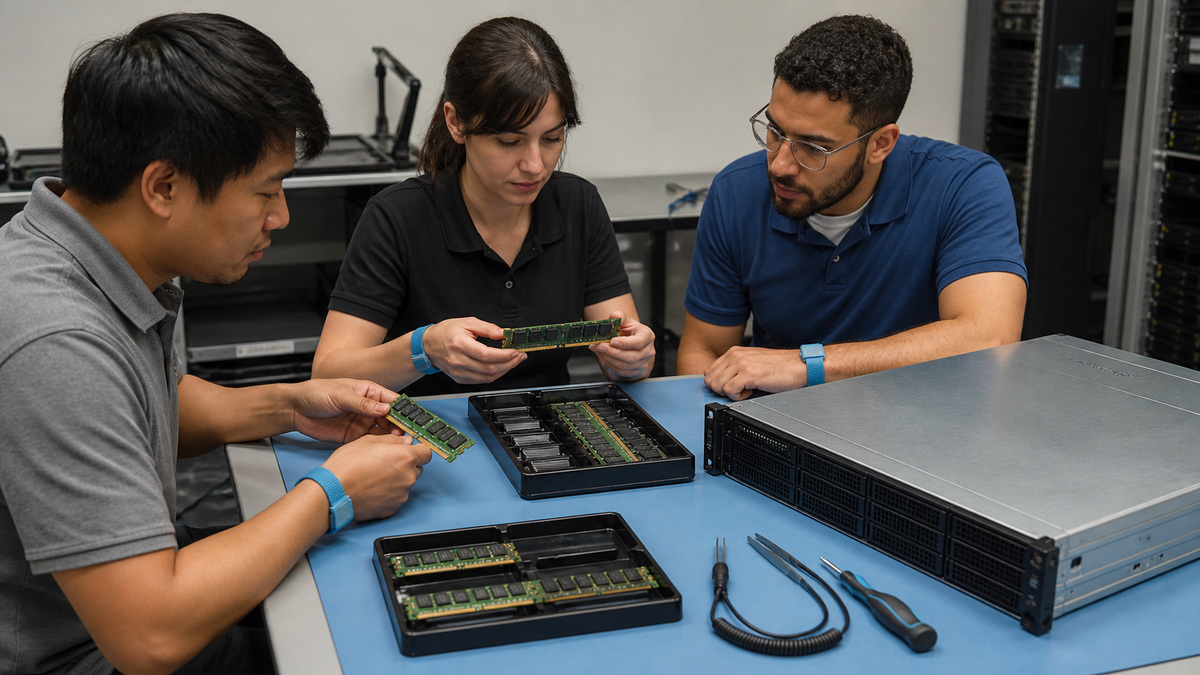
Record what happens after the power button: LEDs, fan movement, iDRAC reachability, local video, POST progress, boot-device detection, operating-system loader and application availability. Dell defines no power as no system power indications, no POST as a system that powers on but cannot finish its hardware checks, no boot as a completed POST that cannot load the OS, and no video as a running system without display output. Put the incident into one state before selecting tests.
Capture last known good time, affected workloads, redundancy status, firmware or hardware changes, power events, rack work and current backup or failover options. Protect service with an approved migration or shutdown where possible. Avoid clearing errors, reseating drives or applying many updates during triage, first preserve a reproducible boundary between healthy and failed behavior.
Do not combine categories merely because the application is unavailable. A reachable iDRAC with completed POST, healthy virtual disks and an absent boot target points toward boot configuration or operating-system recovery. No auxiliary power and no iDRAC response begins with the upstream power and PSU path. State that distinction in the incident record so parallel teams test the right layer.
- Describe power, POST, boot, video and application states separately.
- Record timestamps, workload impact and recent changes.
- Confirm failover, backup and maintenance options.
- Preserve the failing state before broad remediation.
- Use the exact server generation and service manual.
Collect iDRAC, Lifecycle, POST, and SupportAssist Evidence
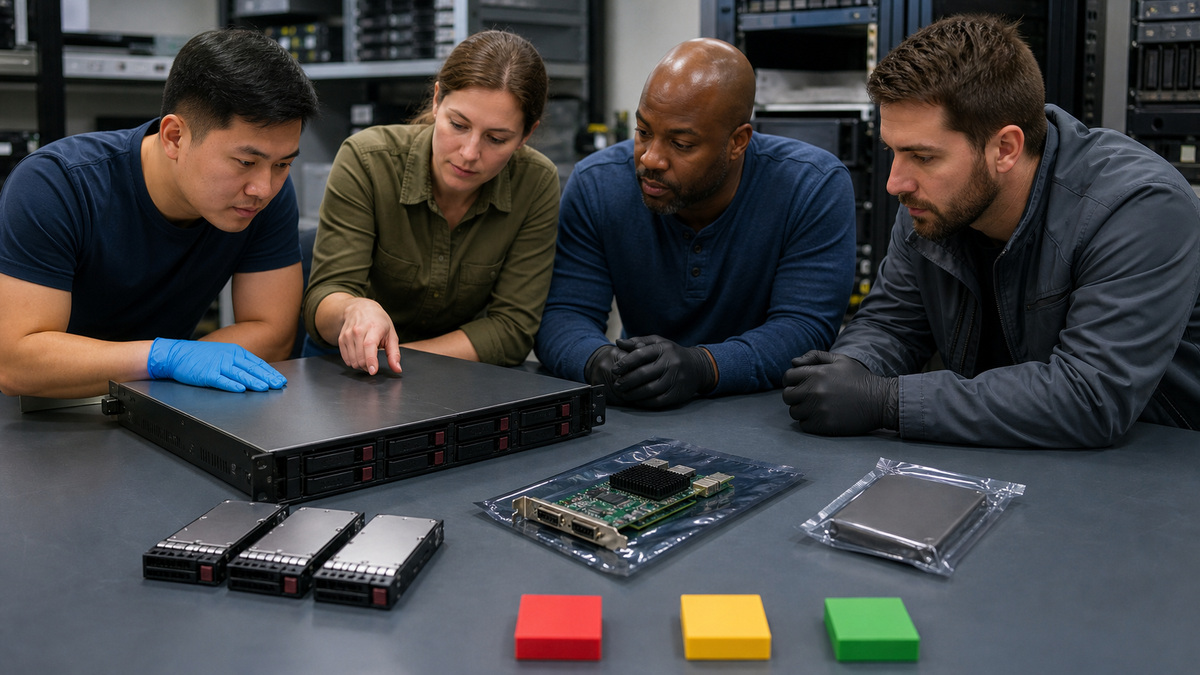
Save iDRAC rollup health, inventory, System Event Log, Lifecycle Log, storage state, temperatures, fans, power supplies, memory, firmware and job queue. Photograph front-panel or POST codes without exposing Service Tags or customer details. If the server starts, record BIOS, boot order and controller state. Do not clear logs until they have been exported and the incident timeline is secure.
Generate a SupportAssist Collection through iDRAC9 or iDRAC10. Dell notes that it can include platform information used to troubleshoot the system and offers filtering for personally identifiable data, but filtering can omit thermal, debug and storage logs. Choose the dataset deliberately, protect the exported archive as sensitive and document whether OS or application data was available through iDRAC Service Module.
Retain both the raw timestamps and the local time interpretation. Compare iDRAC, host, hypervisor, UPS and facility events against a trusted clock before assuming order. Store the collection, screenshots and photos in the incident workspace with access control and a checksum or file inventory so later Dell escalation uses the same evidence gathered before repair.
- Export System Event and Lifecycle Logs before clearing them.
- Capture platform inventory and firmware context.
- Create a SupportAssist Collection with intentional dataset choices.
- Protect hostnames, addresses, logs and identifiers in the archive.
- Correlate all evidence with one event timeline.
Isolate Power, Fan, and Thermal Conditions Safely
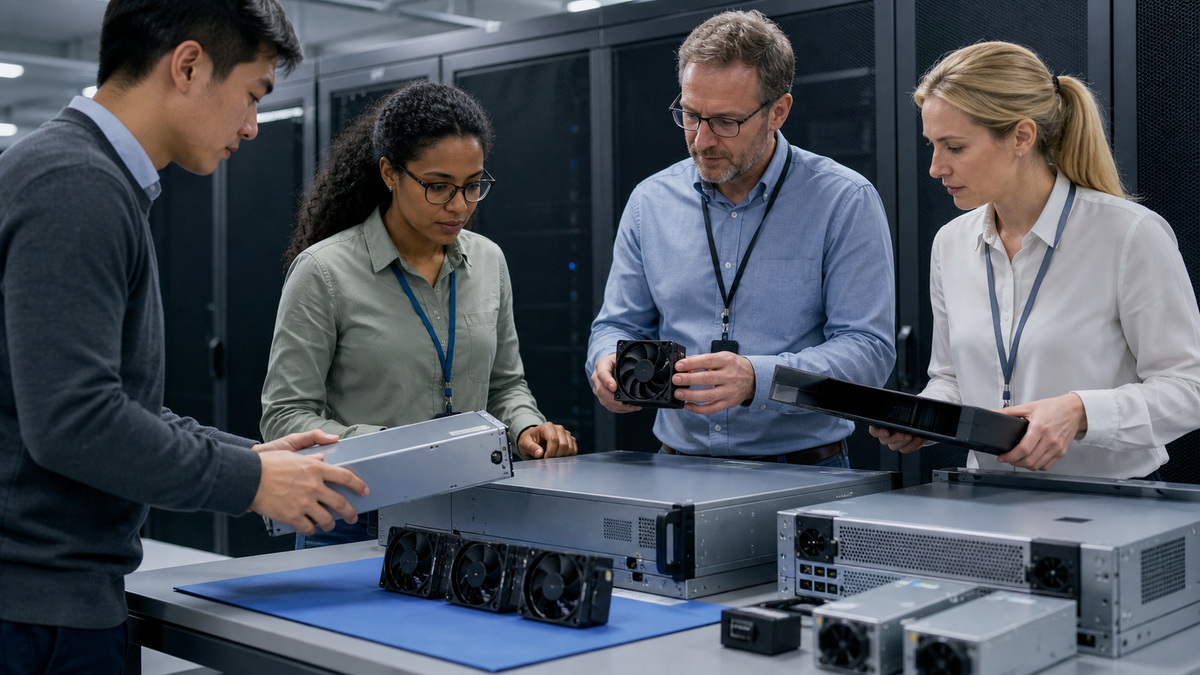
For no power, verify PDU, branch, cords, PSU indicators and iDRAC auxiliary power through approved procedures. Compare redundant supplies and paths without defeating the surviving source. If the server shuts down during initialization, review Lifecycle safeguards before repeating the attempt. Use Dell’s minimum-to-POST and component service guidance only in an authorized window with the workload protected.
For fan or temperature events, inspect inlet conditions, airflow, blanks, covers, intrusion state, fan seating, unsupported PCIe devices and firmware coordination. Dell notes that iDRAC controls thermal behavior and may drive fans high for missing or failed fans, sensor communication, unsupported hardware, heavy workload, airflow or profile changes. Do not lower fan policy to silence a safety response, isolate the sensor, component, environment or configuration cause.
Before opening the chassis, shut down and remove power exactly as the service manual requires, maintain electrostatic-discharge protection and let hot components cool. Photograph cable and fan locations without exposing identifiers. After any controlled swap, reinstall covers and airflow parts before judging thermal behavior because an open chassis can invalidate the observation.
- Verify source power and redundant PSU paths before opening hardware.
- Use Lifecycle safeguards and indicators to order tests.
- Check inlet, airflow, cover, fans and added components.
- Compare thermal settings with the approved baseline.
- Never suppress protective fan behavior without proving the cause.
Diagnose Memory Events by Slot, Firmware, and Controlled Substitution
Record the exact MEM or UEFI code, socket, channel, slot and whether the event was correctable, uncorrectable, consumed or found by patrol scrub. Confirm current BIOS, iDRAC and CPLD state against the exact model before assuming a DIMM has failed. Compare the memory inventory and population with Dell’s supported rules, an unsupported combination or poorly seated module can create symptoms beyond a simple capacity loss.
In a maintenance window, power down and follow the service manual and electrostatic-discharge procedure. Reseat or swap one identified module using a documented A/B test, preserving the original slot map. After each change, refresh inventory, run embedded diagnostics and review new logs. Replace the component only when the fault follows it or Dell evidence supports replacement, a recurring slot fault may implicate board, socket or processor path.
- Capture exact event code, slot and error class.
- Check platform firmware and supported population rules.
- Preserve the original DIMM-to-slot map.
- Use one controlled substitution at a time.
- Run diagnostics and review fresh events after service.
Handle PERC, Predictive Drive, and Virtual-Disk Faults
Record PERC model and firmware, physical-disk state, enclosure and slot, virtual-disk state, hot-spare status, cache and battery or capacitor health, rebuild progress and recent storage events. Dell describes predictive drive failure as a warning based on SMART or controller error trends. Preserve the SupportAssist storage logs and confirm current backups before replacing a drive that still participates in a degraded or rebuilding array.
Follow the exact controller and chassis procedure for online, failed, foreign, missing or predictive states. Confirm the correct drive, bay, interface, capacity, endurance and supported replacement. Avoid removing a second member, importing foreign configuration casually or forcing a drive online without a recovery plan. After replacement, monitor rebuild and patrol behavior, verify virtual-disk optimal state and run application-level consistency and restore checks.
- Save controller, physical-disk and virtual-disk evidence.
- Confirm backup and array redundancy before drive service.
- Match replacement media to the exact supported configuration.
- Protect against a second failure during rebuild.
- Validate the workload after storage returns to optimal state.
Use Minimum-to-POST Carefully, Restore Redundancy, and Escalate
When Dell guidance and preserved evidence do not identify the no-POST cause, use the server’s model-specific minimum-to-POST configuration in a controlled window. Label and remove external devices, drives, PCIe cards or memory in the documented order, photograph the true minimum state and reintroduce one item at a time. Maintain ESD, lifting, torque, cooling and processor-socket precautions, do not improvise across generations.
After resolution, restore redundant power, network, storage, memory and cooling, refresh inventory, firmware compliance and health, run embedded diagnostics, monitor through the former failure interval, and retest the workload, backup and alerts. Prepare Dell support with model and Service Tag context, warranty, codes, logs, SupportAssist archive, topology, changes and controlled tests, with sensitive data protected. Update the as-built and spare plan so recurrence is detected earlier.
- Use the exact minimum-to-POST definition for the model.
- Photograph and label every controlled removal.
- Reintroduce components one at a time.
- Restore redundancy and retest the workload after repair.
- Send Dell a concise evidence and reproduction package.
Official product documentation and ALLMSP resources
- Dell PowerEdge Server Startup Troubleshooting
- Dell PowerEdge Memory Troubleshooting Guidelines
- Dell PowerEdge Predictive Drive Failure Guidance
- Dell PowerEdge Fan and Thermal Troubleshooting
- Dell PowerEdge SupportAssist Collection with iDRAC
- Dell PowerEdge R760 Installation and Service Manual
- ALLMSP Dell Hardware Support
- ALLMSP Hardware Support
- ALLMSP Managed IT Services
- ALLMSP Cybersecurity Services
- ALLMSP Network Security
- Contact ALLMSP
Frequently Asked Questions
What is the difference between no POST and no boot on PowerEdge?
No POST means hardware checks do not complete, no boot means POST completes but the system cannot load the intended operating system.
What should be saved before restarting a failed PowerEdge server?
Save iDRAC health, System Event and Lifecycle Logs, POST codes, storage, memory, thermal and firmware state, recent changes and the last known good time.
What is a Dell SupportAssist Collection or TSR?
It is an iDRAC-generated support archive containing selected platform information used for troubleshooting, protect it as sensitive operational data.
Can filtering a SupportAssist Collection omit useful evidence?
Yes. Dell notes that filtering can exclude thermal, debug and storage logs, so select data based on the incident and privacy requirements.
What can cause PowerEdge fans to run at full speed?
Possible causes include failed or missing fans, outdated firmware, disrupted iDRAC sensor communication, unsupported hardware, high inlet temperature, cover state or thermal-profile changes.
How should a Dell memory error be isolated?
Record the exact code and slot, verify firmware and supported population, preserve the slot map, then use model-specific ESD-safe reseat or swap tests and embedded diagnostics.
What does a predictive drive failure mean?
Dell describes it as a warning that SMART or the RAID controller has detected error trends suggesting the drive may fail soon.
Should a predicted-failure drive always be pulled immediately?
Protect backups and confirm PERC, virtual-disk and rebuild state first, an unplanned removal can worsen an already degraded array.
What is minimum to POST?
It is the exact model-specific minimum hardware configuration Dell uses to isolate POST faults, follow the service manual and document every removed component.
What should a Dell escalation contain?
Provide model and Service Tag context, warranty, codes, logs, SupportAssist archive, firmware, topology, recent changes, controlled tests and the current redundancy state.