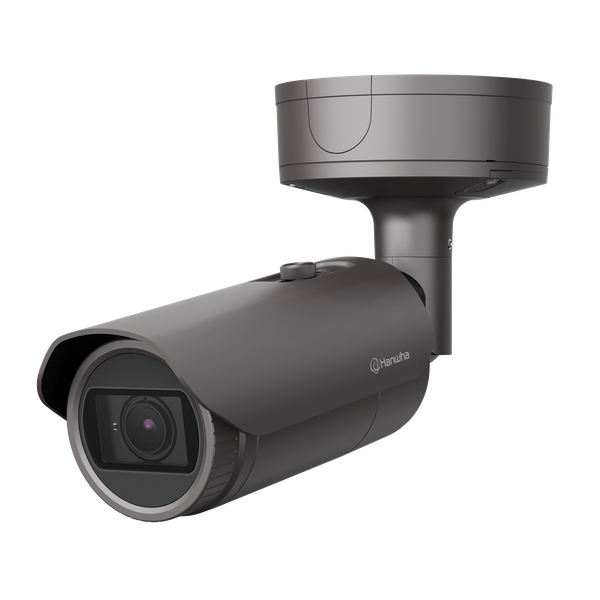


















































































































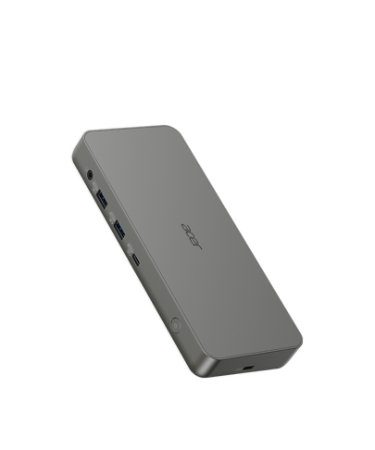
Acer’s published D501 product image shows its physical USB and audio connection side. The product documentation targets compatible Chromebooks; this image does not establish Windows-host compatibility, charging capacity or a monitor count. Qualify the actual host port, cable and display modes.[11] View full-size image
When an Acer laptop charges through a dock but its monitors stay dark, first identify which part of the USB-C path is working. Charging does not prove video support. A display problem can follow the notebook port, host cable, dock power, monitor input or requested display mode; replacing everything or updating every driver hides the cause.
This guide starts with one known-good display and a documented notebook-port, dock, cable and power combination. It then separates monitor acceptance from battery charge limits, gauge calibration and power resets. Each feature must be checked against the exact Acer model and utility rather than assumed from the connector shape or product family.
Battery operations add another model boundary. Acer documents an optional charge-limit feature that may appear in Acer Care Center, AcerSense, ControlCenter, or model-specific software, the absence of the control can mean the model does not support it. Acer’s calibration article says calibration and charge-limit availability vary and notes that calibration is not supported through a USB Type-C power adapter in that workflow. An internal battery or embedded-controller reset clears power-management state but does not erase files and is not a substitute for replacing a worn battery. This guide turns those facts into a repeatable desk and battery service standard.
For organizations in Lawrenceville, Suwanee, Gwinnett County, Metro Atlanta, and across Georgia, ALLMSP can manage Acer USB-C docks, displays, and laptop batteries through one accountable in-house process for assessment, configuration, testing, and support.
Key decisions at a glance
- Confirm that the exact Acer notebook port supports the required USB-C functions, a connector that carries data or power does not automatically carry DisplayPort video or every dock capability.
- Test the complete desk bill of materials: Acer dock model and firmware, original power adapter, host cable, monitor inputs and cables, resolution and refresh targets, Ethernet, USB devices, audio, sleep, wake, and charging.
- Acer’s dock guidance requires a powered dock and a video-capable USB-C port, while multi-display limits depend on the dock, host graphics path, cables, and selected mode.
- Use Acer’s model-aware battery tools only when the option exists, charge limit, calibration, USB-C charging, and an embedded-controller reset solve different problems and should not be treated as interchangeable.
- Operate a known-good spare matrix and isolate one layer at a time so a display, cable, dock, charger, firmware, OS, peripheral, or battery failure does not trigger random replacements.
Qualify the Exact Acer Notebook Port, Dock, Cable, and Power Path
Create an approved desk matrix for each Acer model rather than buying a generic USB-C accessory bundle. Record the complete notebook model, BIOS, USB-C port location, supported data generation, DisplayPort Alt Mode, Thunderbolt or USB4 if present, Power Delivery input, maximum supported charging behavior, native display limits, graphics adapter, operating system, and current graphics and USB controller drivers. Pair it with the exact Acer dock model, firmware, included AC adapter, adapter wattage, host-cable part and length, downstream-port map, Ethernet controller, audio path, and display outputs. Acer’s Gen 1 dock guidance says full compatibility depends on a full-function USB-C connection and recommends a certified Acer notebook that supports USB-C Power Delivery.
Its documented connection sequence uses the supplied AC adapter, dock power button and a compatible full-function host connection. Check the exact dock’s support instructions for any required firmware before changing it.[7] A USB-C socket alone proves none of those features. Protect serials and asset IDs in the inventory, publish only model and capability guidance. Freeze the tested bill of materials. Many failures come from a charge-only or low-capability replacement cable, a phone charger, an underpowered adapter, an unsupported host port, an extra intermediary hub, or a monitor cable that passed a lower mode.
Label approved cables by an internal asset convention without printing passwords, user identity, or private network data. Inspect strain relief, connector fit, bent pins, contamination, adapter damage, and heat before software work. Measure whether the notebook reports charging, discharging, or a slow-charger state under the representative load. Test the dock flat, ventilated, and powered as Acer directs, with the original host cable first. If a notebook has several USB-C ports, validate the documented port instead of assuming symmetry. Record a known-good notebook-dock-cable-adapter combination for comparison and store it where the service desk can actually use it.
Read the manual for the listed model: the P414 guide and the older P449 Windows 10 guide describe different generations and port capabilities. The older manual remains a historical example, not current Windows support evidence for another laptop.[1][2] Use Acer’s current support lookup to resolve the unit and its downloads.[4]
Design and Test the Display, Ethernet, USB, Audio, and Wake Topology
Draw the physical and logical display path. For each monitor, record input, cable, resolution, refresh rate, color requirement, orientation, scaling, primary-display role, and whether its path is native from the host or handled by the dock. Use a named model’s display matrix rather than mixing specifications from different docks. For example, Acer markets the D501 for compatible Chromebooks and bounds three-display operation by host capability and Full HD output. That product example is not a Windows-host qualification or a guarantee of three 4K displays. Check the exact dock manual, host graphics path, port and requested modes before buying or accepting the desk.[11] Test one monitor first, then add each display while watching negotiated resolution, refresh, stability, and host charging.
High refresh, high resolution, HDR, adapters, and long or marginal cables can change the result even when a lower mode works. Validate cold boot, Windows sign-in, dock before boot, dock after sign-in, disconnect, reconnect, screen lock, sleep, wake, hibernate if used, lid-open and lid-closed policy, and a full workday. Confirm Ethernet link, expected network segment, DHCP or approved static behavior, DNS, VPN, throughput, packet loss, sleep-wake recovery, and the dock’s MAC-related management behavior where relevant. Do not expose production IPs, switch names, VLANs, or device identifiers in public evidence. Add keyboard, mouse, camera, headset, smart-card reader, storage, printer, and other USB devices one at a time.
Storage and cameras can reveal marginal bandwidth or power sooner than a keyboard. Test audio input and output selection after docking and wake. Keep firmware, BIOS, graphics, USB controller, Ethernet, and OS changes separate during diagnosis. A random stack of updates destroys the ability to identify the real correction. Build acceptance around observed business work: video meeting, local and remote displays, large file transfer, VPN, voice, camera, sleep, and redocking, not just a static desktop image.
Check the endpoint’s supported sleep behavior as part of dock acceptance; Modern Standby is a Windows platform design, not a capability guaranteed by an Acer family name.[5] Use the actual Device Manager driver result when comparing pre-change and post-change behavior.[6]
Operate Acer Battery Charge Limits, Calibration, and Power Resets Correctly
Begin battery work with model, charger, usage pattern, cycle and health evidence, symptom, temperature, recent firmware or Windows change, and whether the problem occurs on the dock, direct adapter, battery, or every power source. Distinguish runtime degradation, inaccurate percentage, no-charge, slow-charge, intermittent disconnect, sudden shutdown, swollen battery, hot connector, and no-power conditions, they have different safety and service paths. Stop using and isolate swollen, damaged, leaking, sparking or dangerously hot equipment according to organizational safety procedures; arrange qualified service rather than running a calibration or reset. On supported AcerSense models, Personal Settings, Battery & USB Charging exposes Optimized Battery Charging with an 80 percent limit; the Full Battery Charging choice permits a full charge.
If AcerSense or that control is absent, check the exact model’s documentation instead of installing a utility for another model. Acer Care Center has its own supported-model controls and should not be treated as the same interface.[8][9] A desk-bound cohort may benefit from an approved charge limit, while travel, field, or emergency users may need full runtime. Record the decision and periodically prove the control remains applied after imaging or utility updates. Calibration addresses gauge accuracy, not lost chemical capacity. Acer’s Care Center documentation distinguishes charge-limit and gauge-calibration controls and says that this calibration workflow is not supported through a USB Type-C power adapter.
That restriction should not be generalized to every Acer battery tool. Use the correct Acer AC adapter and schedule the process where a full charge-discharge cycle will not interrupt work. An internal battery or embedded-controller reset addresses stuck power-management state. Acer documents power-button and, on equipped models, labeled battery-reset pinhole methods. Check the exact model guide and current instructions before starting; a reset is not the next step for damaged or unsafe equipment.[10] Disconnect peripherals and power first, preserve open work, and never probe an unlabeled hole. The reset does not erase the operating system, but it also does not repair worn cells, a damaged connector, failed dock, weak adapter, or board fault.
Retest direct adapter, dock, both approved USB-C ports if applicable, battery reporting, sleep, and representative load after the action.
Physical service guidance is model-specific too: the retained Aspire AL17-31P lifecycle guide is an example for that listed model, not permission to open or replace batteries in every Acer notebook.[3]
Troubleshoot by Substitution and Maintain a Known-Good Acer Desk Standard
Run a bounded isolation sequence. Capture the failure and before-state, then reduce the setup to Acer notebook, direct approved power, one known-good monitor, and the tested dock host cable. Verify the notebook port and dock power. Test a known-good monitor cable and input, then another documented port. Compare the affected notebook with the known-good Acer desk and the affected desk with a known-good compatible notebook. Add displays and peripherals back one at a time. This matrix shows whether the symptom follows the notebook, port, OS, cable, dock, adapter, monitor, network, peripheral, or workload.
Perform a complete dock power cycle only after preserving evidence: disconnect host and peripherals, remove dock power, wait the documented interval, then reconnect power, host, display, and devices in the tested order. Use Acer firmware from the exact dock or notebook support page. If a firmware tool requires an attached display path or a particular state, document it in the controlled runbook. Do not flash a near-match dock. Track desk incidents by model and bill of materials. Repeated wake failures on one cable batch, slow charging with one adapter, or display loss on one firmware combination should update the approved standard rather than create endless individual tickets.
Maintain known-good spares for dock, adapter, host cable, display cables, and one representative monitor, all tested and labeled. Retire damaged or unapproved accessories from circulation so they do not return through a drawer. Revalidate after BIOS, dock firmware, graphics driver, Windows feature release, monitor model, charger, or cable changes. A stable Acer desk is an operated configuration with evidence, spares, and safe battery decisions, not a pile of individually compatible parts.
Worked example: charging works, one monitor does not
This hypothetical support sequence isolates a failed display without changing the BIOS, graphics driver and cable together. Each step uses a known-compatible spare and the same requested display mode.
| Controlled check | Observation | Next decision |
|---|---|---|
| Use the documented video-capable notebook port, supplied dock power and one known-good monitor/input. | The laptop charges, but no display appears. | Record charging and video separately; charging alone does not qualify the host port or cable for video. |
| Change only the host cable to the approved known-good cable. | The same monitor and mode now work. | Quarantine the suspect cable and confirm the result by repeating the original failure and recovery when safe. |
| Add the second required monitor at its approved mode, then test sleep and reconnect. | Both work until the second monitor requests an unsupported mode. | Correct the mode or select a qualified configuration. Do not label a bandwidth or documented display limit as a defective battery. |
| Check the battery tool separately after the display path is stable. | The gauge stops at 80 percent and Optimized Battery Charging is enabled. | Record the intentional charge policy; only investigate further if the observed behavior conflicts with that policy or another symptom exists. |
If the fault follows a BIOS or driver change, return to the Acer deployment and firmware gates. If safe substitution points to hardware repair, use the Acer intake, recovery and custody checks rather than resetting Windows to test a cable.
Official product documentation and ALLMSP resources
Frequently Asked Questions
Does every USB-C port on an Acer notebook support a dock and monitors?
No. USB-C describes the connector, not every function. Verify the exact notebook port supports the needed data, DisplayPort video, Thunderbolt or USB4 if required, and Power Delivery behavior, then use the documented Acer port.
Why should an Acer dock use its supplied power adapter and host cable first?
They establish the vendor-tested power and link path. A phone charger, lower-wattage adapter, charge-only cable, long cable, or intermediary hub can remove video, reduce charging, limit data, or create intermittent failures.
How many monitors can an Acer USB-C dock support?
Use the exact dock’s display table together with the notebook’s supported port, graphics path, cables, resolution and refresh rate. Acer’s Gen1 article describes up to three displays on compatible systems; its D501 example has Chromebook-specific limits. Neither statement means every Acer Windows laptop can run three 4K monitors. Prove one display first, then add the required modes individually.
What should be tested after docking an Acer laptop?
Test boot, sign-in, hot-plug, disconnect, reconnect, lock, sleep, wake, lid behavior, each monitor, Ethernet, VPN, audio, camera, storage, USB peripherals, charging, thermals, security controls, and the actual business workflow.
Why can a dock work with one Acer USB-C port but not another?
Ports on the same notebook can expose different video, data, or charging capabilities. Confirm the model’s user guide and port markings and test the documented full-function port rather than assuming all connectors are equivalent.
What does Acer's Battery Charge Limit do?
On supported models it stops charging around 80 percent. In AcerSense, check Personal Settings, Battery & USB Charging and the Optimized Battery Charging control; the full-charge option serves users who need longer time away from power. An absent setting may mean the model does not support it. Do not treat a steady 80 percent reading as battery failure until the setting is checked.
Is Acer battery calibration the same as improving battery health?
No. Calibration helps the charge and remaining-time gauge; it does not reverse worn-cell capacity loss. Acer’s Care Center article says that its calibration workflow does not support a USB-C power adapter. Confirm the exact model, utility and permitted power source before scheduling it. A swollen or dangerously hot battery needs qualified service, not calibration.
When should support perform an Acer internal battery reset?
Consider it for a safe device with a stuck charging or power-management symptom after recording the failure and saving work. Follow the exact model’s current Acer method, disconnect the specified power and peripherals, and use a pinhole only when the guide identifies a labeled battery-reset control. It does not erase the OS, but it interrupts the current power state and is not a repair for damaged cells.
How should an intermittent Acer dock problem be isolated?
Reduce to the compatible notebook, correct port, approved power, known-good host cable, powered dock, and one monitor. Cross-test with known-good parts, then add displays, Ethernet, audio, storage, and peripherals one at a time.
How can ALLMSP support Acer docks and laptop batteries?
ALLMSP can build the exact compatibility matrix, qualify docks and cables, manage firmware and drivers, validate monitors and network paths, standardize charge-limit decisions, run battery and desk diagnostics, maintain spares, and track recurring failures.
Sources
- Acer: TravelMate P4 14 user manual ↩
- Acer: TravelMate P4 Windows 10 user manual ↩
- Acer: Aspire AL17-31P lifecycle extension guide ↩
- Acer Support: Drivers and Manuals ↩
- Microsoft: Modern Standby ↩
- Microsoft: Update drivers through Device Manager ↩
- Acer Answers: Using an Acer USB Type-C Gen1 Dock ↩
- Acer Answers: Optimized Battery Charging in AcerSense ↩
- Acer Answers: Calibrate your battery using Acer Care Center ↩
- Acer Answers: Reset the internal battery on an Acer laptop ↩
- Acer: USB Type-C Dock D501 product and applicability ↩