A reset is often the easiest Acer support action to start and the hardest to undo. It can remove unsynced work, destroy forensic context, change the boot or recovery state, leave encryption questions unresolved, and turn a component-specific fault into a full rebuild. Sending a device for repair can create another problem if the organization has not decided what data may travel, which identifiers belong in the case, whether the drive stays installed, or how the returned computer will be trusted again.
Acer’s support material offers distinct recovery layers. The Drivers and Manuals workflow resolves software for the exact device. Acer Care Center or Recovery Management can reinstall certain drivers and applications. An embedded-controller or internal-battery reset clears residual power state without deleting the operating system. Windows Reset offers keep-files and remove-everything choices, while an Acer or Windows USB recovery drive can restore factory software. Acer explicitly says recovery media does not back up personal files or applications that were added later. These are different interventions with different evidence, data, and acceptance requirements.
This runbook connects restricted intake, hardware and power isolation, drivers, boot and firmware triage, recovery approval, repair and RMA custody, returned-device validation, reassignment, and retirement. It keeps real user names, serials, SNIDs, encryption recovery keys, firmware passwords, file names, support case details, shipping labels, and internal management records out of public content and images. The goal is a support outcome that can be explained and reproduced, not merely a device that powers on.
ALLMSP supports Lawrenceville, Suwanee, Gwinnett County, Metro Atlanta, and Georgia businesses that need to recover, repair, and retire Acer PCs without losing evidence, with local assistance available when the work requires an on-site component.
Key decisions at a glance
- Identify the exact Acer model, protected serial or SNID, configuration, custody, data sensitivity, encryption, boot state, and recent change before opening the chassis or starting recovery.
- Use the least destructive layer first: known-good power and peripherals, hardware isolation, correct Acer driver or application repair, boot-setting evidence, Windows repair, then reset or Acer recovery media when approved.
- Acer recovery media restores factory software and does not preserve business files or later applications, a successful factory boot is only the start of rebuilding a secure managed endpoint.
- Maintain RMA custody and sanitize only under an approved data decision, then reconcile returned model, serial, firmware, parts, encryption, management, updates, peripherals, and the original symptom.
- Treat reassignment and retirement as separate controls for data sanitization, management removal, license and asset reconciliation, accessories, warranty or repair records, disposition custody, and final evidence.
Preserve Acer Identity, Data, Boot, and Custody Evidence at Intake
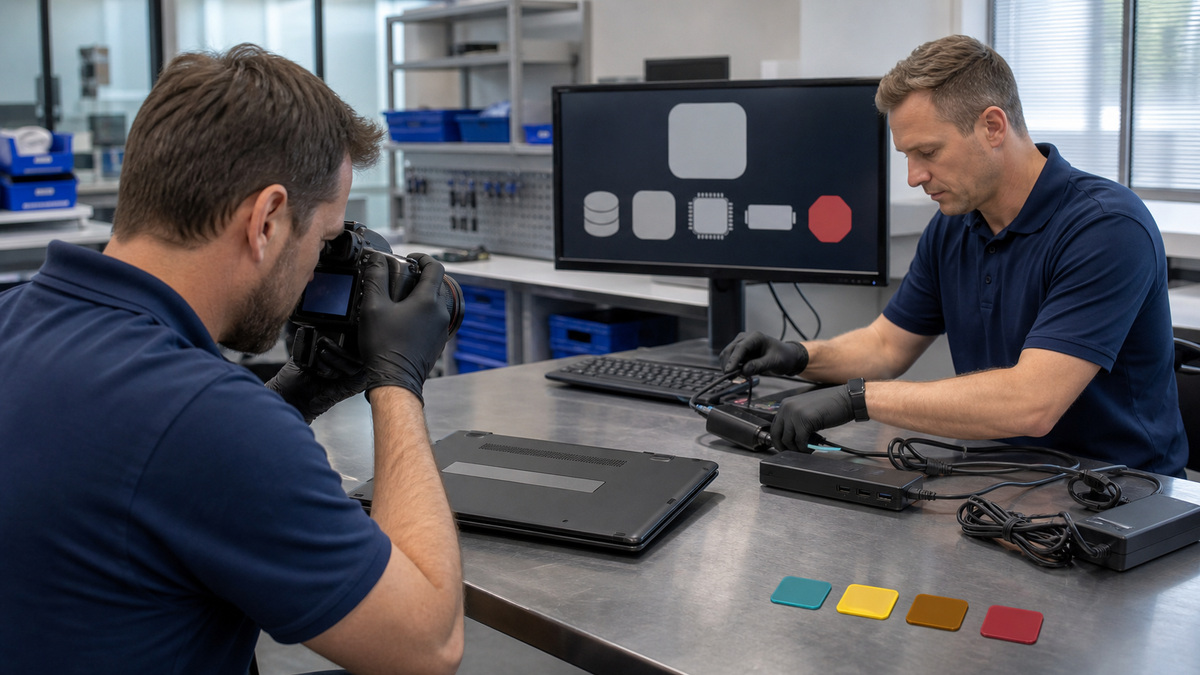
Begin with a restricted intake record. Capture the asset identifier, full Acer model, serial and SNID, ordered and observed configuration, charger and accessories, user or pool, location, custody transfer, warranty state, visible damage, symptom, business impact, recent drop or liquid event, last known good state, recent Windows, driver, BIOS, dock, security, or application change, and whether the issue is reproducible. Acer uses the serial and SNID to identify downloads and support, but those identifiers should not appear in public photos or broad tickets. Photograph damage only in the protected case and avoid screens, shipping labels, user names, file content, or network details. Classify data and encryption before altering storage. Record whether the drive is encrypted, whether the recovery key is escrowed and accessible to authorized staff, whether business files are synchronized or backed up, whether regulated or legal-hold material may be present, and who can approve recovery, erasure, drive removal, or external repair. Do not ask a user to send a password with the device. Capture the current boot state, BIOS version, boot mode, Secure Boot, storage-controller and VMD or RAID state, boot order, detected storage, battery and adapter behavior, error indicators, and Device Manager condition when accessible. Test a known-good compatible adapter and a minimal peripheral set before opening the chassis. Disconnect docks, USB devices, displays, and external drives. Acer’s internal-battery reset guidance can clear power-management state for charging, unexpected shutdown, or no-power symptoms without deleting the OS, but the model’s documented method must be used. A battery-reset pinhole is not universal, never insert a tool into an unidentified opening. Define the preservation boundary before repair if malware, insider activity, accidental deletion, physical damage, insurance, HR, or legal review may require the original state.
- Record protected asset, model, serial and SNID, configuration, charger, accessories, user or pool, custody, warranty, damage, symptom, impact, recent change, and reproducibility.
- Decide data classification, backup, encryption-key availability, legal hold, evidence preservation, and authority for reset, erasure, drive removal, or vendor repair.
- Capture BIOS, boot mode, Secure Boot, storage controller, VMD or RAID, boot order, detected drive, power, battery, errors, and Device Manager before change.
- Isolate known-good power and a minimal peripheral set, and use only the model’s documented embedded-controller or battery-reset method.
- Stop if safety, liquid, swelling, encryption, data ownership, evidence, or authorization is uncertain.
Escalate from Component Repair to Windows or Acer Recovery Deliberately
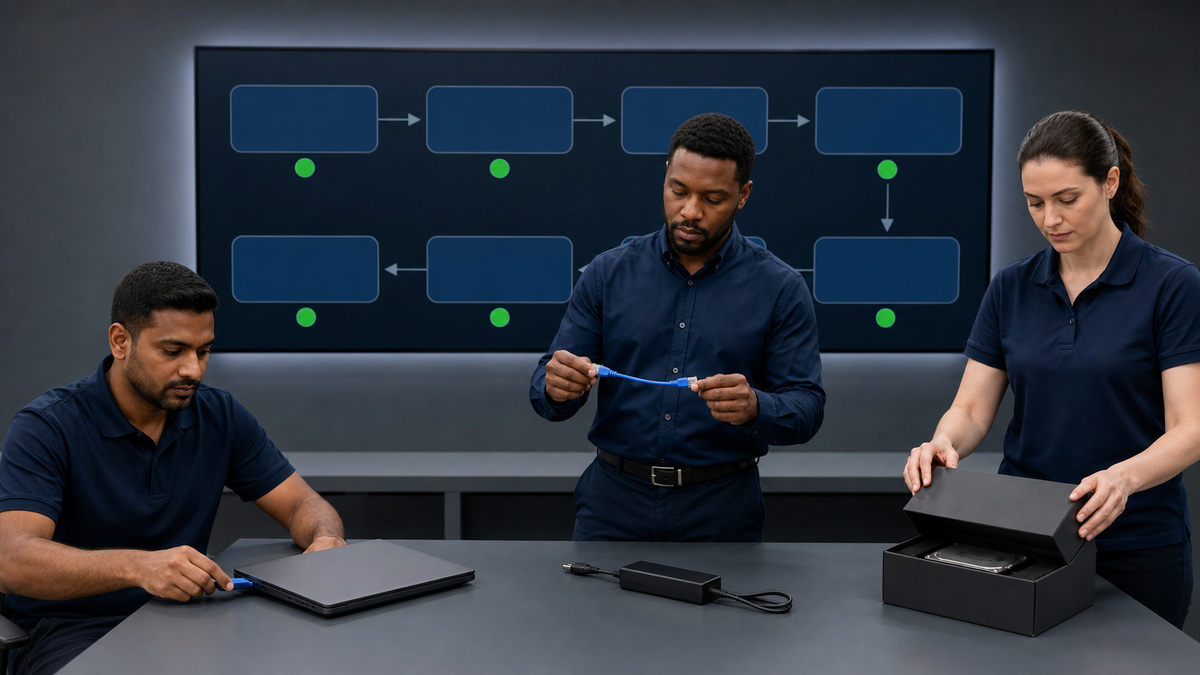
Follow the smallest proven fault domain. For a missing network, audio, camera, touchpad, graphics, storage, or USB device, identify the actual component vendor and use the exact model and OS package from Acer rather than resetting Windows. Acer’s driver guidance explains that a product can use components from different vendors, while Recovery Management can restore certain factory drivers or applications on supported systems. Preserve the current driver and rollback route, install one change, reboot when required, and retest the original workflow. For boot failures after firmware, compare the protected before-state. Acer documents setup defaults, SATA or VMD controller state, boot priority, UEFI versus legacy mode, and hard power reset as diagnostic areas after a BIOS update. Do not randomly toggle storage or Secure Boot settings on an encrypted or RAID-configured system. Restore only the known intended state or escalate. When Windows repair, reset, or recovery is justified, make the data decision first. Acer’s Windows reset guidance includes keep-my-files and remove-everything paths and says important data should be backed up before factory reset. A keep-files choice still removes applications and settings and is not a substitute for verified backup. Acer recovery media can reinstall factory software but does not capture business files or added applications. Verify the USB media source, exact model compatibility, integrity, physical custody, boot method, encryption plan, destination drive, partition decision, and approval. Use synthetic data for routine recovery tests. After factory recovery, apply the approved managed Windows build or baseline, correct Acer drivers, BIOS policy, cumulative and feature updates, encryption, identity and device management, security tools, applications, backup, and user configuration. Prove networking, sleep, battery, camera, audio, peripherals, docks, business apps, security check-in, and a sample data restore. A factory desktop is not production acceptance.
- Repair the identified component with the exact Acer model, operating system, component vendor, package, signature, rollback, and test before escalating.
- Restore boot and storage settings only from protected evidence, do not experiment with VMD, RAID, UEFI, Secure Boot, or encryption state.
- Approve Windows repair, keep-files reset, remove-everything reset, or Acer recovery media only after backup, evidence, legal, encryption, and owner decisions.
- Verify recovery-media origin, model applicability, integrity, custody, boot path, target storage, partition effect, and acceptance plan.
- Rebuild through managed Windows, Acer drivers, firmware policy, updates, encryption, management, security, applications, backup, peripherals, and the original business workflow.
Control Acer Repair and RMA Custody from Shipment Through Acceptance

Decide whether the repair can be completed by authorized internal staff, a qualified local provider, or Acer under warranty or paid service. Use the exact model’s service or lifecycle documentation, parts, disassembly order, fasteners, cable routing, battery isolation, electrostatic precautions, thermal materials, and post-repair calibration can differ. Acer lifecycle guides warn that damage from careless or unsuccessful self-repair may not be covered and recommend certified components. Do not generalize a teardown from another family. If vendor repair is required, open the case through the official Acer support route and place full identifiers only in the protected case. Record diagnosis, approved work, data and drive decision, accessories included, cosmetic condition, photos, firmware password handling, encryption state, packaging, carrier, tracking, ship date, recipient, and expected service level. Remove unrelated accessories and external media. Never put a user’s password, recovery key, or security bypass in the carton. If the internal drive must travel, obtain the required privacy approval and preserve backup or recovery evidence, if it can be removed, document that removal and how the repair will be tested. Package against shock, moisture, static, and connector damage and preserve chain of custody. On return, reconcile carrier, carton, case, model, serial or SNID, repair report, installed parts, drive, charger, and physical condition before sign-in. Quarantine mismatches. Inspect screws, seams, ports, display, hinges, keyboard, trackpad, battery, ventilation, labels, and tamper indicators. Load current approved BIOS and exact Acer drivers only after recording the returned state. Re-establish or verify encryption, Secure Boot, management, security agents, updates, backup, and user assignment. Run a burn-in appropriate to the repair, repeat the original symptom, test power, battery, sleep, thermals, storage, memory, network, audio, camera, USB, dock, monitors, and workload. Close only when custody, repair, data, asset, warranty, and technical evidence agree.
- Choose internal repair, qualified provider, or Acer service from warranty, skill, safety, data, parts, turnaround, and exact-model documentation.
- Use certified or approved components and the model-specific disassembly, battery, static, fastener, cable, thermal, and calibration procedure.
- Record protected case, data and drive decision, accessories, condition, packaging, carrier, tracking, recipient, repair scope, and custody without shipping passwords or keys.
- Reconcile the returned device and parts before use, quarantine mismatches, and document condition and repair evidence.
- Restore encryption, Secure Boot, management, security, updates, backup, assignment, hardware acceptance, burn-in, and the original workflow before closure.
Reassign or Retire Acer PCs with Separate Data and Asset Controls
Do not let a successful repair automatically return a computer to its previous owner or make a factory reset stand in for retirement. Reassignment requires an approved data disposition, removal of the previous user’s local profiles and credentials, verified synchronization or backup, managed reset or reimage, firmware and management checks, new assignment, and full acceptance. Change ownership records, support contacts, backup scope, recovery-key custody, software entitlements, and accessories intentionally. For retirement, choose the sanitization method from data classification, storage technology, encryption, policy, regulation, and reuse destination. Acer’s remove-everything or factory recovery features are designed to reinstall Windows or factory software, they are not evidence by themselves that an organization’s sanitization standard has been met. Use the approved erase, crypto-erase, destruction, or qualified disposition process and retain the required certificate or verification. Remove the endpoint from management, endpoint security, backup, identity, remote support, inventory, warranty tracking, repair queue, and software assignment at the correct stage so control is not lost before sanitization and custody are complete. Reconcile internal and removable drives, memory cards, recovery USBs, docks, chargers, and asset labels. A device sold or donated should not carry organization markings, remote management, saved networks, firmware secrets, or recoverable business data. A recycled drive may require separate destruction. Preserve disposition vendor, carrier, batch, count, serialized detail in the restricted record, custody dates, sanitization result, exception, and financial outcome. Investigate any physical asset that lacks a matching management and disposition state. The lifecycle closes when data, security, identity, licenses, physical custody, accessories, warranty, finance, and inventory all agree,not when the Acer PC disappears from a shelf.
- Treat reassignment as a managed data, identity, encryption, backup, software, asset, and acceptance workflow, not a name change.
- Select sanitization from data classification, storage type, encryption, policy, regulation, and destination, factory recovery alone may not meet the standard.
- Remove management, security, backup, remote support, identity, licenses, and inventory only in the sequence that preserves control through sanitization and custody.
- Reconcile internal and external storage, recovery media, chargers, docks, labels, repair records, warranty, and financial disposition.
- Retain restricted certificates and custody evidence and investigate every mismatch between physical Acer assets, management records, sanitization results, and disposition batches.
Official product documentation and ALLMSP resources
- Acer: Aspire AL17-31P lifecycle extension guide
- Acer: TravelMate P4 14 user manual
- Acer: Global download portal
- Microsoft: Recovery options in Windows
- Microsoft: BitLocker FAQ
- Microsoft: Overview of device and driver installation
- ALLMSP Acer Hardware Support
- ALLMSP Hardware Support
- ALLMSP Computer Repair
- ALLMSP Managed IT Services
- ALLMSP Cybersecurity Services
- Contact ALLMSP
Frequently Asked Questions
What should be recorded when an Acer PC enters support?
Capture protected asset, full model, serial or SNID, configuration, charger, accessories, user or pool, custody, warranty, damage, symptom, impact, recent change, data sensitivity, encryption, boot state, BIOS, storage controller, and reproducibility.
Should an Acer PC be factory-reset before basic diagnosis?
No. Isolate power and peripherals, preserve data and evidence, identify the exact model and component, inspect boot and encryption state, and try the least destructive documented repair first. Reset changes too many layers at once.
What is an Acer internal battery reset used for?
It clears residual power and embedded-controller state that can affect charging, percentage, shutdown, or power-on behavior. Use only the exact model’s documented power-button or reset-pinhole method, it does not repair a damaged battery.
Can Acer Recovery Management reinstall a missing driver?
On supported systems, Acer documents Recovery Management or Care Center paths for certain factory drivers and applications. Match the exact model and installed component vendor, preserve rollback, and retest before escalating to Windows reset.
What must be checked after an Acer BIOS update causes no boot?
Compare the protected before-state for boot mode, Secure Boot, storage-controller and VMD or RAID configuration, boot priority, detected drive, encryption, and firmware settings. Restore only known intended values or escalate.
Does Acer recovery media back up business files and applications?
No. Acer says recovery media restores factory software and does not back up personal files or applications added later. Protect data first and plan the managed Windows, security, application, backup, and user rebuild.
Is Windows keep-my-files reset nondestructive?
It can retain certain personal files, but it removes applications and settings and still changes the endpoint materially. Verify backup, encryption, evidence, business ownership, and the rebuild plan before approval.
What belongs in an Acer repair or RMA custody record?
Record the protected case, device identity, condition, approved work, data and drive decision, included accessories, packaging, carrier, tracking, recipient, dates, repair report, returned parts, inspection, and acceptance without shipping passwords or keys.
Is an Acer factory reset enough before sale or recycling?
Not necessarily. Factory recovery is intended to reinstall software. Select sanitization or destruction from the organization’s data classification, storage type, encryption, policy, regulation, and disposition standard, then retain verification.
How can ALLMSP help with Acer recovery and repair?
ALLMSP can operate protected intake, exact-model diagnostics, driver and boot repair, recovery approvals, managed rebuilds, RMA custody, returned-device acceptance, reassignment, sanitization coordination, asset reconciliation, and disposition evidence.