USB-C has made laptop power easier to connect and harder to govern. Two cables with identical plugs may expose different current limits, data rates, video support, and electronic marking. Anker’s own USB-C cable FAQ distinguishes ordinary USB-C, higher-speed USB, and Thunderbolt capabilities and names only particular cable models for video or higher-power functions. A cable that charges a phone therefore cannot be presumed suitable for a laptop, dock, display, or high-power Extended Power Range path.
The adapter is only another part of the negotiated circuit. A multiport Anker charger divides a finite power budget among active ports, while the laptop decides what it will request based on its supported protocol, battery level, temperature, and workload. Anker’s Nano 70W guidance tells laptop users to start with its USB-C1 port, confirm that the device and cable support the required profile, and expect charging power to taper as the battery fills. Its 140W guidance separately calls out an EPR-capable cable and a device that can accept the higher rate. These are model-bound facts, not permission to treat every Anker brick or braided cable as interchangeable.
This runbook creates a supportable power service from procurement through retirement. It covers restricted model and serial inventory, compatibility matrices, cable control, shared-port behavior, representative-load tests, heat and connector checks, user kits, loaners, exceptions, and escalation. Public documentation should never expose employee names, asset identifiers, order numbers, serials, office locations, or travel itineraries, those belong in the managed asset and support systems.
ALLMSP's in-house team helps organizations in Lawrenceville, Suwanee, Gwinnett County, Metro Atlanta, and across Georgia standardize Anker USB-C chargers and cables for business laptops, then validates the result and documents the support path.
Key decisions at a glance
- Inventory the exact Anker model, revision, purchase channel, warranty evidence, port layout, rated input and output, and every cable’s model, length, data class, video capability, and marked power ceiling.
- Match the laptop’s supported USB Power Delivery profile with the selected charger port and cable, connector shape alone says nothing about voltage, current, data, or video capability.
- Test single-port and multiport operation separately because a shared charger can redistribute its total budget when another device is attached, removed, or reaches a different charge state.
- Measure success while the notebook runs a representative workload, not from a brief peak or a charging icon observed at idle, battery state and thermal conditions change the draw over time.
- Issue labeled-by-asset but privacy-safe kits, maintain known-good spares, quarantine damaged or ambiguous components, and preserve exact evidence for Anker support and warranty claims.
Map Every Anker Charger Port and Cable to an Approved Laptop Load
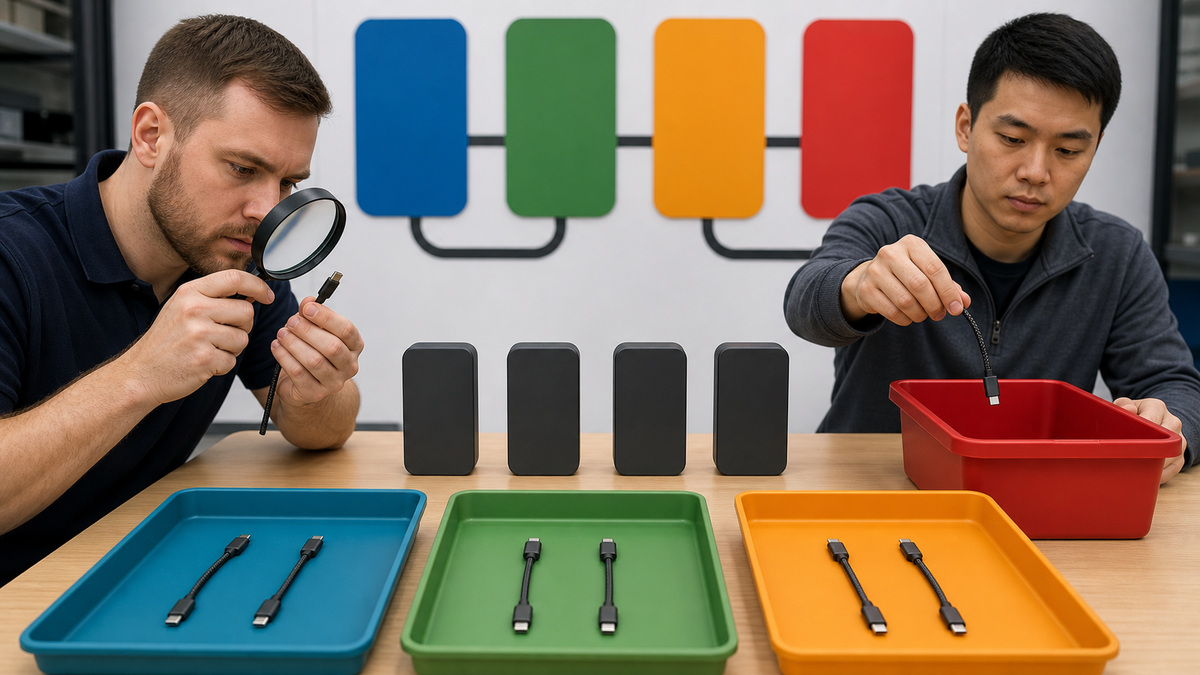
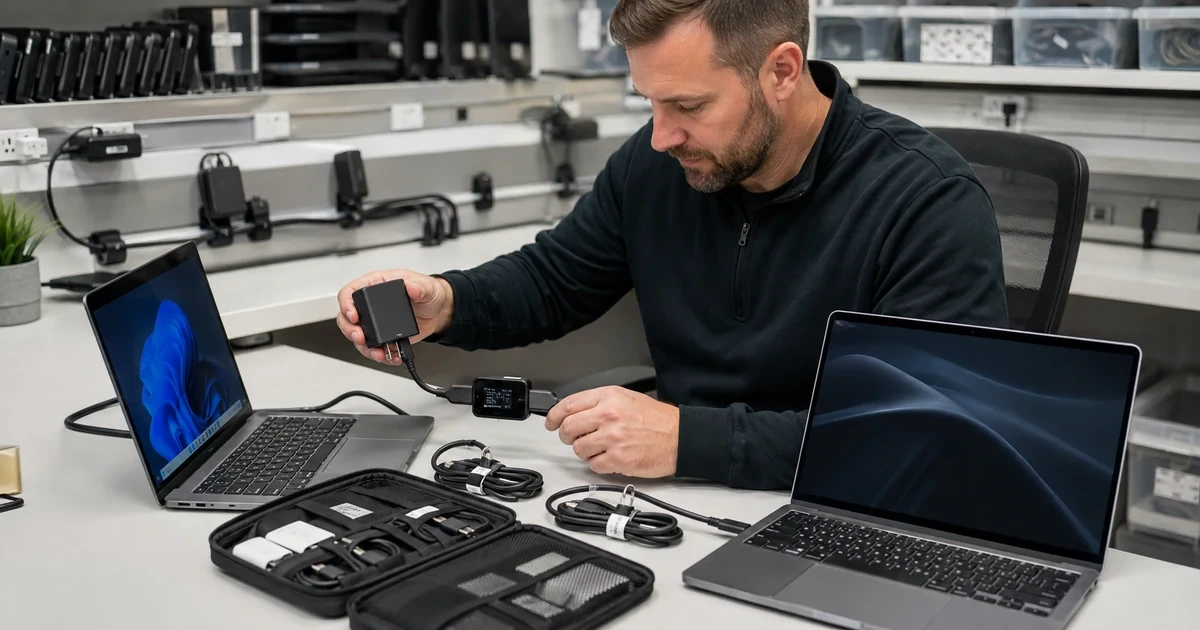
Begin with a physical inventory instead of a wattage label in a catalog. Record the exact Anker model number and revision, purchase source, receipt or order reference in a restricted record, warranty basis, AC input range, total output rating, each port’s supported profiles, port priority, dimensions, plug style, and included cable. For every cable, capture model or procurement SKU, length, connector types, rated power, e-marker status where applicable, supported data generation, video capability, condition, and assigned use. Anker’s cable FAQ is a useful warning against visual assumptions: it explains that many USB-C cables are limited to USB 2.0 data and do not carry video, while named higher-spec models add video, faster data, certification, or electronic marking. Build a matrix by laptop make and exact model, not by employee. The row should state the laptop’s supported USB-C charging port, minimum sustain power, preferred power for fast recovery, maximum accepted profile, whether the port shares bandwidth or video, approved Anker charger port, approved cable, dock interaction, and result under load. Include phones, tablets, headsets, portable monitors, and other devices only where simultaneous charging is an intended use. Do not infer that a charger’s printed maximum reaches every port or combination. For higher-power service, confirm the device, charger, cable, and connector all support the same path. Anker’s 140W article notes that 28-volt EPR capability and a compatible device are required and that some notebooks reach the advertised peak only briefly. Preserve that distinction in purchasing standards and help-desk scripts. A useful catalog entry says what a combination can sustain and under which port arrangement, not merely the largest number printed on a product page.
- Record exact Anker model and revision, protected purchase evidence, warranty basis, AC input, total budget, per-port profiles, priority behavior, and included accessories.
- Catalog each cable by model, length, connector, marked power, e-marker status, data class, video support, condition, and approved use.
- Map each exact laptop to its charging port, minimum sustain level, preferred recovery rate, maximum accepted profile, approved charger port, cable, dock path, and workload result.
- Keep high-power EPR, ordinary PD, PPS, data, and video claims separate, a shared connector does not make those functions interchangeable.
- Reject unknown, counterfeit-looking, relabeled, frayed, crushed, loose, hot, contaminated, or untraceable components from the managed pool.
Qualify Single-Port, Multiport, Battery-State, and Thermal Behavior
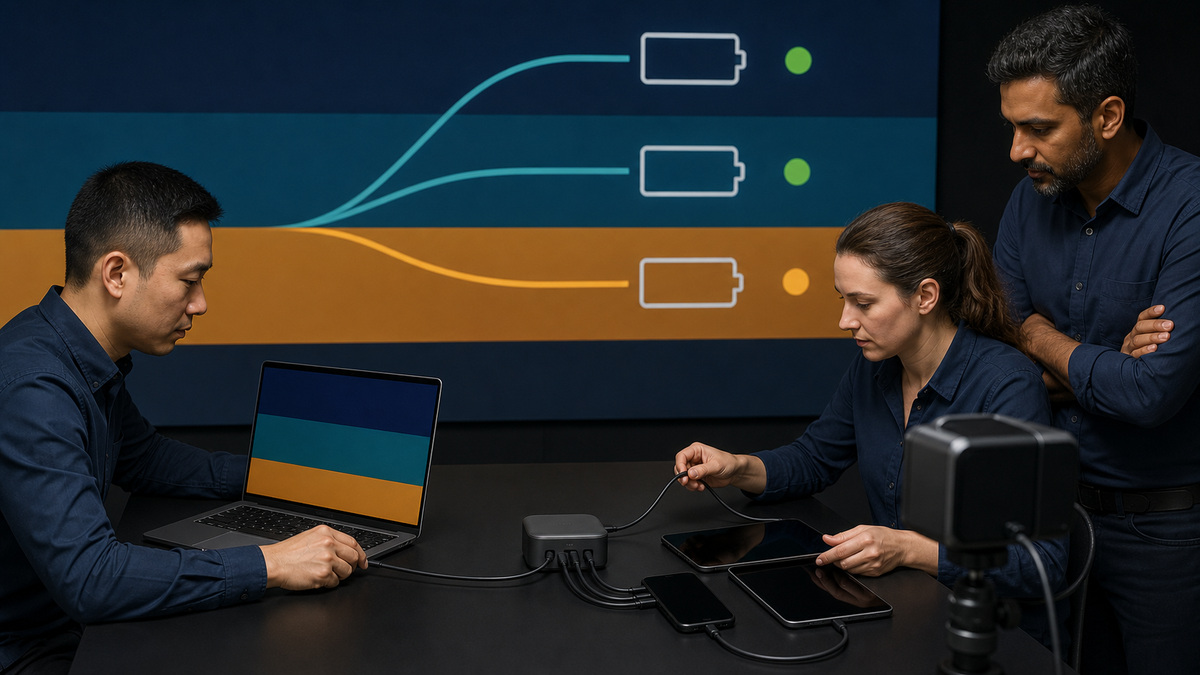
Run a repeatable bench test for every approved combination. Start with the notebook below a moderate state of charge, its supported charging port, the selected Anker charger connected directly to a known-good outlet, and the approved cable. Capture negotiated power with an organization-approved analyzer that does not introduce an unsupported adapter path, then launch a representative workload: video conferencing, external display, browser and office applications, endpoint security, backup, and the actual line-of-business task. Observe whether the battery gains, remains stable, or drains. A high peak followed by sustained battery loss is not an acceptable desktop result. Repeat at a high battery state because charge taper is normal, Anker explains that a compatible laptop may draw near a charger’s maximum at low charge and then reduce consumption as the battery fills. Test sleep, wake, restart, and reconnect. Next exercise every intended multiport combination in a fixed order. Attach the laptop alone, then add the phone, tablet, or other accessory, remove and reconnect each device, allow one device to finish charging, and watch for renegotiation, momentary disconnect, display dropout through a powered dock, or a slow-charging warning. Anker’s 70W FAQ directs higher-demand laptops to the primary USB-C port and warns that sharing ports may not satisfy notebooks that need 65W or more. Treat that as guidance for that model family and verify the allocation table for the exact unit. Inspect plug fit, cable strain, adapter stability, outlet temperature, connector temperature, and the laptop’s battery and performance state. Warm operation can be normal, but smell, discoloration, deformation, sparking, intermittent contact, visible damage, or heat beyond the model’s documented behavior is a stop condition. Never cover a charger, trap it under soft material, daisy-chain unapproved adapters, or leave a suspect component in a loaner drawer.
- Test direct power with the approved laptop port and cable at low and high battery states under a representative business workload.
- Record negotiated and sustained behavior, battery gain or loss, thermal observations, sleep, wake, restart, reconnect, and performance state.
- Exercise each intended multiport combination and connection order, watch for power redistribution, momentary resets, slow-charge warnings, and dock or display disruption.
- Use the exact charger’s port-allocation guidance and confirm which primary port is intended for a high-demand notebook.
- Stop on smell, smoke, swelling, deformation, discoloration, sparking, unstable connection, unsafe heat, damaged insulation, loose pins, liquid exposure, or an unidentified power component.
Operate User Kits, Spares, Exceptions, and Anker Support Evidence
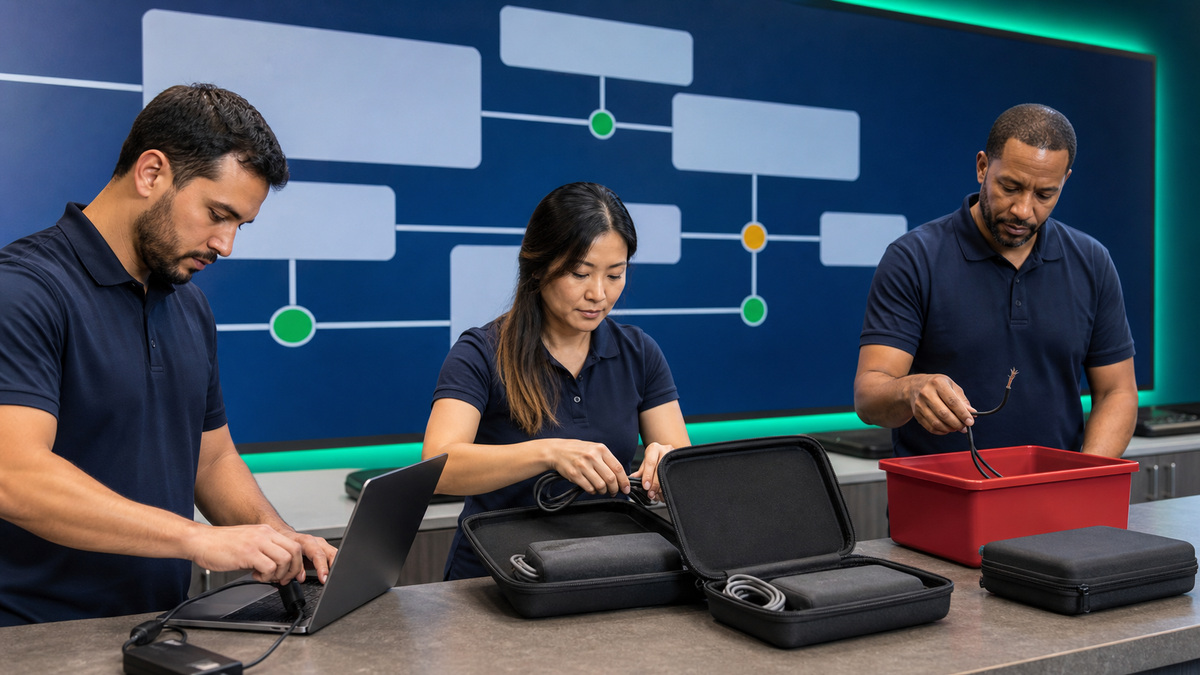
Issue power as a controlled kit. The kit record should connect a privacy-safe asset tag to one approved charger model, one or more approved cable models, destination laptop class, permitted multiport use, travel status, issue date, inspection cycle, and return obligation. Keep full serials and order references in the restricted asset system, not on a public label. Use cable bands or storage positions that identify purpose without pretending to change the cable’s capability. For example, separate laptop-power-only cables from certified data or display cables and quarantine look-alike consumer cables that cannot be traced. Maintain known-good chargers and cables for substitution at support desks. When a user reports slow charging, reproduce with the original combination, note laptop battery state and workload, test the intended primary port, remove secondary loads, compare a known-good cable, compare a known-good charger of the exact approved model, inspect connectors, and check whether the symptom follows laptop, port, cable, charger, outlet, dock, or load. Do not replace every layer simultaneously. An intermittent failure that disappears after changing three items has not been diagnosed. Keep exception decisions explicit. A mobile workstation, field laptop, accessible workstation, airline traveler, or emergency-response kit may require a dedicated higher-power adapter, longer cable, regional plug, or manufacturer-supplied charger. Document the reason, safety review, accepted limitations, expiry, owner, and tested fallback. For an Anker support or warranty case, preserve model, protected serial, proof of purchase, observed behavior, photos that hide unrelated identifiers, laptop and cable combination, port used, measured result, thermal condition, isolation steps, and shipping instructions. Anker’s published warranty chart varies by product family and tells customers to check the product page or invoice for the exact term, so do not promise a universal duration. On return, reconcile charger, cable, packaging, replacement model, claim, asset assignment, and the original symptom before releasing the kit. Retire damaged or unsupported equipment through the organization’s electrical and electronic waste process rather than circulating it as an unlabeled spare.
- Assign a known charger and cable set to the intended laptop class with issue date, inspection cycle, return obligation, travel use, and permitted multiport combinations.
- Separate power-only, data, display, Thunderbolt, and higher-power cables using controlled storage and asset records rather than appearance.
- Diagnose by single-variable substitution so the failure can be attributed to laptop, port, cable, charger, outlet, dock, battery state, or workload.
- Record higher-power, accessibility, field, travel, and regional exceptions with owner, expiry, tested limitation, and fallback.
- Base warranty expectations on the exact product page, invoice, region, seller, and case outcome, reconcile every replacement before returning it to service.
Renew the Anker Power Standard from Evidence, Not Catalog Maximums
Review the approved power catalog at least quarterly and before every laptop refresh, charger model change, cable substitution, travel-kit redesign, or material incident. Compare help-desk cases, slow-charge alerts, battery drain under load, connector damage, thermal observations, lost-kit volume, claim outcomes, and spare consumption by exact charger, cable, laptop, and port combination. A recurring problem with one long cable or one shared-port pattern should alter the bill of materials even if each individual ticket was temporarily resolved. Procurement should sample incoming lots before broad issue. Verify model and revision, seller, package condition, plug type, included cable, label consistency, physical construction, negotiated profiles, multiport allocation, sustained-load result, and temperature against the approved reference. Quarantine substitutions and near-match marketplace listings until engineering qualifies them, a familiar product name does not prove the same electronics or cable. Keep lifecycle dates for high-use travel kits and inspect them more often than stationary spares. When a laptop fleet changes, calculate whether the existing Anker adapter can sustain the new workload instead of assuming backward connector compatibility is sufficient. Retire superseded parts from active drawers so technicians do not recreate an unsupported combination during an urgent swap. Management reporting should show approved combinations, exception count, untraceable units, failed inspections, incident clusters, spares, claims, and overdue returns without exposing user or asset identifiers. The standard is healthy when any support technician can select a known charger and cable, explain the expected single- and multiport behavior, reproduce a failure, and return every component to a controlled state.
- Review incidents, slow-charge states, battery drain, heat, connector wear, lost kits, claims, and spare use by exact charger-cable-laptop combination.
- Sample incoming lots for model, revision, seller, package, label, construction, negotiated profiles, port sharing, sustained load, and temperature before broad issue.
- Quarantine substitutions and marketplace near-matches until they pass the same qualification.
- Recalculate support when laptops, docks, travel patterns, regional plugs, charger revisions, or cable models change and remove superseded components from active drawers.
- Report coverage, exceptions, unidentified hardware, failures, claims, inventory gaps, and overdue returns using privacy-safe counts.
Official product documentation and ALLMSP resources
Frequently Asked Questions
Can any Anker USB-C cable charge a business laptop at full speed?
No. The connector does not prove the cable’s current, voltage, e-marker, data, or video capability. Match the exact cable model, charger port, and laptop-supported Power Delivery profile, then validate the combination under load.
Why does an Anker charger deliver less than the number printed on it?
The printed figure may be a total or maximum for a particular port and device state. Port sharing, the laptop’s accepted profile, cable limit, battery level, temperature, and workload all affect negotiated and sustained power.
Which port should power a laptop on a multiport Anker charger?
Use the port identified for laptop or highest-power service in the exact model’s Anker documentation. For example, Anker’s Nano 70W guidance starts laptop troubleshooting on USB-C1, but teams must verify the allocation for their own model.
Why can laptop charging slow down when a phone is connected?
A multiport adapter redistributes a finite budget when another load appears. The laptop may renegotiate to a lower profile, and a high-demand system can display a slow-charge warning or lose battery under workload.
Does a 140W Anker charger guarantee 140W at the laptop?
No. Anker notes that the device and cable must support the higher EPR path, including the required voltage, and that some laptops accept peak power only briefly. Test sustained behavior, not a single maximum reading.
Why should charging be tested under a real business workload?
An idle charging icon can hide a power deficit. Video calls, displays, security tools, backup, and line-of-business applications may push the notebook above what a shared or lower-power path can sustain.
What should make an Anker charger or cable fail inspection?
Quarantine equipment with damaged insulation, bent or loose connectors, scorching, discoloration, swelling, odor, sparking, liquid exposure, unstable negotiation, unsafe heat, unknown origin, or an unreadable model.
How should support isolate an Anker slow-charging complaint?
Reproduce the original state, remove secondary loads, use the intended charger port, then substitute one known-good cable, charger, outlet, dock path, or laptop at a time while recording where the symptom follows.
Do all Anker chargers and cables have the same warranty?
No. Anker’s published policy varies by product and directs customers to the product page or invoice for exact coverage. Seller, region, purchase evidence, condition, and claim outcome also matter.
How can ALLMSP help manage Anker laptop power kits?
ALLMSP can inventory exact models, build compatibility matrices, run sustained-load and multiport tests, standardize user kits and spares, isolate faults, control exceptions, document claims, and reconcile replacements and retirement.