


















































































































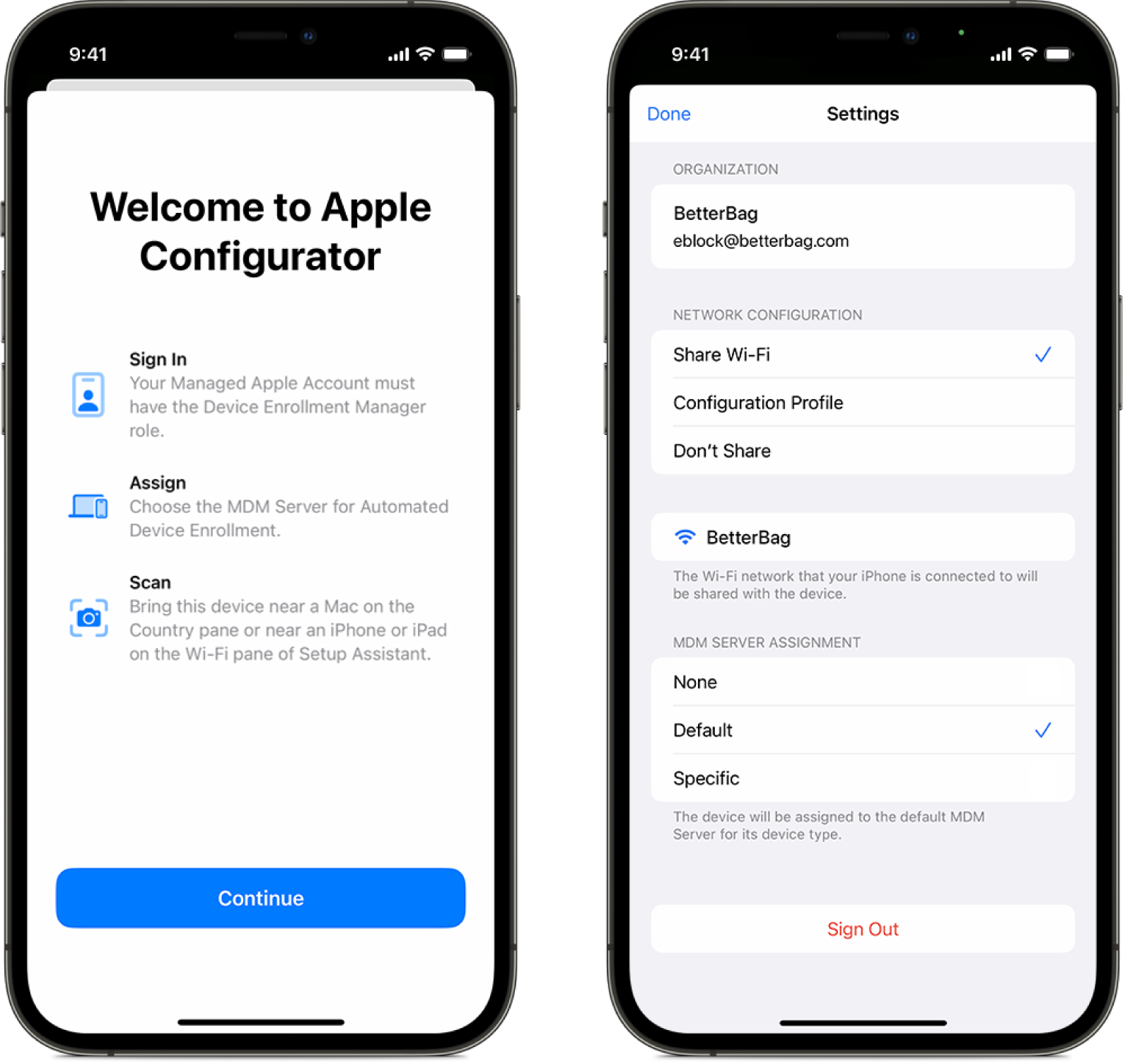
Apple’s published Configurator for iPhone example separates network sharing from MDM server assignment, with Default selected. Verify that the chosen service is the intended enrollment destination. These screens do not show a completed device enrollment or remove the documented provisional-release period.[4] View full-size image
Before handing an Apple device to a user, reconcile its Apple Business assignment with the management service that will enroll it, then verify the controls on the device. A serial number in the portal is only one checkpoint. If Setup Assistant misses Remote Management, the device is assigned to the wrong service, or required apps and encryption are absent, stop the handoff and trace that specific stage. Devices added manually with Apple Configurator also have a provisional-release exception that the rollout plan must account for.
Apple describes Automated Device Enrollment as the organization-owned model that configures devices from first activation, enables supervision, supports nonremovable enrollment, and exposes the broadest management capabilities. Apple Business connects eligible purchases from Apple, participating resellers, and carriers to a chosen device-management service, Apple Configurator can add supported devices that did not arrive through those channels. The enrollment profile can hold a device in Setup Assistant, require authentication, skip selected panes, enforce a minimum operating-system version, and, for supported Mac deployments, require FileVault before the user proceeds.[1]
Choose the management service before assigning devices: Apple Business includes built-in device management and can also connect to external services. Evaluate required device types, settings, app delivery, reporting, integrations and support, then pilot the selected service.[6][7] The ownership, enrollment and security checks below still apply; available controls depend on the chosen service and supported regions, devices and operating-system versions. Keep serial numbers, reseller identifiers, service tokens, certificates, Apple Business account details, user identities, network names, enrollment URLs, and device-management endpoints in restricted systems. Public tickets and articles should explain process and evidence without publishing a deployment map.
When an organization in Lawrenceville, Suwanee, Gwinnett County, Metro Atlanta, or elsewhere in Georgia needs to deploy Apple devices with Business Manager and automated enrollment, ALLMSP handles the work in house from initial review through validation and ongoing support.
Key decisions at a glance
- Reconcile each organization-owned Apple device from purchase source and serial through Apple Business inventory, assigned device-management service, enrollment profile, user or purpose, support state, and final disposition.
- Use Automated Device Enrollment for organization-owned devices when the control model requires supervision, nonremovable management, Setup Assistant gating, minimum operating-system enforcement, and configuration before use.
- Treat service assignment, supported configurations, Setup Assistant choices, network access and management availability as production dependencies. For linked external services, also govern the service token, public key, owner and expiry.[3]
- Test every enrollment profile on representative Mac, iPhone, and iPad hardware before broad assignment, including first boot, authentication, FileVault, apps, certificates, restrictions, restart, offline behavior, and recovery.
- Reassign, repair, erase, return to service, sell, recycle, and release devices in the correct order so management, Activation Lock authority, ownership evidence, data protection, and inventory remain aligned.
Build the Apple Ownership, Assignment, and Enrollment Record
Start with a controlled record for every Mac, iPhone, iPad, Apple TV, Apple Watch, or Apple Vision Pro the organization owns. Capture device type, model and configuration, serial, purchase order, reseller or carrier, invoice, receiving date, warranty or AppleCare state, physical location, assigned user or shared purpose, Apple Business source, device-management-service assignment, enrollment profile, supervision state, operating-system version, activation state, FileVault or device-encryption evidence, recovery and Activation Lock authority, support owner, and disposition. Store account secrets and recovery values separately. Reconcile three views: purchasing proves ownership, Apple Business proves the device is registered to the organization and assigned correctly, and the device-management inventory proves successful enrollment and current state. A match in only two systems is an exception, not a completed deployment.
Define approved intake paths. Direct Apple and participating reseller or carrier purchases should flow into Apple Business under the correct customer relationship. Devices already owned but missing from the portal may be eligible for addition with Apple Configurator using the current supported workflow. Configurator-added devices need explicit assignment and a refreshed device-management inventory before they are treated as ready. Quarantine unknown, personally owned, Activation-Locked, duplicate, released, or ownership-disputed hardware from production enrollment.
Establish roles with least privilege in Apple Business: organization administration, device enrollment, content, people, and support responsibilities should be accountable and not concentrated in one shared account. Protect Managed Apple Accounts with current authentication controls, keep at least two recoverable administrators, and review anyone who can assign or release devices.
First choose the applicable setup path. For built-in management, an appropriately permitted user can open Devices > Management Services, add a service and turn on included device management.[6] For an external service, link it with a distinct name and documented public key, token owner, creation date, one-year expiry, renewal procedure, and rollback.[3] Apple states that the token must also be replaced when its public key changes, the downloader changes the Managed Apple Account password, or that person leaves. Renew early and verify device synchronization before the prior token expires. A useful intake dashboard shows received devices, portal presence, assigned service, profile, enrollment result, exceptions, user readiness, token expiry, and accountable owner without exposing sensitive identifiers broadly.[2][3]
For Apple Configurator for iPhone, check Apple’s device and Setup Assistant requirements before attempting intake. The documented Mac route requires Apple silicon or an Apple T2 Security Chip; a Mac that is already set up must be erased before it can be added by that route. Obtain erase approval and protect unsynced data and recovery access first. After addition, confirm the intended management-service assignment and refresh the service’s device list if necessary. The 30-day provisional period begins after successful assignment and enrollment, not merely when purchasing records are entered.[4]
Design Automated Device Enrollment and Setup Assistant Controls
Choose enrollment method from ownership and privacy requirements, not convenience. Automated Device Enrollment is intended for organization-owned hardware and enables supervision, which permits additional restrictions, commands, and visibility. Manually added Apple Configurator devices have a 30-day provisional period during which the user can release the device from Apple Business, supervision, and its management service; do not describe that population as unconditionally nonremovable. User Enrollment is designed for stronger separation on personally owned devices, profile-based or account-driven Device Enrollment can fit other managed scenarios. Document why each population uses its method, what data the service can see, which commands it can issue, whether the user can remove management, and what happens at offboarding.
Build separate enrollment profiles when Mac, iPhone, iPad, kiosk, shared, executive, developer, regulated, or lab devices require different Setup Assistant and security outcomes. For every profile, document eligible device types and operating systems, service assignment, authentication flow, whether management is nonremovable, whether the device waits for configuration, minimum operating-system policy, setup panes shown or skipped, pairing rules, account creation, local administrator model, Platform SSO or identity dependencies, FileVault behavior, activation and network requirements, and recovery. Skipping a pane does not necessarily enforce the feature afterward, pair the setup experience with the relevant management configuration. Apple notes that skipped panes use default behavior, so privacy and business requirements should be reviewed explicitly.
Holding a device in Setup Assistant can prevent access before critical profiles and apps arrive, but only if the device can reach Apple activation services, APNs, the device-management service, identity, certificates, DNS, time, content distribution, and required app sources. Map those dependencies and exempt necessary Apple traffic from unsupported HTTPS interception. Auto Advance for supported Mac deployments requires the correct Apple Business record, profile setting, Ethernet connectivity during initial configuration, and access to the management service, it is a specialized workflow, not a default for every laptop.
Use authenticated enrollment to associate the intended user where the service supports it, but protect the identity path from creating a permanent setup deadlock. Decide what limited, safe recovery experience appears when identity or management is unavailable. Never embed device-management credentials or sensitive network details in public setup notes. Enrollment design is accepted only after security, support, identity, network, HR, and device owners agree on user experience, data boundary, exception handling, and rollback.
Pilot First Boot, Configuration, Handoff, and Recovery
Create a representative pilot matrix before assigning a profile to production. Include Apple silicon Mac laptops and desktops used by the fleet, current iPhone and iPad classes, Wi-Fi-only and cellular paths where applicable, remote and office networks, existing and new users, accessibility needs, standard and elevated roles, and at least one device at the minimum supported operating-system version. Preserve a known recovery device and a way to reassign the pilot without disturbing the production population.
Begin from an erased, activation-ready device. Verify that Apple Business shows the intended service assignment. As enrollment completes, verify the intended Blueprint configurations and app availability or installation for its user or device assignment; for an external service, verify synchronization and the assigned profile.[8][9][3] If an app is required before handoff, prove that it is installed and opens; availability alone is insufficient. Observe activation, profile retrieval, Setup Assistant authentication, minimum-version enforcement, supervision, nonremovable management, user association, local account or identity creation, time, certificates, Wi-Fi or Ethernet, VPN, security controls, FileVault, personal recovery-key escrow where used, bootstrap-token escrow on Mac, required apps, updates, restrictions, inventory, and compliance reporting. Confirm the device cannot reach business data before required protections arrive. Reboot and repeat key checks because setup success does not prove persistent state.
Test failure modes deliberately in a lab: expired or replaced service token, device left unassigned, wrong profile, APNs or management temporarily unreachable, identity unavailable, insufficient network access, certificate failure, low power, not enough storage for an enforced update, and a user who closes the lid or walks away. Document the visible symptom, safe wait or retry behavior, support decision tree, reassignment process, erase authority, escalation, and evidence. Avoid testing by exposing real credentials or weakening production controls.
Handoff requires more than a Home Screen or desktop. Confirm asset tag, physical condition, correct model and accessories, charger, operating-system target, enrollment, encryption, key escrow, updates, required apps, backup or cloud-data policy, support contact, acceptable use, return requirements, and user acknowledgement. For shipped devices, use tracked custody, tamper-evident packaging where appropriate, identity-confirmed receipt, and a method that does not transmit passwords alongside hardware. Measure enrollment duration, manual touches, failures by stage, support cases, app readiness, policy compliance, and user interruptions. A pilot passes when the device is usable, recoverable, supportable, and securely represented in all systems,not merely because the automated path completed once.
Worked intake example: four different enrollment states
These are hypothetical pilot cases, not reported customer results. Move each device through the applicable checkpoint; a later-looking screen is not a substitute for the missing evidence.
| Pilot observation | Next controlled action | Evidence needed before handoff |
|---|---|---|
| Purchased Mac is absent from Apple Business | Reconcile seller and ownership records; use the supported Configurator route only after eligibility, backup and erase approval. | Portal inventory plus the intended management-service assignment; no ownership dispute or Activation Lock exception. |
| Device is in Apple Business but assigned to a retired service | Correct the assignment through the authorized service workflow and verify that the destination has the device record. | The intended service sees the serial and has an applicable enrollment configuration. |
| Setup Assistant is waiting for configuration | Check activation, network, identity and management status; investigate the exact blocker before authorizing another erase. | Required configuration is delivered; required apps actually open and encryption/recovery evidence is available. |
| Configurator-added device enrolls successfully | Record the provisional period and monitor continued management under the supported workflow. | Successful assignment/enrollment date, actual supervision and policy state, and an owner for provisional-release exceptions. |
Keep purchase, portal and live-device evidence together. An enrollment acknowledgment, an app being available, and an app being installed are different checkpoints; record the actual one.[1][4][8][9]
Operate Reassignment, Repair, Return to Service, and Release
Review Apple Business and device-management exceptions on a scheduled cadence. Alert on unassigned devices, enrollment failures, profile mismatch, missing supervision, stale inventory, encryption or recovery-key failure, unsupported operating system, token or certificate expiry, duplicate serial, unauthorized release attempt, Activation Lock risk, and devices that remain assigned to departed users. Reconcile Apple Business roles, external services, token downloaders, reseller relationships, and Configurator stations at least quarterly and after personnel, identity, service, or purchasing changes.
Offboarding begins with business data and ownership, not an immediate wipe. Confirm the exact device, user, legal or preservation requirements, backup and transfer, managed app and account removal, FileVault recovery, Activation Lock authority, accessories, physical return, and new assignment. Select lock, erase, Return to Service, manual rebuild, repair, sale, donation, recycling, or loss workflow from risk and supported capability. For eligible shared iPhone and iPad scenarios, Apple Return to Service can automate erase, activation, re-enrollment, and configuration, test the exact operating system and device-management implementation before depending on it. Mac turnover commonly relies on Erase All Content and Settings where supported, followed by Automated Device Enrollment and configuration. Verify the resulting enrollment and data state rather than assuming that a command acknowledgment proves completion.
Repair has its own chain. Back up or securely erase according to policy, document condition and diagnostics, manage Find My or Activation Lock through authorized organizational procedures, preserve ownership and coverage evidence, package accessories only when requested, and track shipment or service custody. Apple warns not to release a device merely because it is going for repair, if a released device is replaced, the replacement may not remain available to the organization in Apple Business. Reconcile any replacement serial, warranty, Apple Business record, management assignment, and asset record before returning it to a user.
Release is a controlled disposition step for devices the organization has sold, lost, cannot repair, or no longer owns or controls. Clear organizational Activation Lock while authority remains, preserve required records, erase and validate data disposition, remove management and licenses, update financial and physical inventory, and then release under an authorized role. Apple notes that Activation Lock cannot be managed through Apple Business after release. Confirm the released state and recipient responsibility. If a device is added back later with Apple Configurator or an authorized seller, treat it as a new intake and prove ownership again.[5]
Official product documentation and ALLMSP resources
- ALLMSP Apple Hardware Support
- ALLMSP Hardware Support
- ALLMSP IT Consulting
- ALLMSP Managed IT Services
- ALLMSP Cybersecurity Services
- Contact ALLMSP
After enrollment succeeds, carry its verified state into the update and repair runbook. Operate Apple updates, diagnostics and repair.
Before an approved erase, reassignment or release, verify the data-recovery and ownership controls. Manage FileVault, Activation Lock and device turnover.
Frequently Asked Questions
What is Apple Automated Device Enrollment for?
Automated Device Enrollment enrolls eligible organization-owned devices during activation and supports supervision, Setup Assistant controls and nonremovable management. Account for the exception when devices are manually added with Apple Configurator: after successful assignment and enrollment, the user has a 30-day provisional period to release the device from Apple Business, supervision and management.
Do we need an external MDM to enroll Apple Business devices?
No. Apple Business includes built-in device management and can also link to external services. Choose the service whose supported devices, settings, apps, reporting and support meet the organization’s needs, then verify assignment and successful enrollment. Portal inventory alone does not prove that the intended controls arrived.
[6][7]How long does an external device-management token in Apple Business last?
Apple states that an external device-management-service token expires after one year. Renew it early, install it promptly, and verify synchronization before the prior token expires.
When else must an external device-management token be replaced?
Replace it when the service public key changes, when the downloader changes their Managed Apple Account password, or when that person leaves, following the service developer’s procedure.
Can Apple Configurator add devices missing from Apple Business?
Yes, for supported devices and the documented Configurator workflow. The iPhone-based Mac route requires Apple silicon or an Apple T2 Security Chip, and an already configured Mac must first be erased with authorization and protected data. Verify service assignment, refresh its device list if needed, and track the 30-day provisional release period after successful assignment and enrollment.
Supporting documentation: [4]
Should every Apple Setup Assistant pane be skipped?
Not automatically. A skipped pane uses default behavior and may remain configurable later. Show or skip each pane based on privacy, security, identity, support, and user-experience requirements.
What does supervision mean for an Apple device?
Supervision enables additional organizational management controls; it is not a replacement for purchase or custody evidence. Verify the actual supervision state on the enrolled device and in the management service. For manually Configurator-added devices, also account for the 30-day provisional release period.
Why hold an Apple device in Setup Assistant?
Use the supported wait-for-configuration flow to prevent handoff before required setup finishes. Check the service’s status and activation, network, identity and certificate dependencies when it stalls. Before release to the user, prove the required policies arrived and required apps are installed and open; an app’s availability alone does not meet that handoff test.
Should a device be released from Apple Business before repair?
No. Apple specifically warns against releasing a device merely for repair because a replacement for a released unit might not remain available to the organization in Apple Business.
How can ALLMSP improve Apple Automated Device Enrollment?
ALLMSP can reconcile ownership, design profiles, govern tokens and roles, validate networks and identity, pilot first boot, document recovery, monitor exceptions, and coordinate reassignment, repair, and release.
Sources
- Apple: Automated Device Enrollment and device management ↩
- Apple: Deploy devices with Apple School Manager or Apple Business ↩
- Apple Business: Link to an external device management service ↩
- Apple Business: Add devices using Apple Configurator ↩
- Apple Business: Release devices ↩
- Apple Business: Manage the built-in device management service ↩
- Apple Platform Deployment: Choose a device management service ↩
- Apple Business: Apply Blueprints ↩
- Apple Business: Enrollment methods for built-in device management ↩