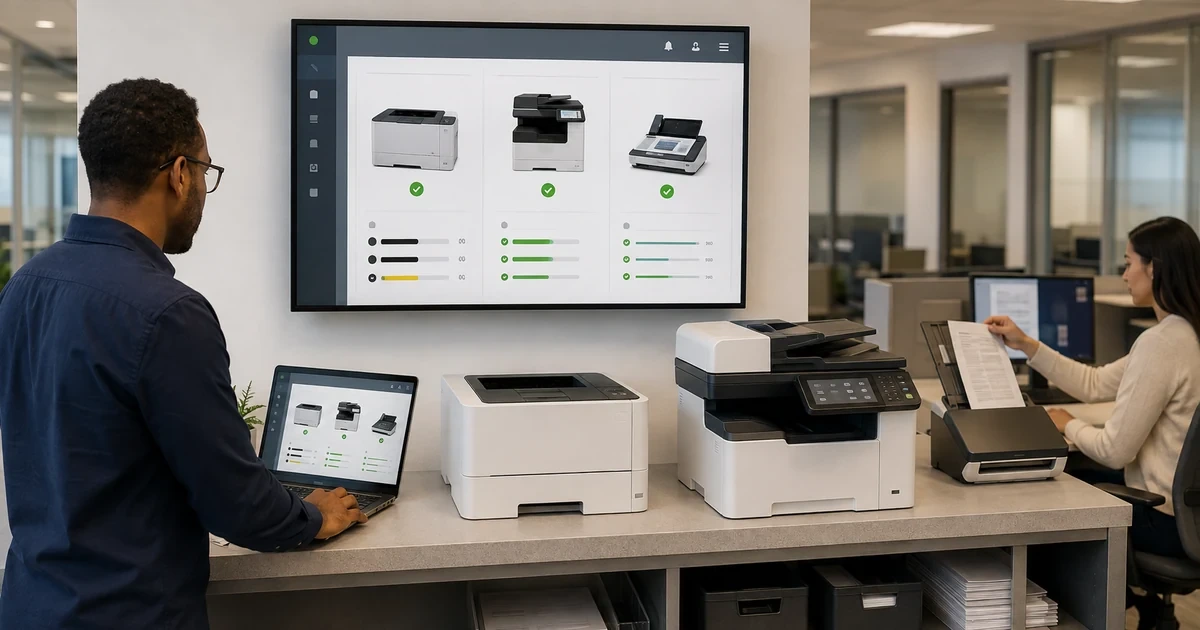
Brother fleets often grow one urgent purchase at a time. A warehouse label printer, a finance multifunction device, a front-desk scanner and a departmental color printer may all carry the same brand, yet differ in language support, memory, trays, finishing, scan protocols, authentication and administration features. A single generic driver or cloned configuration is therefore not a safe fleet design.
Brother publishes BRAdmin Professional 4 as its Windows device-management application for network-connected Brother equipment. Its current guide covers discovery, status, settings, notifications and deployment-related administration, while Brother’s Mass Deployment Tool is designed to apply settings to multiple devices. Those tools are valuable only after the organization defines which devices truly belong in the same model and policy cohort.
This runbook organizes deployment around exact-device records and verified business outcomes. It keeps initial configuration, driver packaging, network placement, scanning, security, consumables and help-desk evidence together so a successful test page does not hide an unusable scan route or an unsupported replacement model.
Companies across Lawrenceville, Suwanee, Gwinnett County, Metro Atlanta, and Georgia can bring ALLMSP in to deploy Brother printers and scanners with BRAdmin Professional 4. We coordinate the affected technology and business workflow through our own team.
Key decisions at a glance
- Inventory exact models, serials, firmware, interfaces, accessories, duty patterns and replacement status before grouping devices for administration.
- Use BRAdmin Professional 4 for supported network-device discovery and management, while keeping USB and offline devices in a separate controlled workflow.
- Create reviewed configuration profiles with the Mass Deployment Tool instead of improvising Web Based Management settings at every device.
- Treat drivers, queues, scan destinations, address books, certificates and consumables as parts of one document service rather than independent tickets.
- Pilot representative print, duplex, finishing, scan, authentication, sleep and recovery workloads, then retain the evidence needed to reproduce the accepted state.
Build a Brother Model, Accessory, Interface, and Workload Matrix
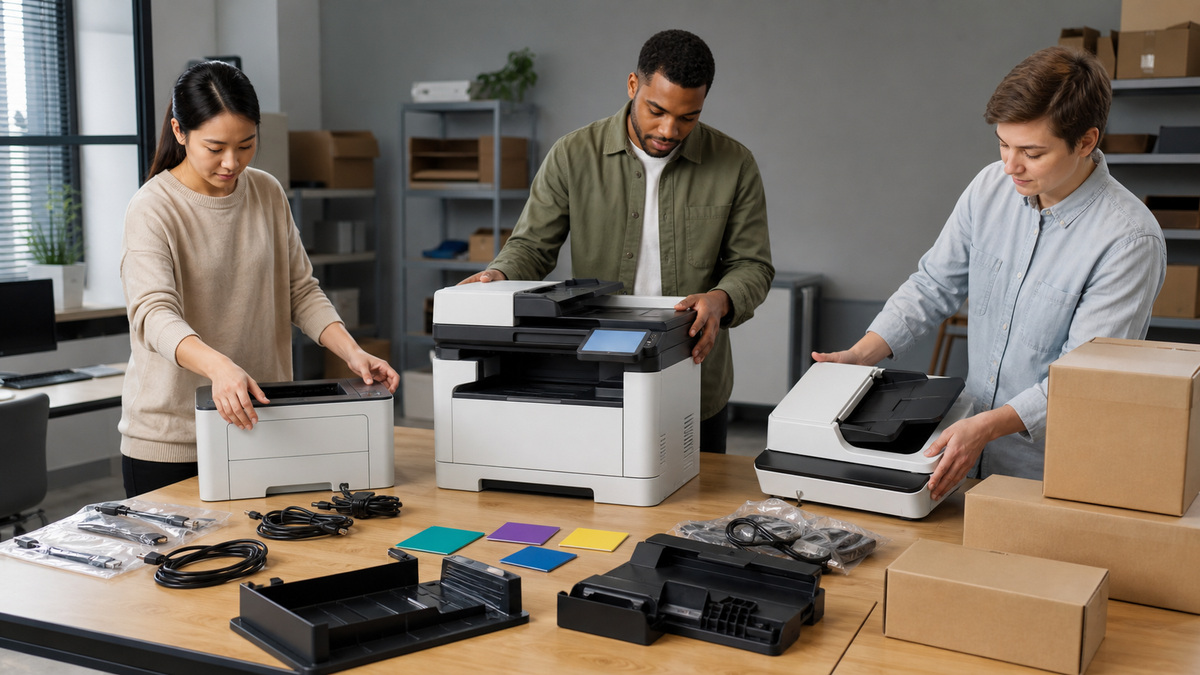
Begin with the complete model string from the chassis and Brother support page, not a shortened family name. Record serial number, site, department, owner, purchase and warranty context, current firmware, Ethernet or wireless interface, USB use, installed trays, duplex unit, finisher, memory options, scanner feeder and any label or media constraints. Separate printers, multifunction devices, document scanners and specialty units even when procurement groups them together.
Describe the work that each device must perform: monthly volume, peak bursts, monochrome or color, paper sizes and weights, envelopes or labels, duplex defaults, confidential output, copy accounting, OCR, scan-to-email, scan-to-network folder and line-of-business capture. Compare that workload with the model’s published specifications and recommended environment. A device can print a test page yet still be wrong for continuous labels, high-volume duplex scanning or heavy card stock.
Give every device a lifecycle disposition: standard, supported exception, pilot, replace, spare or retire. Note compatible toner, drum, belt, waste-toner box and maintenance items by exact part reference without assuming that two similar-looking Brother models share supplies. This matrix becomes the boundary for BRAdmin groups, driver packages, configuration profiles, monitoring thresholds and purchasing approvals.
- Capture the full Brother model, serial, firmware, location, owner and network interface.
- List trays, feeders, finishers, duplex, memory and media requirements.
- Define print and scan outcomes, volumes, peaks and confidentiality needs.
- Map toner, drum and other replaceable items to exact supported devices.
- Assign a lifecycle and support status before creating deployment groups.
Discover and Group Network Devices in BRAdmin Professional 4
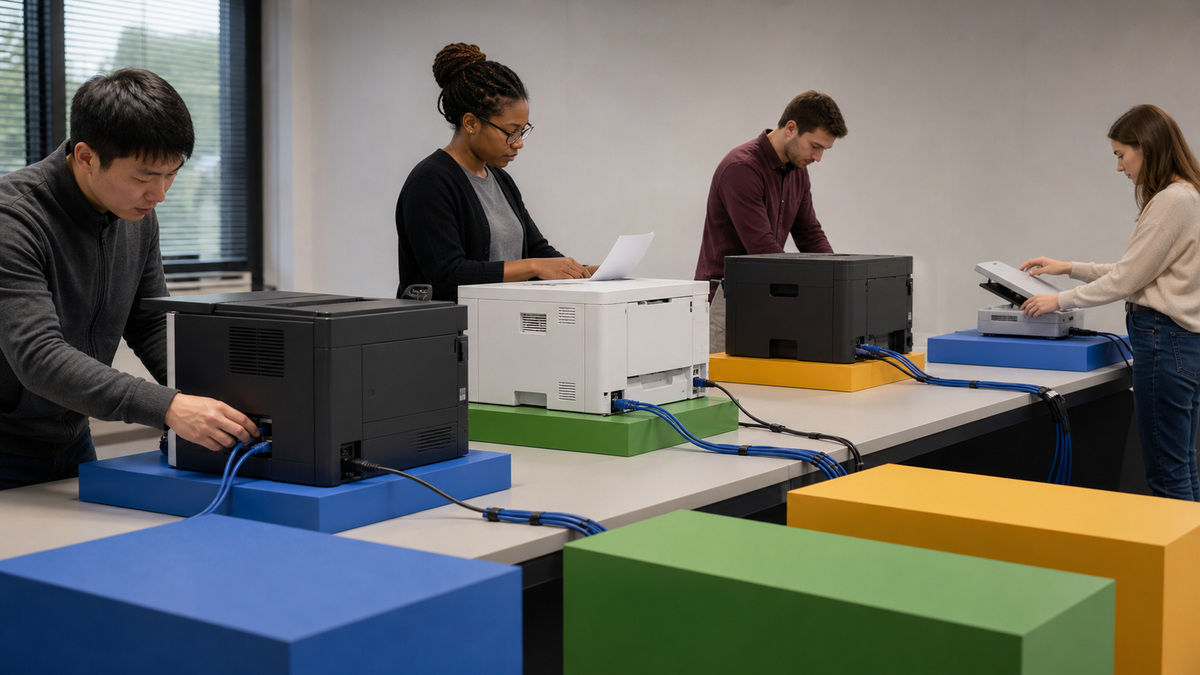
Install BRAdmin Professional 4 on a controlled Windows administration workstation or management host and document its owner, version and update path. Discover only approved network ranges and coordinate scans with network operations. Compare every discovery result with DHCP, switch, wireless-controller and physical inventory records, do not assume an unrecognized Brother device is safe merely because BRAdmin can see it.
Group devices by settings compatibility and operational purpose rather than by brand alone. Useful groups include an exact model and firmware branch, a site or VLAN, a monochrome desktop standard, a secured departmental MFP cohort, a scanner workflow or a replacement wave. Preserve exceptions for models that expose different fields or require a separate update sequence. Use device status and notifications to identify offline, error and supply conditions, but tune ownership so alerts create action instead of mailbox noise.
Protect the BRAdmin host as an administrative system. Limit interactive access, store configuration packages in an access-controlled location, log changes, back up the inventory and avoid embedding reusable passwords in broadly shared files. If routing or firewall rules prevent discovery, use an approved management path instead of weakening segmentation. Record why each range and credential scope exists, and remove stale devices when they are decommissioned.
- Run BRAdmin Professional 4 from an owned and patched Windows management host.
- Reconcile discovery with DHCP, switch, wireless and physical inventory evidence.
- Group only devices that share model capabilities, policy and change timing.
- Route status and supply notifications to a responsible queue with useful thresholds.
- Control configuration files, credentials, logs and stale device records.
Prepare Reviewed Settings with the Mass Deployment Tool
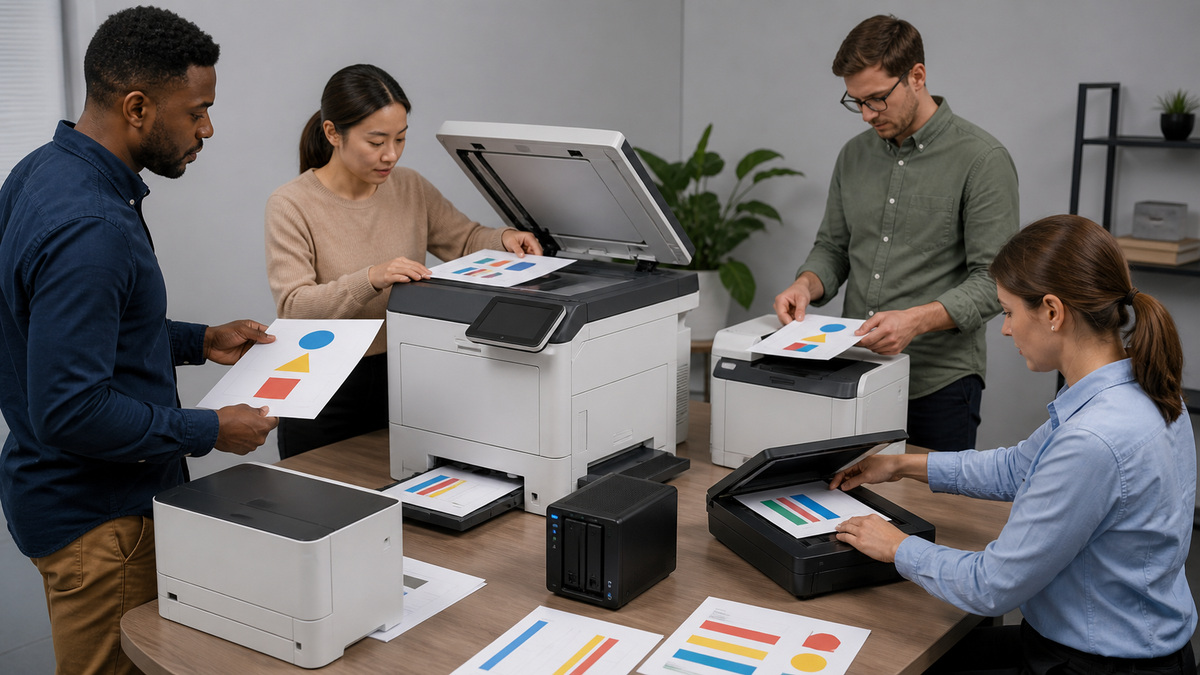
Create a clean reference configuration for each approved cohort. Set the network method, device name, time and time source, sleep behavior, paper and tray rules, default duplex and color policies, administrator access, protocol exposure and logging according to the model’s supported fields. Export or package settings only after comparing them with a second device and recording the source model and firmware version.
Brother’s Mass Deployment Tool can apply settings across multiple devices, but a profile should never be treated as universally portable. Identify per-device values such as host name, address, certificate identity, asset label and location, keep them out of a shared payload or populate them through an explicit device mapping. Review password and certificate handling, encrypt or restrict the package as appropriate, and preserve a rollback or known-good backup before applying a material change.
Use progressive rings: one lab device, a small same-model pilot, one representative site and then the approved cohort. Capture success, rejected fields, restart requirements and post-change reachability. Stop the ring when the model or firmware responds differently from the reference. A completed deployment report should show which setting applied to which device, who approved it and which devices remain exceptions.
- Build one reference configuration per compatible model and firmware cohort.
- Separate shared policy from unique host names, addresses and certificate identities.
- Protect deployment packages and preserve a known-good settings backup.
- Apply settings through lab, pilot, site and production rings.
- Record per-device results, rejected fields, restarts and unresolved exceptions.
Package Drivers, Ports, Queues, and Printing Defaults
Choose the Brother driver deliberately. A model-specific package may expose the fullest finishing and status features, while a universal or operating-system class driver can simplify a mixed fleet at the cost of capabilities. Validate architecture, operating-system release, print language, package signature, point-and-print policy and deployment method. Obtain packages from Brother’s support channel and retain the version and checksum in endpoint-management records.
Create queues with unambiguous names tied to site, function and model. Prefer stable DNS or managed addressing over raw addresses that can change, and use the port type supported by policy. Set server-side defaults for duplex, monochrome, paper source and secure output where available, then decide which user preferences may override them. Remove superseded queues and packages so users do not keep sending jobs to a retired path.
Test from every supported client type with a compact acceptance set: a single page, a multi-page duplex document, the required color profile, each approved paper source, envelope or label stock where applicable, finishing options and a confidential job. Confirm rendering, orientation, margins, collation, release behavior, accounting and spooler recovery. Save a non-sensitive sample and the successful driver and queue record for support comparison.
- Select model-specific, universal or class drivers from measured feature requirements.
- Record package source, version, signature and endpoint deployment method.
- Use clear queue names and stable managed addressing.
- Control duplex, color, paper and secure-output defaults centrally where possible.
- Validate rendering, trays, media, finishing and confidential release on each client family.
Configure Scan Destinations as Managed Business Dependencies
A scan button is only the start of a route. For scan to a network folder, define the SMB server, share, path, service identity, least-privilege permissions, name resolution, time synchronization, protocol policy, file format, resolution, color mode, naming rule and retention owner. Use a dedicated service account when policy permits, keep its credential out of visible labels and test what happens when the password rotates.
For email or application capture, document the supported transport, authentication method, sender identity, certificate trust, message-size limit, relay restrictions and destination ownership. Avoid personal mailboxes and individual credentials that will fail when a person changes roles. Configure address books through an approved process, review sensitive destinations and remove stale entries. Confirm that temporary image data and local storage are handled according to the device and the organization’s data policy.
Test the automatic document feeder, platen, duplex scan, mixed page sizes, OCR if used, blank-page handling, multi-page PDF, error recovery and destination permissions. Use synthetic documents with colored shapes instead of customer records. Record file arrival, ownership, timestamps, naming and legibility. A scan workflow passes only when the intended recipient can find and use the file without gaining broader share access.
- Define the complete SMB, email or application path and its accountable owner.
- Use least-privilege service identities and a planned credential-rotation method.
- Control address books, certificate trust, file formats, limits and retention.
- Test feeder, platen, duplex, OCR and error recovery with synthetic documents.
- Verify file ownership, timestamps, naming, legibility and destination permissions.
Pilot, Accept, Monitor, and Hand Off the Brother Fleet
Select pilot users who represent the actual workload: heavy duplex printing, specialized media, confidential release, high-volume scanning and remote support. Exercise cold start, sleep and wake, loss and restoration of network service, queued jobs, tray changes, low-supply states and scan-destination interruption. Observe long enough to cover normal daily and weekly peaks rather than accepting a five-minute bench test.
Define acceptance evidence for each device: correct asset record, current approved firmware, stable address and name, expected BRAdmin group, configuration version, driver and queue, print results, scan routes, security baseline, supply mapping, physical placement, power protection and support owner. Keep the original packaging or approved transport method for the pilot window and maintain one known-good spare or rollback path for critical locations.
Hand the help desk a device-specific record with safe troubleshooting steps, approved downloads, known limitations, consumable and maintenance references, configuration backup, escalation evidence and replacement threshold. Feed recurring incidents and rejected deployment fields back into the matrix. ALLMSP can operate this cycle as a managed print and document-workflow service rather than leaving each office to rediscover the same model-specific decisions.
- Pilot representative print, scan, security, sleep and recovery workloads.
- Require evidence for inventory, firmware, settings, queues, routes and supplies.
- Keep rollback, transport protection and a known-good spare for critical sites.
- Give support an exact baseline, safe isolation steps and escalation package.
- Update standards from incidents, deployment exceptions and lifecycle changes.
Official product documentation and ALLMSP resources
- Brother Manuals: BRAdmin Professional 4 and Mass Deployment Tool
- Brother Device Management and Deployment Solutions
- Brother: Apply the Same Settings to Multiple Devices
- Brother: Scan to Network Folder
- Brother Security Features Guide
- ALLMSP Brother Hardware Support
- ALLMSP Hardware Support
- ALLMSP IT Consulting
- ALLMSP Managed IT Services
- ALLMSP Cybersecurity Services
- Contact ALLMSP
Frequently Asked Questions
What should be inventoried before a Brother deployment?
Record the exact model and serial, firmware, interfaces, trays and options, owner, site, workload, print and scan outcomes, supply parts, warranty context and lifecycle status.
What is BRAdmin Professional 4 used for?
Brother provides it as a Windows application for discovering and managing supported network-connected Brother devices, including status, settings and administrative workflows.
Should every Brother device be placed in one BRAdmin group?
No. Group devices by compatible model capabilities, firmware, site policy and change timing, printers, MFPs, scanners and exceptions often need different cohorts.
What does the Brother Mass Deployment Tool add?
It supports controlled application of settings to multiple devices. Profiles still require model validation, unique-value handling, access control, backups and progressive deployment rings.
Which Brother printer driver should an organization deploy?
Choose a model-specific, universal or operating-system class driver after testing the exact printing language, features, operating system, security policy and deployment method.
How should Brother print queues be named?
Use clear names tied to site, function and model, backed by stable addressing, approved defaults and a retirement process for superseded queues.
What is required for Brother scan to a network folder?
Define the SMB server, share, path, least-privilege identity, name resolution, time, protocol policy, file format, naming, retention and credential-rotation plan.
How should a Brother fleet pilot be tested?
Exercise representative print media, duplex, finishing, secure output, feeder and platen scans, sleep and wake, network recovery, low supplies and destination failures.
Why map Brother toner and drum parts separately?
Brother devices commonly treat toner and drum as separate consumables. Exact part mappings prevent incorrect orders, premature replacement and misleading support conclusions.
How can ALLMSP help deploy Brother devices?
ALLMSP can inventory models, design BRAdmin groups, control profiles and drivers, build print and scan paths, run pilots, document evidence and operate the support lifecycle.