Brother incidents are often described as ‘the printer is down,’ but that label may cover an offline Windows queue, a stale address, an incompatible driver, a blocked SMB scan route, a paper-size mismatch, an exhausted toner cartridge or a worn drum. Rebooting every component can temporarily move the symptom while destroying the evidence needed to prevent it.
Brother’s wireless support guidance begins with device readiness, a shared network, queue state, network credentials, repair tools and current software. Its Network Connection Repair Tool can correct address and subnet settings in supported situations, while scan-to-network documentation makes clear that a folder workflow depends on SMB configuration beyond the device itself. Consumable guidance also distinguishes toner from the separate drum unit used by many Brother laser products.
This workflow reduces the system to a safe known-good baseline and adds layers one at a time. It prioritizes non-destructive checks, synthetic test data and exact-model documentation so a technician can prove whether the fault follows the printer, client, queue, cable, network, destination, media or replaceable component.
Companies across Lawrenceville, Suwanee, Gwinnett County, Metro Atlanta, and Georgia can bring ALLMSP in to troubleshoot Brother printing, scanning, network, and supplies. We coordinate the affected technology and business workflow through our own team.
Key decisions at a glance
- Capture the exact model, firmware, control-panel state, job path, recent change and last-known-good condition before restarting or reinstalling anything.
- Reduce the incident to one known-good device, client, cable or network path, simple print file and synthetic scan document.
- Separate device readiness from queue, driver, name resolution, addressing, firewall, SMB destination and application behavior.
- Treat paper, toner and drum as distinct diagnostic systems, do not reset counters or replace parts merely to clear a message.
- Retest the original workload, retain before-and-after evidence and update the fleet baseline when the root cause can recur elsewhere.
Capture the Brother State and Define One Reproducible Symptom
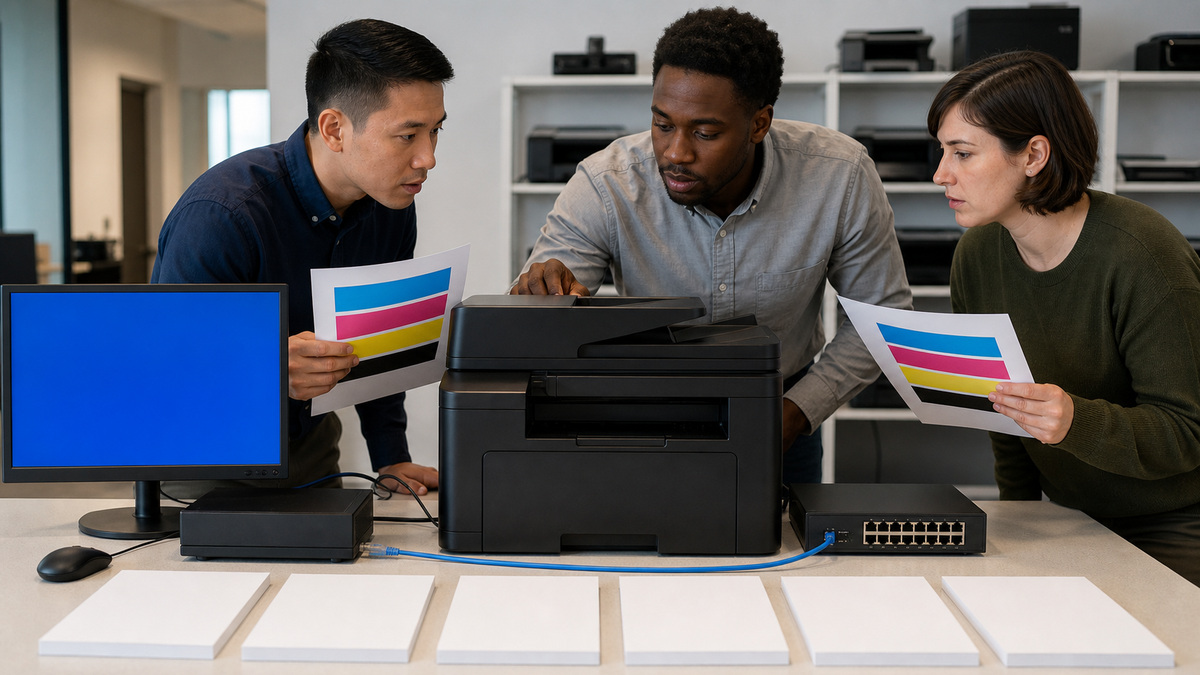
Record the full model and serial, firmware, wired or wireless interface, address or DNS name, site, queue, driver and port, client operating system, application, document type, paper and supply state. Photograph the control-panel message and physical condition without customer pages, credentials, serial close-ups or network addresses. Note recent moves, password changes, wireless changes, driver updates, firmware, new paper or replaced supplies.
Ask which functions still work. Can the device make a local copy, print its internal settings page, receive a simple one-page job, scan from the platen, scan from the feeder or reach the destination? Does the symptom affect one user, one queue, one subnet, one file type, one tray or every workflow? Record onset, frequency and last known good time. A local-copy success proves mechanics and imaging components that a failed network print does not exercise.
Preserve queued work and confidential documents. Cancel only the test jobs you own, safely remove jammed media according to the model guide and avoid a factory reset at the start. Write the incident as one observable result with expected behavior, such as ‘MFC model prints its internal page but the managed Windows queue remains offline for all clients on one site.’ That boundary controls the next test.
- Record exact hardware, firmware, queue, driver, port, client and media context.
- Capture the control-panel state without exposing documents or sensitive identifiers.
- Separate local copy, internal print, client print, platen scan and feeder scan results.
- Identify affected users, locations, files, trays and recent changes.
- Protect queued information and avoid destructive resets before evidence is collected.
Prove Device Readiness, Queue State, Driver, and Port
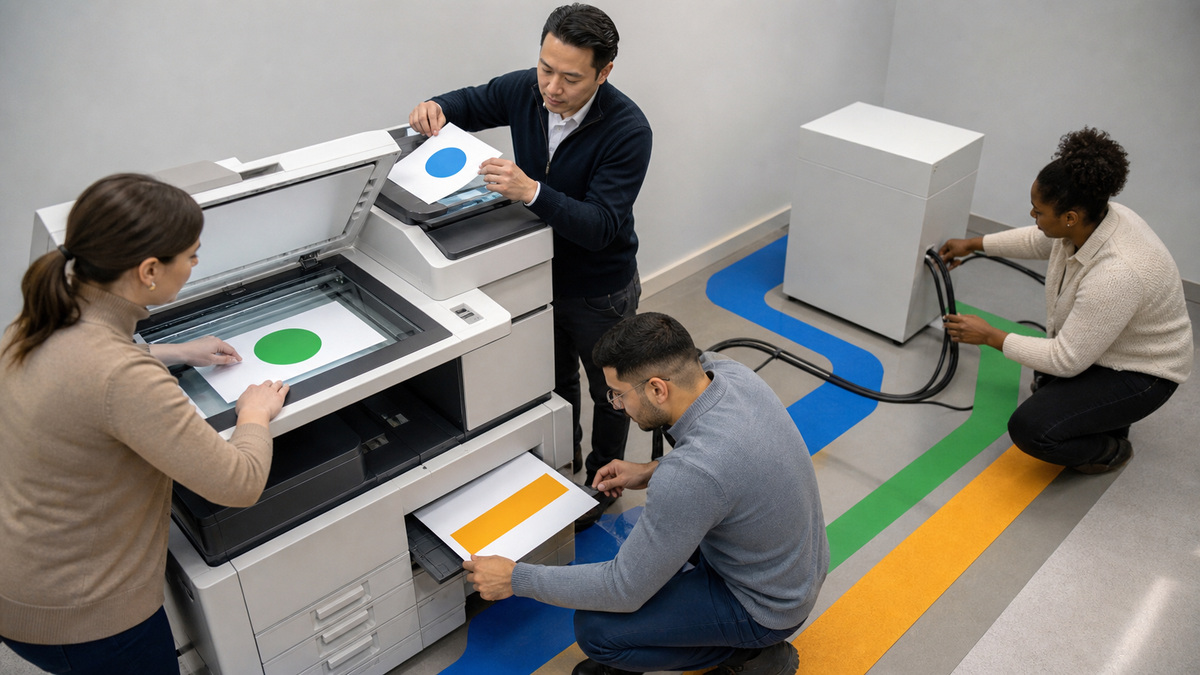
At the Brother device, confirm power, Ready state, closed covers, seated trays, correct paper size, no jam or service message and enough resources to perform the test. Print the model’s internal configuration or network report if available. If the device cannot produce its own page or local copy, keep client drivers and print servers out of the incident until the physical or device-level condition is resolved.
On the client or print server, verify that the intended Brother queue is selected, online, not paused and not holding a failed job that blocks the spooler. Confirm its driver name and version, architecture, port type and destination address. Compare with an approved peer. Use a tiny synthetic document from a simple application, a complex PDF, label template or line-of-business application can add rendering and media-selection variables.
If the simple job fails, clear only owned test jobs, restart the narrowest affected service under change control and test a new temporary queue or direct path with the approved Brother driver. Change the queue, driver, port or client one at a time. A successful temporary queue indicates the device and network can receive data, it does not justify leaving an unmanaged bypass in place.
- Prove Ready state, covers, trays, paper and internal printing first.
- Check the correct queue, pause and offline flags, stuck jobs and destination port.
- Compare driver, architecture and port settings with a known-good peer.
- Use a simple synthetic print before testing complex PDFs or business applications.
- Make one controlled queue, driver, port or client substitution at a time.
Isolate Wired, Wireless, Addressing, and Name-Resolution Faults
For Ethernet, inspect link state, cable, switch port, VLAN and negotiated connectivity. For wireless, confirm that the Brother device is ready, connected to the intended SSID and on the same permitted network path as the client or print server. Do not expose the wireless password in tickets. Compare the device’s current address, gateway and subnet with DHCP and network records, and check whether a stale queue still points to an old address.
Test reachability by approved address and DNS name from the actual print or scan source. Separate name resolution from network reachability and application ports. Review firewall, wireless isolation, access control and recent segmentation changes. A browser opening Web Based Management proves only that management traffic reaches the device, printing, scanning and discovery may use different paths.
Brother’s Network Connection Repair Tool can assign a correct address and subnet mask in supported Windows scenarios, but use it deliberately. Administrative rights, same-network placement and same-model limitations apply, and an automatically corrected address must still align with DHCP, DNS, print queues and management records. After repair, update the authoritative record rather than allowing a second stale configuration to persist.
- Check link, cable, switch, VLAN or intended wireless SSID and isolation policy.
- Compare current address, gateway and subnet with authoritative network records.
- Test address reachability, DNS resolution and required application paths separately.
- Use Brother’s repair tool only within its supported Windows and network conditions.
- Reconcile repaired addressing with DHCP, DNS, queues and management inventory.
Trace Scan-to-Network from the Feeder to the SMB Folder
First prove the scanner mechanics with a synthetic sheet on the platen and then the automatic document feeder. Test one-sided and duplex modes, paper alignment, image quality and a local or direct capture path if supported. If the feeder fails but the platen works, inspect guides, rollers, page condition and feeder settings before changing network credentials.
For Brother scan to a network folder, verify server name, share, subfolder, SMB policy, DNS, time, service identity, password, domain or workgroup syntax and least-privilege permissions. Test authentication from an approved administrative workstation without placing the password in the ticket. Check whether the credential recently rotated, the account locked, the folder moved, the server certificate or policy changed or storage filled.
Reduce format and size: one page, modest resolution, a standard PDF and a short file name. Observe whether the device reports authentication, connection, storage or file errors. Confirm that the file arrives with correct ownership, time and readability. Restore duplex, OCR, multi-page documents and production naming only after the basic route passes. Never troubleshoot with live legal, financial, medical or personnel records.
- Prove platen and feeder mechanics separately with synthetic pages.
- Verify SMB server, share, path, identity, permissions, DNS and time.
- Check password rotation, lockout, folder moves, policy changes and capacity.
- Start with one modest PDF and a short safe file name.
- Confirm ownership, timestamp and legibility before restoring advanced scan options.
Separate Paper Path, Toner, Drum, and Print-Quality Evidence
For jams and feeding, record the tray, paper size and weight, humidity or curl, duplex state and exact location indicated by the model. Remove paper in the direction and sequence described by Brother, check scraps and guides and fan or replace questionable media. Do not use damaged labels, unsupported stock or tools that can scratch rollers and imaging surfaces. Repeat with a known-good unopened paper sample.
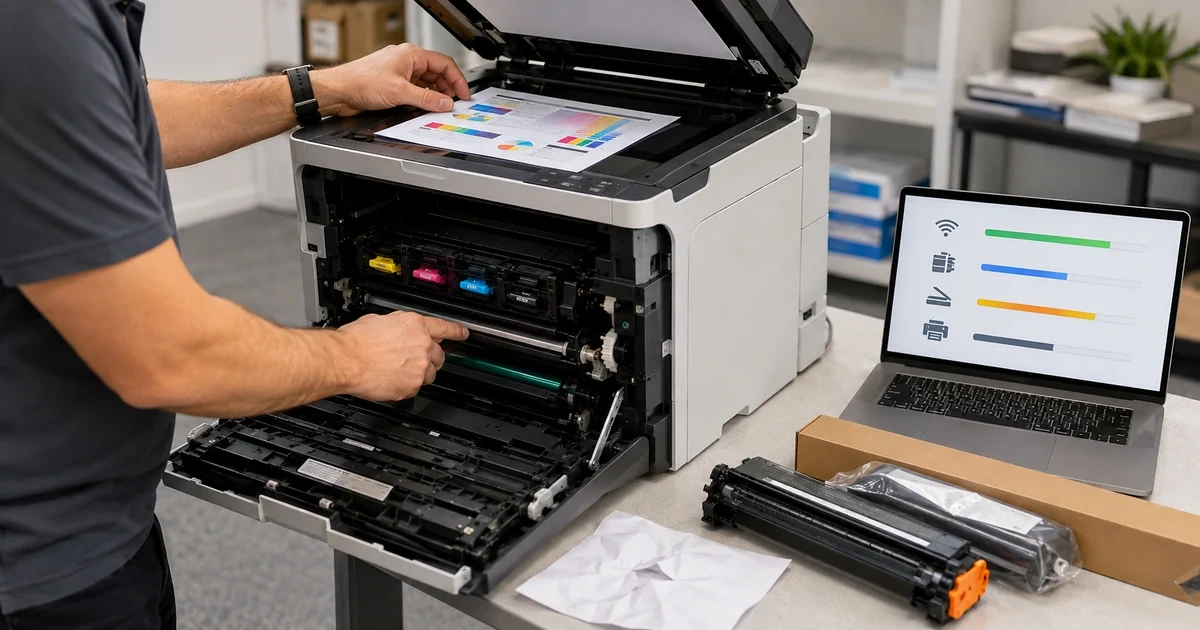
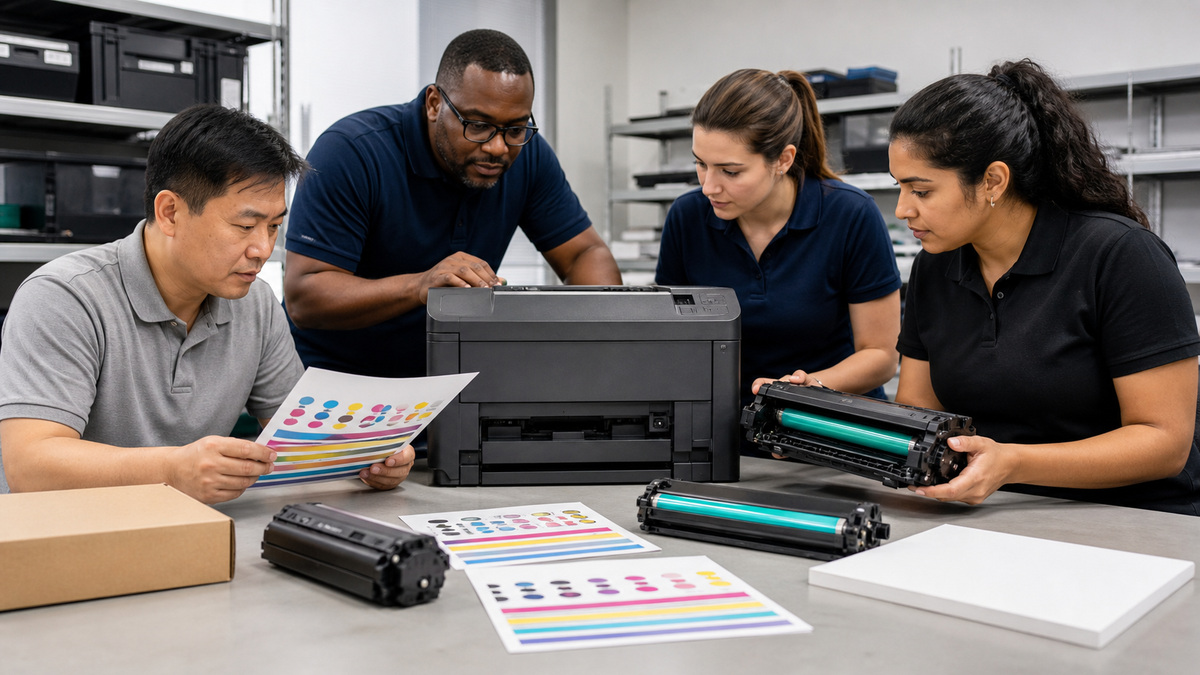
For light, streaked, spotted, gray or uneven output, print the device’s own quality page and compare copies with client prints. A defect repeated at a consistent interval can point to a rotating component, but use model-specific guidance before touching it. Brother laser devices commonly use separate toner cartridges and drum units: replacing toner does not renew the drum, and installing a new drum does not refill toner.
Respond to Toner Low, Replace Toner, Drum End Soon and Replace Drum according to the exact model’s current instructions and measured quality. Gently handle only components the guide permits, keep imaging surfaces protected from bright light and fingerprints and use a clean controlled area. Reset a drum counter only after installing a genuinely new drum and only through the model’s documented procedure, resetting it to silence a warning destroys lifecycle evidence.
- Match paper size, weight, guides, condition and duplex path to the device specification.
- Use internal quality pages and copies to separate device imaging from client rendering.
- Treat toner cartridge and drum unit as distinct replaceable components.
- Follow the exact model message and handling procedure for each supply state.
- Reset the drum counter only after an actual new-drum installation.
Validate the Repair, Escalate with Evidence, and Prevent Recurrence
Return to the original user, queue, file type, paper, scan route and workload after the narrow test passes. Exercise multiple pages, duplex, expected trays, sleep and wake, network interruption, queued recovery, feeder scans and the normal destination. Observe through the prior failure interval. A one-page pass does not close an intermittent network, heat, feeder or high-volume condition.
Record the proven cause, contributing state, tests that ruled out other layers, exact change, versions, replaced part and before-and-after result. For Brother escalation, collect the model, serial under protected handling, firmware, visible error, configuration state, driver and operating system, network method, reproduction steps, timestamps, non-sensitive sample, supply status and controlled substitutions. Do not send customer documents, passwords or an unredacted network report.
Update the fleet standard when the issue can recur: correct a DHCP reservation, retire an old queue, repackage a driver, update the SMB service account process, replace unsuitable paper, revise supply mapping or move a model into a firmware ring. Quarantine intermittent hardware with its evidence instead of returning it to circulation. ALLMSP can coordinate device, endpoint, server, network and document-workflow owners until the business result is stable.
- Retest the original print or scan workload through its normal production path.
- Observe across volume, duplex, sleep, recovery and the prior failure interval.
- Document root cause, disproved layers, exact change and measured outcome.
- Escalate with model-specific technical evidence while redacting sensitive data.
- Correct fleet records and quarantine unreliable equipment to prevent recurrence.
Official product documentation and ALLMSP resources
- Brother Wireless Help Sheet
- Brother Network Connection Repair Tool
- Brother: Scan to Network Folder
- Brother: Update Drivers and Firmware
- Brother: Toner Low
- Brother: Drum End Soon
- Brother: Reset the Drum Counter After Replacement
- ALLMSP Brother Hardware Support
- ALLMSP Hardware Support
- ALLMSP IT Consulting
- ALLMSP Managed IT Services
- ALLMSP Cybersecurity Services
- Contact ALLMSP
Frequently Asked Questions
What should be recorded before troubleshooting a Brother printer?
Capture the exact model, firmware, control-panel state, queue, driver, port, client, network, paper, supplies, recent change, affected users and last-known-good time.
What does a successful local copy prove?
It proves several device mechanics and imaging components, but it does not prove the client driver, print queue, network path or scan destination.
Why can a Brother queue show offline when the printer is ready?
The queue may be paused, point to an old address, use the wrong port or driver, contain a blocking job, or be separated by DNS, firewall or network changes.
When should Brother's Network Connection Repair Tool be used?
Use it within its supported Windows, administrative and same-network conditions, then reconcile any corrected address with DHCP, DNS, queues and inventory.
What should be checked when Brother scan to network fails?
Check platen or feeder mechanics, SMB server and share, path, service identity, password, permissions, DNS, time, policy, capacity, format and file-size limits.
Why should troubleshooting start with a simple document?
A one-page synthetic file removes complex PDF rendering, application, font, media and confidentiality variables while proving the basic path.
Are Brother toner and drum units the same component?
No. Many Brother laser devices use a toner cartridge that supplies toner and a separate drum unit that transfers the image, each has its own lifecycle.
When should a Brother drum counter be reset?
Reset it only after a genuinely new drum is installed and only by following the exact model’s documented procedure, never merely to suppress a warning.
What evidence helps Brother support diagnose an escalation?
Provide model, firmware, error, driver and OS, network method, reproduction, timing, supply state, safe samples and one-variable test results without credentials or customer documents.
How can ALLMSP troubleshoot Brother devices?
ALLMSP can isolate device, queue, driver, network, SMB scan, paper, toner and drum layers, validate repairs and convert root causes into better fleet standards.