A workstation that keeps failing should not receive the same quick fix repeatedly. Freezing, blue screens, sudden restarts, slow startups, lost network connections, application crashes, and corrupted files can come from power, storage, memory, heat, firmware, drivers, Windows, security software, peripherals, or the workload itself. A reliable repair process creates evidence that separates those causes.
Stop using a computer immediately when there is smoke, a burning smell, liquid exposure, battery swelling, arcing, severe overheating, repeated drive clicking, obvious physical damage, or signs of active compromise. Disconnect power only when it is safe. Do not repeatedly restart a failing drive or open an encrypted system without the recovery key and business authorization.
ALLMSP's in-house team helps organizations in Lawrenceville, Suwanee, Gwinnett County, Metro Atlanta, and across Georgia diagnose workstations that keep failing and build a repair or replacement decision from repeatable evidence, then validates the result and documents the support path.
What a dependable workstation repair process setup should accomplish
A dependable repair identifies the failing layer, protects business data, records the original condition, corrects the root cause, and repeats the workload that exposed the problem. The business receives a clear repair, upgrade, replacement, or recovery recommendation with test results and next steps rather than a device that merely started once on the bench.
- The symptom timeline, user impact, recent changes, error evidence, device identity, warranty, and prior repairs are recorded.
- Business data, backups, encryption recovery, privacy, and chain of custody are addressed before risky work.
- Power, storage, memory, thermals, firmware, Windows, drivers, applications, network, peripherals, and workload are tested systematically.
- Parts are selected by exact compatibility, supportability, warranty, and total repair value rather than appearance alone.
- The repair is validated with the original failure scenario, realistic load, restart, update, peripheral, and user-access tests.
- The handoff documents findings, work completed, parts, configuration, data status, limitations, monitoring, and repair-versus-replace guidance.
Protect the device, data, and evidence before repair
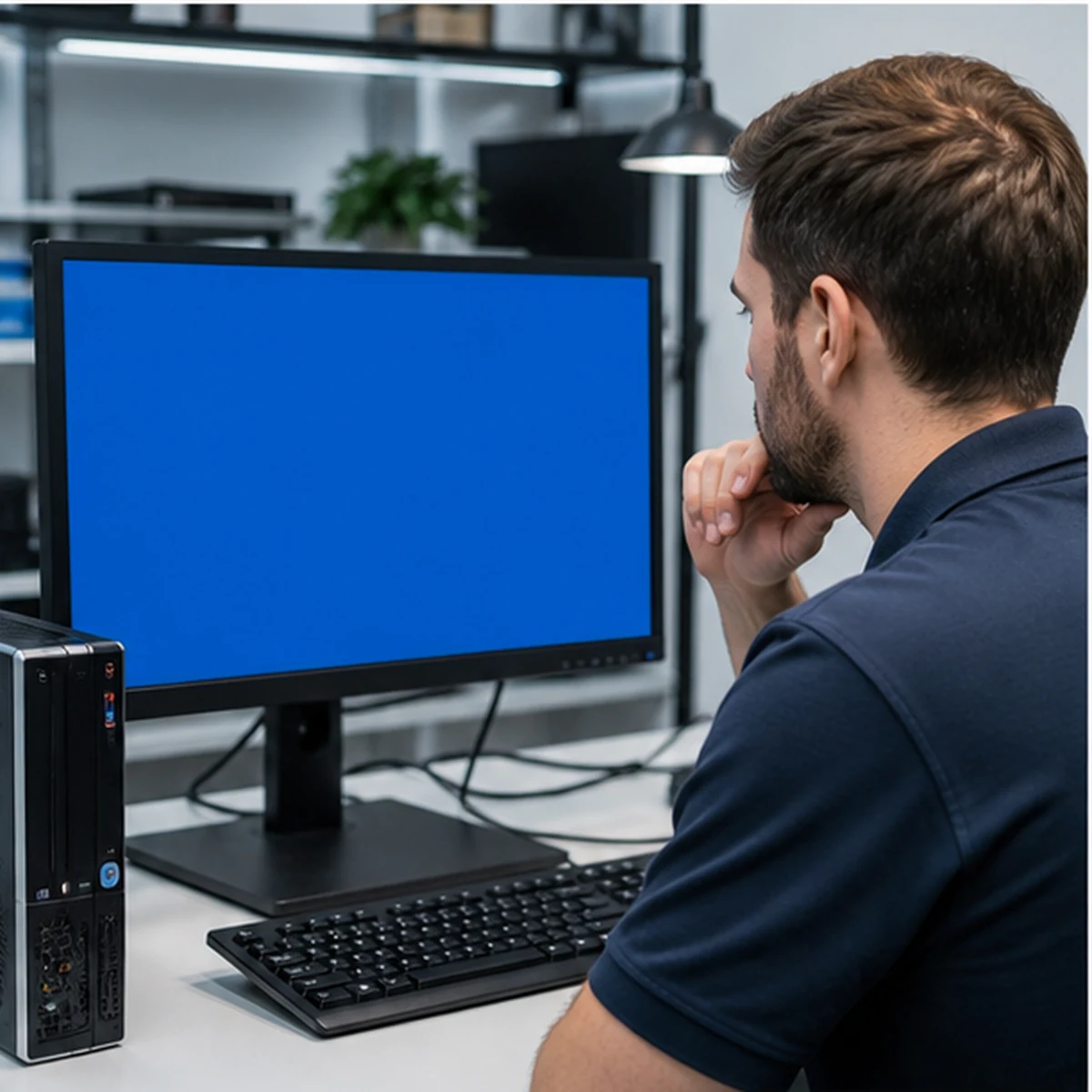
1. Record the failure timeline and business impact
Capture the exact symptom, date and time, frequency, workload, location, power source, peripherals, network, error message, sound, heat, user action, recent update, software install, spill, drop, or electrical event. Record downtime, affected work, deadlines, and any temporary workaround.
Where to work: User interview, help-desk tickets, monitoring, event logs, asset record, warranty portal, and recent change history
Verification: A technician can state what must be reproduced and which business functions must be protected before opening or changing the system.
2. Triage unsafe conditions
Disconnect power for swelling, heat, liquid, damaged cables, sparks, smoke, or burning odor. Do not charge a suspect battery, energize wet electronics, or continue stress testing a device with mechanical drive failure sounds. Isolate suspected malware from networks according to the incident process.
Where to work: Visual and odor inspection, battery and power area, ports, vents, chassis, liquid indicators, and user report
Verification: The device can be handled and tested without increasing fire, electrical, data-loss, or security risk.
3. Protect data and encryption recovery
Identify critical local files, cloud synchronization state, application databases, browser data, encryption, and the current backup. Create or confirm a recoverable copy before storage, operating-system, malware, or destructive diagnostic work when the drive condition allows it.
Where to work: Backup console, approved storage, drive-health evidence, BitLocker or device-encryption status, recovery-key system, and business authorization
Verification: Restore a representative file or verify the approved backup job and confirm authorized recovery credentials are available before high-risk changes.
Isolate hardware, power, and environmental causes
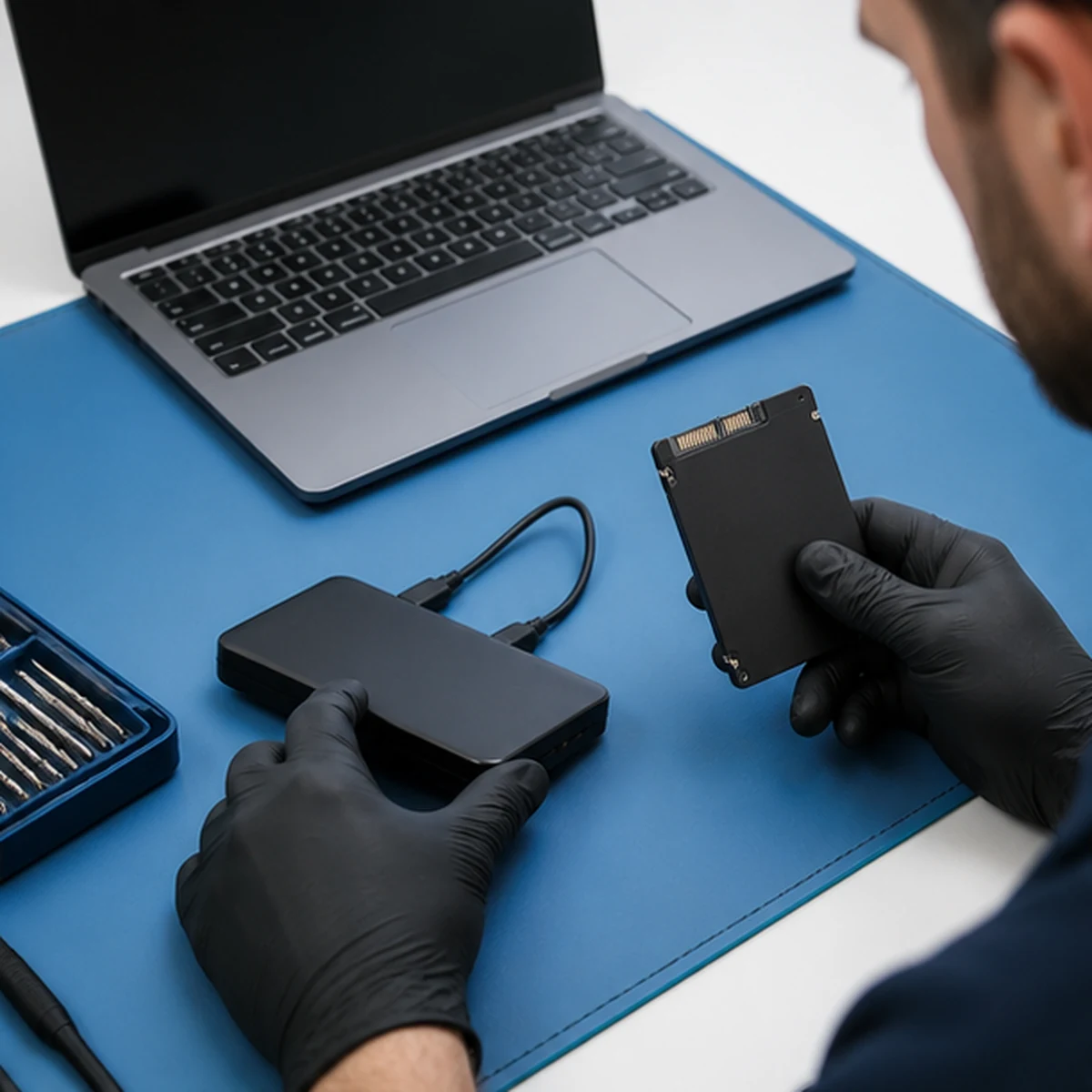
1. Capture a baseline without changing the symptom
Record the original hardware, firmware, operating system, storage health, free space, startup items, security status, recent crashes, and temperature before updates or cleanup erase useful evidence. Label disconnected devices and cables.
Where to work: Photographs, asset and serial record, BIOS or UEFI information, Windows System Information, event logs, reliability history, disk health, temperatures, memory use, and error codes
Verification: The original condition can be compared with the repaired system and every material configuration change can be explained.
2. Test power and physical connections
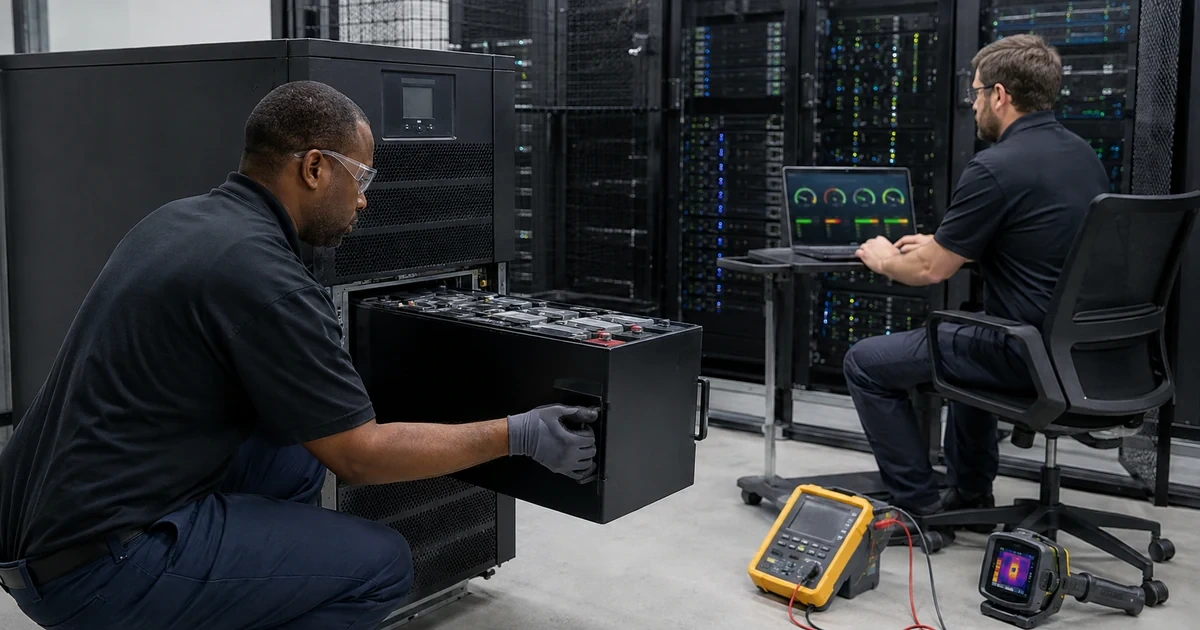
Check input power, adapter rating, battery condition, desktop supply capacity, loose connectors, damaged ports, docking behavior, and intermittent cables. Reproduce the symptom on a controlled power source and with nonessential accessories removed.
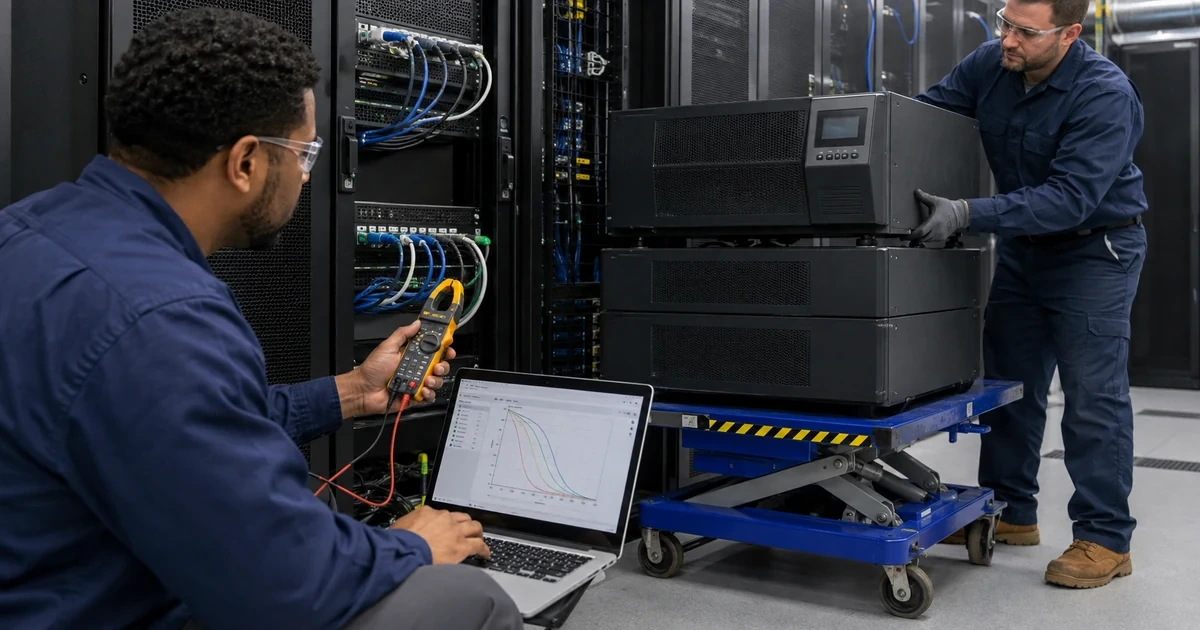
Where to work: Known-good outlet or UPS, approved charger, battery diagnostics, power supply measurements, motherboard connections, docks, cables, ports, and surge history
Verification: The device starts, charges, sleeps, wakes, and sustains load on known-good power without drops or electrical warnings.
3. Test storage and file-system health
Review media errors, health indicators, temperature, interface resets, bad sectors, file-system corruption, capacity pressure, and drive age. Avoid repeated intensive scans on a mechanically failing drive. Plan imaging, recovery, or replacement according to data value and condition.
Where to work: Drive SMART or vendor diagnostics, Windows disk and file-system tools, event logs, free-space review, backup status, and workload tests
Verification: The storage path completes appropriate diagnostics, reads and writes normally under a controlled test, and shows no unresolved errors that contradict returning the device to service.
4. Test memory, thermals, and core hardware
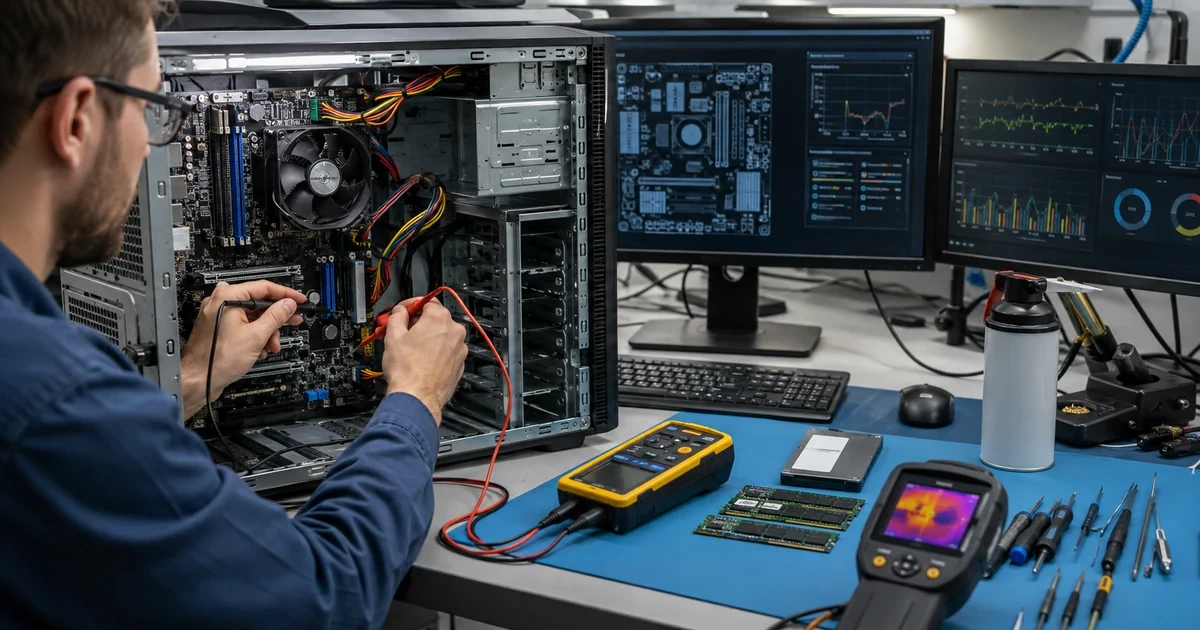
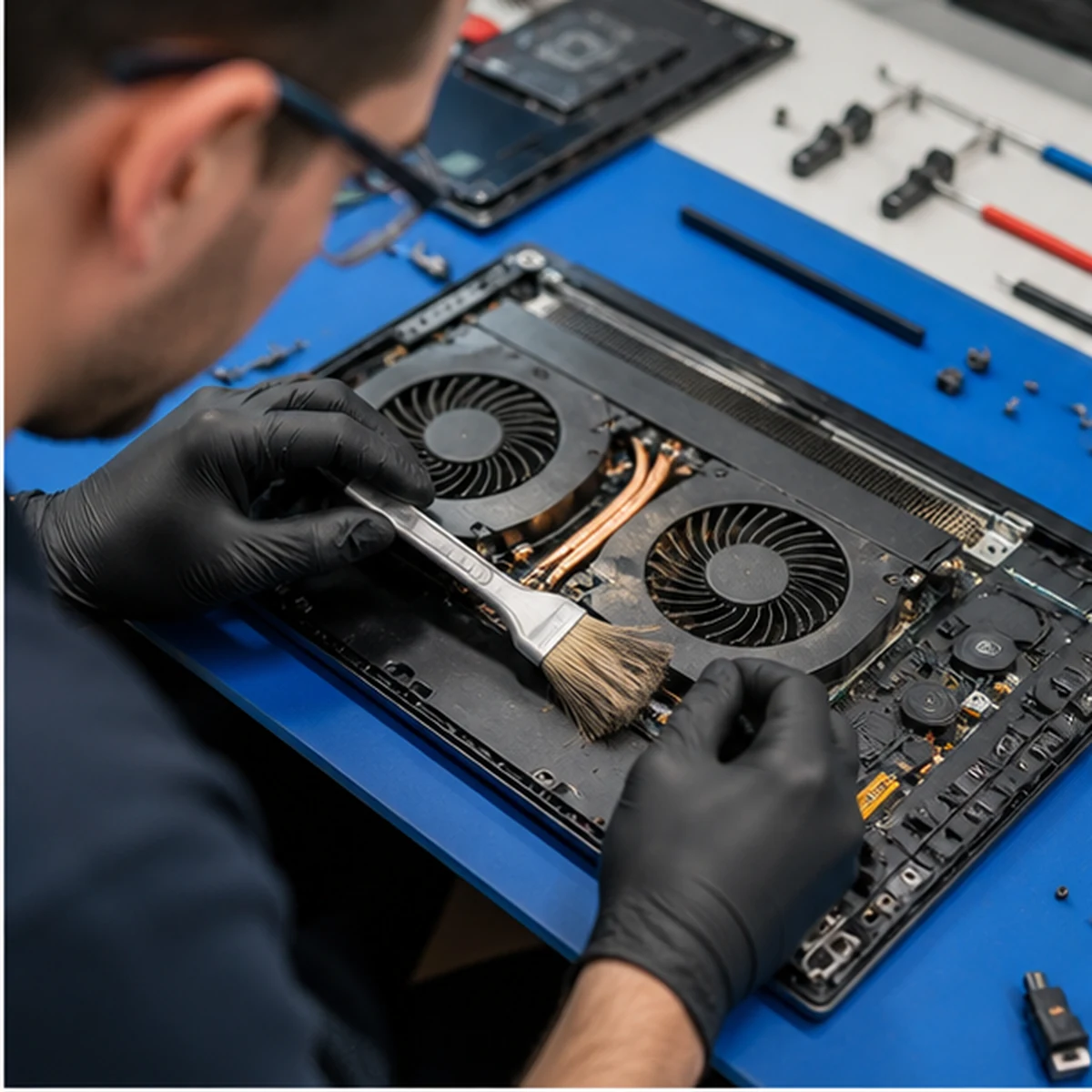
Test memory through sufficient passes, inspect cooling paths and thermal behavior, verify fans, check component seating, review firmware, and compare temperatures and errors under the workload that triggers failure. Consider power and board faults when several components report inconsistent errors.
Where to work: Memory diagnostics, vendor hardware tests, temperature and fan monitoring, cooling inspection, firmware, CPU and GPU load, and physical component review
Verification: The computer sustains a realistic combined load without memory errors, thermal throttling beyond expected limits, shutdowns, or hardware diagnostic failures.
Test Windows, drivers, applications, and connected systems
1. Review Windows, firmware, and drivers
Correlate failures with updates and drivers before changing them. Use supported vendor drivers and firmware for the exact model. Repair Windows components only after storage and memory are credible, and preserve crash evidence needed to identify the failing module.
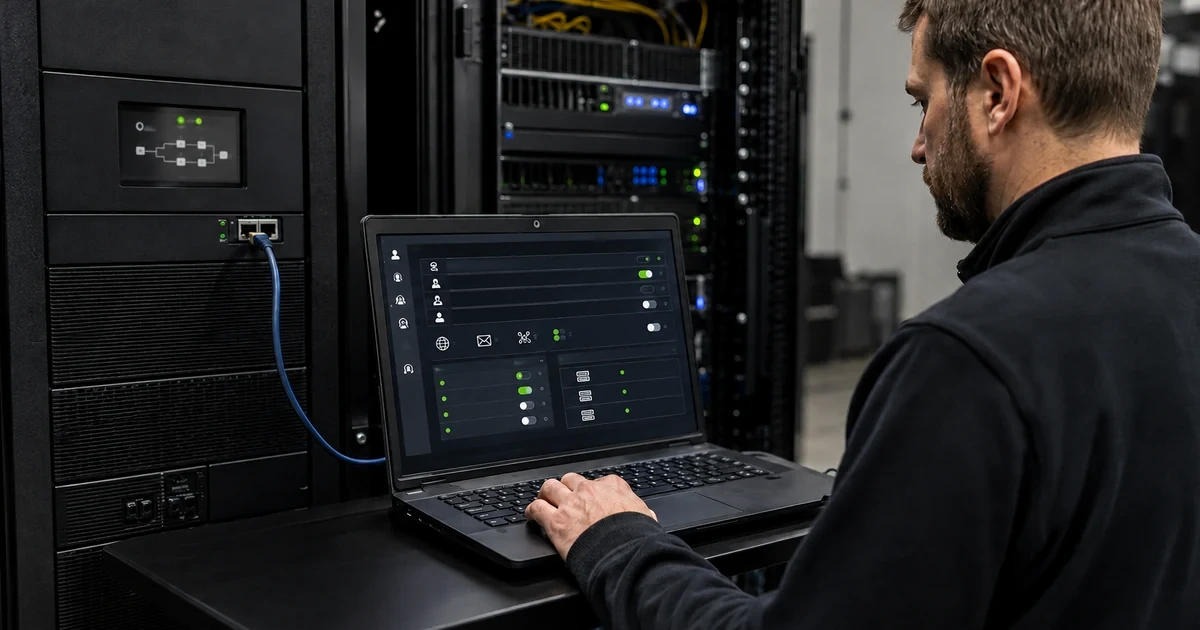
Where to work: Windows Update history, Reliability Monitor, Event Viewer, Device Manager, vendor update tools, BIOS or UEFI, crash dumps, and startup configuration
Verification: Device Manager is clean, required updates complete, system files and services are healthy, and the original crash or restart scenario no longer occurs.
2. Isolate applications, security tools, network, and peripherals
Reproduce the issue with nonessential startup items and peripherals removed, then restore components methodically. Check application version, compatibility, plugins, user profile, permissions, network dependency, security blocking, and resource demand. Do not disable protection without an approved controlled alternative.
Where to work: Application logs, clean boot or controlled profile, endpoint security console, network tests, printers, docks, displays, USB devices, and licensing
Verification: The target application and connected workflow run under the normal user account with the intended security, network, dock, display, printer, and accessory configuration.
3. Validate the repair and make the lifecycle decision
Repeat the exact failure scenario plus startup, restart, sleep, network, application, peripheral, and sustained-load tests. Compare repair cost and expected life with device age, warranty, prior failures, performance, support status, and replacement value. Document limitations and follow-up monitoring.
Where to work: Original user workflow, load and restart tests, battery or power test, updates, backups, monitoring, asset history, warranty, parts cost, and replacement standards
Verification: The device passes a written test plan and the business receives an evidence-based repair, upgrade, replacement, or data-recovery decision.
Prove stability and choose repair, upgrade, or replacement
A successful repair is not defined by one clean startup. Return the computer only after it passes the original failure scenario and normal business workflow under realistic conditions. Ask the user to confirm the applications, files, printers, displays, docks, security, and network they need, then monitor the device for recurrence during an agreed period.
- Original symptom: Repeat the exact workload, peripheral, location, and sequence associated with the failure. Pass: The symptom does not recur and the relevant logs or measurements remain normal.
- Cold and warm restart: Perform full shutdown, cold start, restart, sleep, wake, sign-in, and application launch tests. Pass: Startup and power-state transitions complete consistently without new errors.
- Combined load: Run approved CPU, memory, storage, graphics, thermal, and power demand appropriate to the device. Pass: The system remains stable, temperatures and power stay acceptable, and diagnostics report no unresolved failures.
- Business workflow: Use the normal account, applications, files, browser, VPN, network shares, printer, dock, and displays. Pass: The employee’s real work path functions with required security and performance.
- Backup and recovery: Verify the post-repair backup and restore a representative file or confirm the approved recovery method. Pass: Current business data can be recovered and encryption information remains available.
- Follow-up stability: Review monitoring, logs, and user feedback after the device returns to normal service. Pass: No related incident recurs during the agreed validation period and any limitation is documented.
Official guidance and ALLMSP resources
Frequently Asked Questions
What information should be collected for a computer that repeatedly fails?
Relevant systems and records include User interview, help-desk tickets, monitoring, event logs, asset record, warranty portal, and recent change history. Capture the exact symptom, date and time, frequency, workload, location, power source, peripherals, network, error message, sound, heat, user action, recent update, software install, spill, drop, or electrical event. Record downtime, affected work, deadlines, and any temporary workaround. Verify completion by confirming that a technician can state what must be reproduced and which business functions must be protected before opening or changing the system.
When should a failing computer be powered off immediately?
Relevant systems and records include Visual and odor inspection, battery and power area, ports, vents, chassis, liquid indicators, and user report. Disconnect power for swelling, heat, liquid, damaged cables, sparks, smoke, or burning odor. Do not charge a suspect battery, energize wet electronics, or continue stress testing a device with mechanical drive failure sounds. Isolate suspected malware from networks according to the incident process. Verify completion by confirming that the device can be handled and tested without increasing fire, electrical, data-loss, or security risk.
Should data be backed up before computer repair?
Relevant systems and records include Backup console, approved storage, drive-health evidence, BitLocker or device-encryption status, recovery-key system, and business authorization. Identify critical local files, cloud synchronization state, application databases, browser data, encryption, and the current backup. Create or confirm a recoverable copy before storage, operating-system, malware, or destructive diagnostic work when the drive condition allows it. Verify completion by confirming that restore a representative file or verify the approved backup job and confirm authorized recovery credentials are available before high-risk changes.
Why should technicians capture a baseline before repairing a computer?
Relevant systems and records include Photographs, asset and serial record, BIOS or UEFI information, Windows System Information, event logs, reliability history, disk health, temperatures, memory use, and error codes. Record the original hardware, firmware, operating system, storage health, free space, startup items, security status, recent crashes, and temperature before updates or cleanup erase useful evidence. Label disconnected devices and cables. Verify completion by confirming that the original condition can be compared with the repaired system and every material configuration change can be explained.
Can a charger, dock, or power supply cause random computer failures?
Relevant systems and records include Known-good outlet or UPS, approved charger, battery diagnostics, power supply measurements, motherboard connections, docks, cables, ports, and surge history. Check input power, adapter rating, battery condition, desktop supply capacity, loose connectors, damaged ports, docking behavior, and intermittent cables. Reproduce the symptom on a controlled power source and with nonessential accessories removed. Verify completion by confirming that the device starts, charges, sleeps, wakes, and sustains load on known-good power without drops or electrical warnings.
How can a failing SSD or hard drive affect a workstation?
Relevant systems and records include Drive SMART or vendor diagnostics, Windows disk and file-system tools, event logs, free-space review, backup status, and workload tests. Review media errors, health indicators, temperature, interface resets, bad sectors, file-system corruption, capacity pressure, and drive age. Avoid repeated intensive scans on a mechanically failing drive. Plan imaging, recovery, or replacement according to data value and condition. Verify completion by confirming that the storage path completes appropriate diagnostics, reads and writes normally under a controlled test, and shows no unresolved errors that contradict returning the device to service.
What hardware tests help diagnose recurring crashes?
Relevant systems and records include Memory diagnostics, vendor hardware tests, temperature and fan monitoring, cooling inspection, firmware, CPU and GPU load, and physical component review. Test memory through sufficient passes, inspect cooling paths and thermal behavior, verify fans, check component seating, review firmware, and compare temperatures and errors under the workload that triggers failure. Consider power and board faults when several components report inconsistent errors. Verify completion by confirming that the computer sustains a realistic combined load without memory errors, thermal throttling beyond expected limits, shutdowns, or hardware diagnostic failures.
Can drivers and firmware cause repeated blue screens or restarts?
Relevant systems and records include Windows Update history, Reliability Monitor, Event Viewer, Device Manager, vendor update tools, BIOS or UEFI, crash dumps, and startup configuration. Correlate failures with updates and drivers before changing them. Use supported vendor drivers and firmware for the exact model. Repair Windows components only after storage and memory are credible, and preserve crash evidence needed to identify the failing module. Verify completion by confirming that device Manager is clean, required updates complete, system files and services are healthy, and the original crash or restart scenario no longer occurs.
How can peripherals or business applications cause recurring computer problems?
Relevant systems and records include Application logs, clean boot or controlled profile, endpoint security console, network tests, printers, docks, displays, USB devices, and licensing. Reproduce the issue with nonessential startup items and peripherals removed, then restore components methodically. Check application version, compatibility, plugins, user profile, permissions, network dependency, security blocking, and resource demand. Do not disable protection without an approved controlled alternative. Verify completion by confirming that the target application and connected workflow run under the normal user account with the intended security, network, dock, display, printer, and accessory configuration.
How do we know whether to repair or replace a business computer?
Relevant systems and records include Original user workflow, load and restart tests, battery or power test, updates, backups, monitoring, asset history, warranty, parts cost, and replacement standards. Repeat the exact failure scenario plus startup, restart, sleep, network, application, peripheral, and sustained-load tests. Compare repair cost and expected life with device age, warranty, prior failures, performance, support status, and replacement value. Document limitations and follow-up monitoring. Verify completion by confirming that the device passes a written test plan and the business receives an evidence-based repair, upgrade, replacement, or data-recovery decision.