





























































































































































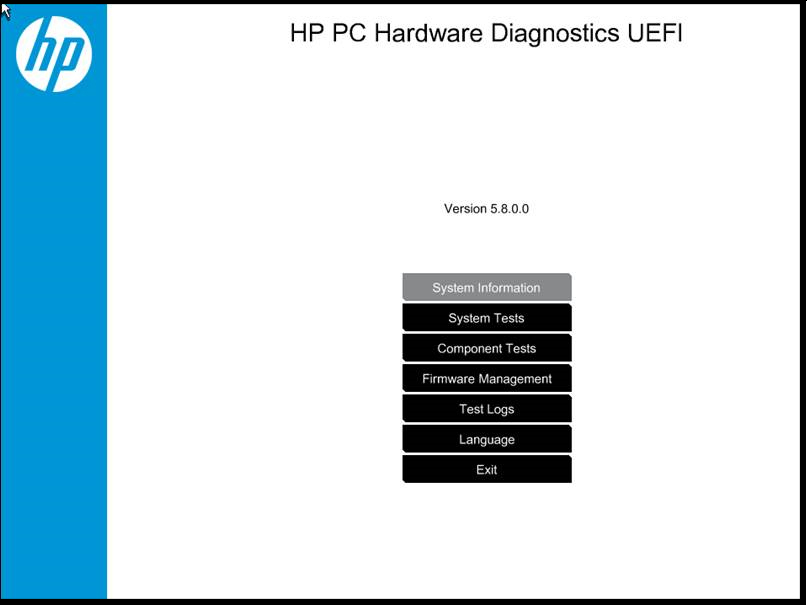
HP’s November 2020 maintenance guide shows HP PC Hardware Diagnostics UEFI Version 5.8.0.0. System Tests, Component Tests and Test Logs are different destinations. Use the actual model’s current instructions; this menu shows no test result.[5] View full-size image
When an HP business PC will not start, first establish whether it receives power, reaches the startup firmware, shows a usable display or fails only when Windows loads. Those are different fault paths. Record what you observe before resetting settings, installing updates or ordering replacement parts.
This guide helps a business user and their IT contact collect a useful first diagnosis without turning a startup problem into lost data. If the PC is already performing a BIOS or Windows update, let that process finish; HP warns that interrupting an update during an apparently blank screen can damage the computer.[1]
Describe the failure at the earliest point you can observe
| Observed state | First useful distinction | Evidence to capture |
|---|---|---|
| No lights, fan noise or visible response | Power delivery versus the computer itself | Outlet/adapter used, direct-power result and any charging indicator |
| Power is present, but no usable picture | Display path versus failure before startup completes | Built-in/external display behavior, selected monitor input and any repeated blink/beep pattern |
| HP logo or startup menu appears, but Windows does not load | Pre-Windows hardware evidence versus OS/boot failure | Exact message, whether Esc/F2 responds and the last known working state |
| Windows begins loading and shows an error or restart loop | A Windows-stage fault needing its own evidence | Exact error, time, recent change and whether the behavior repeats |
| Failure occurs only when docked | Dock/host combination versus standalone PC | Direct adapter and built-in display result, then the dock model and connected devices |
A black monitor alone does not prove that the PC has no power or that its storage drive has failed. Read out the symptoms to the technician rather than summarizing all of them as “dead.” Record the exact model/product number privately so instructions and repair parts match the actual machine.
Check for obvious connector damage, liquid exposure or a deformed battery before further testing. Stop using visibly damaged equipment and arrange appropriate service. Do not open a laptop battery or a power supply to investigate an office startup ticket.
Reduce the setup before changing the computer
Once an update is ruled out, test the laptop with its correct direct AC adapter and built-in display. For a desktop, verify the powered monitor and intended video connection as well as the computer’s power. Disconnect nonessential external devices for isolation, then reconnect them individually if startup returns. Use the product-specific HP reset instructions when a reset is appropriate; a power reset and a factory reset are different operations.[1]
Write down each change and its result. Swapping the dock, adapter, cable and monitor together may restore service while leaving the cause unknown. A known-good comparison should be compatible with this exact device, not merely a plug that happens to fit.
Illustrative example: a laptop reaches its startup menu on the supplied adapter but appears black at a shared desk. That observation moves the next test toward the desk’s power/display path; it does not establish a failed laptop motherboard. Continue with the HP dock charging, display and Ethernet checklist for that branch.
Use HP UEFI diagnostics when Windows cannot run
On a supported HP PC, start from power off, turn it on and repeatedly press Esc to open the startup menu, then F2 for diagnostics. Some products also offer direct F2 access. HP PC Hardware Diagnostics UEFI runs outside Windows; HP PC Hardware Diagnostics Windows runs inside Windows. Available menus and component tests vary with the product and tool version.[2][3]
- Confirm that you are opening diagnostics, rather than choosing a recovery, erase or firmware-update action.
- Start with the available System Fast Test. Follow its displayed sequence, including a second pass when offered.
- If the fast test passes but the symptom remains, choose an appropriate component or extensive test when the device condition and maintenance window permit it.
- Save the test name, result and logs. Record any 24-digit failure ID together with the product ID for the support case.
HP documents a route for obtaining UEFI diagnostics on USB when the installed copy is unavailable. Use the official diagnostic download and exact product instructions. If the USB cannot boot, have the IT owner review the device’s boot and security requirements instead of casually disabling Secure Boot or clearing the TPM.[2][4]
Tests need enough stable power and time to complete. For a drive that makes abnormal mechanical noises or contains irreplaceable unbacked-up work, tell the technician before running repeated stress or storage tests. Agree whether preserving data should take priority over further diagnosis.
Interpret a pass, a failure and a missing test differently
| Result | Reasonable next action | Do not conclude |
|---|---|---|
| A component produces a failure ID | Preserve the exact ID, product identity and test log; arrange the relevant repair assessment | That every component needs replacing or that user files are recoverable |
| The selected tests pass but the fault repeats | Keep the pass as evidence and investigate the untested/intermittent condition or Windows-stage fault | That every possible hardware issue has been excluded |
| Diagnostics cannot start | Document the failed access path and use the approved product-specific alternative | That Windows reinstall is automatically the correct fix |
| The PC starts after removing one peripheral | Repeat a controlled comparison of that peripheral and its connection | That the entire original setup is ready for normal use |
A failure ID supports a service conversation; it is not a promise of warranty coverage or a repair quotation. Keep the failure screen/log in the controlled case record. Do not post the user’s credentials, recovery key or complete asset record in a public forum.
Before reinstalling Windows, replacing storage or beginning BIOS recovery, confirm the business data owner, backup condition, encryption recovery access and authorization for the proposed action. A successful boot after a destructive reset would not recover work that was never backed up.
Close the incident with a tested repair and a useful handoff
After a repair or configuration change, repeat the original failing task under the same relevant conditions. Check cold startup, intended-user sign-in, a required business application and any dock or peripheral involved. Save the new result alongside the original symptom and record who owns any unresolved intermittent fault.
If the device is ready to return to a managed fleet, use the HPIA deployment checklist to review its HP component baseline. For repeat incidents across brands, the business computer repair guide connects the individual repair with wider reliability and replacement decisions. The backup-testing guide helps distinguish “backup installed” from demonstrated recovery.
ALLMSP’s HP support service includes device troubleshooting, repair coordination and lifecycle support. Contact the IT help desk with the exact symptom, product identity, direct-power result and diagnostic evidence so the next step can be chosen from what the machine actually did.
Frequently asked questions
What should I check first when an HP PC will not start?
Establish whether there is any power response, whether the startup menu or logo appears, whether the display works and whether failure begins only when Windows loads. Preserve the exact observable symptoms before changing settings.
Can a blank screen mean a BIOS update is still running?
Yes. HP warns that updates can leave the screen blank for several minutes and that interrupting the process can damage the computer. Establish whether an update is underway before forcing power off.
[1]How do I open HP UEFI hardware diagnostics?
On supported products, power on and repeatedly press Esc for the startup menu, then F2 for diagnostics. Some models offer direct F2 access; check the exact product instructions.
[3]Can HP hardware tests run when Windows will not start?
What should I save when an HP test fails?
Does passing the Fast Test rule out every hardware problem?
No. A pass describes the tests that completed under those conditions. An intermittent issue, an untested component or a Windows-stage fault can still require investigation.
Should I reinstall Windows if diagnostics will not open?
Not automatically. Record the failed access path, check the supported diagnostic alternative and confirm backup and encryption recovery ownership before any destructive recovery action.
What if the HP laptop starts only when it is undocked?
Keep that standalone result, then test the dock’s power, host-port compatibility, one display and other peripherals separately. The result narrows the fault path without proving which individual component failed.
Is a power reset the same as a factory reset?
No. They serve different purposes. Follow the exact product instructions and understand the selected action; factory recovery can affect installed software and data, so it requires a prepared recovery decision.
When is a repaired HP PC ready to return to work?
When the original failing task passes under the relevant conditions, the intended user can sign in and complete required work, and the repair evidence, remaining exceptions and responsible owner are documented.


