A dock is not merely a port multiplier. It sits between the laptop’s USB-C, Thunderbolt or USB4 controller and nearly every desk dependency: power, displays, Ethernet, storage, audio, cameras and input devices. A mismatch can appear as a charging complaint, an intermittent display, a missing network identity or a sleep-and-wake failure even when the dock itself is healthy.
Belkin’s Connect Thunderbolt 4 Dock documentation describes a native high-bandwidth design with up to 96W host power, 2.5Gb Ethernet and host-dependent multi-display behavior. Belkin’s DisplayLink guidance covers a different architecture in which supported docks require current DisplayLink software for full display functionality. Those paths should not be treated as interchangeable just because both use a USB-C-shaped connector.
This runbook helps IT teams turn exact models and host capabilities into controlled workstation standards. It emphasizes reversible pilots and measured acceptance so procurement, deployment and support share the same definition of a working desk.
Companies across Lawrenceville, Suwanee, Gwinnett County, Metro Atlanta, and Georgia can bring ALLMSP in to deploy Belkin Thunderbolt and DisplayLink docks across laptop fleets. We coordinate the affected technology and business workflow through our own team.
Key decisions at a glance
- Identify the exact Belkin dock model, host-port mode, operating system, display topology, power demand and peripheral load as one supported combination.
- Use native Thunderbolt or USB4 paths where host capabilities align, use a DisplayLink design deliberately when universal multi-display support requires its software and permissions.
- Stage the supplied power adapter and host cable, approved video and network cables, current software, monitor inputs and firmware before desk deployment.
- Pilot charging, displays, sleep and wake, Ethernet identity, USB devices, audio, storage and hot-plug behavior under the user’s real workload.
- Hand off a model-specific port map, known-good baseline, change controls, spares, health evidence and escalation package rather than an unlabeled box of adapters.
Build an Exact Host, Dock, Display, Power, and Peripheral Matrix
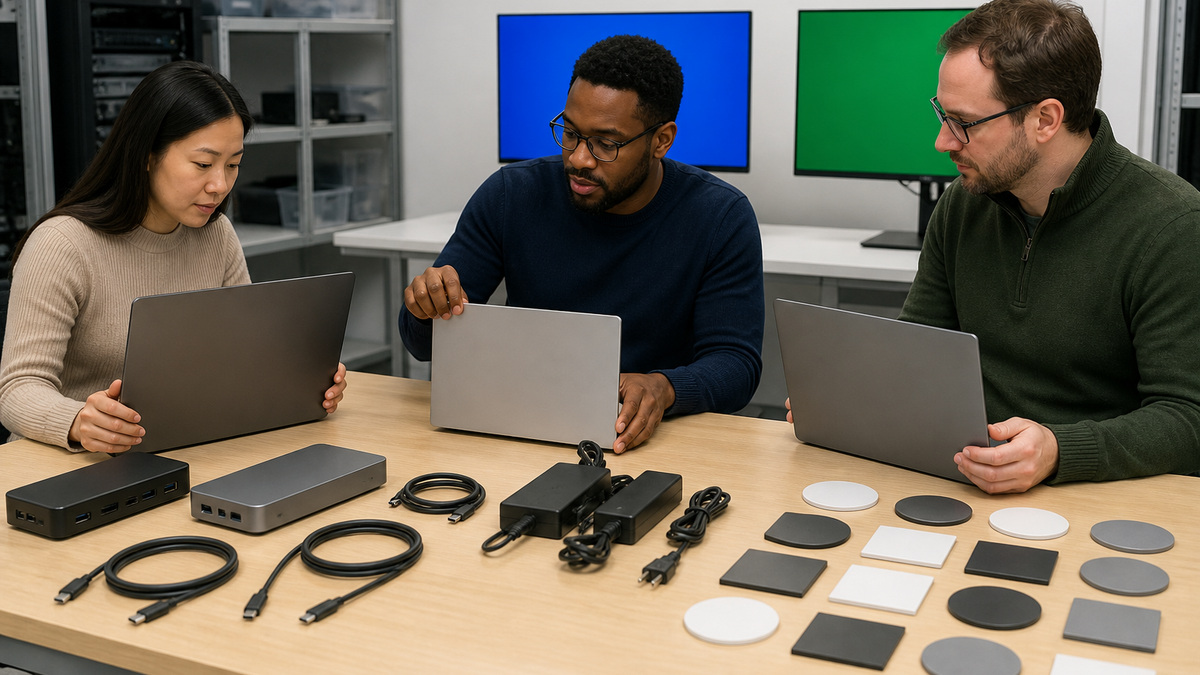
Start with a controlled inventory of the precise Belkin model and hardware revision, included power supply, approved host cable, laptop manufacturer and model, operating system build, BIOS or firmware, USB-C port capabilities, display count, resolution and refresh target, cable type, network speed, storage, audio, camera, keyboard, mouse and other USB loads. A USB-C receptacle alone does not prove Thunderbolt, USB4, DisplayPort alternate mode or Power Delivery behavior. Belkin notes that the INC030 delivers its best result with Thunderbolt 4 and can work with Thunderbolt 3 or USB4, while basic USB-C behavior and display results depend on the host. Record which laptop port is being used because machines may expose different features on different sides. Capture the laptop’s sustained power need, not only the idle charger rating, and flag mobile workstations that can exceed dock output during demanding CPU or GPU use. Define the permitted monitor arrangements and distinguish supported maximums from the tested business baseline. Add the security-lock, cable-retention, accessibility and desk-layout requirements. Each row of the matrix should end with an owner, test state and support disposition: approved, approved with limits, pilot only or not supported.
- Record exact Belkin model, revision, power supply and host cable as a single kit.
- Verify Thunderbolt, USB4, DisplayPort alternate mode and Power Delivery capabilities per laptop port.
- Specify monitor count, connection, resolution, refresh rate and operating-system behavior.
- Include Ethernet, storage, audio, camera and USB power loads in the workstation profile.
- Give every combination an explicit support status and owner.
Choose Native Thunderbolt or DisplayLink Architecture Deliberately
Select the dock family from the required outcome rather than the port count. A native Thunderbolt 4 design provides a high-bandwidth path for compatible hosts, but the number and resolution of external displays still depend on the laptop, GPU, operating system and available video streams. Belkin states that the INC030 may support up to three external displays on suitable Windows Thunderbolt systems, while compatible Mac results depend on the specific model and its video-stream limits. A universal Belkin DisplayLink dock creates display output through DisplayLink software and can solve mixed-host requirements, yet it introduces driver lifecycle, macOS permissions, graphics behavior and security-review obligations. Belkin lists INC007 and other specific models that require current DisplayLink drivers for full display use. Do not promise that a Thunderbolt dock, a USB-C multiport dock and a DisplayLink dock will behave alike. Decide whether the environment values native graphics, broader compatibility, a particular display count, 2.5Gb Ethernet, daisy chaining, docking utility features or legacy host support. Document constraints such as protected content, high-frame-rate graphics, screen capture, recovery environments and pre-login display behavior. Standardize the smallest number of architectures that satisfies approved use cases, then preserve one known-good reference kit for each.
- Use native Thunderbolt when host capabilities and display needs align.
- Adopt DisplayLink only with an owned driver, permission and update process.
- Map Mac and Windows display limits to exact laptop models instead of broad platform labels.
- Test special graphics, protected-content and pre-login workflows before approval.
- Maintain a known-good reference desk for every supported architecture.
Stage Power, Host Cable, Displays, Software, and Peripherals

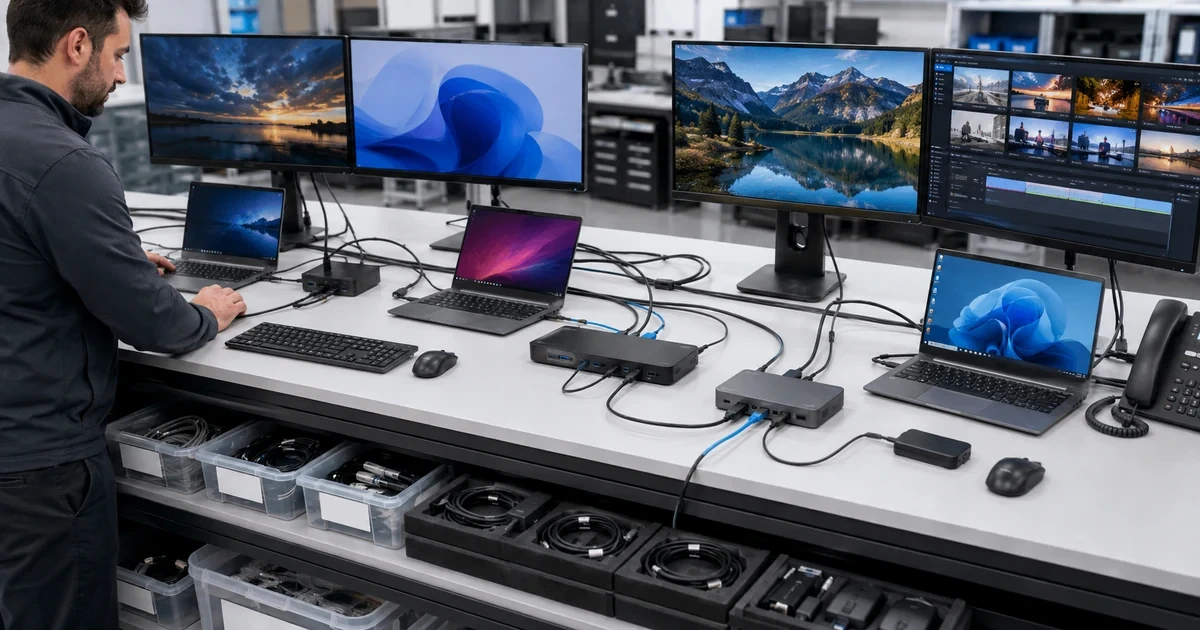
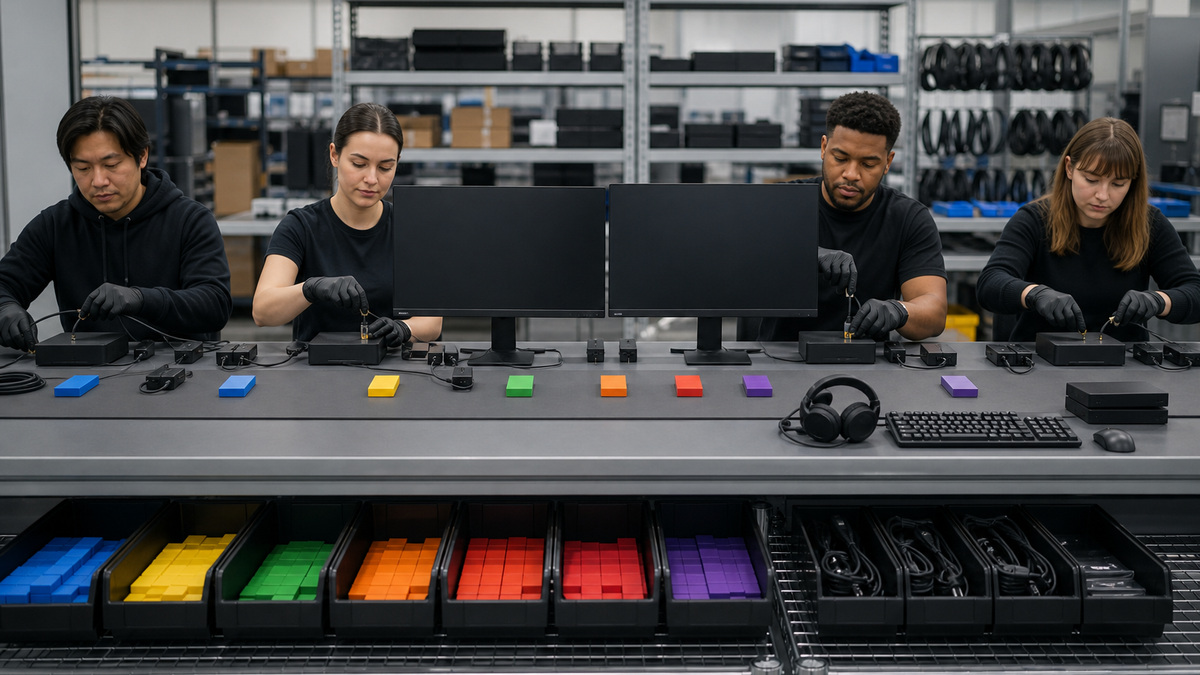
Bench-stage the dock before it reaches a user. Inspect the enclosure, ports, supplied power adapter and cable for damage, verify the adapter rating and keep it paired with the correct dock. Connect power first, then the permanent displays, Ethernet and core peripherals, and finally the laptop through the designated host port using the approved full-featured cable. Belkin’s INC030 setup sequence notes that the dock can need several seconds after host connection before charging and displays appear. Select the correct input on every monitor and begin with one display at a conservative setting before building the approved topology. Apply operating-system, laptop firmware, graphics, Thunderbolt or USB4 and network-driver updates through normal change control. Where DisplayLink is required, install the current package from the approved source, grant only necessary permissions and record the version. Validate the Belkin Dock Utility only on supported devices and decide whether MAC address pass-through or network-interface management is part of policy. Attach storage and other bus-powered devices gradually so a single peripheral cannot hide a power or enumeration problem. Photograph the finished cable route without exposing user data and label the dock, adapter and host cable as one supportable kit.
- Inspect and pair the dock, power adapter and full-featured host cable.
- Power the dock and permanent peripherals before attaching the laptop.
- Bring up one monitor first, then add the validated display arrangement.
- Control operating-system, graphics, Thunderbolt, DisplayLink and network software versions.
- Add bus-powered peripherals in stages and retain an as-built cable record.
Validate Displays, Daisy Chains, Sleep, Wake, and Hot Plug
Run display acceptance on every approved host rather than extrapolating from one laptop. Confirm detection, extended versus mirrored mode, arrangement, primary display, resolution, refresh, rotation, scaling, color needs and audio routing. Exercise cold boot, sign-in, lock and unlock, sleep and wake, lid open and closed where policy allows, disconnect and reconnect, user switching, operating-system update and monitor power cycling. Belkin recommends checking monitor power and input, reseating cables and testing one display before adding another when the INC030 reports no signal. For Thunderbolt daisy chains, use the downstream Thunderbolt port, supported cables and devices, and respect that ordinary USB-C devices do not become Thunderbolt simply because they fit. Belkin documents support for a chain of compatible Thunderbolt devices, but actual performance remains bounded by the host and the shared path. Test storage transfer and displays together, since a quiet desktop may not expose bandwidth or stability limits. For DisplayLink designs, verify the application service and macOS screen-recording or related permissions after upgrades. Capture a short acceptance record for each topology and refuse silent substitutions of monitor adapters or cables that have not passed the matrix.
- Test the precise display topology on every approved host family.
- Exercise boot, sign-in, sleep, wake, lid, hot-plug and monitor power cycles.
- Troubleshoot one display and one known-good cable before rebuilding the full desk.
- Use true Thunderbolt ports, devices and cables for an approved daisy chain.
- Revalidate DisplayLink services and permissions after material software changes.
Control Ethernet Identity, Dock Utility, and Desk Security
Treat the dock’s network interface as managed infrastructure. Confirm expected link speed, DHCP or static policy, VLAN access, DNS, authentication, VPN behavior, wake features and performance through the approved cable and switch port. Decide whether the network identifies the laptop or the dock. If the organization uses MAC address pass-through through supported Belkin Dock Utility features, document the source interface, driver, utility version and fallback behavior before network access controls depend on it. Avoid manually cloning addresses in several places because a stale driver override can conflict with the utility and create duplicate or confusing identity. Belkin’s utility guidance covers supported docks, hubs and adapters with Ethernet and provides network-interface management and MAC mirroring, that software belongs in application inventory and endpoint change control. Verify that disconnecting one user and connecting another does not inherit an unintended authorization state. Apply a cable lock where the model and site require it, route power to avoid strain and trip hazards, and keep high-value storage off unattended shared desks. Record the dock asset, desk, switch port and support owner without placing credentials or sensitive network details on the label.
- Define whether access policy follows the laptop, dock or authenticated user.
- Validate link speed, addressing, DNS, VPN and switch behavior on the finished desk.
- Govern Belkin Dock Utility and MAC pass-through as managed endpoint software.
- Prevent conflicting manual MAC overrides and test user changes.
- Secure the dock physically and map it to desk, switch port and owner.
Pilot Real Workloads, Accept the Desk, and Hand Off Support
Deploy first to a small cohort that represents each approved laptop, operating system, monitor and power profile. Observe video meetings, screen sharing, large file transfers, Ethernet roaming, VPN, audio devices, removable media, sleep and wake, repeated docking and high-load charging. Measure display stability, charging state, link speed, transfer performance, temperatures, reconnect time and user-visible errors instead of relying on a single successful plug-in. Define rollback to the previous adapter or direct connections and keep spare power supplies, host cables and a known-good dock ready. Acceptance should confirm the asset matrix, physical condition, supplied power, full-featured host cable, software versions, display topology, Ethernet identity, peripherals, hot-plug cycles, security lock, cable route and monitoring or help-desk documentation. Give support staff a one-page port map, approved combinations, known limitations, fast isolation sequence, evidence checklist and escalation route. Feed every substitution and recurring incident back into the matrix. The deployment is complete only when a technician can reproduce the reference setup and distinguish a host limitation from a dock, cable, display, power or software fault.
- Pilot every host, OS, display and power profile under real workloads.
- Measure stability, charging, Ethernet and reconnect behavior across repeated cycles.
- Preserve rollback, spares and a known-good reference dock.
- Hand off an exact port map, approved matrix, limitations and isolation procedure.
- Update standards from substitutions, incidents and lifecycle changes.
Official product documentation and ALLMSP resources
- Belkin: Connect Thunderbolt 4 Dock FAQs
- Belkin: Set Up the Connect Thunderbolt 4 Dock
- Belkin: Connect Two or Three Monitors to the Thunderbolt 4 Dock
- Belkin: Daisy-Chain Thunderbolt Devices Using the Dock
- Belkin: DisplayLink Docks and Driver Requirements
- ALLMSP Belkin Hardware Support
- ALLMSP Hardware Support
- ALLMSP IT Consulting
- ALLMSP Managed IT Services
- ALLMSP Cybersecurity Services
- Contact ALLMSP
Frequently Asked Questions
What should be recorded before deploying a Belkin dock?
Record the exact dock and revision, supplied adapter, host cable, laptop and port capabilities, operating system, display topology, peripherals, Ethernet policy, power demand, approved software and support owner.
Is every USB-C laptop fully compatible with a Belkin Thunderbolt dock?
No. A matching connector does not guarantee Thunderbolt, USB4, DisplayPort alternate mode or Power Delivery. Basic functions may work while displays, speed or charging remain host-dependent.
When should an organization use a Belkin DisplayLink dock?
Use it deliberately when a supported universal multi-display design meets the fleet requirement and the organization can manage its drivers, permissions, security review, updates and known graphics limitations.
Does the Belkin INC030 support the same displays on Windows and Mac?
No single promise covers every host. Belkin documents up to three external displays on suitable Windows Thunderbolt systems, while Mac results depend on the exact model and available video streams.
Which cable should connect a laptop to a Belkin dock?
Use the supplied or specifically approved full-featured host cable that supports the required data, video and Power Delivery capabilities. A charge-only USB-C cable can create partial or failed operation.
How should multiple monitors be introduced during staging?
Start with one powered monitor on the correct input at a conservative setting, validate it, then add each approved display and cable while checking arrangement, resolution, refresh and stability.
Can ordinary USB-C devices be used in a Thunderbolt daisy chain?
Not as equivalent Thunderbolt nodes. Use the dock’s downstream Thunderbolt port with compatible Thunderbolt devices and cables, and validate the chain against the host’s real capabilities.
Why should Belkin Dock Utility be managed by IT?
It can affect network-interface state and MAC address pass-through on supported products, so its version, compatibility, service state, permissions and identity policy can influence network access.
What belongs in Belkin dock acceptance testing?
Test power, charging, displays, Ethernet, audio, USB, storage, boot, sleep, wake, hot plug, user changes, cable retention, physical security, software versions and real workload stability.
How can ALLMSP help deploy Belkin docks?
ALLMSP can build the host matrix, select an architecture, stage power and software, pilot desks, validate displays and Ethernet, document standards, stock spares and support ongoing incidents.