When a dock charges but has no video, or displays work while Ethernet disappears, replacing the entire desk hides the diagnostic boundary. The same symptom can come from an underpowered dock, wrong laptop port, charge-only cable, monitor input, missing DisplayLink permission, host graphics limit, network identity conflict or a single failing peripheral.
Belkin’s current support guidance for universal docks explicitly separates third-monitor failures from laptop-charging problems. Its Dock Utility documentation adds another layer: network-interface and MAC address behavior on supported docks, hubs and adapters.
This procedure reduces the system to a known-good chain and changes one variable at a time. It protects user data, avoids unnecessary resets and produces a support package that states what was directly tested rather than what was assumed.
For organizations in Lawrenceville, Suwanee, Gwinnett County, Metro Atlanta, and across Georgia, ALLMSP can troubleshoot Belkin docks, displays, Ethernet, and power through one accountable in-house process for assessment, configuration, testing, and support.
Key decisions at a glance
- Capture the exact Belkin model, host, cables, displays, software, power supply, symptoms and last known good state before restarting or swapping components.
- Prove external power and the correct full-featured host connection, then remove every nonessential peripheral and rebuild from a one-device baseline.
- Separate native host video from DisplayLink output and test one known-good monitor, port and cable at a conservative mode before adding bandwidth.
- Diagnose Ethernet link, driver, MAC pass-through and policy independently from displays and charging.
- Verify the correction through boot, sleep, wake, hot plug, load and an observation window, then preserve evidence for Belkin escalation or fleet prevention.
Scope the Symptom, Exact Configuration, and Last Known Good State
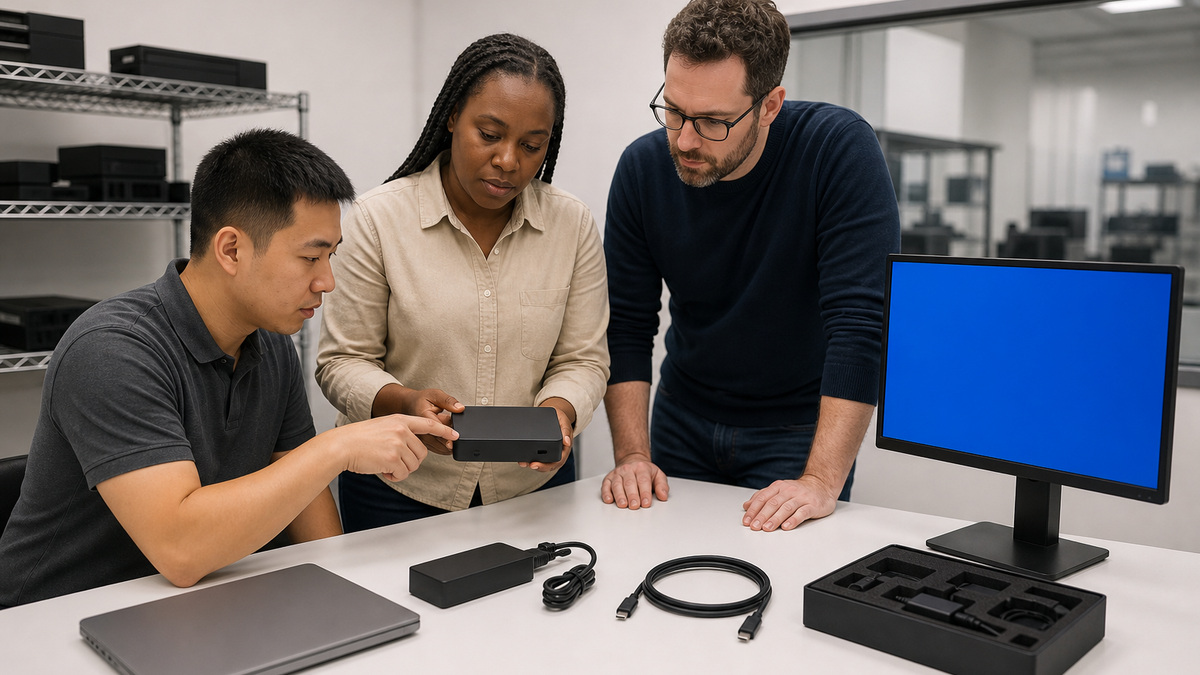
Record the Belkin model, revision, serial or asset reference, supplied power adapter, host cable, laptop model and port, operating system, BIOS and controller state, DisplayLink or Belkin Dock Utility versions, graphics and network drivers, monitors and their inputs, resolutions and refresh rates, Ethernet cable and switch port, USB devices, audio, storage and recent changes. Describe which functions fail: dock power light, laptop charge, one or several displays, Ethernet, USB, audio, card reader, wake, hot plug or the utility. Capture onset, frequency, temperature, workload, user, desk, battery state, error messages and whether the issue follows the dock, laptop or location. Preserve unsaved work and safely eject storage before disruptive tests. Ask what still works because partial function identifies which parts of the path are alive. Compare with the approved deployment matrix and a known-good workstation built from the same model. Do not factory reset, reinstall every driver or swap several cables at once, those actions erase evidence and can create a temporary recovery without identifying cause. Write a one-sentence incident boundary and list each planned substitution before touching the desk.
- Capture exact hardware, software, cable, display, network and power state.
- Separate charging, video, Ethernet, USB, audio, storage and wake symptoms.
- Preserve user work and safely eject attached storage.
- Compare the failure with the approved matrix and a known-good peer.
- Change one documented variable at a time.
Prove External Power, Host-Port Mode, and the Baseline Cable
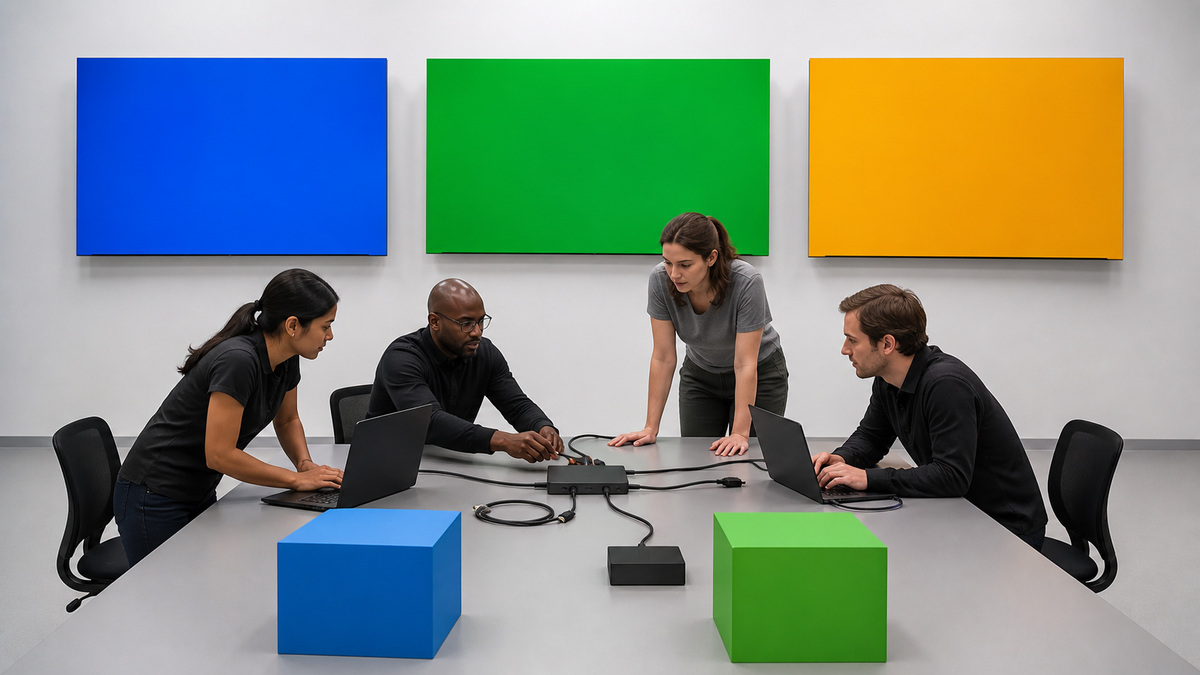
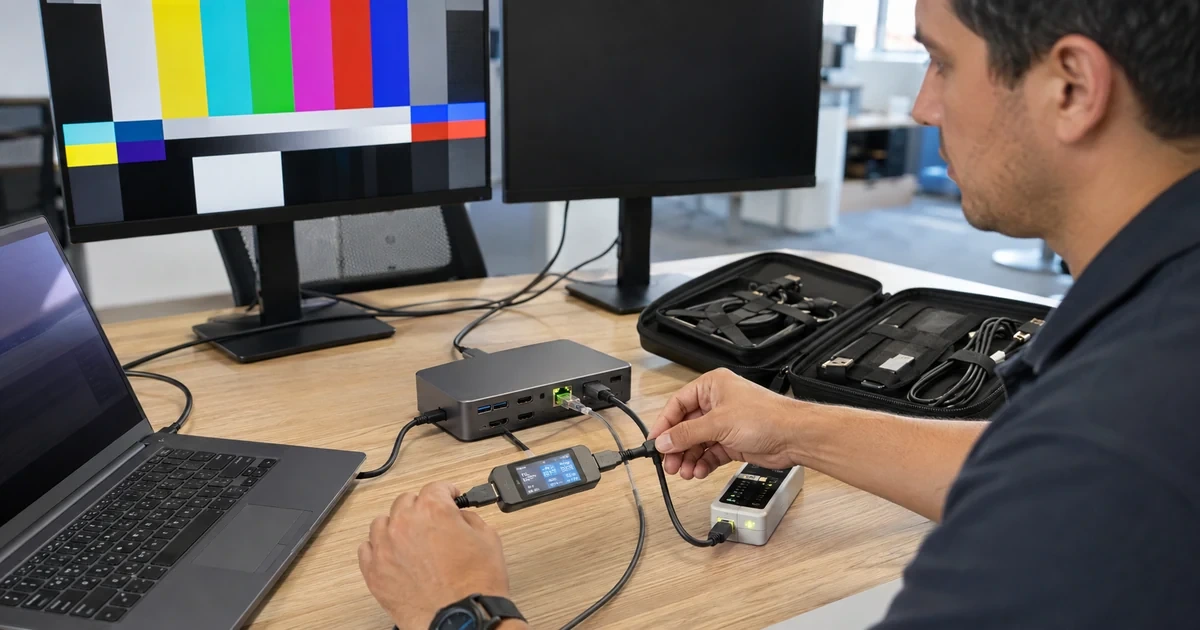
Inspect the dock, adapter, cable and connectors for damage, debris, looseness, odor, discoloration or unsafe heat. Confirm that the included or correct-rated Belkin power supply is connected to a verified outlet and the dock’s documented DC input. Check the model-specific LED state. Disconnect the laptop and all peripherals, remove power for a controlled interval, then reconnect external power alone. Attach the laptop directly to the designated host port with the known-good full-featured cable, avoid intermediary hubs and adapters. Verify that the selected laptop port actually supports the required Thunderbolt, USB4, DisplayPort alternate mode and Power Delivery functions. A charge-only cable or data-only host port can create partial operation that resembles a dock failure. Observe whether the laptop enumerates the dock, charges and reports any controller authorization. Try another approved host port, cable or reference laptop one at a time. If the dock will not power safely, shows enclosure damage or behaves abnormally on the correct adapter, remove it from service rather than opening sealed equipment. Keep the reduced baseline until each additional function is proven.
- Inspect adapter, enclosure, ports and cables before energizing the setup.
- Verify the exact external power supply and outlet.
- Connect the laptop directly with a known-good full-featured host cable.
- Confirm the chosen host port’s Thunderbolt, USB4, video and charging capabilities.
- Quarantine damaged or electrically unsafe equipment.
Isolate Monitor, Cable, Port, Bandwidth, and DisplayLink Layers
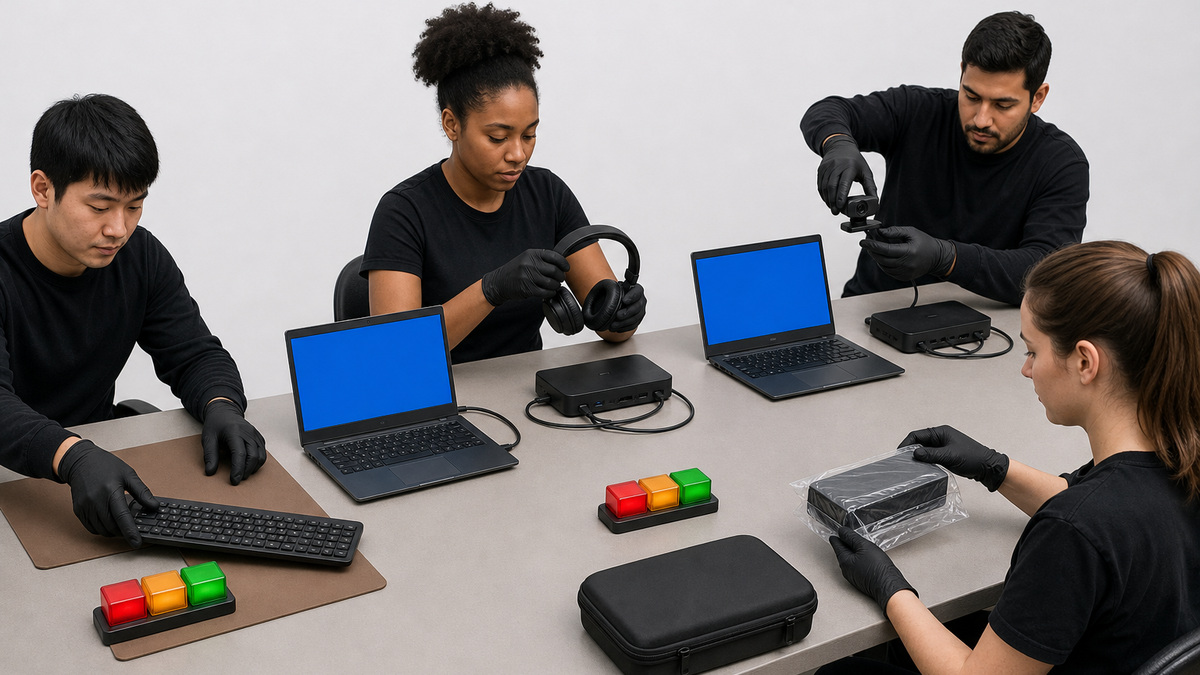
Begin with one known-good monitor, one direct HDMI or DisplayPort cable, the correct monitor input and a conservative resolution and refresh rate. Confirm whether the operating system detects the display and whether the dock produces native or DisplayLink-driven output. Belkin’s INC026 and INC029 guidance states that DisplayLink drivers are required for full triple-display functionality, without current software, additional monitors may be absent or mirror unexpectedly. Verify the DisplayLink package, service, operating-system compatibility and required macOS permissions, then restart only when the controlled step calls for it. Swap the monitor cable, dock port and monitor separately and test the display directly from the laptop where possible. After the first display passes, add the second and third one at a time. Reduce resolution and refresh temporarily to expose a bandwidth or host-graphics limit. Belkin notes that the universal dock provides several physical video connectors but only a supported number of active displays, and actual results depend on the computer and operating system. Capture the port map and final settings instead of assuming every empty connector can drive another screen.
- Start with one known-good monitor, input, direct cable and conservative mode.
- Identify whether the affected output is native video or DisplayLink.
- Verify current drivers, services and required operating-system permissions.
- Swap cable, dock port, monitor and direct-host path independently.
- Add displays sequentially and test lower bandwidth before blaming hardware.
Diagnose Ethernet, Belkin Dock Utility, and MAC Pass-Through
Treat the dock network adapter as its own incident path. Check physical link LEDs, the known-good Ethernet cable, switch port, negotiated speed, driver, enabled state, address, gateway, DNS, VPN, authentication and reachability. Compare performance with the laptop’s native interface and with another known-good dock. If Belkin Dock Utility is in use, confirm that its service is running, the attached model is supported and the application sees the dock. Belkin documents a gray disconnected state when no supported device is attached and describes failures involving disabled NICs or conflicting MAC address overrides. Inspect the dock network adapter’s advanced Network Address setting and remove an unauthorized manual clone before relying on utility-managed MAC pass-through. Coordinate with network operations before changing an address tied to DHCP reservations, NAC or switch security. Test undocked and redocked identity and ensure two laptops do not produce a duplicate address. If displays work but the network fails, keep display changes out of the test. Record link state, adapter identity, utility state and network-policy result with sensitive addresses redacted from general tickets.
- Prove cable, switch port, link, driver, addressing, DNS and reachability.
- Check Belkin Dock Utility service and supported-device detection.
- Remove conflicting unauthorized Network Address overrides.
- Coordinate MAC changes with DHCP, NAC and switch-security owners.
- Test identity across undock, redock and a second laptop.
Rebuild USB, Storage, Audio, and Laptop Charging One Load at a Time
With power, host connection and one display stable, add keyboard and mouse, then audio, camera, card reader, storage and other bus-powered devices separately. Observe enumeration, disconnects, transfer errors and power behavior. A faulty device or excessive shared load can destabilize several downstream ports. Use a known-good storage device and copy test data that contains no customer information, safely eject before removal. For charging trouble, verify that the laptop supports USB-C Power Delivery on the selected port, the dock is on its supplied adapter and the host cable supports charging. Belkin’s INC026 troubleshooting guidance distinguishes no charging from slow charging: the 100W class output may still be below a high-performance laptop’s demand under load, and attached devices add to the power environment. Remove high-power peripherals, test at idle, compare the original laptop adapter and observe whether battery level rises, holds or falls. A USB-C-to-USB-A compatibility adapter does not provide equivalent laptop charging or video behavior. Restore approved peripherals only after the baseline passes and document the one that reintroduces the fault.
- Add USB, audio, camera, storage and other loads individually.
- Use non-sensitive test data and safely eject removable storage.
- Verify laptop PD support, supplied dock power and a charging-capable host cable.
- Distinguish absent charging from insufficient power under heavy workload.
- Identify the exact peripheral or load that destabilizes the system.
Validate the Fix, Preserve Evidence, and Prevent Fleet Recurrence
Retest the original configuration and symptom after the smallest justified correction. Exercise cold boot, sign-in, lock, sleep, wake, lid state, disconnect and reconnect, monitor power cycle, Ethernet transfer, video meeting, USB transfer, audio and sustained charging. Observe long enough to cover the failure interval and a representative workload. Record the exact root cause, contributing conditions, disproved hypotheses, changed component or software, versions, before-and-after behavior and any data-handling action. If escalation is needed, provide Belkin with model, revision, purchase or warranty context, host and operating system, power supply and cable, port map, displays, drivers, utility state, network symptoms, reproduction steps, timestamps, photos of physical condition and results from known-good substitutions. Redact credentials, private addresses and user content. Update the approved matrix, known-error record, deployment image, spare kit or user guidance when a pattern affects the fleet. Quarantine suspect hardware with its evidence and do not return it to circulation because it passed a brief bench test. Close the incident only after the desk meets the original business outcome and support can reproduce the final state.
- Retest boot, sleep, wake, hot plug, displays, network, USB, audio and charging.
- Observe through the original failure window under representative load.
- Document root cause, disproved hypotheses, versions and measured results.
- Escalate with exact topology, reproduction and known-good substitution evidence.
- Update fleet standards and quarantine unreliable components.
Official product documentation and ALLMSP resources
- Belkin: Universal 16-Port Triple Display USB-C Dock FAQs
- Belkin: INC026 and INC029 Ports and Display Setup
- Belkin: Third Monitor Not Working on INC026 and INC029
- Belkin: Laptop Not Charging Through INC026 and INC029
- Belkin: Dock Utility User Guide
- Belkin: Fixing Issues with Dock Utility
- ALLMSP Belkin Hardware Support
- ALLMSP Hardware Support
- ALLMSP IT Consulting
- ALLMSP Managed IT Services
- ALLMSP Cybersecurity Services
- Contact ALLMSP
Frequently Asked Questions
What should be captured before troubleshooting a Belkin dock?
Capture exact dock and revision, power supply, host cable and port, laptop, OS, drivers, utility versions, displays, Ethernet, peripherals, symptoms, recent changes and last known good state.
Why can a Belkin dock charge a laptop but show no video?
Charging proves only part of the path. The host port or cable may lack video, the monitor may use the wrong input, the host may exceed display limits, or DisplayLink software and permissions may be missing.
What is the fastest safe baseline for a Belkin dock?
Use the correct external adapter, a known-good full-featured host cable, one compatible laptop port and no peripherals, then add one known-good monitor before restoring other functions.
Why might the third monitor fail on a Belkin universal dock?
Common causes include missing DisplayLink drivers or permissions, monitor input or cable errors, operating-system display settings, host capability and excessive resolution or refresh bandwidth.
How should Belkin display cables be tested?
Use one direct known-good HDMI or DisplayPort cable, correct monitor input and conservative mode, then swap the cable, dock port, monitor and direct laptop path separately.
What can cause a gray state in Belkin Dock Utility?
The application may not see a supported attached dock, its service may not be running, an interface may be disabled, or conflicting network-address settings may disrupt MAC pass-through state.
Why can MAC pass-through break Ethernet access?
A stale or manually cloned Network Address can conflict with utility-managed identity, DHCP, NAC or switch security. Coordinate changes and test for duplicate addresses.
Why might a laptop charge slowly through a working Belkin dock?
The dock output may be below the laptop’s active demand, connected devices may share the power environment, the host cable may be unsuitable or the chosen laptop port may not support the expected PD behavior.
When should a Belkin dock be quarantined?
Remove it from circulation for enclosure or connector damage, odor, discoloration, unsafe heat, abnormal power behavior or intermittent faults that return after a brief bench pass.
How can ALLMSP troubleshoot Belkin docks?
ALLMSP can capture the exact configuration, build a known-good baseline, isolate power, host, display, software, Ethernet and peripheral layers, validate fixes and update fleet standards.