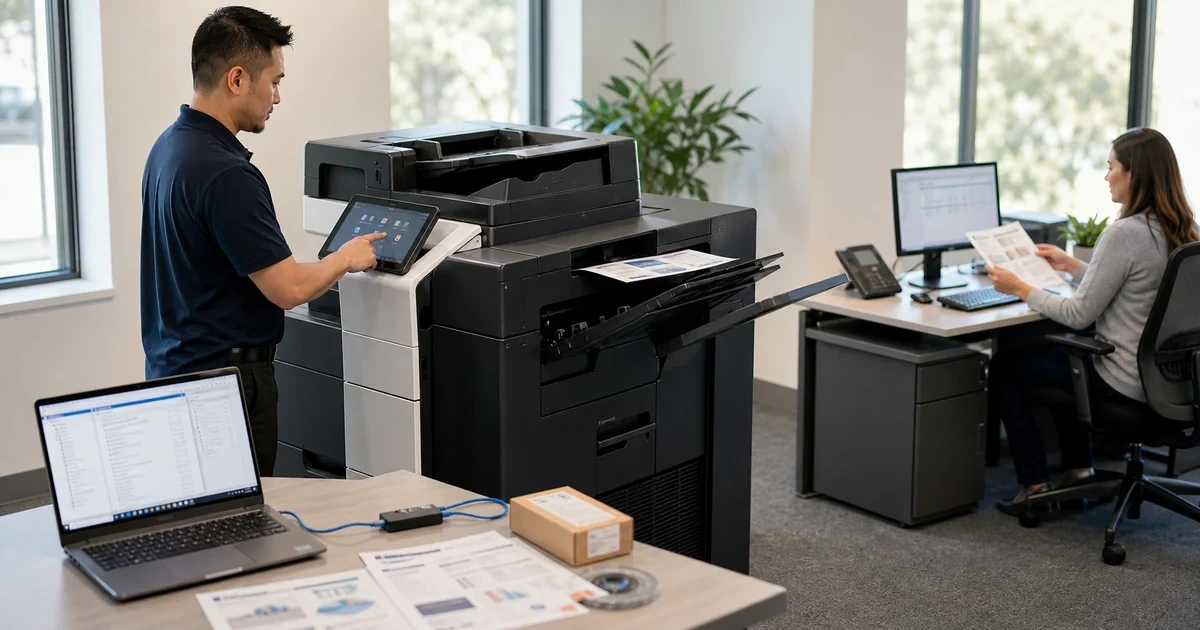
A Canon imageRUNNER ADVANCE DX is a modular document platform rather than a fixed printer. The base engine can be paired with different feeders, paper sources, finishers, print controllers, authentication options and cloud or on-premises workflow services. If the driver believes the wrong hardware is attached, users can see nonexistent staples, lose a real paper deck or send jobs that wait for a media size no tray contains.
Canon’s Remote UI exposes device status, jobs, Address Book data, certificates, settings import and export, backups, firmware and administrative messaging through a browser. Canon’s Windows driver documentation separately explains that device information retrieval depends on queue type, connection method and whether Canon Driver Information Assist Service is installed on a shared print server. Those dependencies belong in the deployment design, not in a help-desk surprise.
This runbook connects the physical configuration to the network, driver, queue, authentication and scan workflows. It emphasizes reproducible option retrieval and a measured pilot so a successful Windows test page cannot conceal missing finishing, broken Department ID verification or a file-server path that only works with the installer’s personal account.
Businesses in Lawrenceville, Suwanee, Gwinnett County, Metro Atlanta, and across Georgia can use ALLMSP to deploy Canon imageRUNNER ADVANCE DX with Generic Plus drivers. Our in-house team handles planning, technical work, testing, and documentation.
Key decisions at a glance
- Record the exact imageRUNNER model, controller, firmware, feeder, paper deck, finisher and optional workflow components before selecting a driver profile.
- Use Canon Remote UI for controlled status, Address Book, certificate, backup and firmware administration from an approved management path.
- Package Canon Generic Plus or model-specific drivers with the connection method and Driver Information Assist Service required by the print-server design.
- Retrieve device information or set every installed option manually so trays, finishing, Department IDs and accounting behave as tested.
- Pilot printing, secure release, SMB scanning, sleep, recovery and supply alerts with real user roles before retiring legacy queues.
Inventory the Exact Engine, Controller, Feeder, and Finisher
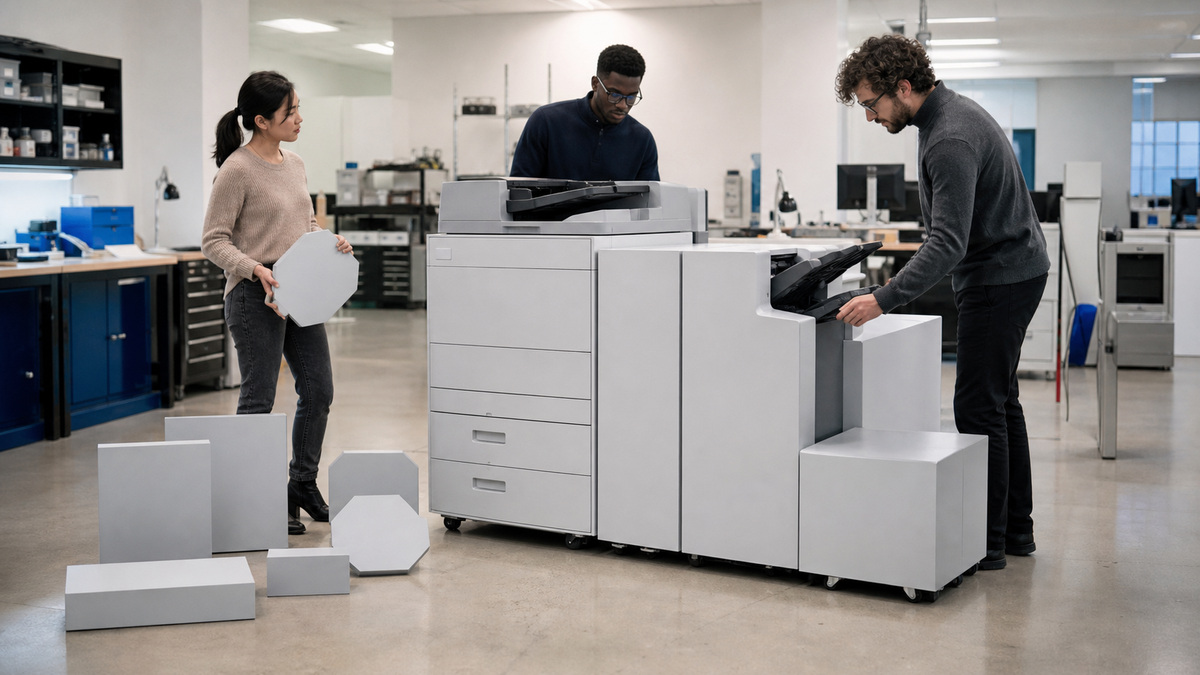
Capture the full Canon model string, serial, firmware, site, owner, network interface and support context. Add the document feeder type, platen behavior, paper cassettes and deck, bypass tray, output trays, inner or external finisher, staple and hole-punch options, fax boards, storage features, card reader, print controller and any MEAP or workflow application. A driver cannot retrieve an option that is absent, and it cannot correct a physical inventory that describes another model family.
Define the work profile for each device: monochrome and color volume, page sizes, heavy or coated stock, envelopes, tabs, duplex, booklet or staple expectations, confidential jobs, copy accounting, OCR, scan-to-email, scan-to-SMB and stored-file use. Match these requirements to Canon’s published specifications for the exact device. Give specialized paper and finishing a named owner because an unlabeled stock substitution can look like a mechanical fault.
Assign the unit to a configuration cohort only when its hardware, controller and firmware can share the same driver and settings assumptions. Mark supported exceptions and planned replacements. Retain photographs of blank physical option areas and cable routing without capturing serials or customer pages. The accepted inventory becomes the reference for driver Device Settings, Remote UI backups, queue defaults, supply planning and escalation.
- Use the complete Canon model and controller name rather than a shortened family label.
- List every feeder, cassette, deck, finisher, punch, fax, card and workflow option.
- Define media, color, duplex, finishing, secure output and scan outcomes.
- Group only devices with compatible physical and software configurations.
- Preserve a protected as-built record for support and replacement planning.
Establish Network Identity and an Owned Remote UI Baseline
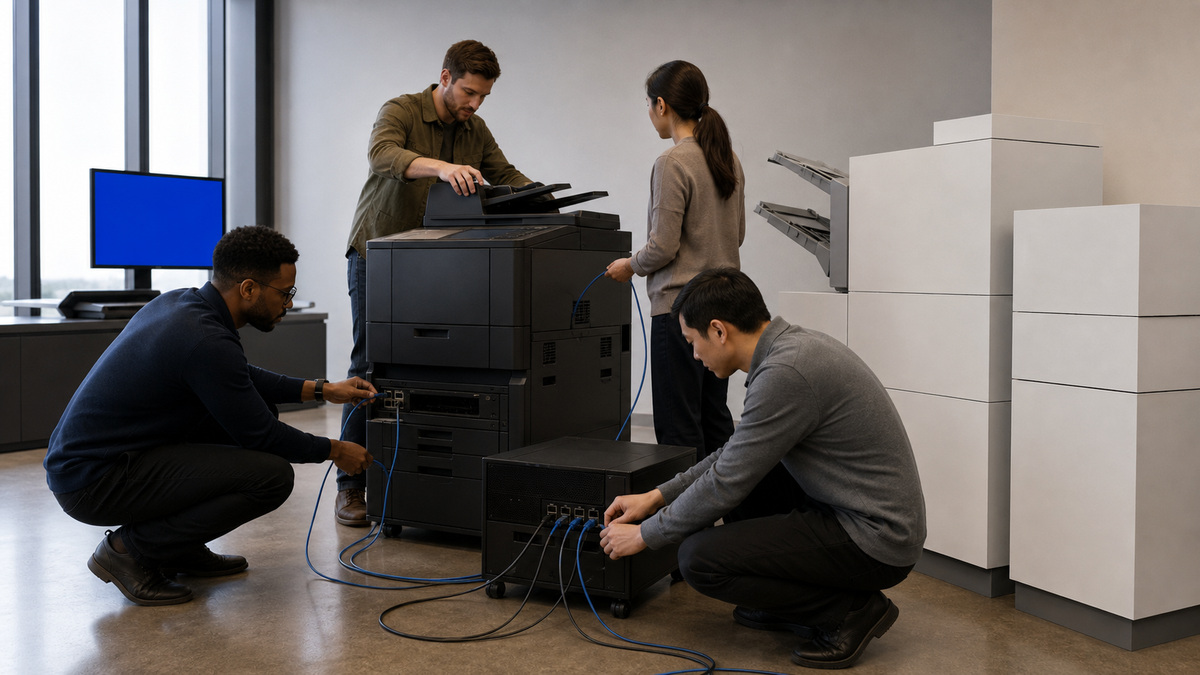
Place the device on its approved printer network and assign stable DNS and managed addressing. Configure gateway, DNS, time, location and administrator ownership before integrations depend on the name. Open Remote UI from a controlled workstation, confirm that the model and current status match the physical device, then move administration to the organization’s approved protected connection and certificate process.
Use Remote UI to review job status, errors, paper and consumables, Address Book entries, stored files and device settings. Export compatible settings and back up data through a restricted location before a material change. Canon warns administrators to close the browser after Remote UI use and avoid unrelated browsing in the same session, treat that session as privileged administration rather than an ordinary web tab.
Define which settings are local, imported, distributed or controlled by another platform. Unique host names, addresses, certificates and location fields must not be cloned blindly. Validate email notifications and route them to an owned service queue with useful thresholds. Record the baseline firmware and the exact recovery process for a failed import, certificate or network change.
- Give each device stable DNS, managed addressing, correct time and a named administrator.
- Access Remote UI only from an approved management path and protected browser session.
- Back up settings, Address Book and compatible data before broad changes.
- Separate shared policy from device-unique network and certificate values.
- Route actionable errors and supply events to a responsible support queue.
Package Generic Plus Drivers and Information Assist Correctly
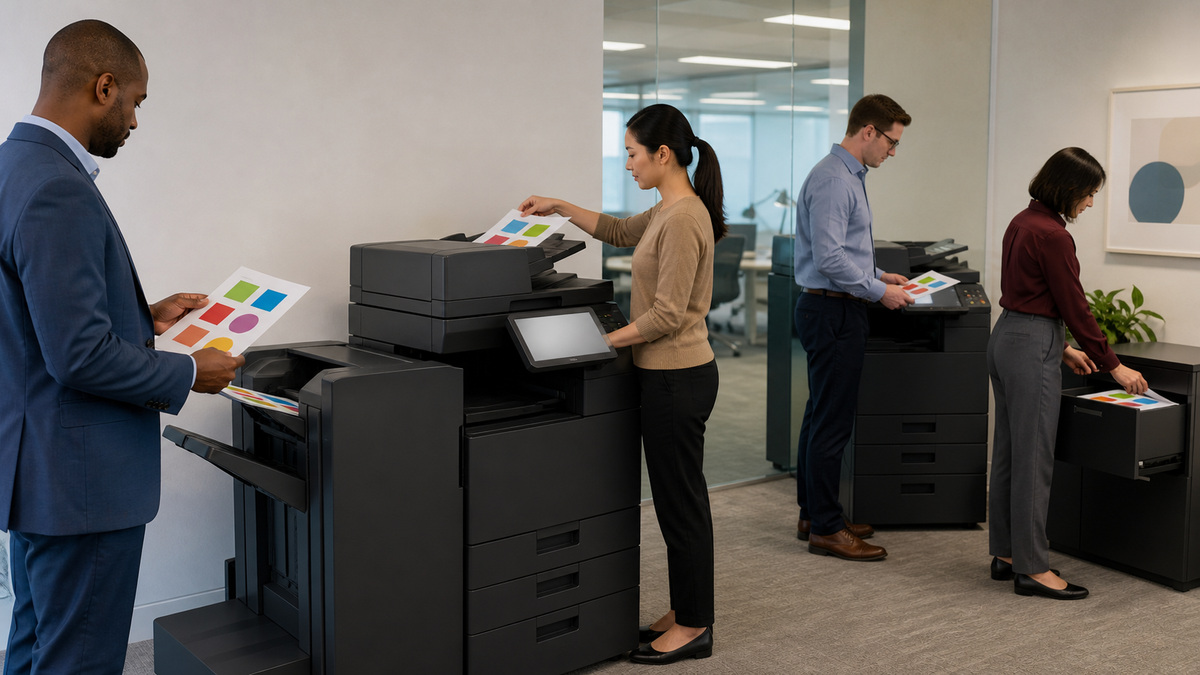
Select Canon Generic Plus or an exact-model driver from the features and operating systems the organization must support. Validate print language, architecture, package source, signature and endpoint deployment method. Use Canon’s Standard installation path for a TCP/IP network when appropriate and Custom installation when the approved environment requires another supported connection design.
Design device information retrieval before creating the shared queue. Canon documents that a locally defined network printer can retrieve information with the driver, while a network printer shared from a server requires Canon Driver Information Assist Service on that print server. Some USB, SMB-direct, WSD, pooling and server arrangements restrict retrieval or authentication. Record the actual path instead of assuming every discovered queue is equivalent.
After installation, open Device Settings and retrieve the device status. Compare every reported paper source, output option, finishing function and authentication feature with the physical inventory. If retrieval is unavailable, configure the options manually and document why. Do not allow an automated response from the wrong address or a stale device name to overwrite a known-good configuration.
- Choose Generic Plus or model-specific packages from tested feature requirements.
- Record the TCP/IP, IPP, USB, WSD or shared-server connection method.
- Install Canon Driver Information Assist Service where the server design requires it.
- Retrieve Device Settings and compare them with the physical option record.
- Document manual options and unsupported retrieval paths instead of hiding them.
Build Queues, Defaults, Department IDs, and uniFLOW Deliberately
Name queues by site, purpose, color policy and device class without exposing sensitive location details. Use the approved Canon driver, stable network port and correct installed options. Set duplex, monochrome or color, media source and finishing defaults on the shared queue, then define which user choices may override them. Remove legacy duplicate queues after migration so users cannot bypass the accepted path accidentally.
If Department ID Management or user authentication is used, configure the driver and device together. Test valid, invalid, missing and changed credentials, and decide whether unknown print or scan jobs are blocked. Canon’s driver information path may be needed to verify these functions on a shared server. Keep PINs out of deployment scripts and ordinary tickets, use managed distribution and rotation appropriate to the chosen authentication method.
Evaluate uniFLOW Online or another Canon-compatible workflow only against a defined outcome such as secure release, My Print and Scan Anywhere, accounting, mobile printing or central control. Map tenant, device registration, identity, license, data location, fallback and support ownership before enrollment. Preserve a direct break-glass printing method for an approved emergency, then test that it does not become a permanent policy bypass.
- Create unambiguous queues with the approved Canon package and stable port.
- Control duplex, color, media and finishing defaults at the supported layer.
- Test Department ID or user authentication with valid and rejected cases.
- Adopt uniFLOW only for explicitly owned release, accounting or mobility outcomes.
- Retire bypass queues and keep emergency printing controlled and auditable.
Register SMB and Other Scan Destinations Without Personal Accounts
For scan to a file server, register the destination in the Canon Address Book with the approved SMB server, share, folder path and service identity. Confirm DNS, time, protocol policy, least-privilege share and file permissions, naming, format, resolution, OCR and retention. Canon’s current imageRUNNER FAQ shows the SMB registration path and notes model coverage, verify the exact interface before copying another device’s steps.
Use a dedicated identity when policy permits and give it an owner and rotation procedure. Avoid a technician’s username, a mapped drive or an unmanaged workstation folder. Protect the Address Book from broad editing, review destinations for stale departments and verify that a password change does not strand the panel shortcut. For email or cloud scan, record authentication, sender, certificate trust, size limits and data-handling responsibility.
Test platen and feeder, simplex and duplex, mixed page sizes, color and monochrome, multi-page PDF, OCR, blank-page removal and a controlled failure. Synthetic pages should contain shapes rather than customer data. Confirm the file’s arrival, ownership, timestamp, legibility and discoverability. A route is not accepted merely because Remote UI reports a successful send.
- Register the exact SMB host, share, folder and least-privilege service identity.
- Own password rotation, DNS, time, protocol, naming and retention dependencies.
- Restrict Address Book editing and remove stale or personal destinations.
- Test feeder, platen, duplex, OCR, formats and controlled failure behavior.
- Verify the received file and permissions from the recipient’s perspective.
Pilot the Full Canon Workflow and Preserve a Reproducible Handoff
Pilot every approved operating system, driver architecture, hardware option and user role. Print simple and complex documents, color and monochrome, all sanctioned page sizes, duplex, booklet, staple or punch, secure release and Department ID cases. Exercise sleep, wake, device restart, print-server restart, network interruption and job recovery. Run scan routes through the feeder and platen under typical peak volume.
Acceptance evidence should include the physical option matrix, Remote UI baseline, backed-up settings, firmware, network identity, queue and package versions, information-retrieval result, manually set options, authentication behavior, scan destinations, supply alerts and support owner. Retain one known-good reference queue and a safe rollback until the pilot survives the expected business cycle.
Give the help desk a Canon-specific isolation map: physical engine, Remote UI status, driver Device Settings, Driver Information Assist Service, port, authentication, queue, scan destination, paper and finishing. Record what evidence Canon or a servicing dealer will need. ALLMSP can maintain this system as a managed document platform, including change rings, driver packaging, scan identities and lifecycle records.
- Pilot all sanctioned clients, options, media, finishing and authentication roles.
- Test sleep, restart, network loss, server recovery and scan-route failure.
- Accept only with complete hardware, settings, driver and workflow evidence.
- Preserve a reference queue, rollback path and support escalation record.
- Update the matrix whenever options, firmware, identities or workflows change.
Official product documentation and ALLMSP resources
- Canon imageRUNNER ADVANCE Platform
- Canon: Managing the Machine with Remote UI
- Canon Generic Plus Driver Installation and Information Retrieval
- Canon: Setting Device Options in the Driver
- Canon: Registering a File Server Folder in the Address Book
- Canon uniFLOW Online
- ALLMSP Canon Hardware Support
- ALLMSP Hardware Support
- ALLMSP IT Consulting
- ALLMSP Managed IT Services
- ALLMSP Cybersecurity Services
- Contact ALLMSP
Frequently Asked Questions
What must be inventoried before deploying Canon imageRUNNER ADVANCE DX?
Record the exact model, controller, firmware, feeder, cassettes, paper deck, finisher, punch, fax, storage, card and workflow options, plus network and support ownership.
What is Canon Remote UI used for?
Remote UI supports browser-based status, job, settings, Address Book, certificate, backup, firmware and other administrative operations on supported Canon devices.
When does Canon Driver Information Assist Service belong on a print server?
Canon documents it as required for device information retrieval in supported shared network-printer designs, connection and server environment determine the exact requirement.
Why should Canon driver options be retrieved after installation?
The driver must know the actual trays, finishers and authentication capabilities. Otherwise users may see missing, incorrect or unusable functions.
Can Canon device options be configured manually?
Yes. If automatic retrieval is unavailable, set options from the verified physical inventory and document the connection limitation and approved configuration.
How should a Canon shared queue be named?
Use a clear site, purpose and device-class convention, backed by the approved driver, stable port, correct options and controlled print defaults.
What should be tested with Canon Department ID Management?
Test valid, invalid, missing and changed credentials, unknown-job policy, driver verification, page tracking and recovery without storing PINs in ordinary scripts or tickets.
When is uniFLOW Online appropriate for Canon devices?
Use it for a defined outcome such as secure release, accounting, mobile work or central print-and-scan control after identity, licensing, fallback and ownership are mapped.
What is required for Canon scan to an SMB folder?
Define the server, share, folder, service identity, permissions, DNS, time, protocol, file format, naming, retention and credential-rotation process.
How can ALLMSP deploy Canon imageRUNNER fleets?
ALLMSP can inventory options, configure Remote UI, package drivers, design queues, retrieve device settings, integrate authentication and scan routes, and operate pilots.