A managed Chromebook rollout begins before the boxes arrive. The organization must know which people will use the devices, what web and Android applications they need, where they will connect, what data they may access, how the devices will be enrolled, which policies will apply, and what evidence proves that each unit is ready. Buying a familiar model without checking its update schedule, management upgrade, repair path, wireless compatibility, and workload fit can lock a school or business into avoidable limitations.
The deployment plan should connect purchasing, Google Admin configuration, inventory, network readiness, identity, applications, pilot testing, employee or student handoff, support, and future retirement. Device policies and user policies do different jobs, and organizational unit inheritance can produce surprising results when the design is not tested. A pilot must represent the hardest real conditions, including older wireless areas, remote workers, shared devices, peripherals, unusual permissions, accessibility requirements, and the most demanding applications.
ALLMSP designs and completes managed Chromebook deployments for schools, nonprofits, and businesses in Lawrenceville, Suwanee, Gwinnett County, Metro Atlanta, and across Georgia. Our in-house team can assist with model selection, ChromeOS management upgrades, Google Admin design, enrollment, asset records, policy testing, application delivery, training, rollout logistics, and continuing support.
Move from approved Chromebook models to a verified managed fleet
- Define the use cases: List users, locations, applications, data, peripherals, mobility, accessibility, shared-device needs, support expectations, and performance requirements.
- Check the platform life: Verify the exact model and hardware platform against Google’s current automatic update schedule before approving a purchase.
- Plan management: Confirm the Google account type, required ChromeOS Enterprise or Education upgrades, enrollment method, administrator roles, organizational units, and groups.
- Prepare connectivity: Test wireless coverage, authentication, certificates, captive portals, filtering, printers, displays, cameras, headsets, scanners, and remote locations.
- Run a representative pilot: Enroll a small but demanding set of devices and prove policies, applications, updates, sign-in, data access, support, recovery, and user workflows.
- Deploy with evidence: Track every serial number, asset tag, upgrade, organizational unit, assigned user, location, configuration, acceptance result, and exception.
Select devices, upgrades, and accessories from real operating requirements
Build a role worksheet before comparing hardware. Record browser workload, video meetings, Android or Linux application needs, local file use, external displays, touch or pen requirements, camera and microphone expectations, battery duration, travel, ruggedness, serviceability, accessibility, and the wireless environments where the Chromebook must work. Schools should include classroom carts, take-home devices, testing, teacher workflows, shared stations, and student age. Businesses should include client meetings, field work, kiosks, shared counters, remote work, and any application that still depends on Windows or a local driver.
Confirm the exact hardware platform and its automatic update date, not only the marketing name printed on the product listing. Google publishes model-specific support schedules and notes that devices reaching their final automatic update may lose reliable policy behavior and technical support. Check whether the device includes a bundled management upgrade or requires a separate ChromeOS Enterprise, Education, or Kiosk and Signage Upgrade. Compare warranty, accidental damage, depot timing, parts, charger availability, cases, storage carts, and same-model replacement options before approving the fleet.
- Model identity: Record manufacturer, exact model, platform, processor, memory, storage, display, ports, wireless hardware, camera, battery rating, and automatic update date.
- Application fit: Test required websites, progressive web apps, Android apps, Linux tools, virtual applications, file formats, conferencing, printing, scanning, and identity flows.
- Management upgrade: Confirm the correct ChromeOS upgrade type, quantity, term or bundled status, transfer rules, renewal responsibility, and enrollment eligibility.
- Physical environment: Match ruggedness, hinges, keyboard, spill resistance, touch, case, cart, charger, temperature, dust, travel, and repairability to actual use.
- Peripheral compatibility: Validate USB-C power, docks, displays, headsets, webcams, printers, scanners, barcode devices, smart cards, and specialty equipment.
- Continuity supply: Plan spare devices, chargers, cases, shipping materials, warranty records, repair capacity, and a consistent replacement process.
A purchase is ready when the organization can explain who the device serves, how long it remains supported, how it is managed, and what happens when it fails.
Prepare Google Admin, enrollment, network access, and application delivery
Design the management structure before enrolling the first production device. Limit administrator privileges to the roles that need them and keep protected emergency access. Use organizational units for stable policy boundaries and configuration groups when a targeted override makes more sense. Document which settings belong at the top level, which inherit, and which are intentionally overridden. Prepare device settings, user and browser settings, managed guest sessions where required, sign-in restrictions, update behavior, applications, extensions, certificates, printers, networks, reporting, and forced re-enrollment.
Enroll ChromeOS devices before any user signs in. Google’s enrollment guidance explains that a device used before enrollment must be wiped before management can be applied correctly. Select manual, user-assisted, or compatible zero-touch enrollment based on volume and purchasing arrangements. Preload or securely deliver Wi-Fi and certificate settings, decide how asset ID and location will be recorded, and verify that the device appears in the intended organizational unit with the correct upgrade and policy state. Do not treat a successful sign-in as proof that enrollment is complete.
- Administrator readiness: Confirm super administrator custody, delegated Chrome roles, separate daily accounts, emergency access, authentication, change records, and support ownership.
- Policy map: Document root settings, organizational units, configuration groups, inheritance, overrides, device policies, user policies, application rules, and exception owners.
- Enrollment method: Choose manual enrollment, controlled user enrollment, or compatible zero-touch enrollment with clear permissions, tokens, upgrade availability, and receiving steps.
- Network preparation: Test office, classroom, guest, home, and hotspot access with required SSIDs, certificates, proxies, filtering, DNS, firewall paths, and captive-portal behavior.
- Application baseline: Define force-installed, permitted, blocked, and optional web apps, Android apps, Linux access, extensions, bookmarks, startup pages, and file handlers by role.
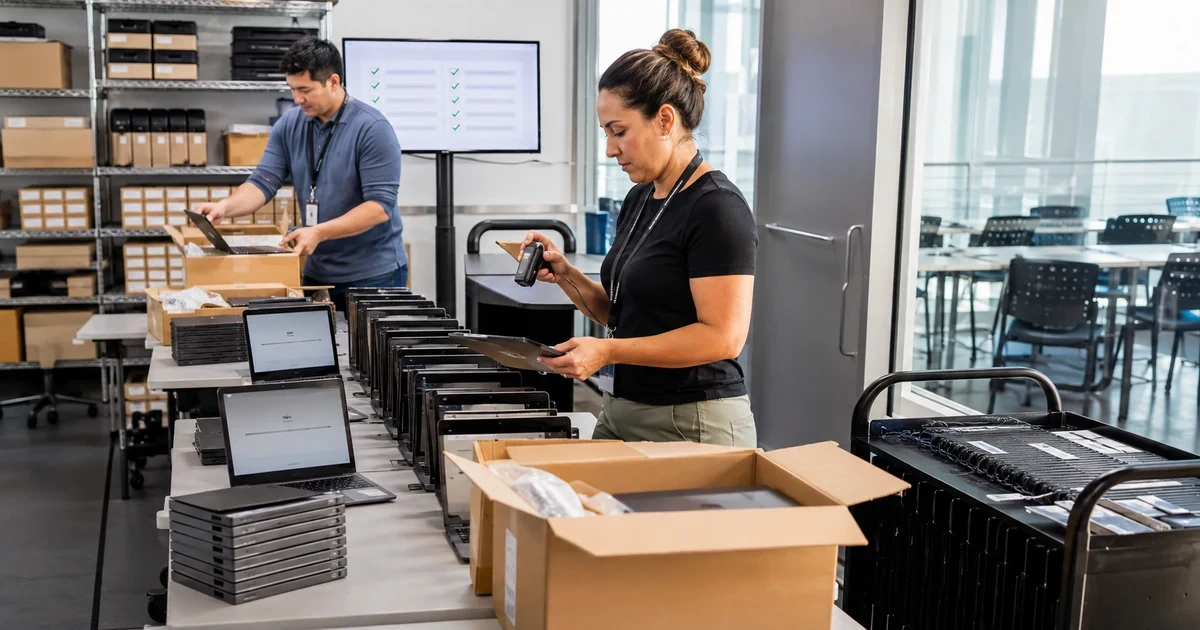
- Asset data: Capture serial number, asset tag, model, platform, automatic update date, upgrade, organizational unit, user, location, warranty, accessories, and enrollment result.
Management preparation is complete when a newly enrolled device reaches the correct configuration without improvised technician steps and the Admin console record matches the physical asset.
Pilot demanding workflows, deploy in controlled waves, and prove acceptance
Choose pilot users who expose risk rather than volunteers with simple needs. Include heavy browser users, frequent video callers, employees with delegated access, students or staff who move between networks, users of specialized peripherals, shared-device scenarios, accessibility needs, and people who depend on unusual websites or file formats. Test cold startup, first sign-in, multifactor authentication, policy arrival, application installation, printing, camera and microphone, display output, sleep and wake, offline behavior, synchronization, battery, update restart, account recovery, lost-device response, wipe, and re-enrollment.
Deploy in waves that match support capacity. Freeze the approved settings for each wave, stage devices, verify inventory, communicate what users should expect, and keep a tested rollback or replacement option. During launch, record enrollment failures, application errors, wireless problems, policy delays, update issues, peripheral incompatibilities, user questions, and time to resolution. Close each wave only after acceptance evidence is complete and the corrections have been added to the next wave’s runbook.
- Pilot matrix: Map each high-risk user, location, network, application, peripheral, identity path, accessibility need, and support scenario to a named test and expected result.
- Acceptance test: Confirm inventory, enrollment, organizational unit, policies, updates, sign-in, applications, data, printing, conferencing, battery, accessories, support, wipe, and re-enrollment.
- Deployment wave: Set device count, location, users, staging window, handoff time, support coverage, spare quantity, communication, stop criteria, and approval owner.
- User handoff: Provide the assigned device and accessories, sign-in steps, data location, offline guidance, care instructions, lost-device response, and a clear support path.
- Exception control: Record the setting, reason, affected users, risk, compensating control, owner, approval, expiration, and test needed before an exception continues.
- Launch review: Compare planned and actual deployment time, failures, tickets, battery performance, wireless results, application success, user readiness, inventory accuracy, and spare use.
The rollout is complete when every device is accounted for, every intended user can complete required work, support can reproduce the setup, and unresolved exceptions have owners and deadlines.
Managed Chromebook planning and deployment from ALLMSP
ALLMSP can survey requirements, compare Chromebook models, check automatic update life, plan management upgrades, validate applications and peripherals, design Google Admin structure, configure policies, prepare networks, enroll devices, apply asset tags, run pilots, stage deployment waves, train users, document the fleet, and provide continuing support. We can customize the program for schools, nonprofit teams, professional offices, shared work areas, mobile employees, and multi-location organizations.
Our technicians support Chromebook deployments in Lawrenceville, Suwanee, Gwinnett County, Metro Atlanta, and across Georgia. Because the work stays in house, device purchasing, enrollment, Google Workspace access, cybersecurity, Wi-Fi, help desk support, repair, spares, and retirement can follow one accountable plan instead of separate handoffs.
- Assess and select: Role profiles, platform support dates, hardware, upgrades, applications, accessories, wireless, warranty, repair, cost, and spare planning.
- Configure and prove: Administrator roles, organizational units, groups, policies, networks, applications, extensions, enrollment, asset records, pilot tests, and corrections.
- Deploy and support: Staging, wave planning, communication, handoff, training, launch support, inventory reconciliation, incident response, repair, and lifecycle records.
Primary resources for managed Chromebook deployment
Use Google’s current deployment and support documentation as the product baseline, then validate each decision against the organization’s users, networks, applications, and service requirements.
- Google ChromeOS device setup guide. Google’s setup sequence for site readiness, networks, policies, updates, enrollment, and a test device.
- Google ChromeOS enrollment guidance. Current enrollment requirements, upgrade selection, asset details, permissions, organizational unit behavior, and troubleshooting.
- Google automatic update policy. The model-specific schedule and policy considerations used to confirm a Chromebook platform’s remaining supported life.
- ALLMSP Google Chromebooks. Chromebook selection, deployment, ChromeOS management, school and corporate configuration, repair, and lifecycle support.
Managed Chromebook deployment FAQs
What should be checked before buying Chromebooks for a business or school?
Check the exact model, platform, automatic update date, processor, memory, storage, display, ports, wireless, battery, ruggedness, accessibility, applications, peripherals, management upgrade, warranty, repair path, and spare availability.
Why does the Chromebook automatic update date matter?
It identifies how long the platform is scheduled to receive automatic software and security updates. Google warns that policies and technical support may not work as intended after the final update, so the date affects useful life and replacement planning.
Do managed Chromebooks require a separate upgrade?
It depends on the device and account. Some devices include a bundled ChromeOS Enterprise or Education Upgrade. Standalone devices may require a separate eligible upgrade, and the available features depend on the organization’s account and upgrade type.
Must a Chromebook be enrolled before a user signs in?
Yes for a properly managed rollout. Google states that enrollment should occur before anyone signs in. If a user signs in first, the device generally must be wiped so enrollment and organization policies can be applied correctly.
What is zero-touch Chromebook enrollment?
It is a compatible pre-provisioning method that can cause a new ChromeOS device to enroll into the customer’s organization after startup and internet connection. It requires supported hardware, available upgrades, a customer token, and an eligible purchasing path.
How should organizational units be planned for Chromebooks?
Use them for stable policy boundaries such as business roles, school grades, shared devices, kiosks, or locations. Keep the structure understandable, document inheritance and overrides, and use configuration groups for targeted exceptions when appropriate.
Who should be included in a Chromebook pilot?
Include demanding users, multiple locations, difficult wireless areas, remote use, shared devices, unusual permissions, accessibility needs, specialized peripherals, video meetings, large browser workloads, and every important application path.
What proves a managed Chromebook is ready for use?
Verify inventory, upgrade, enrollment, organizational unit, policies, updates, sign-in, authentication, applications, data access, wireless, printing, camera, microphone, displays, battery, accessories, support, wipe, and re-enrollment.
Can Chromebooks be customized for both schools and companies?
Yes. Hardware, organizational units, applications, extensions, sign-in rules, web filtering, managed guest sessions, printing, accessibility, updates, asset records, and support procedures can be tailored to the environment and user role.
Can ALLMSP complete a Chromebook rollout in house?
Yes. ALLMSP handles assessment, purchasing coordination, management design, Google Admin configuration, enrollment, asset tagging, application setup, testing, staging, training, launch support, repair planning, and ongoing administration.