A Surface that will not charge, stay connected to a dock, drive a monitor, hold a battery, recognize its camera, or remain stable after sleep does not automatically need hardware replacement. The same symptom can originate in a power supply, cable, dock, driver, firmware, Windows configuration, application, user profile, or physical component. Good triage narrows those layers with repeatable evidence before the device is opened or shipped.
Microsoft now documents the Surface Repair Tool as a guided diagnostic and repair application for supported devices, while noting that it and the Surface Diagnostic Toolkit remain available in parallel as coverage expands. The diagnostic choice should follow current device compatibility and official guidance. A business gains the most value when the output becomes part of the incident record, alongside model, serial, firmware, warranty, and the conditions that reproduce the failure.
Service also creates a data and continuity problem. Microsoft tells customers to back up important information, remove accessories, and prepare for data to be erased during service. An organization should add its own encryption, legal hold, sanitization, Autopilot, DFCI, asset custody, loaner, and return-to-service steps so a repair fixes the endpoint without losing business records or returning an unmanaged device.
Key decisions at a glance
- Capture the exact Surface identity, symptom, power source, dock and peripheral state, recent change, firmware and Windows versions, business impact, and reproducible test before choosing repair.
- Use the Surface Repair Tool on supported devices and the Surface Diagnostic Toolkit where appropriate, preserving standardized results and logs instead of relying on a vague no-fault-found report.
- Check warranty and service options before opening hardware, and follow the model-specific Surface Service Guide plus Microsoft’s repair and battery safety guidance for any authorized component work.
- Back up necessary business data, preserve approved recovery information, remove accessories, sanitize according to policy, and maintain chain of custody before a Surface leaves organizational control.
- Validate the returned or repaired device through identity, enrollment, updates, diagnostics, encryption, applications, dock and peripheral tests, user acceptance, warranty history, and lifecycle review.
Triage the Surface as a Complete Working System
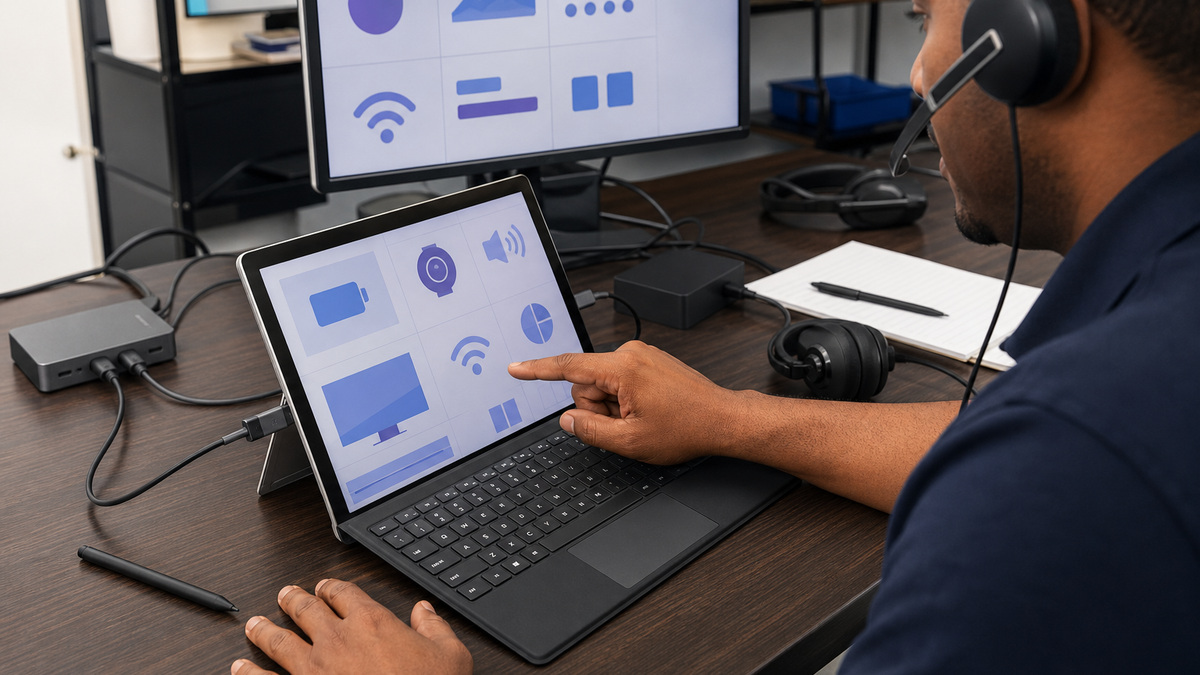
Open the incident with a precise device and symptom record. Capture the external serial, model, System SKU, assigned user, location, Windows build, Surface driver and firmware state, battery and power condition, dock model, cable path, displays and peripherals, last successful use, recent update or impact, error evidence, frequency, and the business task that cannot be completed. Avoid putting secrets or BitLocker recovery material in a general ticket.
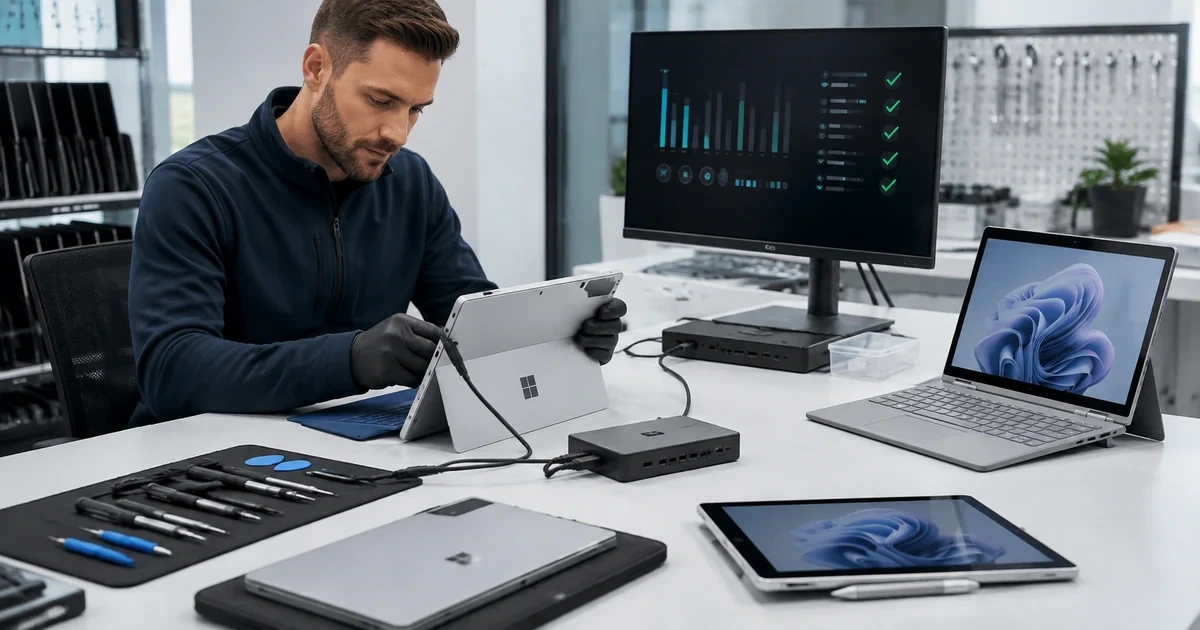
Reproduce the problem with controlled substitutions. Try the approved Surface power supply, direct power without the dock, a known-good cable and monitor, only essential peripherals, a separate user profile when appropriate, and the intended office or remote network. Change one variable at a time and record the outcome, replacing several components together may restore service without revealing which failure will return.
Use Microsoft’s current tool path for the device. Surface Repair Tool can run standardized hardware tests and guided repair validation on supported models, while Surface Diagnostic Toolkit for Business can test components, help repair some application conditions, collect logs, and produce reports. Preserve the result with the incident so an escalation or service request receives more than a description such as intermittent or slow.
- Identify the physical Surface, user, management object, warranty record, operating-system build, firmware, dock, power supply, and peripherals.
- Write exact reproduction steps, observed behavior, business impact, recent changes, frequency, and evidence timestamps.
- Isolate power, dock, cable, display, peripheral, profile, network, software, and hardware variables one at a time.
- Save supported diagnostic results and logs with the ticket before reset, repair, reimage, or shipment changes the evidence.
Choose Warranty, Authorized Service, or Supported Repair
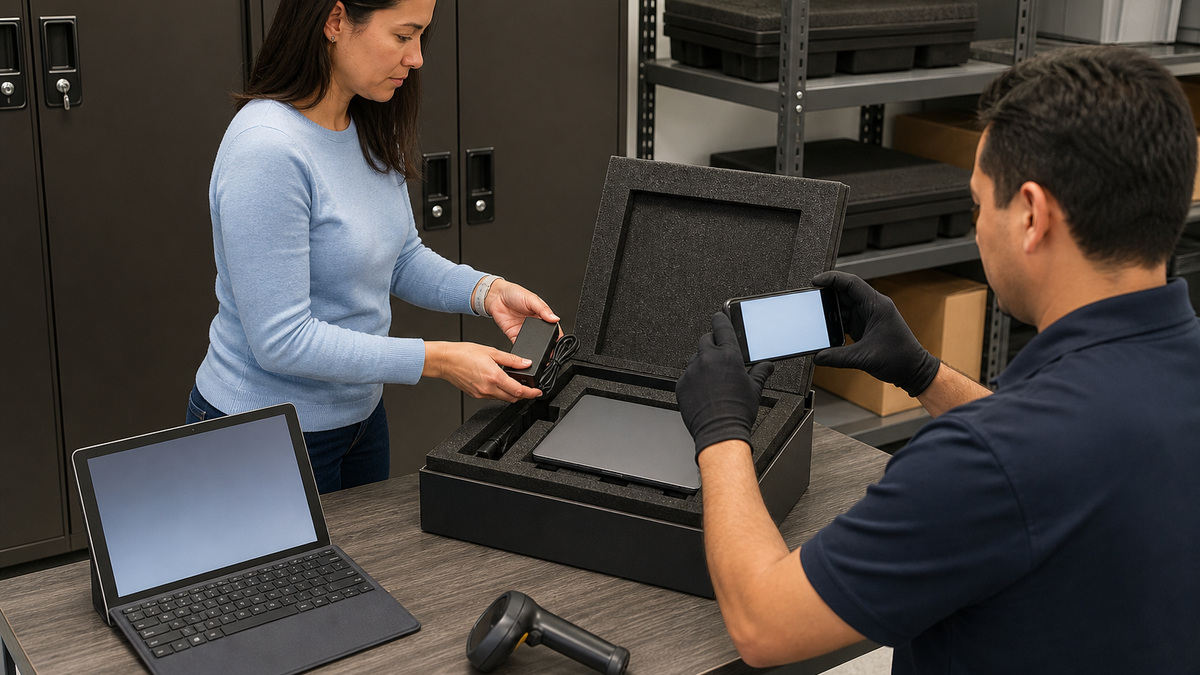
Check coverage and available service options before disassembly. The Surface Management Portal can show warranty or protection-plan information for enrolled devices and can support service-order workflows, while Microsoft’s support paths vary by product, coverage, region, and organizational agreement. Confirm whether the expected outcome is same-unit repair, replacement, an authorized provider visit, customer-replaceable work, or paid out-of-warranty service.
Self-repair is not a generic permission to open every Surface. Microsoft’s Service Guide Center publishes model-specific procedures and distinguishes component availability, while the Repair Safety Guidelines call out electrical, mechanical, and battery hazards. A skilled technician should use the exact guide, approved tools and parts, electrostatic precautions, and required post-repair calibration or functional tests, stop when the model, part, skill, or facility is outside authorized scope.
Protect business continuity while the service route proceeds. Keep a small pool of managed loaners mapped to common role bundles, record every accessory handed over, and define how the employee reaches required data and applications without copying an uncontrolled full profile. Link the loaner, original device, service order, shipping evidence, expected return, and business owner in the same case.
- Verify coverage, protection plan, service eligibility, device condition, proof of purchase, region, cost, and expected turnaround before authorization.
- Use only the current service guide and safety instructions for the exact Surface model and approved component.
- Do not improvise battery work, reuse questionable parts, or continue after damage or conditions named in Microsoft’s stop-work guidance.
- Issue a managed loaner with an asset record, accessory checklist, expiration date, data-access plan, and return owner.
Protect Data and Identity Before the Device Leaves

Back up required business data before service whenever the Surface can start, and verify that the backup or approved cloud copy can actually be opened. Check for local-only files, application exports, certificates, browser data, accounting or line-of-business stores, and legal-hold obligations. Coordinate with the data owner rather than assuming OneDrive or another synchronization client captured every folder and current revision.
Follow organizational sanitization policy and Microsoft’s current device-specific guidance. Microsoft warns that service can erase applications and data and directs users to remove accessories unless support says otherwise. For supported scenarios, the current Surface Data Eraser in the Surface IT Toolkit can create erasure media and a sanitization certificate, older legacy instructions do not support newer Surface models, so tool choice must match the device generation and architecture.
Prepare identity and management records for the chosen route. Preserve authorized BitLocker recovery access without exposing the key, note Autopilot and DFCI state, record the external serial and photos of condition, remove Type Cover, pen, memory card, dock, power supply, and other items unless explicitly requested, and seal the device through an auditable custody path. Define who will reconcile a changed system identity or replacement unit on return.
- Confirm the backup scope, successful completion, restore test, data owner, retention requirement, and any legal hold.
- Select reset or certified sanitization according to policy, model support, device condition, service instructions, and evidence needs.
- Remove unrequested accessories and record device condition, external serial, package contents, custody transfers, and shipment status.
- Document BitLocker, Autopilot, DFCI, Intune, Entra, and assigned-user actions without placing secrets in the ticket.
Prove Return to Service and Make the Lifecycle Decision
Inspect the returned Surface and reconcile the external serial, internal system identity where relevant, service documentation, replaced components, physical condition, coverage, and accessories. Microsoft notes that some component replacements can change the internal serial used by the operating system, which may require attention to Windows Autopilot registration. Do not assume the old Entra, Intune, encryption, or deployment identity automatically represents the serviced hardware.
Run a complete return-to-service check: current Windows and Surface updates, SRT or SDT diagnostics as supported, battery and charging, camera, microphone, speakers, touch, pen, keyboard, ports, Wi-Fi, Bluetooth, dock, displays, sleep and resume, encryption, management enrollment, compliance, authentication, applications, data restoration, and the user’s primary workflow. Record results before ending the loaner assignment.
Use the incident to improve replacement planning. Compare repair cost and downtime, repeat ticket rate, battery condition, warranty position, driver and firmware end of servicing, Windows support, performance, part availability, and employee impact. ALLMSP can manage that evidence for Georgia businesses, coordinate approved diagnostics and service, maintain loaners, validate returned devices, and turn recurring model failures into a funded lifecycle plan.
- Reconcile external serial, internal identity, repair or replacement outcome, component changes, warranty record, and service evidence.
- Rebuild or reassign Autopilot, Entra, Intune, encryption, compliance, and application state before business data is restored.
- Complete hardware, dock, peripheral, power, network, security, application, and user-workflow acceptance tests.
- Decide repair, redeploy, spare, retire, or replace using supportability and business impact rather than device age alone.
Official product documentation and ALLMSP resources
- Microsoft: Surface Repair Tool overview
- Microsoft: Surface Diagnostic Toolkit for Business desktop mode
- Microsoft: Surface Diagnostic Toolkit command-line console
- Microsoft: Surface Service Guide Center
- Microsoft: Surface repair safety guidelines
- Microsoft: Surface Management Portal overview
- Microsoft Support: Prepare your Surface for service
- Microsoft Support: Protecting data sent with Surface for service
- Microsoft: Surface driver and firmware lifecycle
- ALLMSP Hardware Support
- ALLMSP Managed IT Services
- ALLMSP Cybersecurity
- ALLMSP Microsoft Surface Support
- Contact ALLMSP
Frequently Asked Questions
What is the difference between Surface Repair Tool and Surface Diagnostic Toolkit?
Microsoft describes Surface Repair Tool as the newer guided diagnostic and repair application for supported devices and says it will replace SDT over time as coverage grows. SDT remains available for supported diagnostic workflows, so use the current compatibility and service guidance for the exact model.
When should a technician test the dock and power supply separately?
Do it early for charging, display, USB, network, audio, wake, or intermittent stability complaints. Use approved known-good power, cable, dock, display, and peripheral combinations, changing one variable at a time so the ticket identifies the failed layer.
Which evidence should be collected before a Surface is reset or opened?
Record model, System SKU, external serial, user, Windows build, firmware, dock and accessories, symptom, reproduction steps, recent changes, photos where appropriate, diagnostic results, logs, warranty state, and business impact. Keep credentials and recovery keys out of ordinary notes.
How can a business check Surface warranty and service status?
For properly enrolled devices, the Surface Management Portal in Intune can surface warranty or protection coverage and support activity. Confirm the external serial, purchase record, region, coverage terms, service eligibility, cost, and expected outcome before approving work.
Which accessories should be removed before sending Surface for service?
Microsoft advises removing items such as the Surface Pro keyboard or Type Cover, removable memory, power supply, dock, headphones, adapters, and other peripherals unless support specifically requests them. Record the package contents and device condition before sealing it.
Should company data be wiped before Surface service?
Follow organizational policy and current Microsoft guidance for the exact situation. Back up and verify required data first, honor legal holds, choose a supported sanitization method for the model, preserve evidence such as a certificate when required, and never expose BitLocker recovery material.
Can an internal technician repair a Microsoft Surface?
Only when the model, component, warranty terms, technician skill, approved parts, tools, workspace, and current Microsoft service and safety guides support that route. Battery and other hazardous work require special care, stop when conditions exceed the documented scope.
What happens if a Surface system identity changes after repair?
A motherboard or other service event can change the internal system serial even when the external etched serial remains the support reference. Reconcile the returned hardware with Autopilot, Entra, Intune, encryption, warranty, asset, and user records before redeployment.
What should a Surface loaner checklist include?
Include the loaner asset and user, management and encryption state, application bundle, accessory list, data-access method, support owner, issue and return dates, original device and service-order links, acceptance test, data removal, and final condition.
How can ALLMSP reduce repeat Microsoft Surface repair tickets?
ALLMSP can standardize triage, isolate docks and accessories, preserve diagnostic evidence, coordinate warranty and approved service, prepare and track devices securely, maintain managed loaners, validate repairs, and use incident and lifecycle data to replace weak models before failure becomes routine.