





























































































































































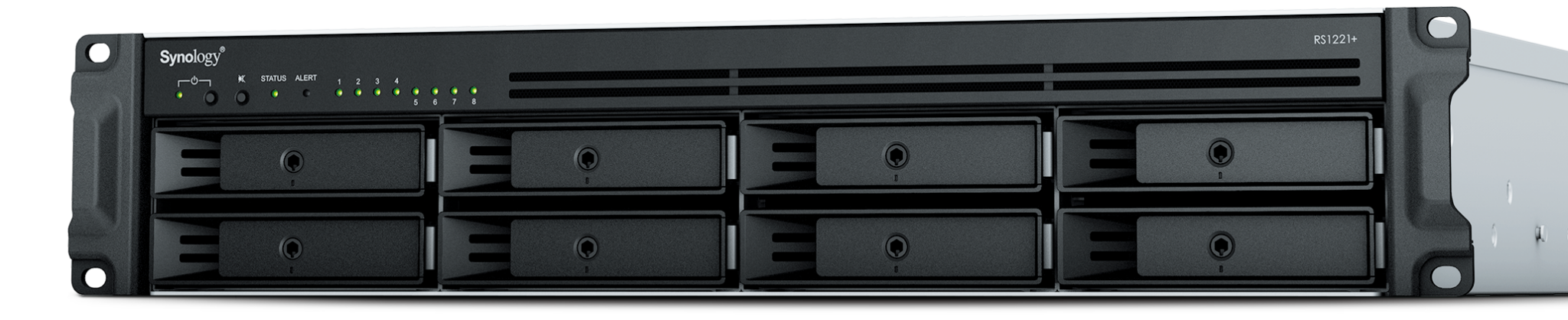
Synology RackStation RS1221+ shown as a hardware example; SMB access depends on the installed DSM, network, account and permissions.
When a Synology mapped drive stops working, establish whether the client can reach the NAS, authenticate as the intended account and perform the requested file action. A missing drive letter, a repeated password prompt and a read-only folder are different symptoms. Record the exact error, affected path and account before changing settings.
This procedure covers an existing DSM 7-series SMB file share. Keep open work saved and coordinate any disconnection. The aim is one reproducible failing test and a narrow correction, followed by a test that the intended restrictions still work.
If the NAS file opens through SMB but is missing from a Drive Client task, follow the Drive missing-file and sync-conflict diagnostic. It traces the selected path, account, filters, server index and competing edits; a successful mapped-drive test alone does not validate that separate sync task.
Use the pattern of failure to choose the next test
Scroll sideways to read all columns.
| Observed pattern | First comparison | What the comparison can establish |
|---|---|---|
| Every user loses the same share | NAS volume, share existence and SMB service state | A common server-side problem before individual passwords |
| One PC fails while another works | Same account and share on an approved comparison device | A client session, name-resolution or policy difference |
| One account fails on multiple devices | Account state, SMB application privilege and effective permissions | An identity or authorization issue |
| NAS IP works but its name fails | Resolved address, DNS configuration and domain authentication path | A naming or authentication-path difference, not automatic proof of permissions |
| Folder opens but saving fails | Create/edit/rename test in a disposable test folder | Write rights, capacity, locks or an application-specific failure |
Use the same small test file and exact share across comparisons. Record when it last worked and whether the client, DSM, SMB Service, password or network policy changed. Avoid changing several layers together; that can remove the symptom without identifying the cause.
Check NAS health and the actual share before resetting credentials
An administrator should confirm that the volume is Normal, the requested share exists, and an encrypted share is mounted. Check that SMB is enabled and the account has both SMB application privilege and permission to the share. These are separate requirements in Synology’s access troubleshooting guidance.[1]
From the approved business network or VPN, try the exact server and share path. On Windows, use a UNC path such as \\FILES-NAS\Projects; on a Mac, use Finder’s Go > Connect to Server with smb://FILES-NAS/Projects. Substitute your recorded server and share names. A NAS web sign-in working does not establish that SMB or the share’s access rules work.
Check the address against the asset record, the client’s DNS result and the expected network route. Where a firewall separates the client and NAS, have the network owner inspect the approved SMB rule and logs. Do not expose SMB to the public internet to test remote access; use the approved private access path. An IP-address comparison is a diagnostic observation, not a permanent workaround for a broken server name.
Establish which account the client is actually presenting
A Windows sign-in PIN is not the NAS account password. For the specific “A specified logon session does not exist” symptom with Windows Hello, Synology documents trying an explicit NAS-qualified local user such as FILES-NAS\alex. A domain account uses its domain-qualified identity. Start by making the intended account unambiguous rather than removing Windows Hello across the organization.[5]
Review Windows Credential Manager for entries tied to this NAS’s name and IP. Coordinate closing files and disconnecting only the affected NAS session before removing or replacing its stale saved credential. Leave unrelated mapped drives and credentials alone. On a Mac, disconnect the affected Finder share and reconnect with the intended account; capture the result rather than repeatedly accepting an old saved identity.[1]
If local DSM credentials work but domain credentials do not, inspect the NAS’s domain connection, SMB application privilege, the domain user’s share rights, DNS and time synchronization. Synology’s domain-specific troubleshooting also distinguishes IP-based access from the named authentication path. Escalate directory or policy findings to the directory owner; weakening domain authentication policy is not the acceptance criterion.[4]
Inspect effective permissions instead of granting broad access
Compare the failed operation with the rights it needs. Opening a folder does not prove permission to create, rename or delete a file. Review the shared-folder assignment, group membership, inherited ACL entries and any explicit rule on the affected subfolder. Synology documents No access taking priority over shared-folder Read/Write or Read only assignments when they conflict.[3]
Illustrative example: Alex can read Projects but cannot save inside Projects/Archive. Another folder accepts a disposable file under Alex’s account. That result narrows the next check to Archive’s rights, inheritance, capacity or file lock rather than the NAS password. Record the actual denied action and compare it with the approved role before changing anything.
For a client-policy mismatch, compare its requirements with the installed SMB Service settings. Signing and transport encryption are distinct controls; a client that cannot meet an enforced setting can fail to connect. Synology warns against SMB1 and insecure legacy authentication. Review a compatibility problem with the device or security owner rather than enabling those options as a general fix.[2]
Retest the business task and leave a useful incident record
Scroll sideways to read all columns.
| Check | Evidence to retain |
|---|---|
| Original failure | Exact same account, share and file action now succeeds |
| Restriction still enforced | An account without the approved role remains denied |
| Name and session | The approved server name reconnects as the intended identity |
| Application behavior | The real application opens and saves a representative file |
| Change and recurrence owner | One documented correction, relevant log time and responsible follow-up owner |
If the NAS has a degraded volume, repeated device errors or missing data, stop treating the incident as a password problem. Preserve the error and follow the storage or recovery path. If access is restored but files are wrong, use the Synology recovery test guide to choose a version and restore destination deliberately.
For recurring failures, compare the installed setup with the NAS deployment and permission acceptance checklist. ALLMSP’s IT help desk and Synology support can review the exact error, model, client, account type and comparison results. Request a file-access review with that evidence so the investigation starts at the failing layer.
Frequently asked questions
What should I check first when a Synology mapped drive disappears?
Record the exact server/share path and error, then compare another approved client or account. Confirm NAS and volume health, share existence and SMB service state before resetting passwords or remapping every drive.
[1]Why can I sign in to DSM but not open an SMB share?
DSM web access and SMB file access have different requirements. Check that SMB is enabled, the share is available, and the account has both SMB application privilege and the required shared-folder permissions.
[1]What does it mean when the NAS IP works but its server name fails?
Can a Windows Hello PIN be used as the NAS password?
A Windows sign-in PIN is not the NAS account password. Use the intended NAS or domain identity and its appropriate credentials. Synology documents an explicit NAS-qualified username for a specific Windows Hello logon-session error.
[5]Should I remove all saved Windows credentials to fix one NAS share?
No. Identify entries for the affected NAS name or IP, close relevant open work and coordinate disconnecting that session. Replace only the stale credential involved and preserve unrelated drives and accounts.
Why does a local NAS account work when a domain account fails?
Check the domain connection, the domain account’s SMB application privilege and share rights, DNS and time synchronization. Local success does not prove the directory authentication path is healthy.
[4]Why can I read a shared folder but not save a file?
Reading and writing require different rights. Check the requested action, shared-folder permissions, inherited subfolder rules, available capacity and file locks, then test a disposable file without broadening unrelated access.
[3]Should SMB1 or guest access be enabled when a connection fails?
Do not use them as a general troubleshooting fix. Review the actual client and SMB Service requirements with the responsible owner; Synology warns that SMB1 and insecure legacy authentication create security risks.
[2]Can a hidden folder still be accessible?
What proves that the SMB problem is fixed?
The original business task works using the intended account and server name, reconnecting succeeds, and unauthorized access remains denied. Save the narrow change and comparison results so a recurrence can be investigated.
Sources
- I cannot access a shared folder on my Synology system via SMB or AFP. What can I do? ↩
- SMB Settings | SMB Service ↩
- Assign Shared Folder Permissions | DSM ↩
- I cannot access a shared folder via SMB with my domain account, but it works with my local user account. What can I do? ↩
- I got the error message "A specified logon session does not exist" when connecting to my NAS shared folder via SMB. What should I do? ↩


