





























































































































































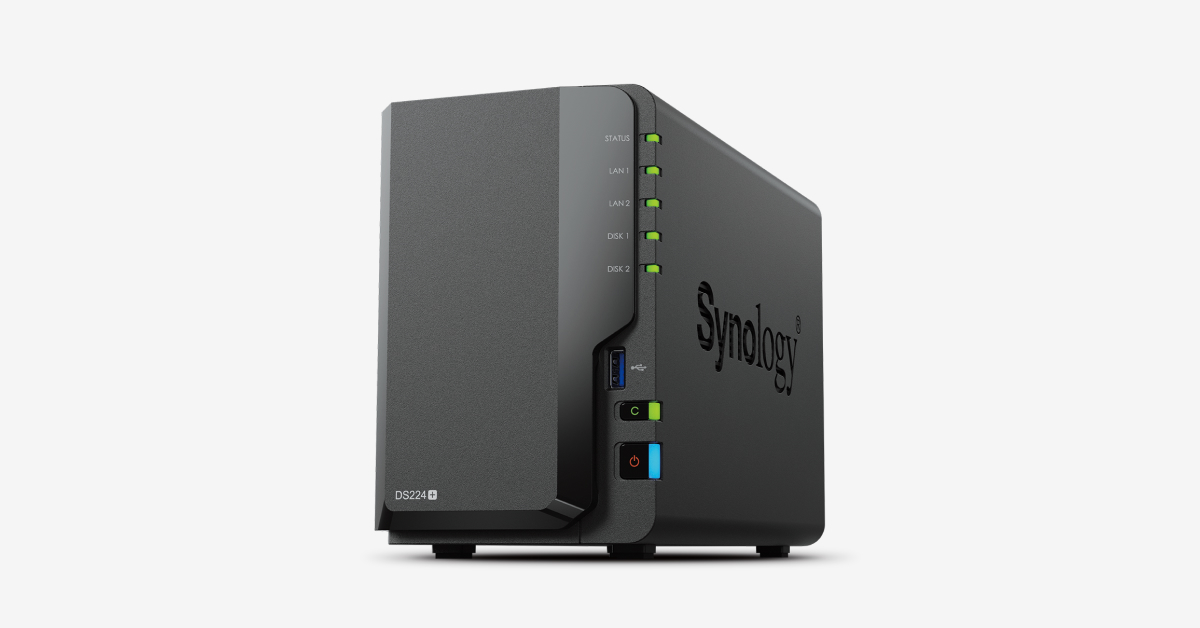
Synology DiskStation DS224+ shown as a hardware example. Verify the requirements of the installed model.
A business Synology NAS is ready for handoff when its intended users can work with the right files, unauthorized users cannot, and the owner can recover a usable copy. Start with those acceptance tests before choosing drives, creating a volume or migrating a shared folder.
This checklist covers a DSM 7-series NAS used for ordinary business file sharing. Verify the exact model, installed DSM build and package versions; the same brand name does not establish Btrfs, encryption or backup feature support. Synology Drive collaboration, surveillance recording and application-specific database hosting need their own requirements.
If staff need Drive collaboration rather than only an SMB share, use the Synology Drive Team Folder setup and permission tests to check the server package, application access, client direction and ordinary-user acceptance after the NAS foundation is ready.
Write the workload and hardware decision before creating storage
Record current live data, expected growth, the largest working files, concurrent workflows and an agreed free-space margin. Separate ordinary shared documents from backup repositories and application data. Ask the application vendor whether its data can live on an SMB share before relocating an accounting database or another active data store.
Check Synology’s compatibility list for the exact NAS and proposed drive or accessory combination. Keep the model, drive identifiers, installed DSM build and support record together. An available drive bay or matching connector does not establish compatibility.[1]
Scroll sideways to read all columns.
| Decision | Record before buying or initializing | Acceptance evidence |
|---|---|---|
| Storage purpose | Named shares, expected growth and application restrictions | Each business owner confirms where their files belong |
| Drive and NAS combination | Exact model, compatible components and replacement route | Procurement record matches the equipment delivered |
| Failure tolerance | Supported RAID type and the failure it is intended to tolerate | Capacity and redundancy are recorded separately |
| Recovery target | How much recent work may be lost and how long work may stop | A backup destination and a practical restore test are assigned |
| Administration | Authorized owners, account recovery and support handoff | Support can locate records without using a departed employee account |
RAID support depends on the model and installed drives. Basic, JBOD and RAID 0 provide no drive-failure redundancy; a one-drive SHR configuration also has none. Choose a supported design deliberately rather than treating the word RAID as a backup policy.[2]
Choose the volume and shared-folder features deliberately
A storage pool supplies capacity to a volume. Check the model’s supported file systems before selecting Btrfs or ext4. Synology documents Btrfs features such as shared-folder snapshots and advanced integrity protection, but those benefits do not make every model or every package eligible. DSM does not provide an in-place switch of an existing volume from one file system to another.[3]
At shared-folder creation, review the location, encryption recovery arrangements, checksum, quota and Recycle Bin options that the installed system actually offers. The shared-folder data-checksum option is a Btrfs feature and cannot be changed after creation. Decide before loading the production share; do not discover the missing option during the first recovery exercise.[4]
For an encrypted share or volume, have an authorized person prove they can retrieve the required recovery material from outside the NAS. Do not place the only copy of a key inside the storage it unlocks. Record which encryption layer was configured because a shared-folder key, a volume recovery key and a backup encryption credential serve different jobs.
Prove group permissions with ordinary accounts
Design access by job role, then test both allowed and denied actions. In DSM, shared-folder permissions are managed at Control Panel > Shared Folder > Edit > Permissions. Review group membership and inherited file or subfolder rules as well as the visible user entry. Synology’s shared-folder permission priority is No access, then Read/Write, then Read only when user and group assignments conflict.[5]
Illustrative example: a project team edits Projects, while a finance group edits Finance. A manager who belongs to both teams should receive the approved access to both. Do not deny the entire general staff group on Finance and then assume an individual allow will override that denial. Define narrowly scoped groups and inspect the effective result instead of accumulating contradictory exceptions.
Enable SMB for the intended client workflow and use a stable server name recorded in internal DNS. Review the actual SMB Service settings against client and security requirements. Synology advises against SMB1; guest access or weaker authentication should not become a deployment shortcut.[6]
Run a migration pilot before changing everyone’s mapped drive
Scroll sideways to read all columns.
| Test | Evidence of a pass | Hold the migration when |
|---|---|---|
| Allowed editing | An ordinary authorized user creates, opens, edits, renames and deletes a disposable file | Only an administrator can complete the workflow |
| Restricted access | A second ordinary account is denied the sensitive share and its files | Folder hiding is the only access control |
| Client compatibility | The actual Windows or Mac application opens and saves a representative file | A real workflow needs unsupported SMB or application behavior |
| Restart and reconnect | The client reconnects to the approved name with the intended account | A remembered IP path or a different account masks a fault |
| Migration sample | An owner checks representative folders, filenames and meaningful contents | Counts alone conceal missing files or wrong permissions |
Plan an initial copy, an agreed change window, a final reconciliation and a rollback decision. Keep the former source protected until its owner accepts the result. A copied folder count is not proof that linked documents, specialist filenames or application locks work. Use the Synology SMB fault-isolation guide when a pilot fails, so the team investigates the failing layer before changing access for everyone.
Make recovery and ownership part of the handoff
Assign monitoring, drive-alert response, update review and a named restore owner. Record shares, groups, network addresses, dependencies and the last tested recovery result. Include the offsite or otherwise independent backup location and its access owner. A second folder on the same volume does not cover loss of that volume.
Hyper Backup supports folder and package tasks as well as entire-system backup, but entire-system support is limited to specific models and supported destinations. Do not promise full-appliance recovery because a file-only task completed.[7] Continue with the snapshot and Hyper Backup recovery exercise to prove which recovery path your actual design provides.
ALLMSP’s Synology support covers NAS planning, file permissions, backup and lifecycle work. Request a NAS deployment review with the exact model, workload, existing storage and acceptance requirements so the review starts with the business tasks the system must support.
Frequently asked questions
What should be decided before setting up a business Synology NAS?
Define the file workloads, access groups, expected growth, drive-failure tolerance and recovery requirements. Then select a compatible model and components and write acceptance tests for ordinary users before migrating files.
Can any compatible-size drive be used in a Synology NAS?
Do not rely on physical fit alone. Check the current compatibility list for the exact NAS and component combination, then document the supported replacement route.
[1]Does a one-drive SHR pool provide redundancy?
No. Synology documents no drive-failure tolerance for a one-drive SHR configuration. Redundancy depends on the supported RAID layout and installed drives, and it still does not replace a backup.
[2]Should a business NAS use Btrfs or ext4?
Choose from the file systems the exact model supports. If shared-folder snapshots or Btrfs integrity features are requirements, verify support before provisioning; do not assume an existing ext4 volume can be switched in place.
[3]Can shared-folder data checksum be enabled later?
Synology documents that this Btrfs shared-folder setting cannot be changed after creation. Review it before loading business data and plan any required migration deliberately.
[4]Why does a user’s allow permission not override a group denial?
At the shared-folder level, Synology gives No access priority over Read/Write and Read only when user and group assignments conflict. Inspect memberships and inherited rules before adding another exception.
[5]Does hiding a shared folder protect its contents?
No. Hiding changes visibility. Authorization must come from the actual shared-folder and file permissions, verified using an ordinary account that should be denied.
Which user account should be used for deployment testing?
Use ordinary accounts representing the real access groups, including an account that should be denied. Administrator success alone does not prove the intended access policy works.
Does every Synology NAS support entire-system Hyper Backup?
No. Entire-system backup has specific model and destination requirements. Confirm those requirements and the actual task scope rather than assuming a folder backup can recover the whole appliance.
[7]What should be included in the NAS handoff?
Provide device and drive identity, shares and groups, network dependencies, authorized administration and recovery owners, monitoring responsibility, tested backup paths and the actual user acceptance results.


