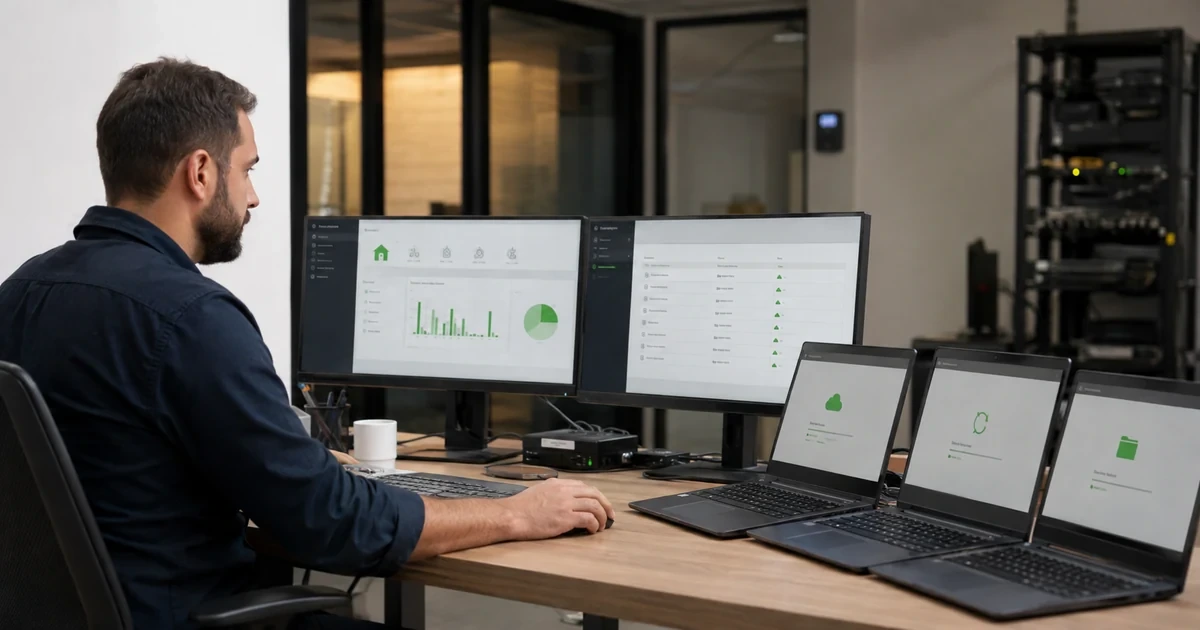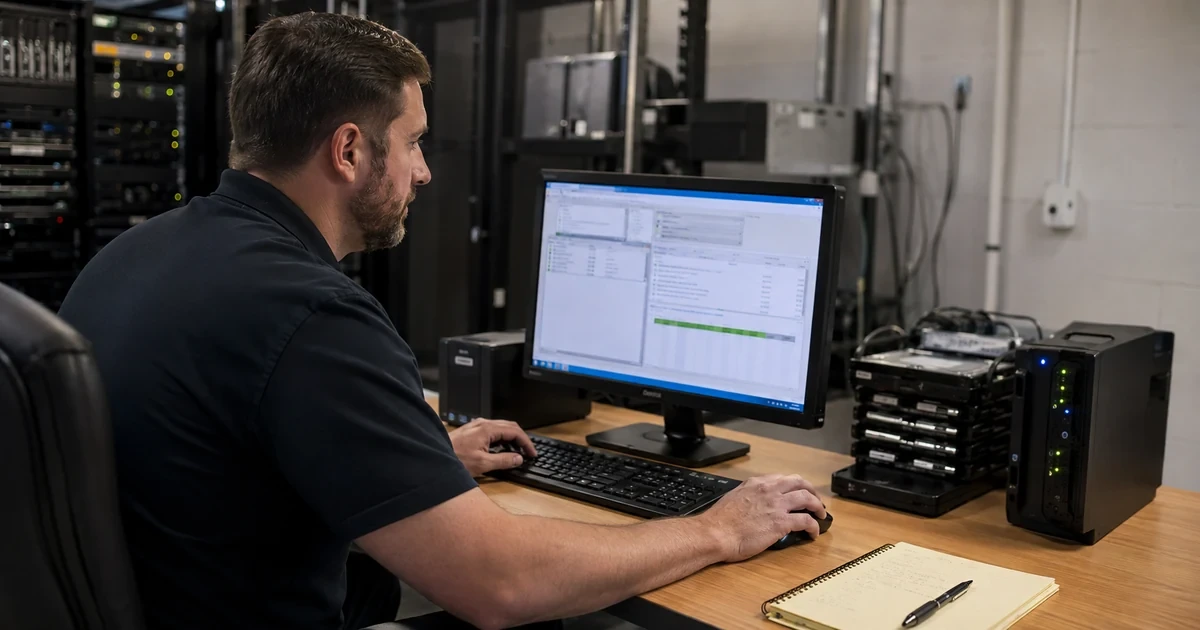
CrashPlan can show an endpoint online, recent, and fully backed up without proving that today’s operator can restore the business data that matters. Recovery also depends on the correct archive and version, authorized access, destination availability, target storage, file permissions, conflict choices, endpoint power, network conditions, and a runbook that survives staff turnover.
Restore testing should be safe enough to run routinely. Starting with original location and Replace can overwrite useful work, preserving original ownership can make the result inaccessible, a cross-operating-system restore changes available choices, and a device-replacement shortcut can make files appear deleted until the operator selects the correct historical view.
This guide builds evidence from controlled sample restores and larger timed drills. It keeps customer filenames and archive details restricted, distinguishes CrashPlan app, console web, zip, and device push behavior where available, and treats backup status as an input rather than the final proof of recovery.
ALLMSP coordinates CrashPlan backup and recovery validation from Lawrenceville for clients in Suwanee, across Gwinnett County and Metro Atlanta, and throughout Georgia, through one accountable in-house workflow from discovery and correction through testing, training, and ongoing support.
Key decisions at a glance
- Define a CrashPlan restore matrix from business recovery needs, not a random download: include representative devices, destinations, file types, versions, deleted items, permissions, sizes, operating systems, and authorized roles.
- Use a controlled target path and the rename-existing option for the first test, original-location restore, cross-OS paths, ownership preservation, and overwrite behavior have constraints that can damage working data.
- Troubleshoot by state: destination connectivity, archive synchronization or maintenance, source selection, deleted-file visibility, target capacity, write permission, macOS Full Disk Access, queue size, network, and endpoint power all matter.
- CrashPlan reassembles, downloads, decompresses, and decrypts file blocks one file at a time, large interrupted files restart, so recovery timing must be measured with realistic data and stable power and connectivity.
- For device replacement, restore required files before linking the old archive, preserve username and drive-letter assumptions, and wait for verification and 100 percent completion before changing selections.
Build a Restore Matrix from Business Recovery Requirements

Start with a recovery catalog that maps each critical endpoint data set to its business owner, source device, CrashPlan user, organization, backup set, destination, inclusion path, exclusions, version and deleted-file retention, encryption-key policy, legal or privacy constraint, recovery-time objective, recovery-point objective, restore operator, approver, target location, application validation, and evidence owner. Store identities, filenames, GUIDs, archive sizes, target paths, organization details, and keys in restricted records. The public runbook should use synthetic examples. Confirm that endpoint backup is the appropriate protection method for each workload. CrashPlan is designed for user files, open databases, virtual machines, server application state, cloud SaaS data, system images, and boot recovery may require application-consistent exports or separate platforms. Include the supported export or dump in the backup selection and test the application’s recovery procedure rather than validating only that a raw database file downloads. Create a matrix that samples Windows, macOS, and Linux where used, local and SSO identities, an ordinary user and an administrator-assisted restore, a current file, previous version, and deleted file, small documents and a large file, many small files, nested directories, external-drive data, long or unusual names, ACL-sensitive content, and a device-replacement scenario. Include each configured destination and backup set because a file can exist in one archive view but not another. CrashPlan’s restore browser lets an operator choose the source device, destination, backup set, historical date, and available versions. Record those choices in the test case. Select the restore method according to authorization and size. The CrashPlan app can restore a user’s accessible archives. Console web or zip restore and device push restore require corresponding roles and organization settings. Push restore sends data through the target device’s CrashPlan app, requires that device to be online, and is not constrained by the organization’s web-restore size limit. Do not infer availability from another tenant or plan, verify current product features, web-restore policy, encryption mode, and role permissions. Separate the tester from the approver for sensitive content. Use synthetic or owner-approved samples and minimize browsing of real filenames. A successful plan answers who may locate, decrypt, download, deliver, inspect, and delete restored data before the test begins.
- Map business data to source device, user, organization, destination, selection, retention, encryption, RTO, RPO, operator, approver, target, application validation, and evidence owner.
- Test representative OS, identity, size, file-count, version, deleted-file, external-drive, permission, backup-set, destination, and replacement cases.
- Use application-consistent exports for databases or other live workloads and validate the application, not just a downloaded file.
- Verify current plan features, web-restore policy, key access, role scope, and target online state before selecting app, zip, web, or push restore.
- Keep filenames, paths, archive identifiers, identities, and restored content in restricted systems and use synthetic examples in shared runbooks.
Choose Target, Conflict, Version, and Permission Options Safely

Use a clean controlled target folder for the first execution. In the CrashPlan app, Downloads is the default and Desktop or another selected folder can be used, Original location recreates the source path but is automatically disabled when the source and target operating systems differ. In a console device push restore, CrashPlan recommends an explicit Target Path, while Original Location is also available. Verify that the target device is online, that the path belongs to the approved test, and that enough free space exists. Do not use a production application folder as the first target merely to save a later copy step. Pick conflict behavior deliberately. Rename existing and restore a copy is CrashPlan’s recommended choice when the operator is uncertain, it preserves the restored filename and renames the pre-existing file with an original-number prefix. Replace overwrites the current target and needs data-owner approval plus a rollback copy. App-only skip options can avoid restoring a duplicate or protect newer or older files by timestamp, but timestamps do not prove business correctness. Record the chosen behavior and create an intentional conflict in the test so the outcome is observed rather than assumed. Choose permissions based on the next operator. Current, the recommended default, changes ownership to the user performing the restore and improves immediate access on a new device or profile. Original attempts to preserve original ownership and permissions, which may be required for a controlled migration but can leave the restored files inaccessible without the original security context. Confirm write permission before starting, and validate owner, group, ACL, extended attributes, executable state, and application access afterward where relevant. macOS recovery may require Full Disk Access for the CrashPlan app and permission to the target. Select the correct time and version. Do not demonstrate only the newest file. Restore a known previous version and a deleted item within the configured retention window, verify the content against an expected hash or application check, and document the archive date. If an expected file is absent, confirm source device, destination, backup set, historical date, deleted-file visibility, file selection, exclusions, external drive connection at backup time, and whether a replacement operation marked the path deleted. Validate the restore without opening untrusted active content on an ordinary workstation. Use an isolated or controlled analysis path for suspicious documents, scripts, executables, or ransomware-era files. Remove the test copy according to the approved evidence-retention rule after results are recorded.
- Start in a clean controlled target with adequate capacity and keep production application paths out of the first test.
- Prefer Rename existing and restore a copy for uncertain conflicts, require explicit approval and rollback before Replace.
- Test Current and Original permission behavior where relevant, then validate owner, ACL, attributes, executable state, and application access.
- Restore a known prior version and deleted item within retention, recording source device, destination, backup set, date, and integrity result.
- Handle suspicious or incident-era files in an isolated analysis workflow and delete test copies under the approved evidence-retention rule.
Troubleshoot Restore State and Measure Real Performance

Classify the failure before changing settings. If the app is synchronizing with a destination, a cloud copy may still be available through the console. If a destination is offline or the device cannot connect, check service status, approved network path, proxy, DNS, firewall, endpoint time, TLS inspection, and the destination shown in the restore browser. Archive maintenance temporarily prevents restore from that destination, wait for the maintenance indicator to clear rather than repeatedly restarting the app. A generic problem message often points to target capacity or write permission. On macOS, verify current Full Disk Access. If a restore remains at Preparing Files, CrashPlan recommends canceling queued downloads, selecting a small set, waiting for the size calculation, and testing Downloads with Rename and Current permissions. Use that small control to separate selection and archive issues from scale or target-path problems. When files are missing, verify the exact source device, destination, backup set, version date, and deleted-file display. A device replacement can mark data absent on the new device as deleted in the archive if files were not transferred first. A replaced drive name or letter can split history across paths. Do not respond by immediately changing file selection, that can start archive deletion under retention rules. Record every diagnostic change and revert temporary settings. Measure restore performance from CrashPlan’s documented process. The app locates blocks in the archive index, reassembles them, downloads the file, then decompresses and decrypts it. Files are restored one at a time, and a large interrupted file restarts from the beginning rather than resuming from the interruption point. Network latency, shared bandwidth, ISP conditions, backup bandwidth limits, endpoint RAM and disk, target filesystem, wireless stability, sleep, security scanning, file size, and file count all affect results. Prevent the device from sleeping, use stable approved connectivity, review CrashPlan bandwidth settings, and schedule large drills outside busy periods without granting uncontrolled network priority. Test at least three shapes: a small known file for functional proof, many small files for metadata and queue overhead, and a representative large file for sustained throughput and restart behavior. Record selected bytes, actual restored bytes, preparation time, transfer time, validation time, retries, effective rate, and bottleneck. Do not convert one office test into an organization-wide recovery promise. Use percentile ranges from repeated drills at relevant sites and define when an operator should split a restore, change target, escalate network issues, or contact CrashPlan support with a sanitized support bundle.
- Triage synchronization, destination status, archive maintenance, network, proxy, DNS, TLS, capacity, write permission, Full Disk Access, source selection, and deleted-file visibility separately.
- Use a small Downloads, Rename, Current control restore to isolate archive access from large-selection or target-path problems.
- Prevent sleep and unstable connectivity because an interrupted large file restarts rather than resuming from the last transferred block.
- Measure small-file, many-file, and large-file cases with preparation, transfer, validation, retries, effective rate, and observed bottleneck.
- Preserve sanitized diagnostics and escalation evidence without exposing usernames, paths, filenames, archive IDs, destination names, tokens, or restored content.
Prove Device Replacement and Operational Recovery End to End
Treat replacement as a controlled recovery, not an installer shortcut. Before linking a new CrashPlan app to the old device identity, restore or otherwise transfer the old device’s required files. CrashPlan warns that files missing from the new endpoint can be marked deleted after replacement and then require deleted-file visibility to find. Where possible, preserve the exact username and Windows drive letters, on macOS grant Full Disk Access before beginning. If a custom archive key or archive-key password is in use, confirm authorized access before the maintenance window. For an administrator-driven replacement, perform the device restore to the new endpoint first, move validated content to its intended location, and then use Replace a Device. The new app inherits the old archive and settings, the old device is deactivated, and a verification scan reconciles the new filesystem with the archive. Do not change the file selection until the verification scan and backup reach 100 percent. Deselecting paths too early can mark data for deletion. Validate that restored applications open, ownership is correct, the expected historical versions remain, backup resumes to the intended destination, alerts clear, and the old endpoint can no longer access data. Build recurring recovery drills with four levels. Run a monthly small-file test for each important organization and destination, a quarterly representative endpoint restore with prior versions and permission checks, a semiannual large-data or replacement exercise that measures throughput and operational handoffs, and an annual scenario that includes identity outage, administrator succession, user communication, alternate work location, and business validation. Adjust frequency to risk and contractual needs. Each drill should have a change record, approved source, synthetic or owner-approved data, start time, RTO and RPO target, operator, approver, restore method, target, options, actual duration, integrity result, permission result, application test, issues, cleanup, and corrective actions. Separate backup-health metrics from recovery assurance. Last connection, last backup activity, completion percentage, selected bytes, archive size, and alerts show collection state. Restore success rate, time to authorize, time to locate a version, time to first usable file, total recovery time, integrity, permission correctness, and application acceptance show recovery capability. Report both without publishing device or user details. Track failed or overdue drills as service risk with an owner and deadline. A backup program is operationally ready when a different authorized technician can follow the current runbook, recover the approved data within the measured objective, explain every destructive choice, and return the target to a secure supported state.
- Restore required files before replacing the old CrashPlan device identity, and preserve username, drive-letter, Full Disk Access, and key prerequisites.
- After replacement, wait for file verification and 100 percent backup completion before changing selections or retiring paths.
- Validate applications, ownership, versions, destination, resumed backup, alerts, and loss of old-device access after the change.
- Schedule small-file, representative endpoint, large-data or replacement, and full operational drills at risk-based intervals.
- Measure authorization, version discovery, first usable file, total recovery, integrity, permissions, application acceptance, cleanup, and corrective-action closure separately from backup health.
Official product documentation and ALLMSP resources
- CrashPlan: Understanding restore file options
- CrashPlan: Unable to restore
- CrashPlan: File restore process and restore speeds
- CrashPlan: Get started with CrashPlan backups
- CrashPlan: Pushing a device restore from the console
- CrashPlan: Replace a device from the console
- CrashPlan: Replacing your device
- CrashPlan: View your backed-up files
- CrashPlan: Specify version, frequency, and retention settings
- CrashPlan: Monitoring device health in the console
- CrashPlan: Check the status of your backup
- CrashPlan: Considerations for defining backup policies
- ALLMSP Crashplan Software Support
- ALLMSP Crashplan Support, Setup and Optimization
- ALLMSP Data Backup and Recovery
- ALLMSP Business Software Support
- ALLMSP Managed IT Services
- Contact ALLMSP
Frequently Asked Questions
Does a 100 percent CrashPlan backup prove files can be restored?
No. Completion shows that selected data reached a destination, not that the correct operator can find the archive and version, obtain authorization, decrypt it, write to the target, preserve needed permissions, validate the application, and finish within the business recovery objective. Representative restore testing supplies that evidence.
Where should the first CrashPlan test restore be saved?
Use a clean controlled target folder with enough capacity, not the original production location. In the app, Downloads is the default. For a console device restore, CrashPlan recommends a specific Target Path. Validate contents and permissions before any approved move into the working location.
Which CrashPlan file-conflict option is safest for a test?
CrashPlan recommends Rename existing and restore a copy when the operator is unsure. It keeps the restored filename and renames the existing file with an original-number prefix. Replacing the target can destroy useful current work, so require owner approval and a rollback copy before choosing that behavior.
Should a CrashPlan restore keep current or original permissions?
Current is the recommended default and changes ownership to the person performing the restore, improving immediate access. Original preserves prior ownership and permissions but may leave data inaccessible on a new device or profile. Test the required mode and validate owner, ACL, attributes, and application access afterward.
Why is Original location unavailable for some CrashPlan restores?
The CrashPlan app disables Original location when restoring to a different operating system from the source because the original path cannot be mapped safely. Use Downloads, Desktop, or another controlled folder, then validate and place the data using an approved migration procedure for the target platform.
What should be checked when CrashPlan cannot start a restore?
Check destination connectivity, synchronization, archive maintenance, correct source device and destination, deleted-file visibility, target free space, write permission, macOS Full Disk Access, network and proxy state, and the selected version. Use a small Downloads, Rename, Current test to narrow the fault before changing policy.
Why can a large CrashPlan restore take longer than a normal download?
CrashPlan locates archive blocks, reassembles the file, downloads it, then decompresses and decrypts it. Files are processed one at a time, and an interrupted large file restarts from the beginning. Stable connectivity, adequate resources, no sleep, and realistic timing tests are therefore important.
What can make files appear missing after CrashPlan device replacement?
If required files were not transferred before replacement, CrashPlan can treat the absent paths on the new endpoint as deleted. Check the old source archive, historical date, and deleted-file display. Do not immediately deselect paths, because selection changes can advance archive deletion under retention policy.
When should file selection change after replacing a CrashPlan device?
Wait until the new endpoint completes its file verification scan and reaches 100 percent backed up. Changing or deselecting paths earlier can mark archive data for deletion before CrashPlan finishes reconciling the new filesystem. Validate versions, destination, application access, and resumed backup before cleanup.
What evidence should a CrashPlan recovery drill retain?
Retain the approved source and target, operator, approver, method, version, conflict and permission options, start and finish times, bytes, integrity result, ownership result, application test, issues, cleanup, and corrective actions. Keep identities, filenames, paths, GUIDs, archive details, and restored content in restricted records.