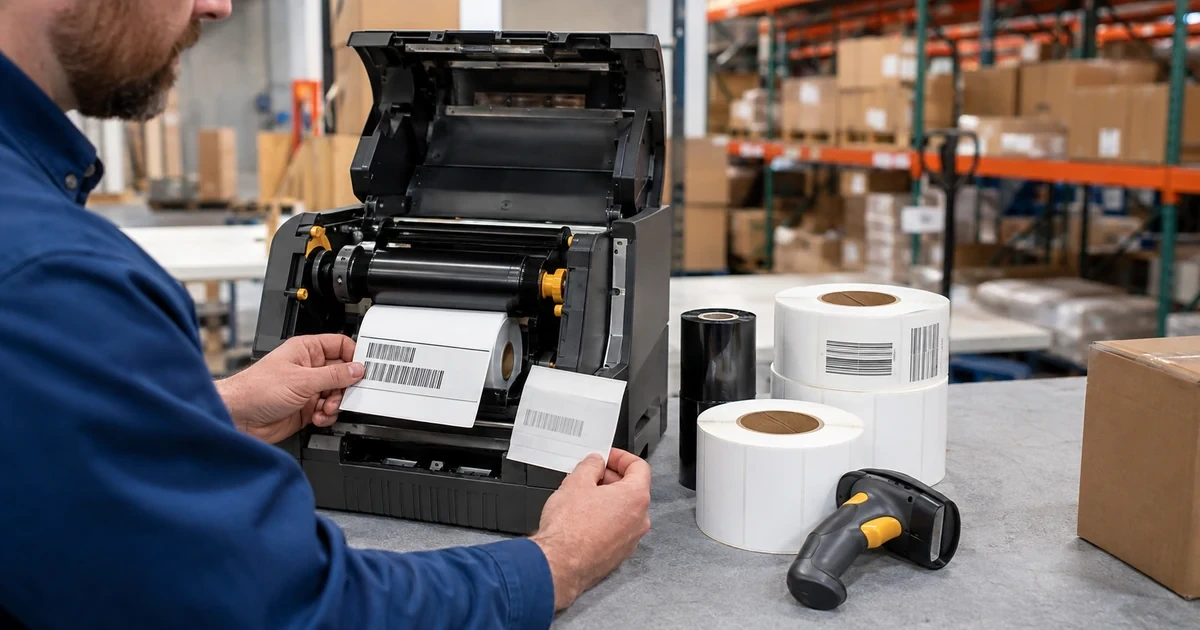
A Zebra printer can be online, accept a job, and still produce an unusable label. The gap sensor may be reading the liner incorrectly, a black mark may not cross the movable sensor, the ribbon may not match the face stock, darkness may spread narrow bars, or adhesive may be building on the platen. In retail and restaurant operations, those failures surface as rescans, relabeling, inventory exceptions, delayed orders, and staff workarounds rather than a neat printer error.
Reliable Zebra label output comes from controlling the complete physical recipe. That recipe includes model and resolution, direct thermal or thermal transfer mode, media type and dimensions, gap or mark position, ribbon construction, speed, darkness, label design, application data, driver or ZPL path, environmental conditions, cleaning state, and downstream scanner. Changing any one element without recording the rest makes the next incident harder to reproduce.
This guide provides a practical Zebra label printer support process for Georgia retailers, restaurants, and distribution operations. Use it alongside ALLMSP’s [Zebra hardware resource center](https://www.allmsp.com/category/hardware-support/hardware-support-zebra/), [Retail and Restaurants](https://www.allmsp.com/category/retail-and-restaurants/), and broader [Hardware Support](https://www.allmsp.com/category/hardware-support/) guidance. Always follow the model-specific Zebra user guide and workplace safety procedure for the printer in front of you.
Key decisions at a glance
- Identify the exact Zebra printer model, resolution, print method, connection, media construction, ribbon chemistry, label size, and application before changing settings.
- Run SmartCal or the model-specific manual calibration procedure when media type, size, ribbon, or sensor behavior changes, then retain the evidence label.
- Tune darkness and speed as a pair with the loaded supplies, excessive heat or speed can reduce readability and shorten printhead life.
- Clean the printhead, platen, sensors, and media path according to the exact user guide because the approved material and method differ by component.
- Validate the finished barcode with the scanners, angles, distances, surfaces, temperatures, and workflows used in the store, kitchen, stockroom, or warehouse.
Record the Zebra Printer and Consumable Recipe
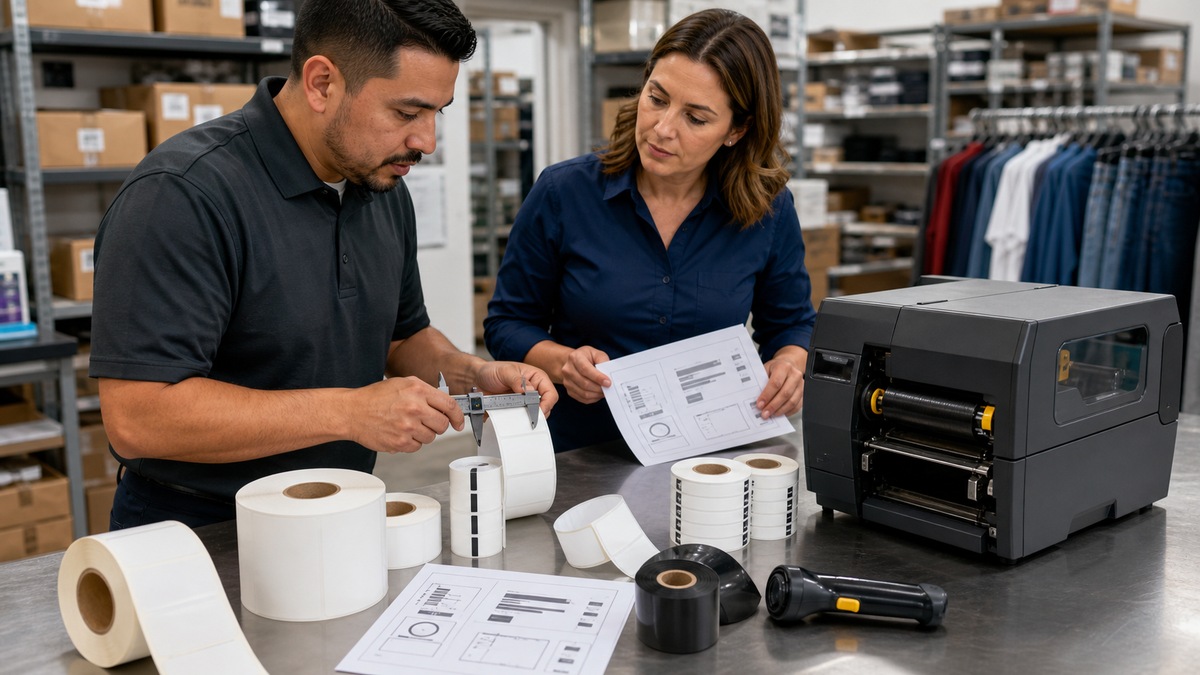
Start at the nameplate and configuration label. Record the full Zebra model, serial number, print resolution, installed options, firmware, connection, IP assignment if networked, driver or application path, and current print method. Then record the label width and length, core and roll orientation, web or gap dimensions, black-mark or notch location, face material, adhesive, liner, pre-print, ribbon part or formulation, and lot. A nickname such as back-room printer is not enough for repeatable support.
Confirm whether the job is direct thermal or thermal transfer. Direct thermal media reacts to heat without a ribbon and suits some shorter-life applications, thermal transfer uses ribbon to place the image on the label. Within thermal transfer, wax, wax-resin, and resin formulations behave differently on paper and synthetic face stocks. Zebra’s print-quality troubleshooting specifically identifies a mismatch among print material, ribbon, and media coating as a cause of fuzzy output, smudges, voids, or holes.
Create an approved recipe for each operational label: shelf, price, food rotation, receipt, shipping, tote, asset, or compliance tag. Include the Zebra model group, media and ribbon identifiers, artwork version, dimensions, required symbologies, printer settings, application queue, and acceptance test. Keep unapproved rolls away from the station and label open stock. If a substitution is unavoidable, treat it as a controlled test rather than assuming similar width means equivalent behavior.
- Capture model, serial, DPI, firmware, print method, options, connection, queue, driver, and application for each Zebra printer.
- Document media face stock, adhesive, liner, width, length, gap or mark, roll orientation, core, supplier, and lot.
- For thermal transfer, record ribbon width, formulation, coating orientation, supplier, lot, and compatible maximum speed.
- Assign each label recipe an owner, approved use, sample, version, test device, change history, and rollback supplies.
Load Supplies and Calibrate the Correct Sensor Path
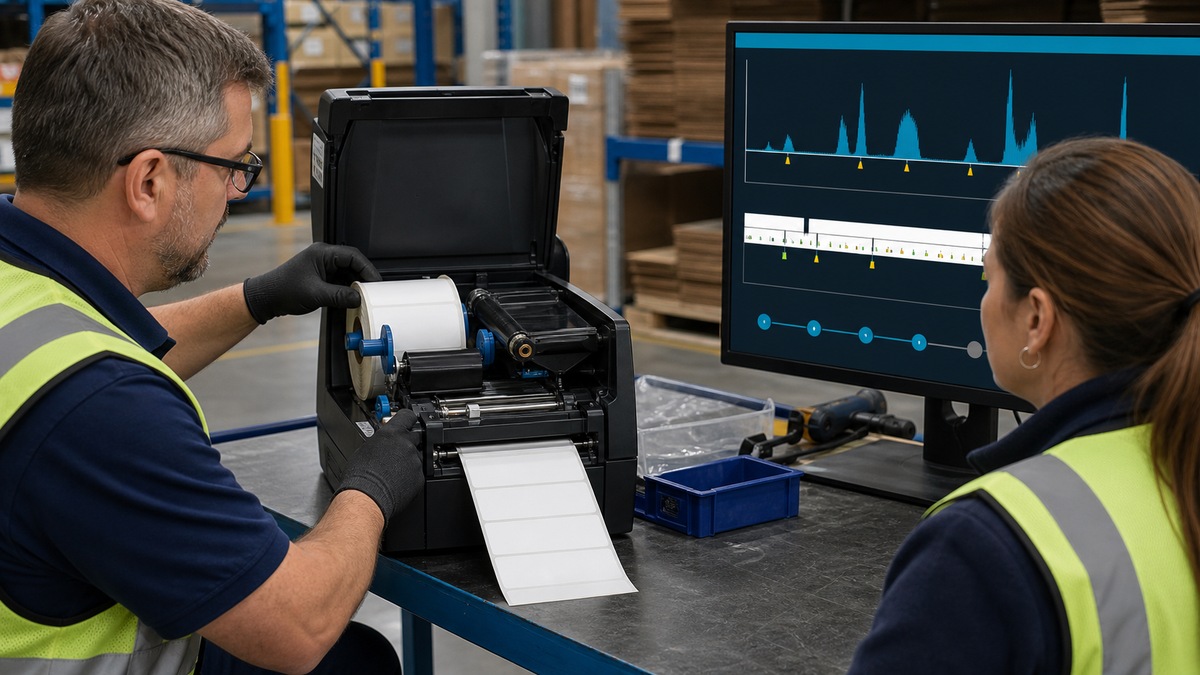
Load media using the guide for the exact Zebra model and option set. Seat the roll, align guides without pinching the web, route liner and ribbon through the specified path, and close the print mechanism fully. Position a movable sensor for the actual gap, notch, or black mark, pre-printed areas can interfere when they cross the sensing path. Photograph the approved route inside the lid for staff training, but keep the Zebra manual as the authority when hardware differs.
Calibration teaches the printer how the installed media and ribbon behave. The ZD421 and ZD621 SmartCal procedure identifies web or gap, black mark or notch, or continuous media and measures characteristics after the supplies are loaded and the cover is closed. Zebra says a new roll from the same type, vendor, batch, and size often needs only a feed synchronization, while a different construction may need recalibration. The ZT231 guide calls for ribbon and media sensor calibration after changing size or type or when labels skip, image position drifts, ribbon is not detected, or non-continuous stock is treated as continuous.
If automatic calibration fails, stop repeating it blindly. Use the model’s manual procedure, inspect sensor position and cleanliness, verify media type in the configuration, remove interfering pre-print from the sensor path, and print a sensor profile where supported. Zebra’s print-information menu can produce configuration, network, barcode, and sensor-profile labels. Retain a dated configuration label and a correctly fed blank sample after the repair so the next technician can compare behavior.
- Power down or open mechanisms only as the model-specific procedure directs, and keep hands clear of hot printhead and cutter areas.
- Check roll seating, guides, printhead latch, ribbon path, coating side, take-up, movable sensor, and cover closure before calibration.
- Use SmartCal for supported desktop models and the documented media-and-ribbon calibration sequence for industrial models.
- Escalate repeated calibration failure with configuration and sensor-profile evidence instead of changing undocumented sensor values.
Tune Darkness and Speed With a Barcode Test

Print quality is a balance, not a maximum setting. Zebra’s desktop guidance says heat or density, speed, and loaded media jointly affect output and recommends the Print Quality Report, also called the FEED self-test, to compare darkness and speed. Begin from the approved recipe, print the controlled range, and choose the lowest darkness and highest speed combination that consistently meets the requirement. More heat can spread bars, burn ribbon, or accelerate printhead wear, too little creates voids and weak edges.
Separate printer mechanics from label design and application data. First print a configuration label or known Zebra test pattern. If that is clean while the business label is wrong, inspect template dimensions, field overflow, fonts, image scaling, barcode type, narrow-bar width, quiet zones, rotation, ZPL, driver settings, and application output. If every output is poor, inspect the printhead, platen, media path, supply match, pressure, calibration, and power supply before rebuilding the template.
A label is not accepted because it looks sharp to a person. Scan it with the deployed Zebra handheld, ring scanner, counter scanner, or mobile computer at real distance and angle, both immediately and after the expected handling or exposure. Test on the actual package, shelf edge, curved container, frozen surface, hot-food packaging, or reusable tote. Record first-pass read rate, misreads, retries, and rejected labels across multiple rolls and printers, and use formal barcode verification where the operation or trading partner requires it.
- Print a known internal configuration or quality report before deciding that the label template or line-of-business application is at fault.
- Change one variable at a time and record darkness, speed, media, ribbon, firmware, driver, sample ID, operator, and result.
- Check barcode quiet zones, narrow elements, contrast, edge definition, orientation, placement, and data against the business specification.
- Test with the exact scanner families, mounting positions, lighting, distances, packages, and operating temperatures used in production.
Maintain the Media Path and Govern Changes
Contamination creates both feed and image defects. Zebra recommends cleaning the ZD421 ribbon-cartridge printhead when a new media roll is loaded and provides a component-specific schedule for printhead, platen, media path, sensors, interior, and exterior. The instructions are not interchangeable: the media-path page excludes the printhead, movable sensor, and platen from that procedure, and the linerless platen guidance warns against washing or scrubbing its coated surface. Use the exact approved material, concentration, direction, and drying time for the component.
Build preventive care around volume and environment. Record rolls printed, dust and adhesive exposure, cleaning dates, parts used, abnormal noises, head-life indicators, platen condition, and recurring label jams. Stock approved cleaning pens or swabs, consumables, and a tested spare printer at sites where a failed label station stops receiving, fulfillment, or kitchen production. Never use a sharp object to remove adhesive from the printhead, and do not substitute an air compressor where Zebra warns that contaminants can damage the printer.
Close every incident with evidence and a controlled update to the recipe. Save before-and-after labels, configuration output, sensor profile if used, photos of the loading path, scan results, root cause, corrective action, parts or supplies changed, and the affected lot. Review repeat failures by model, location, media, operator, and symptom. For connected-printer and data-protection concerns, use ALLMSP’s [Cybersecurity](https://www.allmsp.com/category/cybersecurity/) guidance, or [contact ALLMSP](https://www.allmsp.com/contact-us/) for a scoped Zebra hardware reliability review.
- Follow the model’s component-specific cleaning procedure, printhead, platen, sensor, and media-path instructions are materially different.
- Keep approved cleaning supplies, media, ribbon, power components, and a tested spare according to each location’s downtime tolerance.
- Quarantine suspect media or ribbon lots with samples and traceability rather than compensating indefinitely with higher darkness.
- Update the approved printer recipe only after a representative run passes visual, feed, barcode-read, durability, and application tests.
Official product documentation and ALLMSP resources
- Zebra: Printers Support
- Zebra: Running a SmartCal Media Calibration
- Zebra: Calibrating the Ribbon and Media Sensors
- Zebra: Adjusting Print Quality
- Zebra: General Print Quality Issues
- Zebra: Print Information and Sensor Profile
- Zebra: Cleaning the Printhead
- Zebra: Recommended Cleaning Schedule
- Zebra: Cleaning and Replacing the Platen
- ALLMSP Zebra Hardware Support
- ALLMSP Retail and Restaurants
- ALLMSP Hardware Support
- ALLMSP Cybersecurity
- Contact ALLMSP
Frequently Asked Questions
When should a Zebra label printer be calibrated?
Calibrate after changing media size or type, ribbon, or sensing behavior, and when labels skip, image position drifts, ribbon is not detected, or non-continuous stock is treated as continuous. Use the procedure for the exact model, identical rolls from the same batch may need only feed synchronization.
What does Zebra SmartCal determine?
On supported ZD421 and ZD621 models, SmartCal measures the loaded media and identifies web or gap, black mark or notch, or continuous behavior so the printer can feed and sense it correctly. Supplies must be loaded properly and the cover closed before the procedure.
What is the difference between direct thermal and thermal transfer printing?
Direct thermal media forms an image from printhead heat without ribbon. Thermal transfer uses ribbon to move an image onto paper or synthetic media. The chosen method, media coating, ribbon chemistry, durability requirement, printer setting, and label use must agree.
Why is a Zebra printer skipping labels?
Common causes include wrong media type, incorrect or dirty sensor position, failed calibration, a gap or black mark outside the sensing path, pre-print interfering with the sensor, misloaded stock, or an inaccurate maximum label length. Preserve a configuration label and sensor profile before changing multiple values.
How should darkness and print speed be adjusted?
Use the model’s Print Quality Report to compare controlled combinations with the approved media and ribbon. Select settings that meet barcode and durability requirements without unnecessary heat or speed, change one variable at a time, and document the sample and result.
Can darkness be increased to fix every faint label?
No. Faint output may come from the wrong supplies, a dirty or worn printhead, damaged platen, poor pressure, excessive speed, incorrect print mode, or application scaling. Excessive darkness can spread bars, burn ribbon, produce unclear labels, and wear the printhead prematurely.
Why does a business label fail when the Zebra configuration label looks good?
A clean configuration label points toward the template, application, driver, or data path. Check dimensions, fonts, image scaling, barcode symbology, narrow-bar width, quiet zones, rotation, ZPL, queue settings, and field overflow before replacing printer parts.
How often should a Zebra printhead be cleaned?
Follow the exact model guide and operating environment. Zebra’s ZD421 ribbon-cartridge instructions recommend cleaning when a new media roll is loaded, while its component schedule gives additional volume-based guidance. Use only the specified tool, method, direction, and drying time.
Can the same cleaning method be used for the printhead, sensor, and platen?
No. Zebra publishes separate procedures, and some warnings are component-specific. For example, the media-path procedure excludes the printhead, movable sensor, and platen, while linerless platen coatings can be damaged by washing or rubbing with cleaning solution.
How should a Zebra barcode label be accepted for production?
Print a representative run, inspect feed and image placement, scan with every deployed scanner type at realistic angle and distance, test the actual package and environment, check data and durability, and retain approved samples with the printer recipe and change record.