Sage 50 Accounting,U.S. Edition 2026 is a Windows accounting application whose safe rollout depends on the exact edition, point release, host operating system, data location, network design, named-user count, connected services, and company-file condition. Treating the installer as a routine desktop update can leave a firm with converted data that an older release cannot open, workstations pointed at the wrong path, or a critical Office, payroll, payments, bank-feed, or Remote Data Access workflow that was never tested.
For Sage 50 Accounting,U.S. Edition 2026, the current U.S. download portal identifies 2026.1 as the full-product release and offers an update specifically from 2026.0 to 2026.1. Sage’s current system page distinguishes minimum from recommended configurations, limits multi-user mode to Premium and higher, and gives different named-user ceilings for Premium and Quantum. Those facts must be checked again when the change is scheduled because release, support, and operating-system guidance can change.
This guide gives Georgia CPA, bookkeeping, advisory, and finance teams a controlled deployment method for Sage 50 Accounting,U.S. Edition 2026. It covers product fit, topology, preparation, server-first installation, company conversion, workstation and integration acceptance, rollback, and operational handoff. ALLMSP can coordinate infrastructure, endpoints, backups, testing, documentation, and Sage escalation while firm leadership and accounting owners approve downtime, financial validation, licensing, and go-live.
Key decisions at a glance
- Scope this guide only to Sage 50 Accounting,U.S. Edition, Sage Intacct, Sage 100, BusinessWorks, and other Sage products have different architecture, releases, licensing, and procedures.
- Verify the current download and system-requirement pages at execution time, on August 8, 2026, Sage lists version 2026 as supported and the download portal provides the 2026.1 full product and 2026.0-to-2026.1 update.
- Match Pro, Premium, or Quantum to real concurrency and permission needs because Pro is not multi-user, Premium supports up to five named users, and Quantum supports up to forty under current 2026 requirements.
- Install a network deployment on the server first, validate its shared data path and permissions, then install each workstation unless the approved design uses a supported Terminal Services arrangement.
- Opening a company in the newer release can convert its data so the older release cannot use it, preserve a verified pre-conversion backup and pilot a restored copy before production cutover.
Lock the Edition, Release, User Count, and Supported Topology

Build a deployment record before downloading anything. Record the licensed Sage 50 Accounting,U.S. Edition, installed version and build, target full product or update path, subscription and Business Care status, serial and activation ownership without copying secrets into the project log, every company file, company-file size, current host, data path, program path, workstations, Windows versions, Office integrations, connected services, printers, payroll dependencies, custom forms, third-party links, Remote Data Access use, and business blackout periods. Assign an accounting approver and technical owner for every dependency.
Use current edition boundaries rather than historic product assumptions. Sage’s 2026 requirements say multi-user environments are supported in Premium Accounting and higher, Premium allows a maximum of five licensed named users and Quantum up to forty. The network-install guide separately states that Pro is not multi-user compatible. Count people, service accounts, temporary accountants, remote users, and peak concurrency, then confirm the purchased entitlement in the product and customer record. Do not promise Quantum role behavior to a Pro or Premium deployment.
Compare each machine and server to the current 2026 page. Sage lists Windows 10 21H1 or later and Windows 11 23H2 or later as minimum, but notes Microsoft’s October 14, 2025 end of ordinary Windows 10 support and limited Sage support without Microsoft’s Extended Security Updates. The recommended client is Windows 11 24H2 or later. Also validate processor, memory, free space, .NET 4.8, resolution, Internet performance, computer-name length, server version, Terminal Services design, and the five-gigabyte Remote Data Access company limit where applicable.
- Re-open the Sage supported-products, download-portal, and system-requirements pages on the execution date and record their titles, modification dates, and selected installer.
- Separate minimum supportability from an operational target, multi-user accounting, antivirus, backups, integrations, and other workloads need headroom beyond a bare minimum.
- Inventory desktop Microsoft Excel, Outlook, and Word use because Sage documents desktop-installation requirements for those integrations and separate Microsoft 365 prerequisites.
- Test printers, check stock, PDF output, email, tax forms, payroll, payments, bank feeds, imports, exports, custom forms, and approved third-party software that the firm actually uses.
- Exclude Sage Intacct, Sage 100, Sage BusinessWorks, Canadian and UK editions, and unrelated Sage cloud products from this runbook and source set.
Prepare the Host, Data Path, Network, and Recovery Evidence
Map the real data path rather than relying on a shortcut or memory. For version 2026, Sage’s path article identifies Peachtree330.ini under the ProgramData Sage Peachtree location and the active DATAPATH and PROGRAMPATH entries. Record the host, share, local and mapped paths, company directories, Windows and share permissions, free space, backup destination, and workstation mappings in protected documentation. Never paste company names, payroll data, license values, or credentials into an unprotected ticket or screenshot.
Prepare a controlled maintenance window. Sage instructs upgrading customers to back up every company and have all users exit before the server installation. Confirm that scheduled imports, payroll, Remote Data Access synchronization, bank downloads, check printing, integrations, and third-party jobs are stopped or accounted for. Coordinate any temporary endpoint-security exception with the security owner, leave the firewall operating as Sage directs, restore protection immediately after the approved step, and capture only sanitized evidence of what changed.
Create product-level Sage backups to an approved destination and verify that required archives, attachments, and custom forms are included where relevant. Then copy protected backups off the live data host according to the firm’s retention and encryption policy. A successful backup dialog is not enough: inspect file presence and size, preserve the version and company association, and restore a representative backup as a new company in an isolated test location. Also retain the system, configuration, installer, integration, and credential-recovery controls needed beyond the Sage company backup.
- Capture server, workstation, Windows, Sage build, data-path, program-path, share, mapped-drive, printer, and integration baselines before the change.
- Verify that the maintenance account has only the approved local, share, installation, activation, and Sage administrative rights for the scheduled work.
- Close every Sage session and confirm no background integration, Remote Data Access, import, or reporting task is still writing to a company.
- Store installers, checksums where available, licenses, support contacts, and recovery instructions in protected locations without putting serial or account data in public notes.
- Define stop conditions for missing backups, failed restore tests, unsupported Windows, inadequate resources, unclear data ownership, or unverified third-party compatibility.
Pilot the Current Approved Install and Company Conversion on a Copy
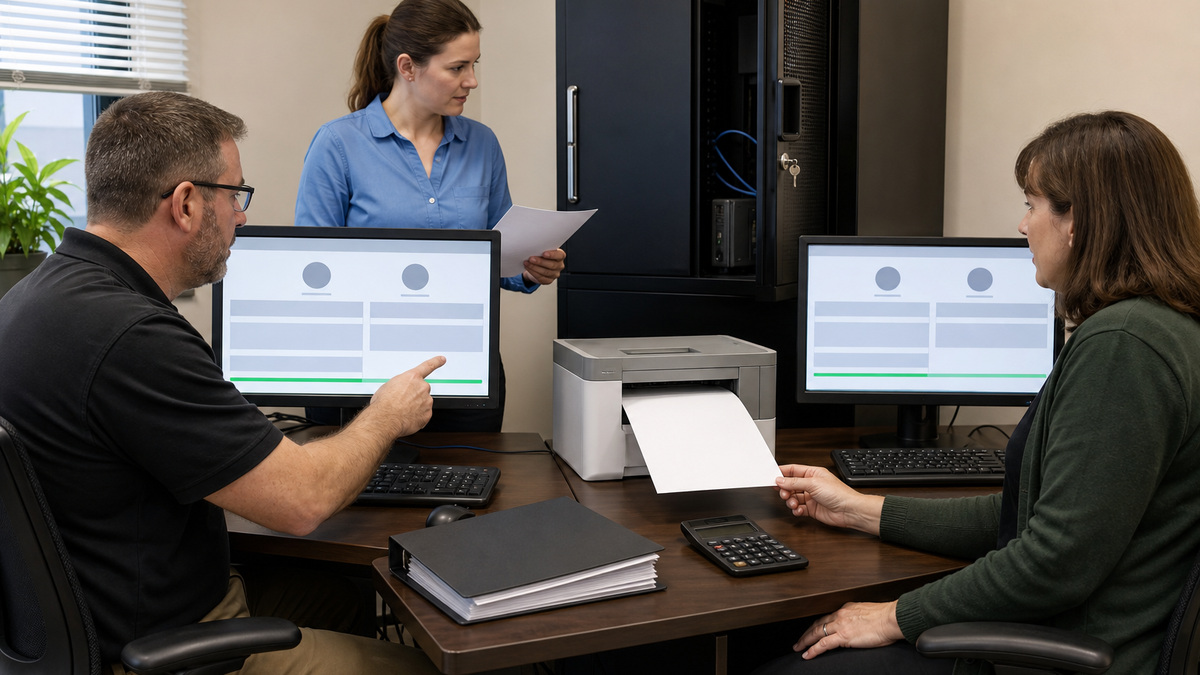
Use the download that matches the starting state. The Sage portal available on August 8, 2026 describes a 2026.1 full product for a new computer, an upgrade from 2024 or older, or a reinstall, and a separate patch from 2026.0 to 2026.1. Verify those instructions again at launch, retain the exact file source and approval, and reject an installer obtained from email, search ads, or an unmanaged share. Never expose the serial number, activation record, Sage account email, or license details in screenshots.
Build a pilot that mirrors the approved topology without touching production data. Restore a recent backup as a new company in an isolated location, install the server or host component first where the design is multi-user, and open only the pilot copy for conversion. Sage warns that a company converted in the newer release cannot be used by the older release. Prove that the preserved pre-conversion backup remains readable in the appropriate prior environment and document the exact rollback boundary before continuing.
Validate financial and operational behavior, not just application launch. Compare a controlled set of trial balance, general ledger, aging, bank, inventory, payroll, tax, and management reports as applicable, open and post authorized synthetic transactions, exercise backup and new-company restore, test custom forms, check and invoice output, email, Office connections, bank feeds, payments, imports, exports, Remote Data Access, and third-party integrations. Accountants must explain any legitimate conversion difference before technical acceptance is granted.
- Record pre- and post-conversion company size, period, report parameters, totals, exceptions, processing time, and the person who approved each result.
- Test one ordinary and one exception workflow for every used module instead of relying on a single sample company or an empty login screen.
- Confirm the pilot’s program and data paths, share permissions, Windows identity, Sage user, printer, browser, Office architecture, and connected-service ownership.
- Treat a third-party connector’s successful sign-in as incomplete until its import, export, posting, duplicate control, error path, and reconciliation are proven.
- Rehearse abort, restore, user communication, manual continuity, and escalation while the test remains isolated and production remains unchanged.
Cut Over Server First, Validate Workstations, and Preserve Rollback
For an approved network deployment, follow Sage’s server-first order. The current guide directs installers to identify the computer as the server, confirm installation options, share the company-data folder with correct permissions, complete and activate the server installation, and then open companies for conversion before installing workstations. It also says the Network Installation Manager does not work over wireless networks and that each computer needs the program unless a supported Terminal Services design is used. Translate those steps into named owners and checkpoints for the actual environment.
Convert one company at a time only after its users, integrations, and backups are confirmed. Validate the server locally, then deploy a small workstation ring before the remainder. On each device, check that the intended company path opens, the application build matches, only licensed individual users can authenticate, forms and printers resolve, connected workflows function, and simultaneous access stays within edition and license limits. Keep the accounting close, payroll, tax filing, payment, and check-production calendar visible throughout the window.
Rollback means restoring a known pre-conversion state into a compatible environment, not opening converted data with the old program. If a stop condition fires, prevent further entries, preserve logs and screenshots without sensitive data, record the last successful checkpoint, restore the approved backup as rehearsed, validate reports and access, and communicate the operating state. After go-live, retain the evidence, remove temporary rights and installer shares, confirm backups and security controls, monitor the first cycles, and schedule a review before retiring the prior environment.
- Publish a cutover roster covering the server, every workstation, company owner, integration owner, printer, remote user, support contact, and validation result.
- Use wired connectivity for installation and high-risk conversion work where feasible, especially because Sage excludes wireless use for Network Installation Manager.
- Keep production closed until financial reports, posting, backup, restore, printing, email, bank, payroll, payment, import, and integration checks that apply have passed.
- Remove temporary administrative access, security exceptions, old installer shares, and test-company access after the approved retention and rollback window.
- Monitor early sessions for wrong data paths, build mismatches, lock or permission errors, slow access, failed jobs, report differences, and user-license contention.
Official product documentation and ALLMSP resources
- Sage: System requirements for Sage 50 U.S. Edition 2026
- Sage: Supported products and services
- Sage: Sage 50 U.S. Edition download portal
- Sage: Prepare to install Sage 50 U.S. Edition
- Sage: Install Sage 50 U.S. Edition on a network
- Sage: Install Sage 50 Accounting
- Sage: Find the data path and program path
- Sage: Move Sage 50 data to another computer
- Sage: Create a backup
- Sage: Restore a backup
- ALLMSP Sage Software Support
- ALLMSP Software Support
- ALLMSP Managed IT Services
- ALLMSP Cybersecurity Services
- ALLMSP Cloud Computing and Migrations
- ALLMSP CPA and Financial Firm Resources
- Contact ALLMSP
Frequently Asked Questions
Which Sage product does this deployment guide cover?
It covers Sage 50 Accounting,U.S. Edition 2026 only. Do not apply its installers, editions, user limits, data conversion, paths, or network procedures to Sage Intacct, Sage 100, BusinessWorks, other regional editions, or unrelated Sage services.
What is the current Sage 50 U.S. Edition release?
On August 8, 2026, Sage’s U.S. download portal lists a 2026.1 full product and a patch from 2026.0 to 2026.1, while the support page identifies version 2026 as supported. Recheck both pages when scheduling the work.
Can Sage 50 Pro Accounting run as a multi-user deployment?
Sage’s current network guidance says Pro is not multi-user compatible. Premium and Quantum support multi-user operation under their documented requirements and license limits. Confirm the purchased edition and named-user entitlement before designing the topology.
How many named users can Sage 50 Premium and Quantum support?
The 2026 system-requirements page states a maximum of five licensed named users for Premium and up to forty for Quantum. Licensing, server resources, Terminal Services design, workload, and network quality must still be validated for the specific firm.
Should a Sage 50 network installation start on the server?
Yes. Sage’s network-install article says to install on the server first, configure company-data storage and sharing, finish and activate there, convert companies, and then install workstations. Each computer needs Sage unless the approved design uses supported Terminal Services.
Can Network Installation Manager run over Wi-Fi?
Sage states that Network Installation Manager will not work over wireless networks. Use an approved wired path for that process, verify share and Windows permissions, and test workstation access to the intended data path before production conversion.
Why must the firm pilot company conversion on a copy?
The first open in a newer Sage 50 release can convert company data, and Sage warns that converted data cannot be used with the older release. A restored test copy proves conversion and acceptance while the verified pre-conversion backup remains protected.
Is a Sage 50 company backup enough for complete disaster recovery?
No. It protects selected Sage company content and can include options such as archives or attachments, but it does not replace system images, operating-system recovery, installers, credentials, network configuration, offsite retention, endpoint protection, or tested business continuity.
What must be tested after a Sage 50 upgrade?
Test relevant reports, authorized synthetic entries, simultaneous users, backup and new-company restore, printing, custom forms, email, Office integration, bank feeds, payments, payroll, imports, exports, Remote Data Access, third-party connections, and manual continuity.
How can ALLMSP support a Sage 50 deployment for a Georgia firm?
ALLMSP can coordinate supported infrastructure, server-first installation, endpoint readiness, protected backups, restore tests, workstation rollout, integration evidence, monitoring, documentation, and Sage escalation while accounting owners approve financial results, licensing, timing, and go-live.