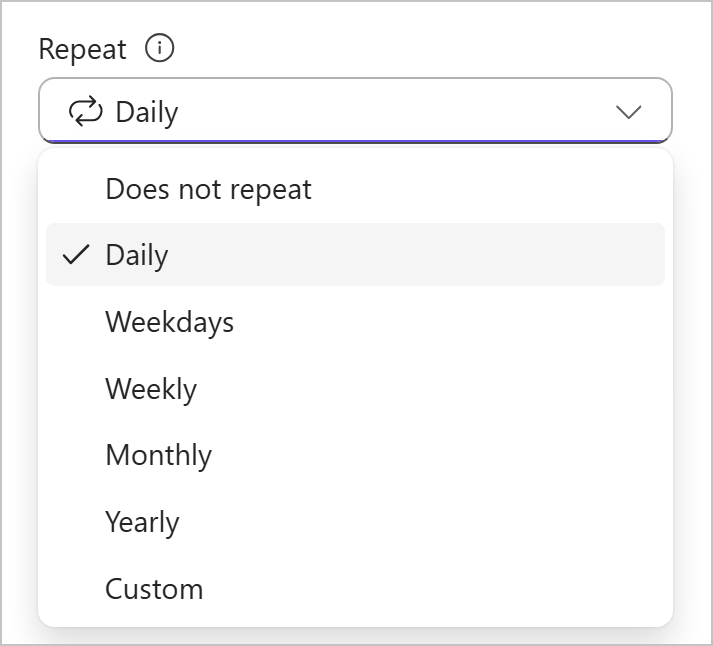
Duo’s published device-management example shows an existing Android/Google Pixel 3 entry with Edit and Add a device. It identifies available controls in a vendor sample, not a completed phone replacement, a verified user identity or a recommendation to delete an existing factor.[1] View full-size interface image
Keeping your phone number does not settle which Duo account is activated in the replacement app. Before generating anything, identify the organization, the protected application and the device entry involved. A phone change can leave an app installed while the work account still needs an approved reactivation.
Start with one decision: can you authenticate through an independent method your organization permits, or do you need its help desk to verify your identity and assist? Do not delete devices to make the list look tidy before access is understood.
Choose a route before changing the activation
For eligible applications, an enabled self-service portal lets users manage devices after authentication. It is an Essentials, Advantage or Premier feature, enabled per application. A remembered browser session does not remove the portal’s authentication requirement. If every permitted method is unavailable, use your organization’s verified support route rather than repeatedly trying the same unusable factor.
[1]| What you actually have | Next controlled step | Do not assume |
|---|---|---|
| An independent permitted factor works | Open the organization’s real protected app and its device-management route | That remembered sign-in alone authorizes device changes |
| The old phone is lost and no permitted factor works | Ask the known help desk for identity verification and an assisted recovery decision | That an unsolicited activation link is genuine |
| A phone entry exists, but the replacement app lacks the work account | Have the user or authorized administrator confirm the intended entry and activation route | That the same telephone number completes app activation |
| Only the Windows offline prompt fails | Treat the local offline enrollment as a separate check | That a successful browser Push test proves offline Windows access |
Read the invalidation warning before reactivation
Generating a new activation code immediately invalidates the existing Duo Mobile credentials for that device. Do not plan on the old activation continuing alongside its replacement. Arrange the approved recovery route and a time to complete activation before the authorized administrator generates the code.
In the documented administrator workflow, the selected user’s Phones section contains Activate Duo Mobile or Reactivate Duo Mobile for an eligible device. The administrator confirms the correct user and device, then issues the activation through the approved delivery process. Activation links are sensitive; do not paste them, QR codes or passcodes into an ordinary support ticket.
[2]Confirm the account, device and delivery destination
A useful handoff records the work organization, target app, whether the number changed and whether the old phone is still available. Avoid sending a whole device list when one entry is relevant. If a shared phone or unfamiliar entry appears, stop and ask the administrator to check its associations before removing anything.
Duo’s device documentation distinguishes a phone record from its app activation and warns that removing a phone from every associated user permanently deletes the device. Cleanup is a separate approved action, not the first attempt to repair Push.
[3]Test the real sign-in after activation
- Use the organization’s known application address and intended work account.
- Start one sign-in yourself and respond only to its expected Duo request.
- Confirm the application opens with the intended account. Note a later application error separately from the Duo outcome.
- Tell the help desk which entry was activated and which application test passed or remains blocked.
A green app icon, a delivered message or a visible account name is an intermediate observation. The acceptance check is the user-initiated authentication to the intended application. If it fails, retain the exact time and displayed error before another change.
| Checkpoint | Record | Pause if |
|---|---|---|
| Before code generation | Correct user/device and approved recovery contact | Only an unknown caller or message is offering recovery |
| Activation | Intended work account is present on the replacement phone | Organization or account identity is wrong |
| Target-app test | Time, application and displayed outcome | A request appears that the user did not initiate |
| Closeout | Remaining independent method and unresolved access issues | Access is assumed from installation alone |
Keep the next task separate
If Push works in the target app but the laptop still fails without a connection, follow the Windows offline guide. If the organization sees a denied sign-in despite the intended phone being active, an authorized administrator can use the log guide to correlate that single attempt. Neither case requires deleting the user account as a first step.
Frequently asked questions
Is keeping the same mobile number enough to restore Duo Push?
Will the old activation keep working after a new code is generated?
No. Generating the new activation invalidates the existing Duo Mobile credentials for that device. Arrange the approved recovery route first.
[2]What if I have lost my only working authentication method?
Contact your organization’s known help desk for its identity-verification and recovery process. Self-service is not an unauthenticated way around the missing method.
[1]Why is Manage devices unavailable in my application?
Self-service must be supported and enabled for that application, and the organization’s plan and policy matter. Ask the administrator to check that route.
[1]Why must I authenticate again in a remembered browser?
Device management requires authentication even when the browser was remembered for ordinary sign-in.
[1]Does a new activation link last forever?
No. The administrator workflow has an expiry, with a default of 24 hours that can be changed. Ask for the approved replacement process if it expires.
[2]Should I delete the old phone entry before asking for help?
No. First confirm the correct user/device association and recovery route. Removing a phone from every associated user permanently deletes that device record.
[3]Can an end user perform the administrator steps in this guide?
Only someone with the required authorized administrator role should use the Admin Panel. End users should use their enabled self-service route or help desk.
[2]What should I do with an unexpected Push request during testing?
Do not approve it. Stop the test and report the unexpected request through your organization’s known security or support channel. Never share its passcode or activation material.
[2]Does working Push prove my Windows offline login is ready?
No. Test the separately enrolled Windows offline method on the intended laptop before depending on it away from a connection.
[4]