Sage 50 Accounting,U.S. Edition stores sensitive accounting, customer, vendor, payroll, tax, banking, inventory, and company configuration data behind a mixture of Sage company users, Windows permissions, network shares, devices, Sage account services, and integrations. A strong Windows login does not correct a shared Sage username, while a careful Sage permission set does not protect an overexposed company-data share. Access and recovery must cover the entire path to the company.
In Sage 50 Accounting,U.S. Edition, user configuration is company-specific and edition-sensitive. Current Sage instructions distinguish Pro or Premium access levels from Quantum User Roles, state that adding or editing users is a single-user task, and warn not to leave the company without a licensed identity holding Administrator access. Quantum can combine roles, but the user’s effective access becomes the access of the highest assigned role. Test the subscribed edition rather than copying another firm’s role matrix.
This guide gives Georgia CPA and financial firms a practical control model for Sage 50 Accounting,U.S. Edition identities, administrative ownership, company-data paths, backups, isolated restores, least privilege, joiner-mover-leaver changes, and recovery drills. ALLMSP can coordinate device, Windows, network, backup, and vendor-support controls while firm owners and accountants authorize financial access, retention, segregation of duties, and continuity decisions.
Key decisions at a glance
- This access model is for Sage 50 Accounting,U.S. Edition, it does not describe identity, roles, backups, or auditing in Sage Intacct, Sage 100, BusinessWorks, or other Sage products.
- Give every operator an individual company-specific Sage 50 user and password, keep at least one licensed Administrator-controlled identity recoverable, and remove shared credentials from daily work.
- Sage 50 Pro and Premium use access levels while customizable User Roles are documented for Quantum, assigning multiple Quantum roles grants the access of the highest role.
- Protect both the Sage company identity and the Windows, share, remote-access, Sage-account, email, device, and integration identities that can reach or move company data.
- Create backups with deliberate archive and attachment choices, store protected copies away from the live path, and prove restoration as a new company before relying on them for recovery.
Map Individual Users to the Edition and Each Company
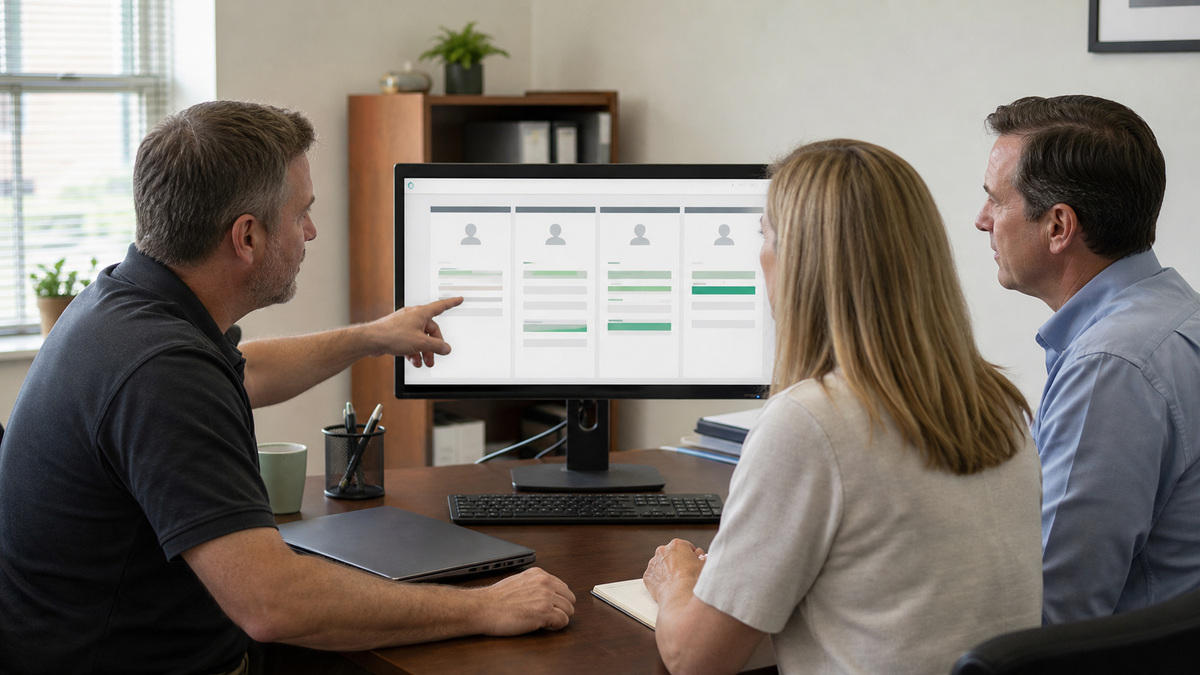
Begin with a company-by-company access register. For every person, document employment or engagement status, Sage company, individual username, licensed status, Pro or Premium access level or Quantum role, required modules and tasks, posting or unposting authority, payroll and tax exposure, bank and payment duties, report access, integration ownership, Windows identity, device, remote route, manager, approver, start date, review date, and exit owner. Do not record the password, activation data, bank details, or payroll records in the register.
Follow the edition boundary. Sage’s user-creation article directs Pro and Premium administrators to select an access level, while Quantum administrators select a role or create one. The User Roles article explicitly says the feature is available in Quantum and permits customized access. It also notes that a user with more than one role receives the access of the highest role. Therefore, review the combined result instead of assuming two narrow roles remain narrow when assigned together.
Protect administrative continuity without creating a daily superuser habit. Sage says adding or editing users requires single-user operation, user settings are company-specific, and a new user must be licensed in User Security to enter. It warns not to unlicense the Administrator account unless another licensed username has Administrator access. Maintain at least two controlled recovery paths under firm policy, restrict their use, test them, and review them separately from ordinary bookkeeping or operational identities.
- Issue a unique Sage company username and password to each employee, contractor, owner, accountant, and temporary support participant who needs access.
- Test required and prohibited actions with a nonproduction company for entry, editing, deletion, posting, unposting, payroll, banking, reporting, setup, backup, and user administration.
- In Quantum, inspect every assigned role together because the highest role determines effective access, do not treat roles as additive restrictions.
- Review licensed users against purchased named-user limits and actual need, while keeping an approved licensed Administrator identity available for recovery.
- Record an expiry or review date for temporary accountants, seasonal staff, contractors, migrations, integrations, and vendor-assisted troubleshooting.
Protect Company Paths, Windows Shares, Devices, and External Identities
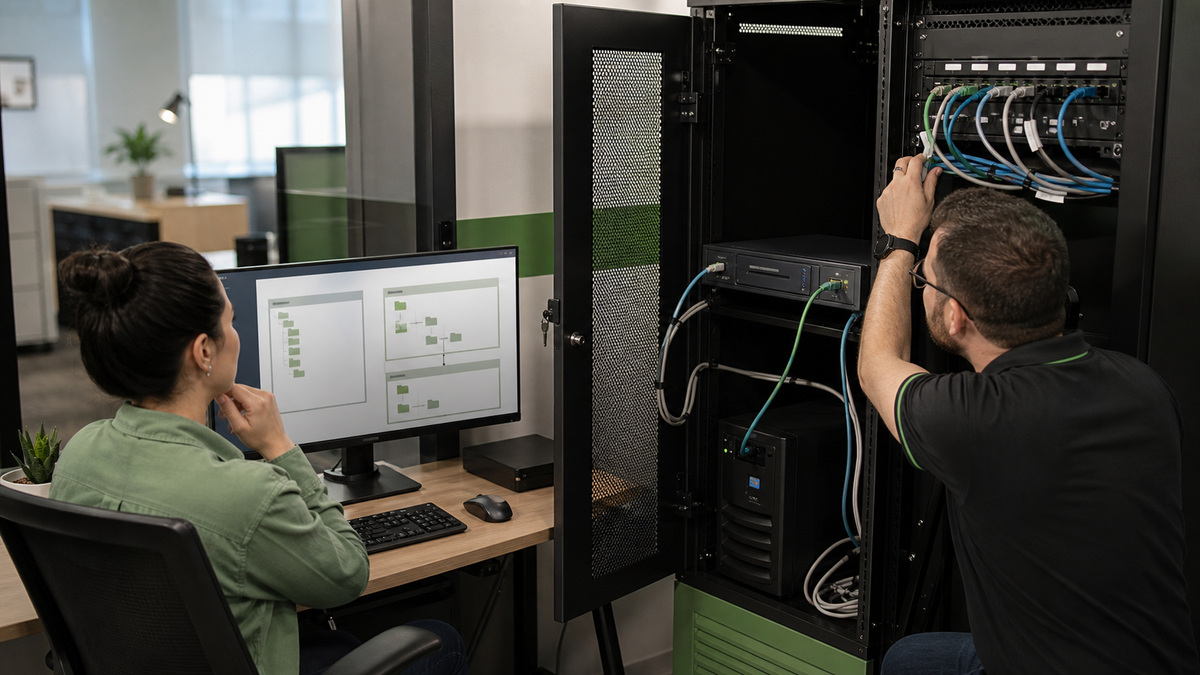
Locate the authoritative path before setting permissions. Sage documents the version 2026 configuration as Peachtree330.ini and identifies DATAPATH and PROGRAMPATH entries, the Open Company view can also reveal the company directory. Store the host, share, parent data path, company directory, backup destination, mapped-drive convention, and approved administrative owners in protected technical documentation. A shortcut can silently point to an obsolete copy, so compare the opened company’s directory and current transaction boundary before granting access.
Apply least privilege across both share and file-system layers, then validate through the actual workstation path. Restrict local logon, Remote Desktop, VPN, remote-support tooling, administrator groups, service identities, backup operators, and synchronization utilities that can copy or alter the files. Do not browse, rename, synchronize, scan, or back up open company data with an unsupported method. Coordinate exclusions and scheduled protection with Sage guidance, the security owner, and the firm’s recovery design rather than weakening the host permanently.
Treat connected and recovery identities as separate access paths. Inventory the Sage account used for subscription or connected services, Remote Data Access ownership where used, email and multifactor recovery, bank feeds, payments, payroll, Office integration, third-party applications, backup consoles, password managers, and support portals. Give each system its own owner and offboarding step. Never send a password, serial, activation record, company directory listing, account number, tax ID, or payroll screenshot through an ordinary ticket.
- Confirm the data path from current configuration and company information instead of granting rights to every folder named Sage or Peachtree.
- Keep Windows share permissions, NTFS permissions, local administrator membership, Sage company access, and connected-service ownership as separate review columns.
- Use managed devices, patched supported Windows, endpoint protection, encrypted storage, secure remote access, screen locking, and protected credential recovery.
- Detect stale or alternate company copies by recording the correct directory, version, last transaction boundary, company identity, and approved backup location.
- Limit support evidence to sanitized error context and preserve sensitive logs, configuration files, company data, and backups only in approved storage.
Define Backup Scope and Prove a Restore Without Overwriting Production
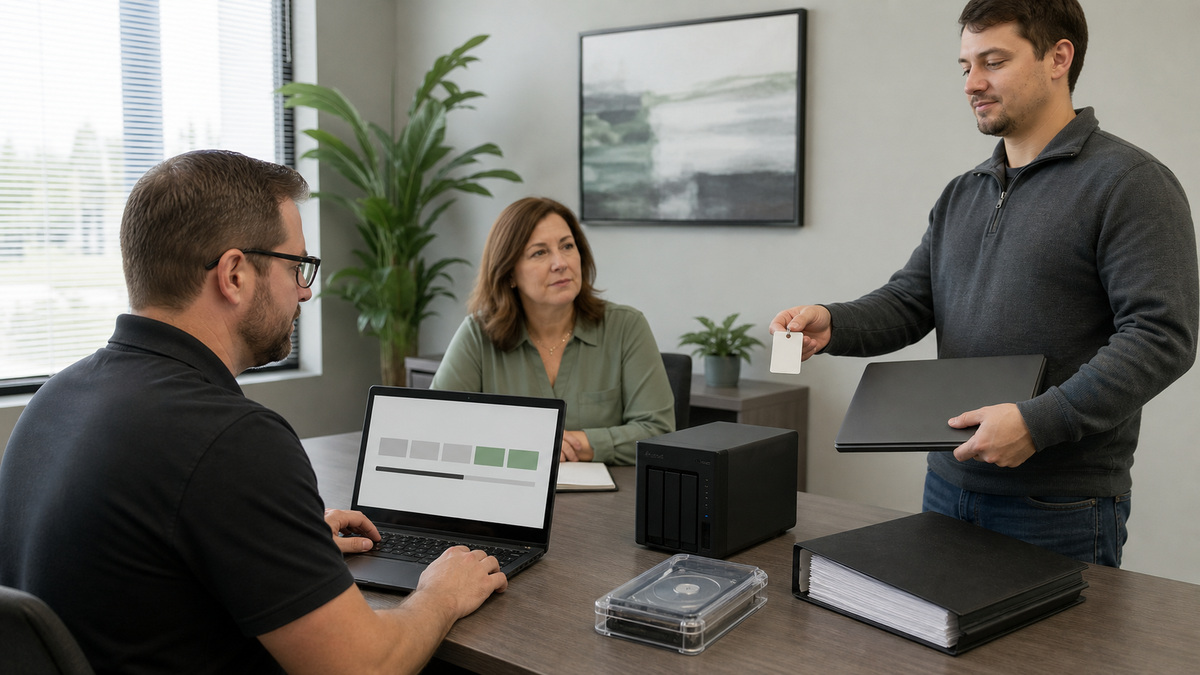
Design the Sage backup job deliberately. Sage’s in-product process can include the company name in the filename and optionally include archives and attachments. It saves to the company-data location unless another destination is selected and can fail when space is insufficient. Decide whether archives, attachments, custom forms, and web transactions are required for each company, name files without exposing confidential data, select an approved protected destination, monitor completion, and never interrupt an active backup because Sage warns that interruption can damage data.
Move verified copies away from the live host under encryption, retention, access, and immutability rules that match the firm’s risk and professional obligations. A Sage backup is a product-level recovery artifact, not proof that Windows, applications, printers, integrations, credentials, encryption keys, endpoint settings, or the network can be rebuilt. Pair it with infrastructure and configuration recovery, installer and entitlement access, offsite copies, incident contacts, and a manual accounting continuity plan.
Test restoration safely. Sage’s restore workflow distinguishes overwriting an existing company from creating a new company, and says the new-company choice restores to a new folder without overwriting current data. Use the new-company method in an isolated authorized location, verify the correct backup first, select the required company data, customized forms, and web transactions, and account for possible data conversion. Reconcile reports and transactions, confirm access, document time and exceptions, then remove the test copy according to policy.
- Set backup frequency from transaction volume, payroll, tax, payment, close, and maximum-tolerable data-loss requirements rather than a generic nightly label.
- Confirm archives, attachments, custom forms, and web transactions separately because inclusion and restore choices can change the recovered result.
- Keep at least one protected copy beyond the company-data host and restrict backup deletion, overwrite, and restore authority.
- Restore as a new company for drills, use a controlled name and path, block unintended integrations, and prevent the copy from sending real email or payments.
- Have an accounting owner validate reports, periods, balances, recent transactions, users, forms, and required history before declaring the restore usable.
Operate Joiner, Mover, Leaver, and Recovery Procedures
For a joiner, require approved company and task scope, create an individual user, assign the smallest edition-appropriate access, license the user where needed, and have the person prove permitted and denied actions. For a mover, compare the former and new duties, remove old access before adding broader rights when practical, inspect combined Quantum roles, and retest segregation of duties. Adding or editing users is a single-user task, so schedule the change without bypassing the normal accounting calendar or leaving others in the company.
Prepare leaver steps before the end time. Disable or unlicense the person’s Sage company access while preserving a licensed Administrator-controlled path, then remove Windows, share, device, remote-support, VPN, Remote Data Access, Sage account, email, bank, payment, payroll, Office, third-party, backup, and support access. Reassign scheduled jobs, approvals, reports, imports, exports, custom forms, support cases, and recovery duties. Do not retain a shared login merely because a workflow lacks a documented owner.
Run recovery exercises for a lost administrator password, unavailable owner, failed host, corrupted company, stolen device, inaccessible backup console, disconnected integration, and suspicious data change. Preserve evidence and stop further writes when integrity is uncertain. Restore a known backup as a new company, validate it under accounting supervision, and escalate through Sage when the product state requires vendor expertise. Document recovery time, data loss, decisions, credentials rotated, access removed, and improvements without putting confidential records into the exercise report.
- Verify both denial and continuity after every departure: the former user cannot reach any path, and the successor can complete approved work with a new identity.
- Review all companies because Sage user settings are company-specific and the same person may have different rights or no record in another company.
- Rotate or replace shared integration, service, remote-access, support, and backup dependencies that cannot be tied cleanly to an individual leaver.
- Inspect administrator licensing and recovery after cleanup so the firm does not discover during an incident that no authorized account can manage users.
- Schedule periodic access, path, backup, restore, device, remote route, and external-identity reviews with accounting and security signoff.
Official product documentation and ALLMSP resources
- Sage: System requirements for Sage 50 U.S. Edition 2026
- Sage: Install Sage 50 U.S. Edition on a network
- Sage: Add a new user
- Sage: Work with User Roles in Quantum
- Sage: Find the data path and program path
- Sage: Create a backup
- Sage: Restore a backup
- Sage: Move Sage 50 data to another computer
- Sage: Share a company with Remote Data Access
- ALLMSP Sage Software Support
- ALLMSP Software Support
- ALLMSP Managed IT Services
- ALLMSP Cybersecurity Services
- ALLMSP Cloud Computing and Migrations
- ALLMSP CPA and Financial Firm Resources
- Contact ALLMSP
Frequently Asked Questions
Does this security guide apply to every Sage product?
No. It covers Sage 50 Accounting,U.S. Edition only. Sage Intacct, Sage 100, BusinessWorks, other regional editions, and Sage account services have different identity, permission, storage, backup, and audit models that require product-specific guidance.
Should every Sage 50 operator have an individual user?
Yes. Give each person a company-specific username and password, license it when required, assign the smallest working access, and test permitted and prohibited tasks. Shared credentials weaken attribution, offboarding, password control, and recovery.
Are customizable User Roles available in every Sage 50 edition?
No. Sage documents User Roles for Quantum Accounting. Its Pro and Premium instructions use access levels. Verify the installed edition and interface before building controls, and never promise Quantum role customization to a Pro or Premium company.
What happens when a Quantum user receives multiple roles?
Sage says the user receives the access of the highest assigned role. Review the effective combined result and prohibited tasks, because adding a second role does not preserve the narrower boundary of the first role.
Can the firm unlicense the Sage 50 Administrator account?
Sage warns not to leave the company without another licensed username that has Administrator access. Maintain a controlled, recoverable administrative path, restrict daily use, and test recovery before changing the original account’s license state.
How can an administrator confirm the Sage 50 2026 data path?
Sage identifies Peachtree330.ini for version 2026 and the DATAPATH entry, while Open Company can show the directory. Confirm the active company, share, host, and transaction boundary before changing permissions or moving files.
What can a Sage 50 backup include?
The in-product backup can include company data and optional archives and attachments, while restore choices can include company data, customized forms, and web transactions. Define required scope explicitly and verify it through an isolated restore.
How should a restore test avoid overwriting production?
Select the restore method that creates a new company in a new folder, use an isolated authorized path, block unintended integrations, and validate reports, periods, recent transactions, users, forms, and history before deleting the test copy.
What must Sage 50 offboarding remove besides the company user?
Remove Windows and share access, devices, remote routes, Sage account and Remote Data Access, email recovery, bank, payment, payroll, Office, integrations, backup consoles, support portals, scheduled jobs, exports, and shared storage.
How can ALLMSP support Sage 50 access and recovery?
ALLMSP can coordinate managed endpoints, Windows and share controls, company-user reviews, protected backups, isolated restore tests, offboarding, continuity exercises, evidence, monitoring, and Sage escalation while firm leaders authorize financial access, retention, and recovery decisions.