
















































































































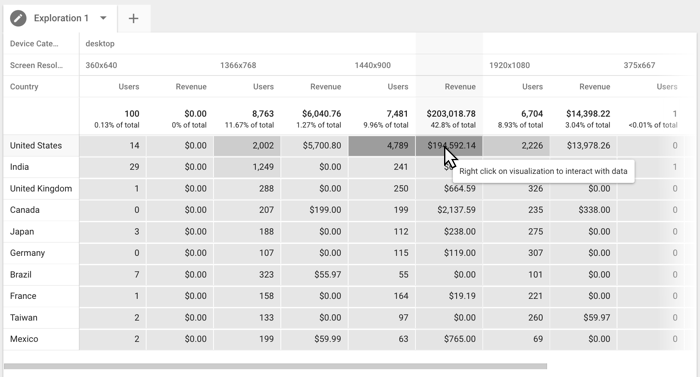
Google’s free-form exploration example illustrates an analysis asset whose access and reproducibility need a named backup. The displayed users and revenue are vendor sample data, not client results, and this table does not establish anyone’s permissions. Check whether the required exploration is private or shared and have the intended colleague reproduce it.[10] View full-size image
A GA4 access review starts by identifying the correct Analytics account and property. Similar names and inherited permissions can make a user appear authorized in the wrong place. The review should capture direct and inherited roles, data restrictions, linked products, Tag Manager publishing rights, reporting dependencies, and the business owner for each critical output.
Do not remove an unfamiliar administrator, agency, developer, group, Tag Manager publisher, service account, or product link until its role is understood. First add and test company-controlled access, preserve the production container version and report definitions, then make changes during a documented window with lead tracking tests.
ALLMSP handles Google Analytics access, ownership, and security review for teams near Lawrenceville and Suwanee, elsewhere in Gwinnett County and Metro Atlanta, and throughout Georgia, with planning, configuration, testing, and support completed by the same in-house team.
Evidence to collect before changing GA4 measurement
A useful access review proves that the business controls the correct GA4 account and property, can maintain the production tag, recognizes every administrator and outside user, limits sensitive cost or revenue data, and can reproduce important reports after a staff or provider change.
- Analytics account and property IDs, web stream and Measurement ID, business owner, technical owner, and last validated website test.
- Direct and inherited account and property users, groups, roles, data restrictions, last activity, and approved purpose.
- Tag Manager account and container permissions, live version, workspaces, environments, and publishing history.
- Google Ads, Search Console, BigQuery, Merchant Center, and other product links with exact account IDs and owners.
- Explorations, Looker Studio data sources, scheduled reports, alerts, APIs, service accounts, and shared report dependencies.
- A recent real lead reconciliation and a recovery test performed by a company-controlled backup administrator.
Worked example: a clean user list can still hide broad access
Illustrative review cases below are invented to explain the decisions; they are not findings from an ALLMSP client. Confirm the actual property and credential settings before applying them.
| Evidence found | What it means | Safe next test |
|---|---|---|
| An analyst has Editor on the account and Viewer directly on one property. | The property-level Viewer grant does not cancel inherited Editor access. | Locate the account/group grant and test an appropriately scoped replacement before removing it. |
| A sales manager opens an agency report but has no direct dataset access. | The report may use its credential owner's authorization; report visibility and dataset permissions differ. | Identify the credential mode and owner; test a company-controlled refresh and intended viewer account. |
| Only the departing analyst can open the weekly exploration. | An unshared exploration is private, even though other staff can read the property. | Share or reproduce the necessary analysis and have the backup analyst verify the date range and result. |
Supporting documentation: [4] [7] [8]
Image documentation: [10]
Identify the correct account, property, and effective users
Account and property identity
What to check: Record account ID, property ID, property name, time zone, currency, web stream URL, stream ID, Measurement ID, and data retention. Compare them with website tags and business reports.
What to do next: Rename ambiguous assets, correct documentation, and stop relying on a report until its property and production data source are confirmed.
Direct and inherited users
What to check: Export or record users and groups, whether access is inherited, assigned roles, data restrictions, employment or vendor status, business purpose, and last confirmation. Check both account and property levels.
What to do next: Retain two tested internal administrators, remove stale direct or group access after validation, and assign the least role that supports the work.
Read the effective role, not just the direct property grant. For example, adding Viewer on one property does not narrow Editor inherited from its parent account. Record where the broader permission originates before changing it.
Supporting documentation: [4]
Sensitive cost and revenue data
What to check: Identify users who can view cost metrics, revenue metrics, user-level exploration data, audiences, and linked advertising information. Compare access with job responsibility and confidentiality requirements.
What to do next: Apply cost or revenue restrictions where supported, narrow reports and data sources, and remove broad exports or sharing that bypasses the intended role.
A report filter changes the presentation; it is not a substitute for an access restriction. Analytics cost/revenue restrictions also do not establish the permissions of a separate export or reporting destination. Check the intended audience at each boundary.
Review tag publishing and measurement authority
Tag Manager account and container roles
What to check: Record account permissions, container Read, Edit, Approve, and Publish rights, recent versions, active workspaces, environments, and outside users. Identify who can deploy code to production.
What to do next: Keep two company-controlled administrators, reserve Publish for accountable users, close stale workspaces, and test production measurement after access changes.
Website and plugin control
What to check: List people who can replace the Measurement ID, add scripts, change consent, alter forms, or publish website updates. Record individual accounts, MFA, owners, and change history.
What to do next: Remove shared access, narrow roles, document the supported tag method, and require a GA4 regression test after measurement-affecting releases.
Product links and data destinations
What to check: Record linked Google Ads accounts, Search Console properties, BigQuery projects, Merchant Center accounts, and other available links. Capture exact IDs, data shared, permissions, owner, and whether the destination remains active.
What to do next: Remove obsolete links only after reviewing audiences, conversions, reports, exports, billing, and campaign dependencies. Correct links that point to the wrong account.
Explorations and shared report assets
What to check: Identify business-critical explorations, report collections, filters, audiences, and ownership dependencies. Determine whether important analysis exists only in one employee's private exploration.
What to do next: Document or recreate essential analysis in a governed shared reporting process, and assign a backup owner who can reproduce it from the source data.
Inspect reports, links, and external data access
Looker Studio and external connectors
What to check: Record report owners, editors, viewers, embedded links, data credentials, extracts, scheduled delivery, third-party connectors, service accounts, and billing dependencies.
What to do next: Transfer ownership to company-controlled accounts, restrict public links, rotate exposed credentials, and test refreshes and filters after changing access.
Distinguish the report owner, data-source owner, and credential owner. A viewer may see a report through the credential owner's authorization without direct dataset access. Current Google documentation calls this reporting product Data Studio; inventory existing Looker Studio-named assets and their actual credential modes as well.
Supporting documentation: [8]
Change history and unexplained configuration
What to check: Compare user activity with changes to events, key events, audiences, links, data retention, filters, and reporting. Record unexplained changes and whether data quality shifted at the same time.
What to do next: Investigate unauthorized or accidental changes, restore settings from evidence where possible, reduce authority, and create a mandatory change and test record.
Backup administration and recovery test
What to check: Have a backup administrator sign in independently, inspect property settings, open the production container, access essential reports, and complete a labeled test lead. Record gaps that require the primary owner.
What to do next: Add missing internal access, transfer report ownership, preserve production versions, document recovery, and repeat the test until it works without verbal help.
Rank access findings by data and continuity risk
Treat unknown administrators, exposed public reports, unexplained production tags, broken consent, and access to sensitive data as urgent. Next address one-person ownership, agency-controlled reporting, and undocumented product links. Viewer cleanup and naming improvements can follow after ownership and production measurement are stable.
Priority 1: Unauthorized access or data exposure
Use this level for unknown administrators, public access to sensitive reports, malicious or unexplained production tags, exposed credentials, or collection that contradicts consent requirements.
Priority 2: Measurement and continuity risk
Use this level for one-person administration, agency-owned reports, wrong product links, missing website control, untested publishers, and configuration changes affecting lead data.
Priority 3: Reporting and permission hygiene
Use this level for stale viewers, duplicate report assets, old workspaces, unclear naming, and missing review dates after critical access is controlled.
Next task: trace Cloud IAM and billing authority; plan a marketing provider handoff.
Continue reading
Frequently Asked Questions
How do we confirm that a GA4 property belongs to the right website?
Match the property's numeric ID and web stream Measurement ID to the tag actually deployed on the production website. A familiar property name or correct stream URL is insufficient: a copied site can still send data to another property. Complete an authorized, labeled website test and confirm it reaches the expected stream before using that property's reports for business decisions.
FAQ supporting documentation: [4]
What is inherited access in Google Analytics?
Inherited access comes from a parent account, organization, or group rather than a grant made directly on the property. Effective access combines those routes with direct permissions; assigning Viewer on a property does not downgrade Editor inherited from its account. Change the grant at its source, after checking which other properties or people depend on it.
FAQ supporting documentation: [4]
Can GA4 access be restricted for cost and revenue data?
Yes. Analytics provides No Cost Metrics and No Revenue Metrics restrictions, applied through access management. An inherited restriction cannot be removed by a property-level grant. These controls are not a universal confidentiality boundary for every linked product, exported file, or separately shared report, so test the intended user's effective access and review those destinations too.
FAQ supporting documentation: [4]
Why must Tag Manager permissions be reviewed with GA4 access?
A Tag Manager publisher can change the website's measurement without needing the Analytics Administrator role. Review both the Tag Manager account administrators and each production container's permissions; Edit, Approve, and Publish are different capabilities. Preserve the live container version and test the agreed lead journey after a publishing-rights change.
FAQ supporting documentation: [5]
Who can change GA4 without having Analytics administrator access?
Analytics Editors can change many property settings without being Administrators. Website developers, CMS/plugin administrators, Tag Manager publishers, and people with relevant Google tag permissions can also change collection outside Analytics user management. Trace the production tag's deployment route and review those accounts separately; a clean GA4 user list does not prove that only approved people can alter measurement.
Which GA4 product links should be included in an access review?
Include every active link and export used by that property, especially Ads, Search Console, BigQuery, and Merchant Center where configured. Record the exact destination ID, business purpose, responsible administrator, and dependent audience, advertising, or reporting workflow. Do not unlink an unfamiliar destination until its dependencies and the receiving system's permissions have been checked.
FAQ supporting documentation: [4]
Are GA4 Explorations automatically shared with other users?
No. A newly created exploration is private to its creator. A user with at least Analyst access can share it with the property; other users with Viewer access can view that shared version but must copy it to edit. Have a backup analyst reproduce essential work and confirm the date range, rather than assuming Administrator access makes every private analysis available.
FAQ supporting documentation: [7]
What should be reviewed for Looker Studio reports connected to GA4?
Review report sharing and data credentials separately. A report using the credential owner's authorization may show data to someone who has no direct access to the underlying dataset. Check the connector's supported credential mode, credential owner, report editors/viewers, public embedding, schedules, and extracts, then test refresh and visibility using the intended audience's account.
FAQ supporting documentation: [8]
How can GA4 change history support an access audit?
Use change history to connect a configuration change with its date and responsible account, then compare that period with tag releases and reporting changes. It can narrow an investigation, but an expected name in the log does not prove approval or correct data collection. Keep the authorization record and an independent measurement test alongside the history entry.
FAQ supporting documentation: [9]
What proves that a business can recover control of Google Analytics?
A second authorized company-controlled administrator must be able to sign in independently, identify the correct property, and perform the administration needed for recovery. Separately prove access to the production tag and essential report credentials. Record those tests and recovery contacts without storing passwords or recovery codes in the audit report; a list of invited users is not evidence that recovery works.
Sources
- Google Analytics recommended events. Official GA4 event names and parameters designed to support useful reporting and future integrations, with the planning steps on this page applying it to the work needed to determine who can see GA4 data and confirm that analytics access is appropriate. ↩
- Google Analytics roles, filters, and data access. Official comparison of user roles, report filters, data filters, and options for restricting or presenting analytics data, with the configuration checks here applied to the controls needed to determine who can see GA4 data and confirm that analytics access is appropriate. ↩
- Google Analytics event parameters. Official guidance for collecting event context and making parameters available through dimensions and metrics, with the review process on this page using that guidance to help the organization determine who can see GA4 data and confirm that analytics access is appropriate. ↩
- Access and data-restriction management. ↩ ↩ ↩ ↩ ↩ ↩ ↩ ↩ ↩
- Managing users and permissions. ↩ ↩ ↩
- Manage your Google tag users. ↩
- Get started with Explorations. ↩ ↩
- Data credentials. ↩ ↩ ↩
- View the history of account/property changes. ↩
- [GA4] Free-form exploration. ↩
Source 2 cited here: ↩