





























































































































































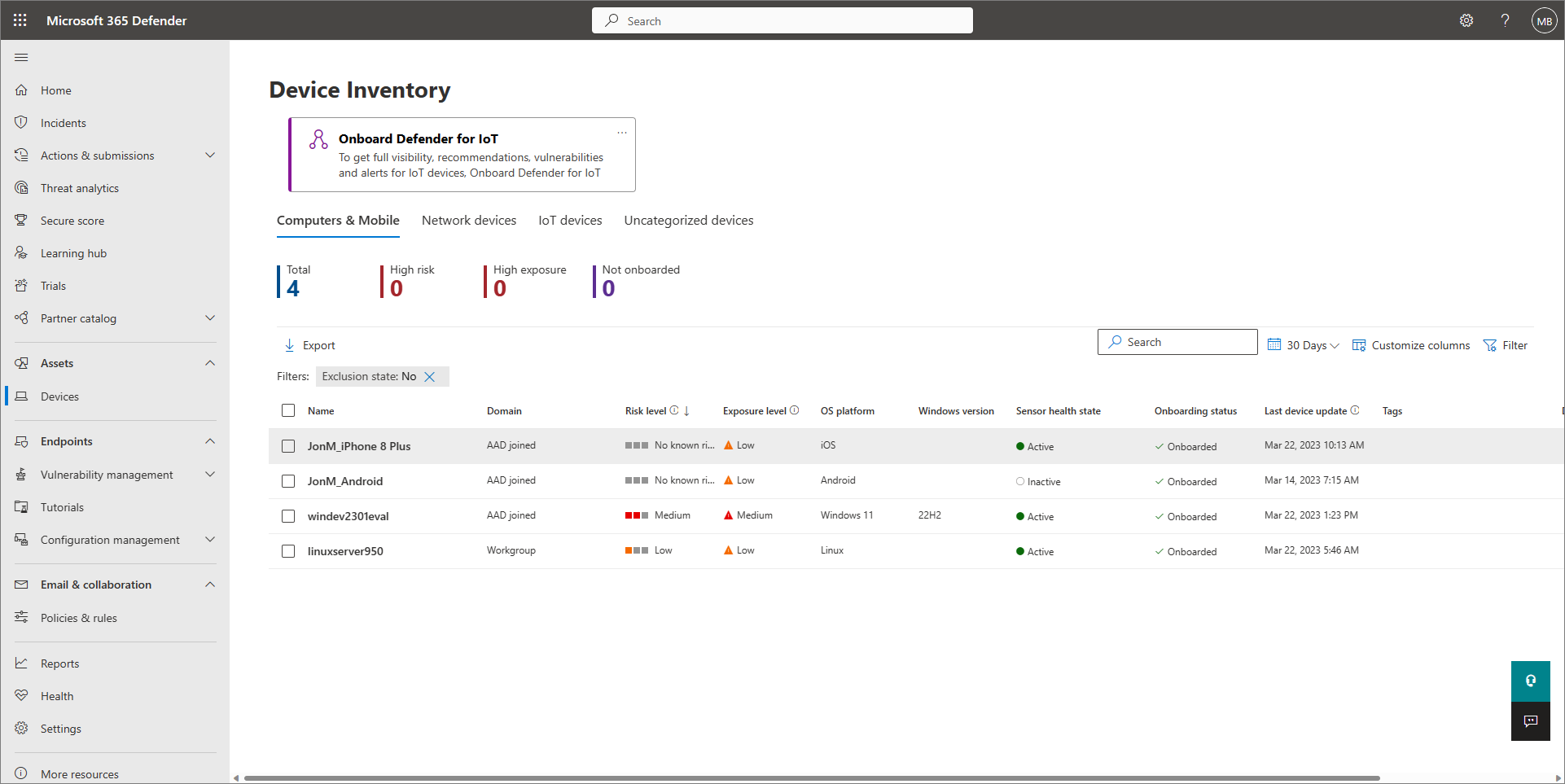
Microsoft’s older Device Inventory example separates Sensor health state from Onboarding status: an onboarded device can still be inactive. Check the actual device identity and timestamps before changing onboarding. The pictured 2023 sample is not a live fleet-health result.[8] View full-size image
When a Defender device is missing or unhealthy, identify which part failed: discovery, onboarding, sensor reporting, antivirus protection or policy application. Those states are related, but they are not interchangeable. A computer listed in inventory may only have been discovered; a running antivirus does not prove its endpoint telemetry reaches the company tenant.
Use this sequence for an authorized administrator investigating a managed Windows device. The inventory and identity checks also help with other platforms, but Windows commands and SENSE logs do not apply to macOS or mobile devices. Record the actual product, operating system and deployment method before following a platform procedure.
Defender for Business uses underlying Defender for Endpoint components. Microsoft’s Business troubleshooting guidance directs administrators to the endpoint onboarding diagnostics and Client Analyzer when the relevant setup path fails.[7]
Identify the correct device record before repairing it
In the Defender portal, open Assets > Devices. Check the onboarding status and sensor-health filters, then open the relevant device. Compare its identity with the asset register, platform, current user or owner, and last-seen evidence. Discovery and onboarding are separate inventory concepts.[1]
A reinstalled laptop can leave an old inactive identity behind. Search for its current record before concluding that the newly installed sensor failed. Use the device identifier and deployment history as well as the friendly name; renaming an asset or reusing an old hostname can make a simple name match misleading.
| What you see | First question | Evidence to collect |
|---|---|---|
| No expected record | Was this device actually onboarded to this tenant? | Asset identity, package origin, deployment assignment and local onboarding result. |
| Discovered, not onboarded | Is inventory discovery being mistaken for completed protection? | Onboarding status and approved deployment scope. |
| Inactive | Is this an unused, reinstalled or genuinely nonreporting device? | Current record, last use, last signal and replacement history. |
| Misconfigured / impaired communications | Can the sensor reach its required services? | Service-context connectivity and proxy test results. |
| Antivirus unhealthy with recent telemetry | Is the protection component in the intended mode? | Local antivirus state, competing product and effective policy. |
Inactive does not automatically mean compromised or broken. Microsoft documents unused, offboarded and reinstalled devices as possible explanations. Its misconfigured states distinguish limited communication from partial sensor data.[2]
Check local sensor and antivirus state without changing them
On an approved Windows test device, open an elevated PowerShell session and collect these read-only checks. Keep the output with the device identity and collection time; do not paste tenant or device details into public support comments.
Get-Service -Name Sense
Get-MpComputerStatus | Select-Object AMRunningMode, AntivirusEnabled, RealTimeProtectionEnabled, AntivirusSignatureLastUpdated
netsh winhttp show proxy
The SENSE service belongs to the endpoint sensor.[4] The Get-MpComputerStatus command reports the local antimalware state.[3] A healthy value in one output does not prove the other component works. If a command is unavailable, first confirm the platform, installed components and support requirements rather than installing unrelated tools.
Record whether another antivirus product remains installed and whether the intended migration expects Defender Antivirus to be active or passive. Resolve the supported coexistence design with the security administrator. Do not turn off protection or change service startup settings just to make a troubleshooting screen look green.
Use the onboarding log that corresponds to the failure
For a local-script attempt, inspect Event Viewer > Windows Logs > Application for WDATPOnboarding. For sensor events, inspect Applications and Services Logs > Microsoft > Windows > SENSE > Operational. Save the event ID, timestamp and exact error. Microsoft separates script errors from sensor operational errors, so match the event to the correct table.[4]
Check the approved package’s organization, selected operating system, execution context and deployment assignment. In a managed rollout, inspect the device’s actual policy result as well as the deployment console. An assigned policy or an accepted installation task is a request, not proof that the endpoint completed onboarding.
If onboarding and offboarding policies both target the same device, resolve that conflict at the management source. Do not keep alternating scripts. When a documented error requires a change, record the cause, expected result and rollback before applying the relevant product-specific fix.
Test the service route, not only the user’s browser
A browser can load the portal while the Windows sensor cannot reach its cloud service. The sensor uses LocalSystem and WinHTTP; browser proxy settings do not establish that service route. Microsoft also distinguishes EDR-sensor proxy settings from antivirus cloud-protection settings.[5]
Capture where the failure occurs: office network, home network, VPN, proxy or filtered segment. Compare a working and failing device under the same conditions. Review the current Microsoft connectivity guidance for the chosen connectivity type and cloud; avoid copying an old static URL list from a forum.
Use a targeted network correction when the evidence supports it. A system-wide proxy change affects other services, so it deserves change control. Do not disable the firewall, globally bypass inspection or remove certificate checks as a general troubleshooting shortcut. Retest both normal use and the relevant sensor path after the approved correction.
Collect a Client Analyzer package when the cause is still unclear
Obtain the current Client Analyzer from the link in Microsoft’s documentation. On Windows, extract it and run its MDEClientAnalyzer.cmd from an administrator command prompt. The result package includes the main MDEClientAnalyzer.htm findings and supporting logs.[6]
- Before collection: record the affected device, time, network condition and symptom being reproduced.
- During review: follow the report’s specific connectivity, prerequisite or sensor findings rather than treating every captured file as an error.
- For escalation: provide the relevant result package through the company’s approved support channel and preserve the collection context.
- After correction: confirm fresh portal telemetry, the intended protection state and the original failed reporting test.
The package can contain technical identifiers and configuration details. Keep it in restricted support storage. Rerun a focused collection after a meaningful change; repeatedly gathering the same logs without a new hypothesis adds volume without narrowing the cause.
Close the gap with a comparable retest
Consider a fictional remote laptop that reports in the office but becomes stale during normal VPN use. The administrator confirms the correct tenant and current device identity, then compares service-context connectivity on and off the normal VPN. A browser test alone would have missed that distinction. The team corrects the approved routing configuration and checks fresh telemetry under the same remote conditions.
Close the ticket when the original missing or unhealthy state is explained and the relevant path works again. Keep the finding separate from an unrelated exposure recommendation or open threat alert. A device can report correctly while still needing a patch, and it can have no active alerts while its sensor is unhealthy.
If the problem is entitlement or rollout ownership, return to Defender for Business versus Endpoint plan and rollout choices. If reporting works but the device has suspicious activity, continue with Defender alert triage and recovery checks. The vendor-neutral endpoint coverage and policy gap guide helps reconcile the rest of the fleet.
For an investigation with ALLMSP software support, bring the device identity, local and portal timestamps, onboarding method, relevant event errors and Client Analyzer findings. That evidence helps distinguish the endpoint problem from its management or network dependencies.
Frequently asked questions
Why can a device appear in Defender inventory without being protected?
Inventory may contain discovered devices that are not onboarded. Check onboarding status, current sensor reporting and local protection rather than relying on the device’s presence alone.
[1]Does an inactive Defender device always need reinstalling?
No. It may be unused, offboarded or an old identity left by reinstallation. Establish which current device record should be reporting before changing software.
[2]Is sensor health the same as antivirus health?
No. Sensor health concerns endpoint reporting; antivirus state describes local antimalware protection. Check both and keep their results distinct.
Which Windows log shows local onboarding-script errors?
Check Windows Logs > Application for WDATPOnboarding events. Use the event’s source and ID to select the matching Microsoft troubleshooting guidance.
[4]Where are Windows Defender endpoint sensor operational events?
Open Event Viewer > Applications and Services Logs > Microsoft > Windows > SENSE > Operational.
[4]Why does the portal load in a browser while the sensor cannot connect?
The browser and Windows sensor can use different network contexts and proxy settings. Validate the sensor’s WinHTTP route and the separate antivirus cloud path.
[5]What does Get-MpComputerStatus prove?
It reports local antimalware status. It does not by itself prove that the device is onboarded to the correct company tenant or that endpoint telemetry is current.
[3]When should I use Microsoft’s Client Analyzer?
Use it when sensor health, connectivity or prerequisite evidence is insufficient to explain the failure. Collect it under the affected conditions and review its HTML findings.
[6]Should I remove and re-onboard every misconfigured device?
No. Identify the failed layer and its cause first. A policy conflict, stale identity or blocked service route needs a different correction.
What is a useful resolution test for a reporting gap?
Confirm the intended device identity, fresh telemetry, expected protection state and the previously failing reporting path under comparable network and user conditions.
Sources
- Microsoft Learn: Device inventory field reference ↩
- Microsoft Learn: Fix unhealthy sensors ↩
- Microsoft Learn: Get-MpComputerStatus ↩
- Microsoft Learn: Troubleshoot Defender for Endpoint onboarding ↩
- Microsoft Learn: Configure Defender proxy connectivity ↩
- Microsoft Learn: Run Client Analyzer on Windows ↩
- Microsoft Learn: Defender for Business troubleshooting ↩
- Microsoft: Manage devices in Microsoft Defender for Business ↩


