





























































































































































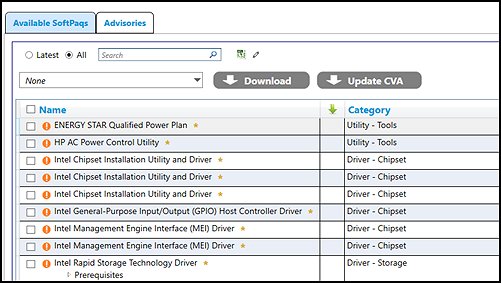
HP’s published HPIA Available SoftPaqs example shows package categories before download. Check the exact supported product and Windows target, then review recommendations and approval scope. A listed package does not prove it was installed or that the workstation passed acceptance.[5] View full-size image
Use HP Image Assistant (HPIA) to check the HP driver and firmware configuration of a supported business PC, then prove that the device works for its intended user. A completed scan is one input to deployment approval. Your sign-in, business applications, encryption, endpoint protection and dock tests still need their own evidence.
This checklist is for an IT owner preparing a repeatable HP laptop, desktop or workstation build. It produces a small approval packet: exact device identity, the reviewed HPIA findings, the changes actually made and a tested user workflow.
Check the exact platform before choosing a reference
HPIA is an HP Windows analysis and recommendation tool. Confirm the exact model and Windows release in HP’s supported-platform matrix; do not assume that every HP-branded PC qualifies. A listed configuration with an asterisk means the product did not ship with that operating system and recommendations use available HP SoftPaqs. That entry alone does not establish the operating system’s current lifecycle or your application’s support.[1][2]
Record the product number, platform system ID, Windows edition/build, architecture, BIOS version and attached dock model. Keep serial numbers and reports in your restricted asset record, rather than in a public support thread. Split different models or materially different hardware configurations into separate pilot groups.
For example, a purchasing request might describe twenty identical-looking laptops. Your intake record could reveal two platform IDs and two dock generations. Treat those as separate test combinations until the actual configuration evidence shows they can share a standard. This is an illustrative planning example, not a measured customer result.
Analyze first and keep the decision separate from installation
Download the current HPIA package from HP. Start with analysis and report review on a representative device. Its XML reference describes a configuration; it does not contain a recoverable disk image. HP’s reference and a captured known-good configuration answer different comparison questions, so record which reference you used.[3]
| Finding or condition | Decision to record | Evidence required before rollout |
|---|---|---|
| A relevant driver or firmware recommendation | Approve, defer with reason, or investigate applicability | Package identity, affected hardware, release-note review and named owner |
| A difference from a known-good device | Determine whether the difference is intentional | The approved standard and the user task it supports |
| An optional component | Include only when the device role needs it | A documented requirement rather than a larger install count |
| Platform or reference mismatch | Stop this deployment branch and verify identity | Correct model, OS and reference selection |
| An unresolved download or proxy failure | Repair the retrieval path and rerun analysis | Complete report rather than a partially retrieved recommendation list |
These are review rules for the deployment team. A recommendation does not tell you whether an accounting add-in, specialty USB device or line-of-business application tolerates the change. Keep the approved list and deliberate exceptions together so the next technician can reproduce the decision.
Handle firmware and deployment results explicitly
Schedule approved changes with a recovery path, stable power and a person responsible for restart verification. For a BIOS change, match the exact HP system information and package requirements. Verify that the authorized owner can retrieve the BitLocker recovery key before the change; follow the applicable HP instructions and your encryption policy. Never clear the TPM, remove BIOS authentication or turn off security controls simply to make an installation proceed.[4]
In automation, do not flatten every nonzero HPIA result into the same success or failure. HP documents 3010 as successful installation requiring a reboot, 3011 as a skipped package needing manual intervention, 3020 as an installation failure, and 4104 as use of a generic OS reference. Preserve the report and route the result for the appropriate review.[3]
After rebooting, compare the recorded installed state with the approved change list. A launcher exiting successfully is weaker evidence than the intended component version being present and the affected user task passing. Investigate repeat offers rather than repeatedly pushing the same update at the whole fleet.
Approve the pilot using real user tasks
| Check | What a useful pass looks like | When to hold deployment |
|---|---|---|
| First sign-in and next-day sign-in | The intended user accesses the correct profile and required business application | Wrong profile, failed authentication or a workaround requiring local admin |
| Encryption and recovery ownership | Expected protection state is confirmed and an authorized owner can locate the matching recovery record | Unknown key ownership or unexpected recovery prompts |
| Endpoint management and protection | The actual device reports to the intended management/security console | An installed agent with no current reporting or the wrong tenant |
| Dock, display, audio and network | The intended desk configuration works after restart and sleep/resume | Missing displays, unstable wired networking or charging warnings |
| Business workflow | A representative document, call or specialist task completes with the intended permissions | A failed add-in, device dependency or unresolved user-blocking defect |
Agree the pass criteria with the person who owns the work before testing. A designer’s monitor requirement and a shared reception PC’s sign-in workflow may differ even when both devices use the same HP platform. Log the actual observation and unresolved exception, not just a tick next to “tested.”
If Defender is your endpoint product, use the Defender onboarding and sensor-health guide to check the console side of that acceptance test. For a failing desk configuration, continue with the HP USB-C Dock G5 fault-isolation guide.
Leave a supportable standard, not just a finished install
Save the approved configuration, HPIA report date, package decisions, pilot results, recovery owner and deployment exceptions in one controlled record. Assign an owner to revisit the standard when the hardware combination, Windows release or required application changes. Keep full backup and restore evidence separately; an HPIA XML capture cannot recover user files.
For broader lifecycle ownership, the workstation and laptop standardization guide connects this model-specific record with onboarding, replacements and retirement. If a pilot cannot reliably start, use HP startup and UEFI diagnostic triage before attempting more driver changes.
ALLMSP’s HP business hardware support covers procurement, deployment, device troubleshooting and lifecycle documentation. Request an HP deployment review with the models, current build and business tasks you need to support so the review can focus on concrete acceptance criteria.
Frequently asked questions
What is HP Image Assistant used for?
HPIA analyzes supported HP Windows PC configurations and helps identify relevant HP component recommendations. Use its findings as input to a reviewed deployment standard, alongside application, security and user-workflow tests.
[1]Does HPIA support every HP laptop or desktop?
No. Check the exact model and operating-system combination in the current supported-platform list. A general brand name or similar-looking model is not enough to establish support.
[2]What does an asterisk in the HPIA platform list mean?
It means the product did not ship with that operating system; HPIA provides recommendations based on SoftPaqs available from HP. Separately confirm the operating system and application support requirements.
[2]Is an HPIA reference XML file a backup?
No. The XML describes a configuration for comparison. It does not contain the disk contents or user data and cannot replace a recoverable backup.
[3]Should I install every HPIA recommendation?
Review applicability, release notes, device role and dependencies first. Record approved packages and justified deferrals, then test the resulting configuration on a representative pilot device.
What should I do when HPIA returns 3010?
HP defines 3010 as successful installation with at least one reboot required. Complete the controlled restart, confirm the intended installed state and repeat the relevant acceptance tests.
[3]What does HPIA return code 4104 mean?
HP defines 4104 as inability to find a supported OS reference for the platform, causing a generic reference to be used. Review model and OS applicability before approving deployment.
[3]What should be checked before an HP BIOS update?
Match the exact product and system information to the package, review its instructions, maintain reliable power and confirm authorized access to the BitLocker recovery key when encryption is enabled.
[4]What should an HP deployment pilot actually test?
Test intended-user sign-in, required applications, encryption ownership, management and protection reporting, the actual dock/display setup, restart and sleep/resume. Define the expected result before testing.
What evidence should the next technician receive?
Provide device identity, approved configuration, HPIA report, package decisions, tested workflows, unresolved exceptions and the responsible support and recovery owners. Keep sensitive identifiers and reports in controlled documentation.
Sources
- HP Image Assistant | HP Client Management Solutions ↩
- HP Image Assistant Supported Platforms | HP Client Management Solutions ↩
- HP Image Assistant User Guide ↩
- HP Business Notebook PCs - Updating the BIOS (Basic Input Output System) ↩
- HP Image Assistant available package review — HP primary support PDF ↩


