





























































































































































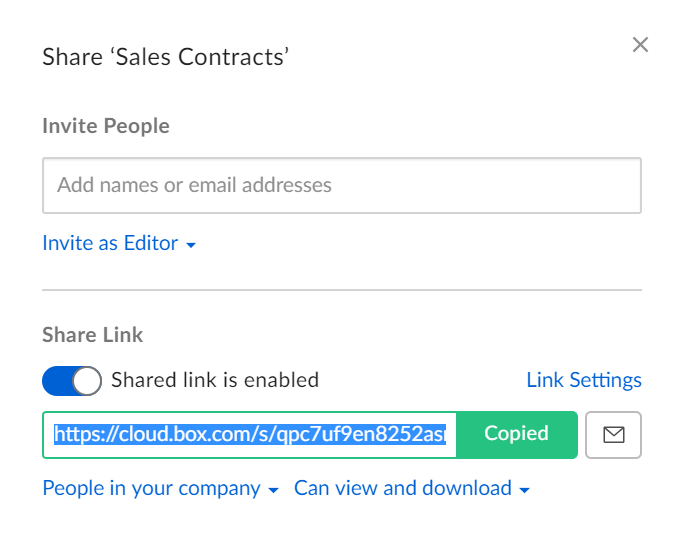
Box’s published Sales Contracts example separates Invite People from the shared link, its company audience and allowed action. Confirm the intended recipient’s actual account and effective access; the example does not establish that your client can open the file.[1] View full-size product image
A Box link that opens for its sender can still fail for the intended recipient. Start with the exact file or folder, signed-in account and requested action. A preview failure, a download restriction and a missing collaboration are different problems. Do not switch a confidential link to public access just to make an error disappear.
Reproduce the recipient’s problem with the right identity
Record the item owner, the intended recipient’s exact account address, the observed message and the action that fails. Ask the recipient to confirm which Box account is active, especially if they use both a personal account and an employer-managed account. Have them open the approved link themselves; do not request their password or copy their session.
If the intended audience is company-only, check the organization’s configured definition of company rather than assuming every similar email domain qualifies. For an invited-only link, confirm an accepted collaboration at the item or applicable folder. Use the item owner’s view to inspect access instead of treating the sender’s successful test as a recipient test.[1][3]
| Observation | Check next | Avoid this shortcut |
|---|---|---|
| Sender opens it; intended recipient cannot | Recipient identity, collaboration and the link audience | Changing the link to anyone without an approved sharing decision |
| Recipient can preview but cannot download | Allowed link action and effective item permission | Calling it a broken link or demanding Editor for a view-only task |
| Desired audience option is missing | Owner role, folder restriction and enterprise maximum | Moving sensitive content elsewhere to bypass a policy |
| An invited colleague has broader access than expected | All effective collaborator and link permissions | Assuming the narrower-looking control always wins |
| Nobody can open the expected item | Owner’s current item location/status and the exact copied link | Repeatedly forwarding a different similarly named folder |
Inspect audience and actions without silently widening them
In the Share window, review the link audience and its action setting. Choose the smallest approved access that actually supports the task. If a recipient needs a persistent working relationship, decide whether an explicit collaboration is appropriate rather than treating an open link as a substitute for that decision.[1]
Box documents that the least restrictive set applies when a person has multiple permission sets. A link granting editing can broaden a Viewer’s effective rights. Test both the required action and the action that should remain unavailable.[2]
Advanced folder roles depend on plan and admin settings; single-file roles are narrower. Link passwords and automatic expiry are paid features. A missing option is not by itself an application fault.[2]
Check the folder and organization when options are unavailable
The owner should review the relevant folder restrictions, including who may send invitations and whether link users must already be collaborators. The administrator can then compare the enterprise sharing limits with the intended business task. Document any approved change and its affected content before applying it; changing an enterprise audience limit can affect existing links, not just the next link created.[3][4]
Use a recipient test that includes a negative check
The following is an illustrative acceptance test, not a client result. Use a harmless test item with the same intended controls. Record outcomes for the actual recipient and an authorized comparison account; do not invite an unrelated person to confidential content just to produce a denial.
| Test | Illustrative result | Decision |
|---|---|---|
| Confirm the intended account | The client was signed into a second Box identity | Repeat with the approved client identity before changing permissions |
| Check the approved audience | The link is invited-only; the intended collaboration was not accepted | Resolve the legitimate invitation rather than publish the file |
| Test the required task | The intended client opens the harmless draft | Record the item and account that passed |
| Test the prohibited task | Editing is unavailable in the approved test context | Keep the narrower workflow; do not infer other content is secure |
| Review wider grants | An unrelated broad link or collaborator grant would change the result | Remove or change it only through the owner’s approved review |
Close the ticket with the tested item, recipient identity, audience, allowed action and any owner/admin change. Keep the actual link and account identifiers in the controlled ticket, not a public screenshot. If the owner cannot explain the effective access, leave the sharing question open rather than call a successful preview a complete permission audit.
If the browser copy is accessible but the local file is missing, move to the Box Drive offline checks. If an owner is leaving, use the Box handover and transfer checks before removing their account. For a separate Dropbox environment, the Dropbox link-permission guide provides its own product-specific review; do not copy Box role assumptions into it.
Frequently asked questions
Does sending a Box shared link invite someone as a collaborator?
No. A shared link and a collaborator invitation are separate. An invited-only link directs someone who already has the required collaboration; sending the URL alone does not create that relationship.
[1]Why does a Box link work for me but not for my client?
Compare the signed-in recipient identity, intended audience and actual collaboration. Your owner or collaborator access can explain why your own test succeeds. Reproduce the failed action with the intended recipient before changing any setting.
[1]Should I choose People with the link to fix access?
Only if that wider audience is explicitly appropriate for the content. An access error is not authorization to publish a link broadly. First resolve the correct identity, legitimate invitation and approved audience.
[1]Can a shared link give a Viewer more access?
Yes. Box applies the least restrictive permission set, so a link can broaden a Viewer’s rights. Inspect wider grants and test the actual allowed actions.
[2]Why can someone preview a file but not download it?
Why is a sharing option missing from Box?
Can every Box account password-protect or expire a link?
No. Box documents password protection and auto-expiration as paid-plan features. Confirm the actual account and administrator policy.
[2]Does a matching email domain prove company-only access?
Do not assume that from the address alone. Check the enterprise’s definition of company and test the actual recipient account against the intended link. Similar-looking domains and alternate Box identities are poor substitutes for that test.
[3]Will a stricter enterprise sharing limit affect old links?
It can. Box documents that enterprise sharing restrictions can lower existing broader links as well as restrict new ones. Review the affected content and communicate the approved change before applying a company-wide setting.
[3]What proves the Box sharing repair is complete?
The intended account completes the required action on the correct item, while the prohibited action remains unavailable in the approved test. Record the controls and any wider grants reviewed; one successful preview alone is not a complete access audit.


