Jobber can connect a home-service inquiry to a paid invoice, but an account does not become an operating system just because users, clients, and jobs have been entered. A plumbing, HVAC, electrical, landscaping, or specialty contractor still needs common definitions for a qualified request, a quote ready for approval, an assigned visit, completed field work, an invoice ready to send, and an exception that requires office attention. Without those definitions, Jobber may faithfully digitize the ambiguity already present in phone notes and spreadsheets.
The durable approach is to configure the platform in the same order the company delivers service. Establish the business identity and regional behavior, standardize services and taxes, decide which custom information belongs at client, property, quote, job, or invoice level, and then prove the request-to-payment path with representative work. Jobber’s own workflow documentation treats requests as optional and describes quotes, jobs, invoices, and payments as connected building blocks, which gives each company room to design a flow without skipping control points.
For a Georgia contractor, the pilot should include the real differences that disrupt a generic demo: an assessment before a repair, a quote with optional work, a recurring maintenance visit, an emergency call, an anytime task, a deposit, a change requested through Client Hub, a technician with limited mobile access, and a payment collected after service. The purpose of this guide is to turn those scenarios into a Jobber configuration and operating checklist that dispatch, field, billing, and management can all verify.
Key decisions at a glance
- Set company details, business hours, regional choices, tax behavior, products and services, custom fields, and customer documents before importing a large live workload.
- Define who owns each Jobber transition from request and quote through job, visit completion, invoice, payment, and exception follow-up.
- Model scheduled, anytime, and unscheduled visits deliberately so the dispatcher and mobile crew share the same meaning for today’s work.
- Pilot Client Hub with test customers and remember that anyone who receives a hub link can reach the same shared information.
- Measure quote aging, unscheduled work, incomplete visits, uninvoiced jobs, and unpaid invoices as operating queues with named owners.
Stabilize the Account, Service Catalog, and Data Model
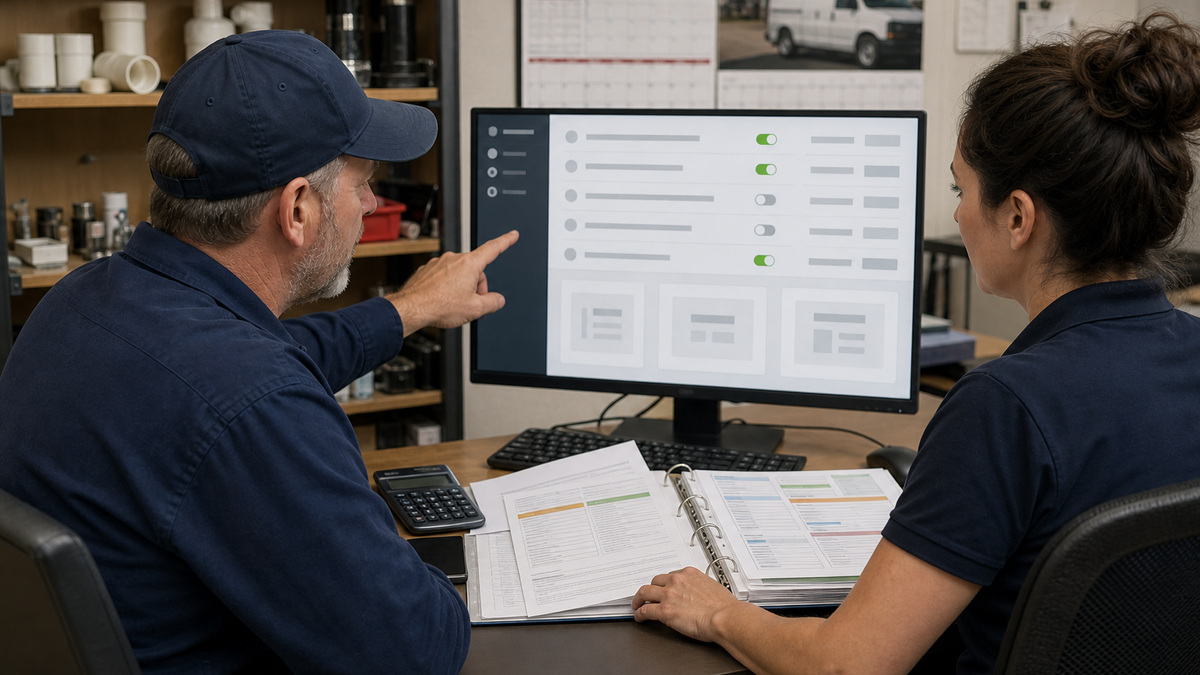
Begin in Company Settings with information that Jobber reuses across the account and customer documents. Confirm the legal or customer-facing company name, addresses, contact details, logo only if an approved current asset is available, business hours, time zone, date format, first day of the calendar week, country, currency implications, and tax settings. Make a PDF quote and invoice from a test client after saving changes, because a setting that looks correct in administration can still appear awkwardly in the document a homeowner receives.
Build a controlled Products and Services list around the work technicians and estimators actually sell. Use consistent service names, descriptions, default quantities, unit prices, and tax treatment, separate a diagnostic visit from the repair that may follow, and decide how materials, labor, permits, disposal, discounts, and optional upgrades should appear. Jobber supports bulk updates to this list, but a small reviewed sample is safer than importing years of inconsistent descriptions and discovering that reporting now splits one service across many near-duplicates.
Use custom fields only when the value has a clear owner, level, and operational purpose. Jobber supports fields on clients, properties, quotes, jobs, and invoices, and internal fields remain internal unless configured otherwise. Decide whether equipment identifiers, gate instructions, warranty dates, service zones, purchase-order references, or property hazards belong on a specific record. Archiving preserves a cleaner interface, while deleting a field permanently removes its data, so document retention and reporting consequences before an administrator deletes anything.
- Create one test client and property that never represents a real person, then use it for document and automation checks.
- Approve a naming convention for services, visit titles, job types, custom fields, tags, and internal notes before bulk entry.
- Assign a catalog owner who reviews new items and merges avoidable duplicates instead of letting every user improvise.
- Export or otherwise preserve required data before deleting a custom field, product, service, or other shared configuration.
Design the Request-to-Invoice Workflow With Explicit Gates
Map the normal path on paper before configuring exceptions. A Jobber request can capture an inquiry and may lead to an on-site assessment, quote, or job, the request stage is optional when the company already has enough information to proceed. Define the minimum details needed to accept a request, who qualifies it, when an assessment is required, and what closes it. A request should not remain open merely because nobody knows whether it became a quote or direct job.
Treat the quote as a controlled scope and commercial decision. Standardize line descriptions and optional items, confirm taxes and deposit expectations, identify who may edit pricing, and decide how requested changes are returned to estimating. Jobber lets a client review a quote through Client Hub and approve it or ask for changes, and an approved quote can move into job and scheduling work. Preserve the approved scope, if field conditions change, record the change and secure the required customer decision rather than silently overwriting the original understanding.
Define completion separately for the visit, job, and billing process. A technician may complete today’s visit while the job remains open for parts or a return trip. Billing needs a rule for when the invoice is generated, reviewed, sent, and followed up, plus a queue for completed work that has not become an invoice. Give every transition an owner, service target, and exception reason so management can distinguish normal waiting from a handoff that has stalled.
- Write acceptance criteria for request qualified, quote ready, quote approved, job ready to schedule, visit complete, and invoice ready.
- Route change requests back to the estimator or authorized manager instead of letting field notes substitute for revised scope.
- Use a short list of meaningful exception reasons, such as awaiting customer, parts, permit, access, weather, or internal review.
- Review aging queues by stage each week and resolve the cause rather than repeatedly changing dates to make the schedule look current.
Configure Visits and Mobile Work for Dispatch Reality
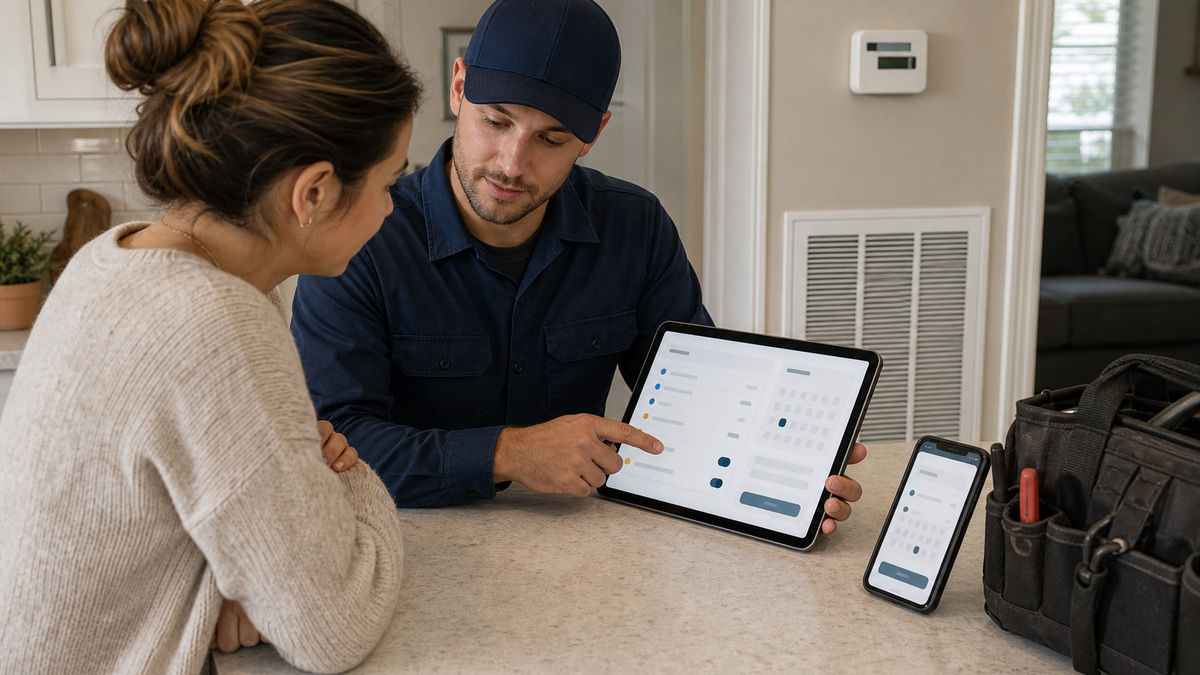
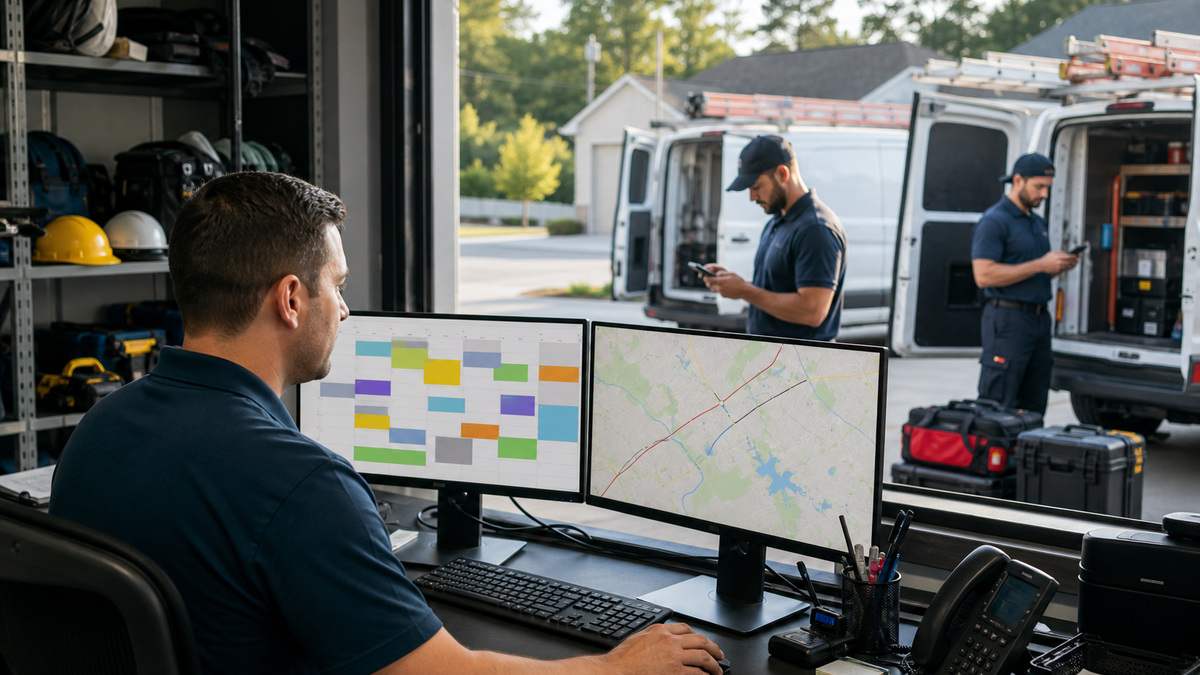
Jobber distinguishes scheduled visits, anytime visits, and unscheduled visits. Use those states intentionally. A scheduled visit has a date and time that the customer and crew can plan around, an anytime visit belongs on a date without a promised arrival time, an unscheduled visit represents work that still needs placement. Decide which roles may create or move each type, what triggers customer communication, and how dispatchers handle a visit that cannot be completed within its original window.
Make visit titles, instructions, and assignments useful on a small mobile screen. A technician should see the property, customer-approved scope, safety or access notes, assigned tasks, and required evidence without searching through unrelated history. Keep sensitive internal comments out of fields that may reach the client. Test the Jobber app on the phones and tablets the crew will carry, including weak connectivity, camera permissions, notifications, time tracking if used, and the exact process for recording work and marking a visit complete.
Run dispatch rehearsals with more than an ideal single-day route. Include a late emergency, an assessment converted into quoted work, a technician absence, a job waiting on parts, a recurring visit, and work reassigned between crews. The dispatcher should be able to move the visit, preserve the client and job context, communicate the change, and leave a traceable reason. The crew should know which Jobber screen is authoritative when a phone call or text conflicts with the current schedule.
- Create a dispatch runbook for same-day additions, cancellations, no-access visits, weather delays, absences, and overtime approval.
- Test each permission preset on an actual field device rather than assuming desktop access behaves the same in the app.
- Require technicians to record a concise outcome and next step before marking a visit complete.
- Keep an owned list of unscheduled visits and audit it frequently so deferred work does not disappear from daily attention.
Pilot Client Hub and Operate the Finished System
Client Hub can give customers a view of requests, quotes, appointments, and invoices, depending on available records and settings, and it can support quote decisions and payments. Test every customer-visible state with internal test contacts before launch. Confirm document appearance, email and text wording, appointment time presentation, requested-change handling, deposit or payment flow, and what a customer sees after work is rescheduled, invoiced, or paid. Include a mobile browser because many homeowners will never open the hub on a desktop computer.
Treat the hub link as sensitive business information. Jobber describes a passwordless link delivered by email or text and notes that anyone given that link can access the same information. Verify the recipient address and phone number, train staff not to paste client links into shared channels, and avoid placing unnecessary private details in customer-visible records. Establish a response owner for change requests and questions so giving a customer a digital channel does not create another unattended inbox.
Close implementation with operational evidence: approved settings, data definitions, catalog owner, workflow map, permission matrix, dispatch runbook, customer-communication templates, test results, import reconciliation, and an issue queue. ALLMSP can connect that application work to managed IT, device management, identity, security, and support for contractors in Lawrenceville, Suwanee, Gwinnett County, Metro Atlanta, and across Georgia. Review the build after the first week, month, and quarter using actual queue aging and field feedback rather than relying on launch-day confidence.
- Pilot with a small group of office users, technicians, service types, and consenting test customers before account-wide adoption.
- Reconcile record counts and sample details after every import, do not assume a successful upload means the data is operationally correct.
- Track open requests, quote age, unscheduled visits, incomplete work, uninvoiced jobs, invoice age, and payment exceptions.
- Maintain a change log for settings, forms, fields, catalog items, automations, permissions, and connected applications.
Official product documentation and ALLMSP resources
- Jobber Help Center: Company Settings
- Jobber Help Center: First Steps Basic Account Set Up
- Jobber Help Center: Jobber Workflow Overview
- Jobber Help Center: Quote Basics
- Jobber Help Center: Visits
- Jobber Help Center: Requests in the Jobber App
- Jobber Help Center: Custom Fields
- Jobber Help Center: What Clients See in Client Hub
- ALLMSP Software Support
- ALLMSP Managed IT Services
- ALLMSP Cloud Computing and Migrations
- ALLMSP Construction and Contracting Resources
- ALLMSP Jobber Support Category
- Contact ALLMSP
Frequently Asked Questions
What should a contractor configure first in Jobber?
Start with company details, business hours, time zone, regional and tax choices, customer document appearance, products and services, and a small set of purposeful custom fields. Then create a test client and run a representative request, quote, job, visit, invoice, and payment before importing a large live data set.
Does every Jobber workflow have to begin with a request?
No. Jobber describes requests as an optional workflow stage. Use one when the company needs to capture and qualify an inquiry or schedule an assessment, create a quote or job directly when verified information already supports that step. Document the rule so users do not create duplicate records for the same customer need.
How should products and services be organized in Jobber?
Use controlled names, descriptions, default quantities, unit prices, and tax treatment that match how the company estimates, performs, and reports work. Separate diagnostically different or financially different services, assign one catalog owner, and prevent near-duplicate entries that fragment sales and profitability analysis.
Where should equipment information be stored in Jobber?
Choose the record level that matches the information’s lifespan and use. Property-level fields can fit installed equipment tied to a location, while a job field may fit work-specific facts and an invoice field may fit a required billing reference. Test whether a field is internal or customer-visible before entering sensitive details.
What is the difference between scheduled, anytime, and unscheduled visits?
A scheduled visit has a defined date and time, an anytime visit belongs on a date without a specific time, and an unscheduled visit still requires placement. Give each state an operational meaning, owner, and review cadence so work is not hidden in an indefinite backlog.
Can a completed Jobber visit still leave the job open?
Yes. Completing today’s visit can be different from completing the overall job, especially when parts, inspections, return trips, or additional approved work remain. Define what the technician closes, what the office reviews, and when billing may issue an invoice.
What should be tested in the Jobber mobile app?
Test each real device and permission level for sign-in, client and property access, schedule visibility, instructions, notes, photos, time tracking if used, completion, notifications, and weak connectivity. Use real workflow scenarios but non-production customer data during the initial test.
Is a Jobber Client Hub link private?
It should be handled as sensitive. Jobber says the link is passwordless and that anyone who is given it can access the same information. Verify the recipient, avoid sharing the link in broad channels, minimize unnecessary private content, and have a process for correcting contact details.
How can a company tell whether its Jobber rollout is working?
Watch operational queues: unqualified requests, aging quotes, unscheduled visits, incomplete work, completed jobs without invoices, unpaid invoices, payment exceptions, and customer change requests. Compare those measures with dispatcher and technician feedback after the first week, month, and quarter.
How can ALLMSP help a Georgia contractor implement Jobber?
ALLMSP can document the workflow, configure and test the account, plan imports, align permissions, verify mobile devices and identity controls, connect supported integrations, train office and field users, and provide an accountable support path for Georgia construction and home-service organizations.