





























































































































































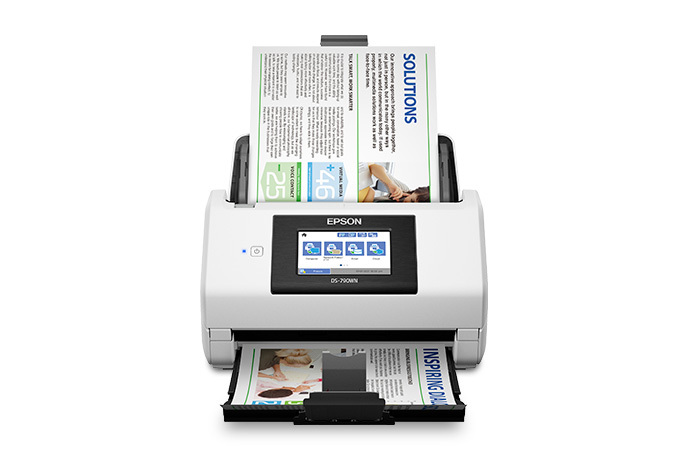
Epson’s DS-790WN product view shows the input guides and output tray with a manufacturer sample sheet. Check your own stack and loading against the model guide, then count sheets and labeled sides after a test. This photo does not show roller wear or prove that a batch is complete.[10]
A missing page in a scan can mean two sheets fed together, a side was never requested, a blank-page rule removed an image, or pages were saved into separate files. Those are different faults. Before adjusting a DS-790WN or replacing its rollers, use a small known stack and compare physical sheets, expected sides and reopened output.[4][9]
This guide is specifically for the Epson DS-790WN and its current user guide. The manufacturer photo identifies that scanner; it does not show roller condition or prove a successful batch. Use non-confidential test sheets and keep valuable, damaged or unusual originals out of an ordinary feeder test.[1][10]
Build a baseline that exposes lost sides
Prepare five ordinary, same-size sheets marked on both sides: 1F/1B through 5F/5B. Select the intended two-sided capture, disable blank-page skipping and image stitching for this comparison, and save a multipage PDF. Your expected baseline is ten separately identifiable side images, not five files. This is an original diagnostic example, not a manufacturer performance guarantee.[9]
| Observation in the controlled test | Possible branch | Next comparison |
|---|---|---|
| Only one side of each sheet appears | Scan-side selection | Confirm the requested sides before cleaning rollers |
| A marked side disappears but sheets fed singly | Blank-page, stitching or later output processing | Inspect capture/output settings and reopen the PDF |
| Two physical sheets enter together | Loading, media or separation | Stop and compare a smaller compliant stack |
| All images exist in separate files | Output format or file organization | Use a multipage format and reconcile every side |
| Sheets skew, crease or jam repeatedly | Loading, obstruction or worn/dirty parts | Follow the model’s jam and maintenance procedure |
Check the stack and loading before blaming the rollers
Epson’s standard loading sequence uses originals face down, top edge first, with the edge guides against the stack. Fan and reload a smaller same-size set for comparison. Its capacity depends on paper type and weight: the advertised 100-sheet case is not permission to load 100 thick, curled or mixed originals.[1][2][4]
Do not treat every small or unusual original as ordinary paper. The DS-790WN specifications exclude items such as stapled, wet or directly loaded thermal originals; special documents have their own carrier-sheet requirements. Inspect the exact original category before feeding it. A carrier sheet must be the type documented for this product, not an improvised plastic sleeve.[2][3]
If thin or wrinkled compliant originals still feed badly, the guide documents a slower-feed option. Use that as a controlled comparison, with fewer sheets and a fresh count. Do not make disabling double-feed detection the default cure for missing pages. The manual has exceptions for specific special originals; record such a temporary setting and restore the ordinary-paper baseline afterward.[1][3][4]
Clear a jam and maintain the documented parts
For a jam, turn the DS-790WN off, remove the input originals, open it using the cover lever and gently remove trapped sheets from the paths shown in the guide. Do not keep pulling a valuable original through resistance. After closing and reloading, repeat the small test before trusting a full batch.[5]
Interior cleaning begins with power off, the AC adapter unplugged and cables disconnected. Epson distinguishes glass, sensors and rollers: it prohibits alcohol/oil and direct spraying, and specifies appropriate cloths or its cleaning kit. Read the complete illustrated procedure before removing a roller. Its later powered Roller Cleaning mode is a separate step; do not collapse all maintenance into a single power-state instruction.[6]
Recurring jams after correct loading and cleaning can justify checking the roller counter and the correct replacement kit. Wear can occur before the nominal lifecycle, so neither a low counter nor a reset proves good rollers. Follow the model’s replacement sequence and reset the replacement counter after actual roller replacement, not to hide an alert.[7][8]
Accept a batch by its content, not a green completion message
The following worked example is a proposed acceptance log. For ordinary two-sided test sheets, keep settings that expose every labeled side; then separately test any required blank-page or special-media workflow. Do not alter original business records merely to make the page count fit.
| Stage | Expected evidence | If it fails |
|---|---|---|
| Controlled loading | Five identified compliant sheets, ordinary baseline settings | Correct loading/media before another full batch |
| Physical feed | No unintended double feed, crease or repeated skew | Use the guide’s feed/jam/maintenance branch |
| Reopened baseline PDF | Ten labeled side images:1F/1B through5F/5B | Separate a feeder loss from a setting or output loss |
| Repetition | Same known stack passes again without a hidden setting change | Do not rely on a single lucky pass |
| Normal production settings | Required pages/sides reconcile to the original stack | Document intentional blank removal or special-media exceptions |
If the application never sees a scanner, mechanical maintenance is the wrong starting point. The ES-580W detection guide explains the connection/app distinction; use the DS-790WN’s own software for this model. The WF-4830 offline guide is for a separate printer path. For a Canon multifunction device, use its model-specific paper/scan checks instead of copying Epson roller instructions.
Frequently asked questions
Five sheets produced five images. Did the DS-790WN lose pages?
Not necessarily. First establish whether both sides were requested and whether stitching or blank-page rules changed the output. In the controlled example, five deliberately marked two-sided sheets should yield ten identifiable side images; a file count alone is not a page audit.
[9]Why can a completed PDF still be missing information?
The job can finish while a side was omitted, blank-page processing removed content, or multiple sheets fed together. Reopen the file and reconcile the marked sides to the original stack instead of accepting a completion message as completeness proof.
Can I load 100 sheets of any material into this scanner?
No. Capacity varies with size, weight and paper type. Epson’s 100-sheet specification is a particular ordinary-paper case. Use a small compliant stack for diagnosis and check the exact media table before a larger batch.
[2]What is the standard DS-790WN loading orientation?
For standard originals, the model guide specifies printed side down and top edge first, with the edge guides against the stack. Special originals and long paper have different instructions; do not generalize the ordinary-paper setup.
[1]Should I turn Detect Double Feed off to stop every error?
Can I feed thermal receipts, stapled pages or valuable photos like plain paper?
How should I start clearing an actual jam?
Turn the scanner off and follow the illustrated cover-lever and removal procedure for the trapped sheet. Remove the input stack and avoid force. Recheck loading and repeat a small compliant test before returning to a full batch.
[5]Can I use alcohol or spray cleaner inside the DS-790WN?
The guide prohibits alcohol and direct spraying. Follow its separate glass, sensor and roller instructions with the specified materials. Maintenance starts unplugged, while the later documented powered roller-cleaning mode is a distinct procedure.
[6]When should the roller replacement counter be reset?
What should I include when repeated jams need escalation?
Record the exact model, error, media size/weight, compliant stack size, physical symptom, roller history and the labeled-side results. Include relevant samples only through the approved secure process. That separates a recurring feed fault from output settings or an unsupported original.


