





























































































































































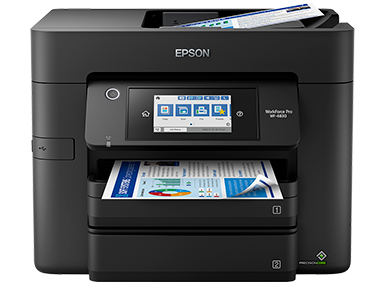
Epson’s WF-4830 support image identifies the model and its front control panel. Check that display for a device error before changing a computer queue, then use the printer’s network reports. A powered screen or sample output in a product photo is not a connection test.[1]
An Epson WF-4830 marked offline does not identify the failed part. The printer may be disconnected, the computer may address an old destination, or one application may be holding a bad job. Start with a report printed by the device, then test one computer queue. This keeps a working office network from being reset to solve a single-PC problem.[2][3]
This guide uses the WorkForce Pro WF-4830 as its concrete example. Identify the label on the actual device, its connection, the computer OS and whether a print server owns the queue. Use the model support page and select the real OS before obtaining software. These instructions do not make another Epson model or an older installer interchangeable.[1]
Separate device status, network reachability and the computer queue
On the WF-4830, use Settings > General Settings > Network Settings > Network Status > Print Status Sheet to record its current network details. A sheet printed locally proves that this device can produce that sheet; it does not prove the computer is sending jobs to it. Record the current address and connection before changing a port or reservation.[2]
For a failed connection, use Network Settings > Connection Check > Print Check Report and retain its exact code/message. Work from that evidence rather than assuming every disconnected printer needs a new driver. Epson separately documents unexpected self-assigned addressing and physical Ethernet checks; have the network owner verify the intended subnet, address allocation and permitted path.[3][4]
| Observed comparison | Useful next check | What the comparison does not establish |
|---|---|---|
| Printer cannot produce its own report | Resolve the displayed device/paper condition first | A computer driver reinstall has not been justified |
| Report prints, but every approved computer fails | Check current network status/address and the permitted printer path | A powered screen is not proof of network reachability |
| A second computer prints; one PC does not | Compare the failing PC’s selected queue, destination and driver | The second PC does not certify the first PC’s setup |
| A simple document prints; one PDF fails | Test that file and application separately | Do not reset the whole printer network for one document |
Inspect the intended queue before reinstalling
In Windows 11, open Settings > Bluetooth & devices > Printers & scanners, select the intended Epson and inspect Open print queue. Confirm which jobs belong to the user before canceling them. The Windows Get Help printer troubleshooter is a documented next option; record the before/after queue and repeat the same small print test after any change.[5]
If the computer still uses an old printer address, compare that target with the fresh status sheet. Keep the existing queue name, driver and intended settings in the change record; creating several similar queues can make the next failure harder to identify. Coordinate a stable addressing plan with the network owner. Do not copy an address from an online example or change a shared server queue casually.[2][4]
Check the Windows system type before choosing an installer. Microsoft identifies a separate Windows-on-ARM installation issue and directs users to Add device unless the manufacturer supplies different guidance. A successful generic print path does not establish Epson scanner-software support or every finishing feature.[6]
On a Mac, use System Settings > Printers & Scanners and verify the selected printer and software. Apple documents adding a printer by network address and notes that generic protocols can limit features. The WF-4830 guide documents AirPrint; test the paper size and duplex choice you actually need instead of treating one successful page as full feature acceptance.[7][8]
Keep a small, repeatable acceptance record
The following is an illustrative test log, not an ALLMSP client result. Addresses A and B mean the actual current and previous destinations you recorded; they are not values to enter into a printer. Change one cause at a time and retain enough evidence to reverse a mistaken queue change.
| Check | Illustrative observation | Acceptance decision |
|---|---|---|
| Device report | WF-4830 reports current address A | Keep that dated report with the job record |
| Known-working computer | Same small document prints to A | Keep the device/network path separate from the failing PC |
| Failing computer | Selected queue still targets B | Correct only the approved queue after recording its old settings |
| Repeat after approved change | Same document, needed paper/duplex settings and normal reconnect pass | Record the real result; a cleared queue alone is insufficient |
If only a PDF fails, continue with the file/app/printer comparison for Acrobat. For another device in a mixed fleet, use its own Canon driver deployment or Brother troubleshooting procedure; their drivers and controls are not Epson instructions.
Need a scanner rather than paper output? The ES-580W app/network detection guide separates scanner registration from a printer queue. If a scanner is detected but loses physical pages, the DS-790WN counted-sheet guide explains a different diagnosis, with its own model-specific loading instructions.
Frequently asked questions
Why can my WF-4830 be powered on but still show offline?
Which WF-4830 report should I keep?
The printer shows a 169.254 address. Should I enter a random static IP?
No. Epson flags that address with a 255.255.0.0 mask as potentially incorrect. Have the network owner compare it with the office’s intended addressing and DHCP configuration rather than inventing an address or causing a conflict.
[4]My phone prints but one Windows PC does not. Is the printer repaired?
That comparison narrows the investigation to the failing computer’s path; it does not repair its queue. Check the selected Epson queue, its destination and an agreed small test document on that same PC.
[5]Should I cancel every print job or restart a shared spooler?
Identify whose jobs and which host are involved first. Cancel only approved work. A managed print server or shared queue needs its owner’s coordination; use a repeatable print test after any authorized queue or spooler change.
[5]Can an x64 Epson installer be assumed to work on a Windows ARM PC?
Can I use AirPrint on the WF-4830 instead of guessing at a Mac driver?
Should I factory-reset the printer when an address changed?
A reset can discard working managed settings without addressing the bad computer queue. Record the printer’s current configuration and ask the network owner to correct the specific destination or addressing problem first.
[2]Why does one Acrobat PDF fail when a basic document prints?
Keep the successful control document as evidence, then compare the problem PDF and application. A file-specific failure is a different branch from a disconnected printer; use the linked Acrobat diagnostic instead of restarting the entire office network.
What proves the offline issue is resolved?
The intended computer must print the same control document through the approved normal connection, with the required paper and duplex choices, and pass the normal reconnect test. Record the selected queue and result; a disappearing offline label alone is insufficient.
Sources
- Epson: WorkForce Pro WF-4830 support and model image ↩
- Printing a Network Status Sheet ↩
- Printing a Network Connection Report ↩
- Cannot Print Over a Network ↩
- Microsoft: Troubleshooting offline printer problems in Windows ↩
- Microsoft: Download and install printer drivers ↩
- Apple: Add and manage printers on Mac ↩
- Using AirPrint ↩


