





























































































































































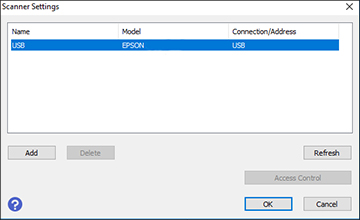
Epson’s ES-580W manual illustrates Scanner Settings with a generic EPSON USB entry selected. USB selection is separate from network registration: use Add with the intended scanner’s actual address for that path. This manual example does not prove an ES-580W was detected; current layouts may differ.[1]
If an ES-580W is absent from Epson ScanSmart, first identify which connection and which application are being tested. A USB connection, a Wi-Fi registration and the scanner’s control-panel destination are separate paths. Adding a printer queue will not register this document scanner in its scanning application. Keep a one-page, non-confidential original ready for a controlled test.[1][2]
The example is the Epson WorkForce ES-580W. Its current guide shares instructions with the RR-600W where noted, but this article does not promise every Epson scanner has the same controls. Obtain software for the exact model and OS from Epson’s support page. The current manual lists Windows 11 and macOS Tahoe 26.x among its system requirements; verify the selected OS download rather than using a package saved for an older machine.[5][6][7]
Confirm the app and connection before changing network settings
For the network path, first connect the scanner to the intended network and record its current IP address or hostname. Open Epson Scan 2 Utility, choose Settings from its Scanner list and use Add. The guide permits either a discovered network address or Enter address. Confirm the connection and save the setting. Its older Windows launch illustrations are examples, not a claim that the current OS menu looks identical.[1]
| Observed state | Controlled next test | Do not infer |
|---|---|---|
| USB works; Wi-Fi scanner is absent | Check the intended network and register its actual address | USB success has not tested Wi-Fi or network policy |
| Utility can check the intended address; ScanSmart selects another product | Use ScanSmart Change and confirm the intended product | A familiar display name is not unique device identity |
| No approved network computer can reach the scanner | Ask the network owner to check the permitted path and scanner policy | Reinstalling every app will not fix a blocked route |
| Preview works; save fails | Test a permitted local output location separately | The failure is no longer simply “scanner not detected” |
Use a bounded connection test, not a security reset
The manual’s network diagnosis starts with scanner errors, the intended network/subnet and the Utility connection setting. If discovery fails, an administrator can test the documented explicit-address path and the approved network rules. Preserve segmentation and security controls; do not disable an office firewall or bridge networks as a routine fix. An address test that passes is still not an end-to-end saved scan.[4]
A managed scanner can intentionally have network scanning disabled: Web Config exposes Scan > Network Scan > EPSON Scan. Have its owner compare that setting with the intended policy. A disabled feature is not necessarily a broken installation, and changing it requires the owner’s decision.[8]
For a USB comparison, use the supplied cable directly to the computer rather than a hub or switch. Close competing scan programs, wake the computer and reselect the intended source. Epson documents USB priority and the PC Connection via USB control; a direct-cable test must not be mistaken for fixing the normal Wi-Fi route.[3]
Prove detection by capturing and saving a known page
This illustrative test log is a proposed check, not a recorded client outcome. Use a harmless page with a visible test label. Keep app selection, transport and saved output together so a successful preview does not hide a different failing step.
| Stage | What to record | Pass condition |
|---|---|---|
| Identity | ES-580W label/location and its current network address | They identify the intended physical scanner |
| Registration | Utility connection check for that actual address | The check passes on the approved network path |
| App selection | ScanSmart Change selection and active transport | The app uses the intended scanner, not a USB-priority alternative |
| End-to-end capture | One labeled page saved to an approved local folder | Reopened file contains the expected page and readable label |
| Normal reconnect | Repeat through the normal Wi-Fi workflow | The temporary USB comparison is removed from the conclusion |
A different office problem needs a different branch: use the WF-4830 offline-printing guide for a printer queue, or the DS-790WN ADF completeness guide for physical feeds and output counts. Those are named-model examples, not interchangeable ES-580W mechanical instructions. A mixed Brother fleet also needs its own print/scan diagnostic.
Frequently asked questions
Epson Scan 2 Utility and ScanSmart disagree. Which selection should I inspect?
Why does ScanSmart choose USB when I wanted Wi-Fi?
Can I enter the scanner’s IP address when automatic discovery fails?
Yes, the model guide documents Enter address in Epson Scan 2 Utility. Use the scanner’s actual current address or hostname, perform its connection check and save the setting; do not substitute a sample address.
[1]Does the ES-580W manual currently include Windows 11 and macOS 26?
Can a USB hub make a scanner comparison inconclusive?
Yes. Epson’s troubleshooting calls for the supplied cable directly to the computer and notes that a hub or switch may not work properly. Compare a direct connection before blaming the scanner, then return to the intended normal connection.
[3]Should I switch off the firewall because the scanner is missing?
Do not use a blanket security shutdown as a routine fix. Have the network owner inspect the intended path, approved rules and the explicit-address connection test. Preserve the office’s access policy while isolating discovery from actual communication.
[4]Can an administrator deliberately disable Epson Scan network access?
Yes. Web Config has an EPSON Scan network-scanning setting. Ask its owner whether the current configuration is intentional; do not assume an inaccessible scanner authorizes changing managed policy.
[8]The scanner wakes and previews but cannot save. Is this still discovery?
A successful preview has already tested more than discovery. Check the intended save location, permissions and available space with a non-confidential local test. Reopen the file before declaring the entire workflow working.
Should a mobile Smart Panel success prove ScanSmart on my laptop works?
No. They are different application and device paths. Repeat the test from the actual laptop, its intended scanner selection and its approved destination. Keep mobile success as a separate comparison.
What is the final test after using USB as a workaround?
Return to the approved normal connection, repeat scanner selection, capture a labeled page and reopen the saved file after a normal reconnect. A temporary direct USB success alone does not repair the Wi-Fi workflow.


