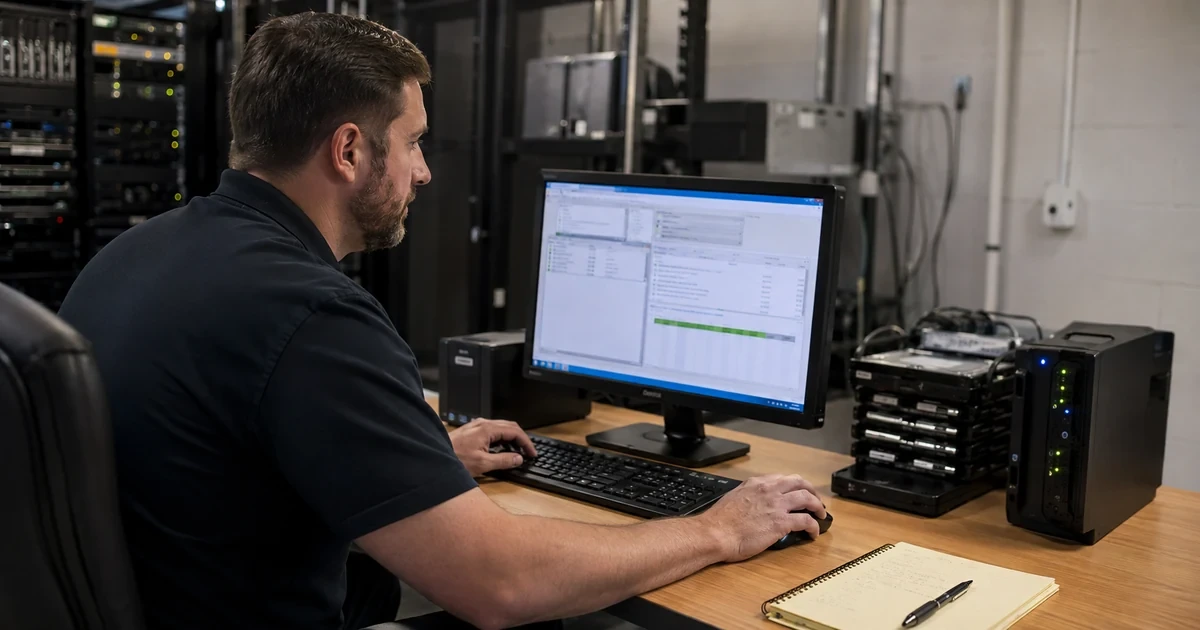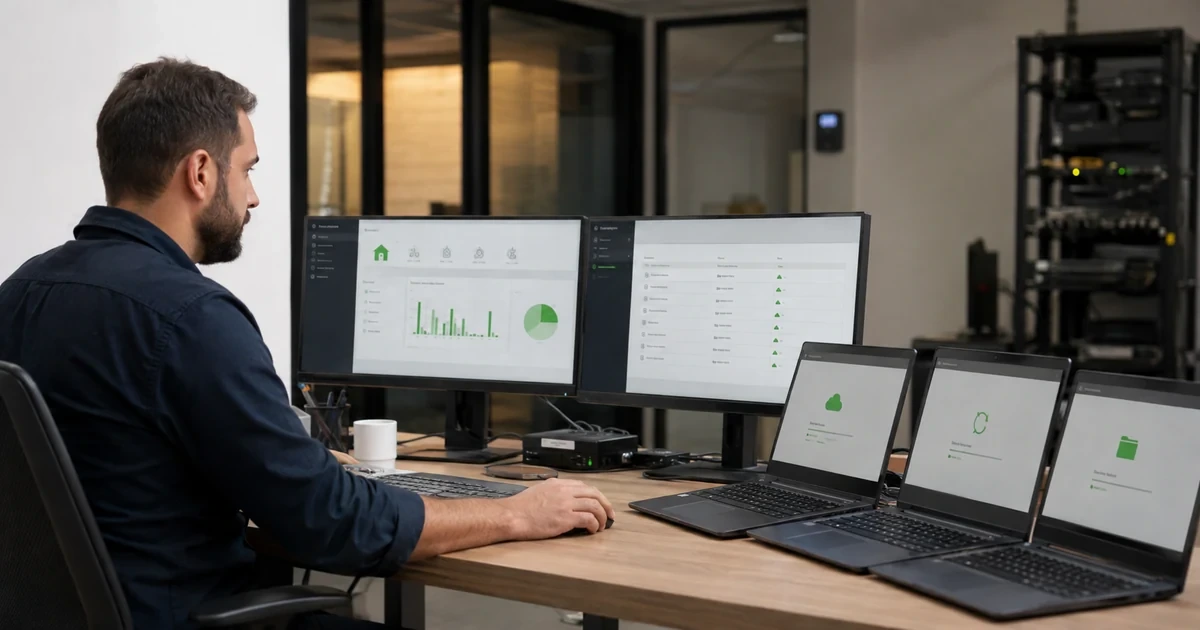
A Jobber integration succeeds only when operations and accounting agree about the same customer, service, invoice, payment, and deposit. A sync can report success while creating duplicate clients, mismatched service items, an invoice in the wrong period, an unreconciled processing fee, or an automation that stopped when its author left the company. Those are not merely technical defects, they change collections, tax work, customer communication, and management reporting.
The first control is identification. Jobber documents a newer QuickBooks Online integration that is rolling out to eligible accounts and a separate legacy integration with different behavior. Current new-integration guidance describes ongoing one-way synchronization from Jobber to QuickBooks Online for key records, while legacy documentation can describe different update behavior. A contractor should confirm the connector shown in its own account before applying a setting, backdate, retry, or correction procedure.
The second control is ownership across the full transaction. Operations owns accurate client, service, job, and invoice data, bookkeeping owns account mapping, close periods, deposit reconciliation, and corrections, an administrator owns the connection and its credentials, IT or support owns monitoring and recovery. This guide turns those responsibilities into a tested Jobber, QuickBooks Online, payments, and automation operating model for Georgia field-service businesses.
Key decisions at a glance
- Confirm whether the account has Jobber’s newer QuickBooks Online integration or the legacy connector before following any setup or troubleshooting instructions.
- Use a controlled synchronization boundary, explicit account mappings, reviewed services, and sample transactions before backdating or expanding the connection.
- Reconcile customer payment, processing fee, payout grouping, bank deposit, refund, and tip behavior as a complete Jobber Payments cycle.
- Authorize marketplace and Zapier connections with a durable company-managed Admin and record the data each application can view or edit.
- Monitor integrations for failures, duplicates, latency, disconnected users, schema changes, and business exceptions instead of treating automation as permanent plumbing.
Identify the Connector and Establish an Accounting Boundary

Open the integration settings with an authorized Admin and record the exact QuickBooks connection experience, account or company selected, connection owner, current sync settings, first-sync state, and applicable Jobber documentation. Jobber says the newer integration is being made available gradually, so a guide written for the new connector should not be assumed to match a legacy account. Capture the state before changing anything and include the bookkeeper in decisions that affect transaction dates or accounts.
Define the system of record for each object. In the newer integration, Jobber documents a one-way flow from Jobber to QuickBooks Online for clients, products and services, invoices, and payments, with automatic ongoing synchronization according to configured behavior. That direction means an edit made only in QuickBooks may not correct the operational source. Write who is allowed to correct clients, catalog items, tax settings, invoices, payments, refunds, tips, and timesheets, and where each correction must begin.
Choose a controlled boundary for history. Backdating clients or products and services may be required before older invoices can synchronize, and wide historical ranges can surface duplicates or closed-period issues. Reconcile a small date range and representative transactions first: a new client, an existing client, a taxable service, a nontaxable item if applicable, a deposit, a final invoice, a payment, a refund, and a correction. Expand only after counts, identities, amounts, dates, taxes, and account destinations match.
- Record new versus legacy connector, QuickBooks company, authorizing Admin, accounting owner, sync start date, and settings baseline.
- Document the source of truth and correction path for every synchronized record type.
- Use a reviewed test matrix that covers new and existing customers, services, taxes, deposits, payments, refunds, and tips.
- Obtain accounting approval before backdating records or changing mappings that affect prior or closed periods.
Configure Mappings, Timing, and Exception Reconciliation
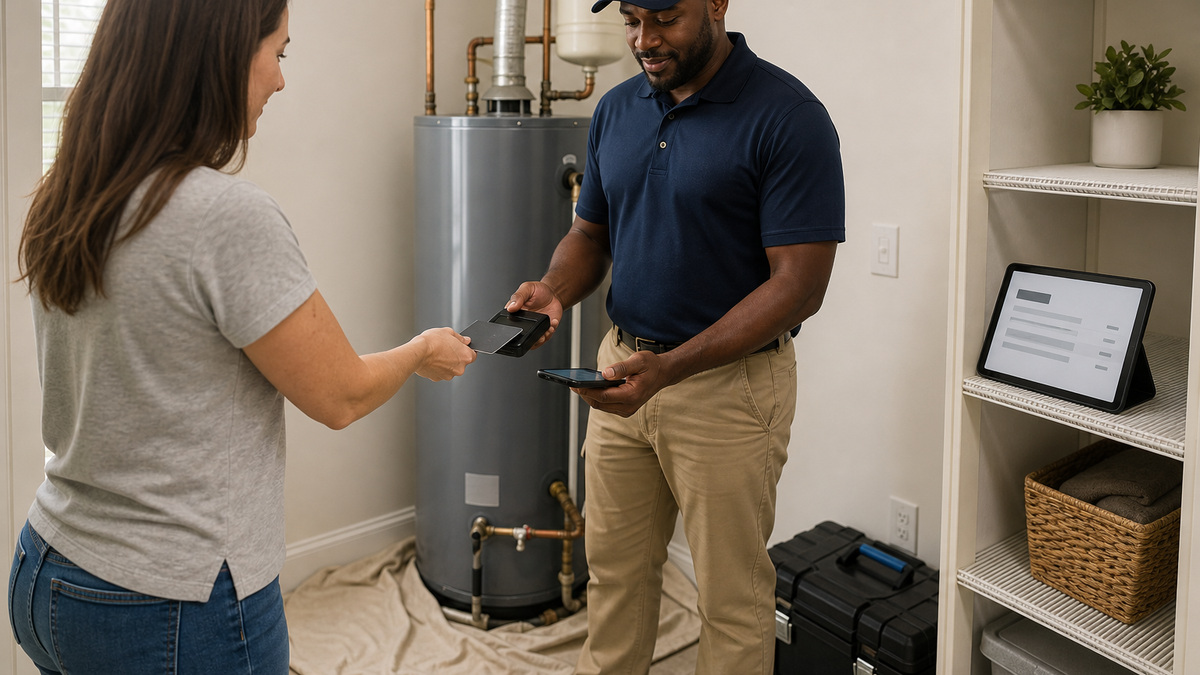
Review the Products and Services list before synchronization. Similar names, inconsistent taxes, inactive entries, and bundled descriptions can create confusing QuickBooks items. Decide whether Jobber services map to income categories at the appropriate level of detail, and confirm the QuickBooks chart-of-accounts selections used by invoices, payments, fees, payouts, or timesheets where the integration offers them. A technically valid mapping can still produce financial statements that are useless to management.
Create a reconciliation record for every test run. Compare the Jobber client and QuickBooks customer, Jobber service and QuickBooks item, invoice identifier, invoice date, due date, subtotal, tax, total, payment, refund, tip, and status. Check both the expected transaction and the absence of duplicates. If a sync is delayed or rejected, preserve the error, record identifiers, connector generation, and timing before editing, changing several records at once can destroy the evidence needed to find the actual cause.
Design corrections around synchronization direction. Under the newer one-way model, an operational correction may need to start in Jobber and then be observed in QuickBooks, subject to the connector’s supported behavior. Legacy workflows may require a separate change in each system for later edits. Do not delete and recreate financial records casually to force a sync. Bookkeeping should approve void, credit, refund, or journal procedures, and the runbook should say when a mismatch becomes an accounting escalation rather than a retry.
- Compare record counts and totals by day or batch, then sample individual transactions and customers.
- Keep a cross-system exception log with owner, reason, source record, destination record, corrective action, and evidence.
- Separate transient delay, authentication failure, unsupported edit, duplicate match, tax difference, and closed-period conflict.
- Revalidate mappings after catalog, tax, account, payroll, subscription-plan, or connector changes.
Reconcile Jobber Payments From the Field to the Bank
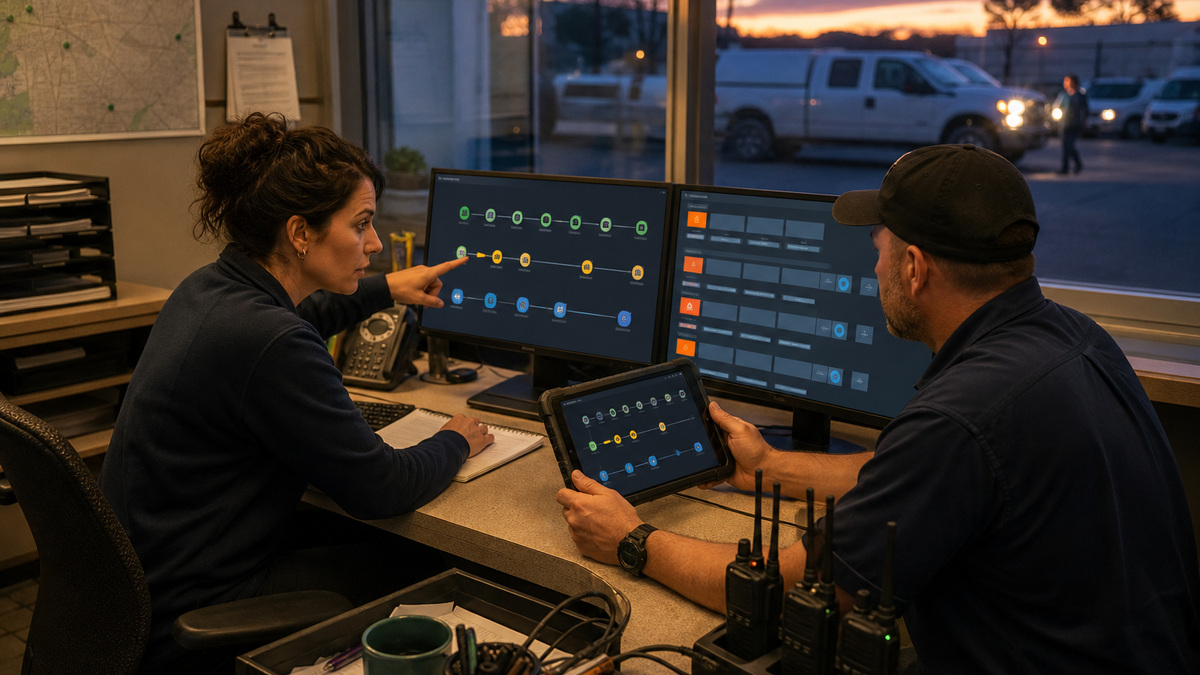
Build the payment procedure around the invoice, not only the card reader. The technician or office user should confirm the correct client and invoice, amount due, allowed payment method, receipt destination, and result before leaving the record. Train field staff to stop when an amount, customer, connectivity state, or duplicate-attempt warning is uncertain. A successful card interaction should never be the only evidence that the correct invoice was paid.
Jobber’s QuickBooks guidance explains how Jobber Payments transactions, processing fees, and payouts can be represented for reconciliation, including use of an undeposited-funds style path in supported configurations. Bookkeeping should follow one payment from invoice through payment, fee, payout grouping, QuickBooks entry, and bank deposit. Add a refund and a tipped payment if the business uses those features, then document exactly which Jobber and QuickBooks screens prove each stage.
Use Jobber payment lists, metrics, invoice and payment reports, and QuickBooks reconciliation together. Investigate missing or duplicate payments, unexpected fees, partial payments, failed charges, refunds without matching accounting activity, payout totals that do not equal their components, and bank deposits that remain unmatched. Set a daily or business-day reconciliation cadence during rollout, then move to a risk-appropriate schedule only after the exception rate is understood.
- Require the collector to verify client, invoice, amount, payment method, and final status before closing the interaction.
- Reconcile gross customer payments, refunds and tips, processing fees, net payout, QuickBooks entries, and bank deposit.
- Use named payment and accounting owners so an integration exception does not sit between departments.
- Escalate suspected duplicate charges or misapplied customer funds immediately and preserve the original transaction evidence.
Govern Marketplace Apps, Zapier, Webhooks, and Recovery
Jobber’s App Marketplace is available to Admin users and presents an authorization view describing the data an application can access or change. Review that screen with the business owner before connecting an app. Record vendor, purpose, owner, data scope, authentication account, renewal, support contact, expected records, and disconnect procedure. Jobber notes that apps set up by a user can disconnect if that user is deactivated, so connect production tools through a durable company-managed Admin rather than a convenient personal account.
For Zapier, define each trigger, action, filter, and destination in business language. Jobber’s current integration documentation lists triggers such as new or updated clients, requests, and quotes, and it identifies a current app version, verify the version and supported events in the live environment. Prevent loops and duplicates with stable record identifiers, and design a safe replay rule. When a step fails after creating a partial result, blind retry can produce a second customer, task, message, or invoice.
For custom integrations, Jobber’s developer documentation supports webhooks for real-time notifications rather than constant polling and exposes a GraphQL API. Validate webhook signatures or other current platform security mechanisms according to the developer documentation, log event and record identifiers without unnecessary customer data, handle repeated or out-of-order delivery, and monitor subscription health. Every automation needs an alert recipient, retry boundary, manual fallback, change test, credential rotation process, and retirement checklist.
- Maintain an integration register covering marketplace apps, Zapier automations, webhooks, API clients, data scope, and owners.
- Alert on authentication failures, disconnected owners, repeated errors, unusual latency, duplicate actions, and growing exception queues.
- Test with non-production records where possible and make every action idempotent or protected by a duplicate check.
- After an owner, schema, field, permission, or application-version change, run an end-to-end transaction and retain evidence.
Official product documentation and ALLMSP resources
- Jobber Help Center: Connect Jobber and QuickBooks Online – New Integration
- Jobber Help Center: How Items Sync – New QuickBooks Integration
- Jobber Help Center: How Items Sync – Legacy QuickBooks Integration
- Jobber Help Center: Payments Fees and Payouts in QuickBooks Online
- Jobber Help Center: Collect Payment on an Invoice
- Jobber Help Center: Invoice and Payment Reports
- Jobber Help Center: App Marketplace
- Jobber Help Center: Jobber and Zapier Integration
- Jobber Developer Center: Setting Up Webhooks
- ALLMSP Software Support
- ALLMSP Managed IT Services
- ALLMSP Cybersecurity Services
- ALLMSP Cloud Computing and Migrations
- ALLMSP Construction and Contracting Resources
- ALLMSP Jobber Support Category
- Contact ALLMSP
Frequently Asked Questions
How can a contractor tell which Jobber QuickBooks integration it has?
Open the current integration settings as an authorized Admin and compare the experience with Jobber’s new and legacy documentation. Record the connector, connected QuickBooks company, settings, and connection owner before making changes. Do not infer the generation from an old implementation note because the newer integration is being rolled out gradually.
Which direction does the new Jobber QuickBooks Online integration sync?
Jobber’s current new-integration guidance describes a one-way flow from Jobber to QuickBooks Online for clients, products and services, invoices, and payments, with automatic ongoing synchronization according to settings. Confirm the current article and live account because legacy behavior and supported details can differ.
Should Jobber data be backdated into QuickBooks Online?
Only after accounting defines the need and a narrow test reconciles successfully. Historical synchronization can introduce duplicate clients or items, tax differences, and closed-period complications. Document the date boundary, prerequisite client and service syncs, expected counts, and approved correction method before expanding the range.
How should Jobber products and services map to QuickBooks?
Clean the Jobber catalog first, then align each service with the accounting detail management actually needs. Verify item identity, income-account treatment, tax behavior, and reporting. Avoid excessive near-duplicates, but do not collapse services whose financial or tax treatment is genuinely different.
What should be reconciled for a Jobber Payments payout?
Trace the customer invoice and payment, any refund or tip, processing fee, payout grouping, QuickBooks entry, and bank deposit. The gross components minus fees and adjustments should explain the net deposit, and each system should retain enough identifiers and dates to investigate a mismatch.
Can a technician collect a Jobber payment in the field?
Jobber supports collecting payment on an invoice through its documented payment workflows. The company should train the technician to verify the client, invoice, amount, method, receipt, and final status, and to stop rather than retry blindly when connectivity or a duplicate-attempt warning creates uncertainty.
Who should connect Jobber marketplace apps?
An authorized, durable company-managed Admin should connect production apps after the owner reviews the access scope. Jobber shows what the application can view or edit and warns that apps configured by a user can disconnect when that user is deactivated, so personal or temporary accounts are poor integration owners.
What can the Jobber Zapier integration automate?
Jobber’s current documentation lists triggers and actions around records such as clients, requests, and quotes, with supported events depending on the current app version. Define each automation’s business purpose, filters, duplicate control, exception path, and owner, then verify the live connector rather than relying on an old template.
Why use Jobber webhooks instead of frequent API polling?
Jobber’s developer guidance presents webhooks as real-time notifications that reduce the need for repeated polling. A production consumer still needs current authentication and security controls, duplicate and out-of-order handling, monitored subscriptions, bounded retries, privacy-conscious logs, and a manual recovery procedure.
How can ALLMSP manage Jobber integrations for a Georgia contractor?
ALLMSP can identify the connector, document system ownership, clean and map records, supervise a controlled sync, reconcile payments and payouts, inventory marketplace and Zapier connections, engineer monitored webhook workflows, test lifecycle changes, and support both office and field users.