





























































































































































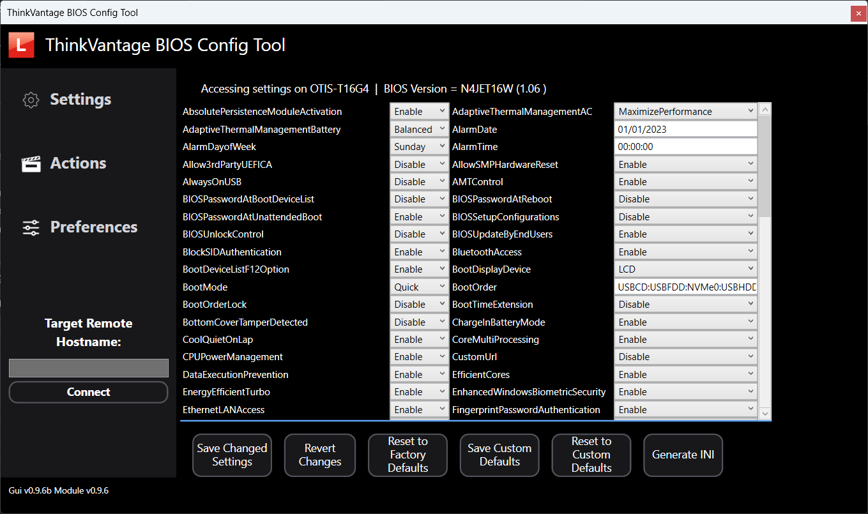
Lenovo’s published BIOS Config Tool example (GUI v0.9.6) displays current settings and separate save/reset actions. Record the actual BIOS version and approved settings before a change. These sample values are not a recommended baseline, and this settings tool does not establish a successful BIOS flash or recovery.[9] View full-size image
A Lenovo BIOS change needs a specific target package, an authorized recovery route and a test that matters to the user. Capture the machine type/model, processor platform, current BIOS, Windows build, affected accessories and reason for the change before starting. A maintenance tool’s success message cannot establish that encryption, business applications and the desk still work.
Keep three decisions separate: updating firmware, recovering access to encrypted data, and restoring Windows. They affect different layers and may have very different data consequences. The model-specific examples here are instructions to consult the right manual, not a universal recovery recipe for ThinkPad and ThinkCentre products.
Build a change record from the exact Lenovo package
The cited ThinkPad family guide directs administrators to select the computer on Lenovo Support, then Drivers & Software > Manual Update > BIOS/UEFI. Use that product’s package, readme, supported operating systems and prerequisites. Do not select a flash file from a similar family name or assume an Intel/AMD package can be exchanged.[1]
| Item | Required evidence | Hold the change when |
|---|---|---|
| Target and reason | Exact model/package/version and the relevant fix or requirement. | The package or supported platform does not match. |
| Power and access | The package’s power/battery requirements and available local help. | Power is unreliable or the required privileged access is untested. |
| Data and encryption | Approved backup/preservation state and a retrievable matching recovery key. | The organization cannot recover necessary data. |
| Configuration | Recorded boot, storage and security settings relevant to this machine. | The intended settings and accountable owner are unknown. |
| Acceptance | Original task plus restart, encryption, networking and required accessories. | Nobody can test or decide whether to expand the change. |
Use a representative pilot for each materially different hardware or desk configuration. Retain the old version and observed settings in the record, but do not label an older image a supported rollback until the package and product documentation permit that path.
Check encryption custody before a firmware or board change
Before a change that may lead to a recovery prompt, prove that an authorized person can retrieve the matching BitLocker key. Microsoft’s current process uses the displayed recovery-key ID and the location where the key was actually stored; a company-managed device may depend on its work/school account or IT administrator rather than a personal Microsoft account.[2]
Follow the exact firmware package and the organization’s encryption procedure for any required temporary protection change, then verify the approved protection state after the work. Do not clear the TPM, remove encryption or reset firmware security simply to bypass an unexplained prompt. Record recovery access without copying the secret into the general maintenance record.
If a service event changes the board or inventory identity, reconcile the returned hardware, management record and current recovery ownership. A repair is not accepted merely because the replacement board boots; the business still needs authorized access to its data and the intended security state.
Use the managed update policy and retain a package-level result
Commercial Vantage policy can separate BIOS/firmware from driver/software categories and configure the update schedule. Inspect the effective policy and current template version before the window, especially where users can also check manually.[3]
Lenovo documents update history in the ROOT\LENOVO WMI namespace, including model-applicable package IDs, severity, status, title and version. Use that record alongside the BIOS version actually reported after restart; download or installation status alone is not the same observation as the firmware now running.[3]
Record the start, selected package, visible result, restart and post-restart state. Keep a failed pilot bounded while the responsible administrator inspects its error and recovery options. The Lenovo power and boot diagnostic guide helps distinguish a new hardware/startup symptom from an update-service failure.
Recognize the model’s documented recovery behavior
For the cited T14 Gen 5/T16 Gen 3/P14s Gen 5 family, Lenovo describes UEFI BIOS self-recovery from a secure backup. A blank display and specific Esc/F1/F4 indicator patterns can be part of that process; the guide says not to interrupt it with the power button. Those indicators are model guidance, not a universal meaning for every blinking Lenovo keyboard.[4]
The same family’s Intel-only memory-retraining page describes a separate process after memory replacement, a Total Memory Encryption setting change or an update that changes memory reference code. It can also show a blank display. Distinguish the documented process from a confirmed failure before repeating a flash or forcing power off.[5]
For a ThinkCentre, use its own service manual and supported recovery method. The M70q Gen 5/M90q Gen 5 hardware manual provides its own diagnostics and service guidance; a ThinkPad key sequence or a different desktop’s jumper procedure is not a substitute. Escalate board-level or case-opening work with the exact model’s instructions and service responsibility.[6]
Decide whether Windows restoration is actually required
The cited ThinkPad family guide documents a Reinstall Windows from Cloud path, enabled under Config in UEFI and selected from F12 > App Menu. Treat it as that guide’s supported Windows-restoration option, not a feature promised on every Lenovo PC or a way to restore an arbitrary company image.[7]
Before any operating-system reinstall, determine what data, applications, credentials and configuration would need to be restored. Lenovo’s installation instructions explicitly warn about deleting internal-drive data. Confirm the approved backup and recovery scope before a destructive step, then reinstall the organization’s required controls and test the actual work.[8]
Firmware self-recovery does not replace business-file backup, and a factory or cloud Windows image does not prove that managed applications and company data returned. If the only failure is a driver or accessory path, establish that evidence before approving a complete operating-system rebuild.
Use a repair handoff that preserves the operating record
| Before service | When the device returns |
|---|---|
| Exact model/serial, failure timeline and controlled diagnostic results. | Reconcile any replaced component and the returned device identity. |
| Data-preservation decision, encryption access owner and approved backup scope. | Prove authorized sign-in and required data/application access. |
| BIOS/driver versions and relevant boot/storage/security settings. | Record actual returned versions/settings and correct approved exceptions. |
| Power adapter, dock and peripherals needed to reproduce the fault. | Repeat the failed task through the same intended desk path. |
| Service owner, custody record and acceptance authority. | Close the evidence record and reconnect ongoing maintenance ownership. |
Example: after a planned board repair, a returned ThinkCentre boots but the replacement inventory and recovery record have not been reconciled. The owner pauses handoff until the administrator verifies identity, security state, required application work and the original fault. This illustrative gate prevents an incomplete service record from being treated as a finished repair.
Return the PC to a controlled operating baseline
Verify the approved firmware version, normal boot, encryption/protection state, management reporting, networking, required applications and accessories. Repeat any relevant restart or sleep/wake task, document residual uncertainty and remove temporary service exceptions through the responsible process.
Use Lenovo deployment acceptance to check the returned workstation as a usable desk. ALLMSP Lenovo hardware support covers repair coordination, setup, docking and lifecycle help; bring the package/version record, failure evidence, custody decision and acceptance checklist. The device lifecycle guide addresses replacement and retirement when recovery is no longer the appropriate business decision.
Frequently asked questions
Where does the cited ThinkPad guide direct BIOS-package selection?
Select the exact computer on Lenovo Support, then Drivers & Software > Manual Update > BIOS/UEFI. Check the package readme and supported platform before installation.
[1]Should BIOS updates be chosen only because a version number is higher?
No. Establish the applicable package, reason, prerequisites, recovery route and acceptance test for that machine before making the change.
What should be proved about BitLocker before a service change?
An authorized person can retrieve the recovery key matching the device’s recovery-key ID from its actual storage location. Organization-managed devices may require IT assistance.
[2]Does a saved BitLocker key make clearing the TPM a normal first fix?
No. Follow the exact change and encryption procedure. Recovering a key and changing platform security are different decisions; investigate the prompt before changing security state.
Can BIOS and driver updates have different Commercial Vantage policies?
Yes. The current configuration guide supports category filtering and scheduling. Verify the effective manual and automatic policies for the intended maintenance window.
[3]What should be checked after an update reports success?
Confirm the BIOS version actually running after restart, the approved security state and the original user task, including any affected network or desk accessories.
Is ThinkPad BIOS self-recovery a universal Lenovo recovery procedure?
Can Intel memory retraining explain a blank screen after a firmware change?
Yes, on the models covered by the cited Intel-only guidance. Follow the documented progress behavior and do not interrupt active retraining.
[5]Does Reinstall Windows from Cloud restore the company’s whole environment?
What proves a Lenovo PC is ready after repair?
Its returned identity, firmware/settings, authorized data access, security/management state and original failed task have been verified, with accessories, custody and ongoing support ownership reconciled.
Sources
- Lenovo T14 Gen 5 family guide: Obtain a BIOS update ↩
- Microsoft Support: Find your BitLocker recovery key ↩
- Lenovo CDRT: Configure Commercial Vantage ↩
- Lenovo T14 Gen 5 family guide: UEFI BIOS self-recovery ↩
- Lenovo T14 Gen 5 family guide: Intel memory retraining ↩
- Lenovo ThinkCentre M70q Gen 5/M90q Gen 5 Hardware Maintenance Manual ↩
- Lenovo T14 Gen 5 family guide: Restore Windows ↩
- Lenovo T14 Gen 5 family guide: Install Windows and drivers ↩
- Lenovo BIOS setting record and change-control example — manufacturer technical reference ↩


