





























































































































































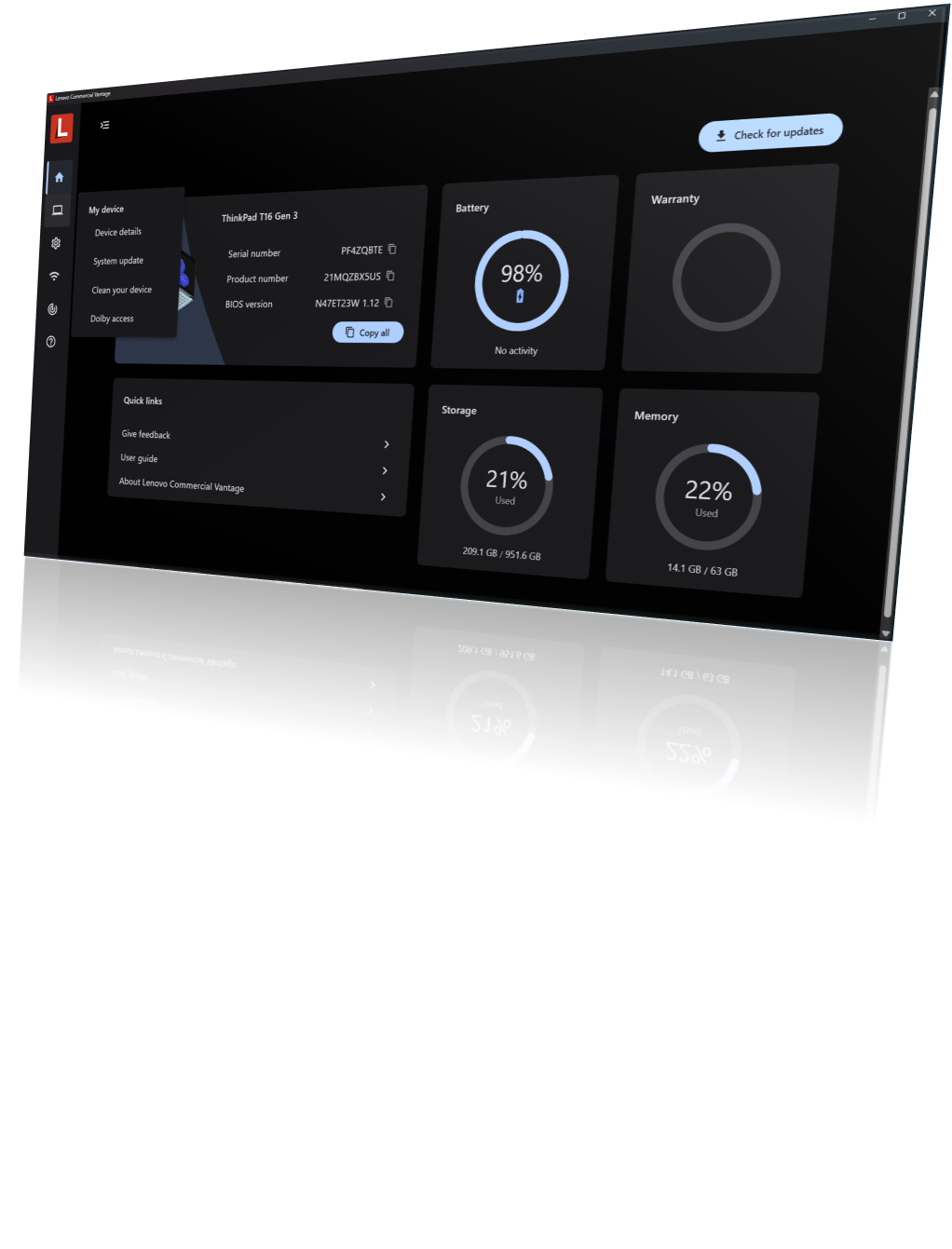
Lenovo’s published Commercial Vantage example identifies a ThinkPad T16 Gen 3 and BIOS version under Device details. Record your own exact model and baseline before deployment; app appearance alone does not prove services, policies or desk tests are complete.[8] View full-size image
Accept a Lenovo PC by its exact configuration and the work it can complete, not by the ThinkPad or ThinkCentre badge. Record the machine type/model, processor platform, serial, installed Windows edition/build, BIOS version and desk accessories before assigning an image or update policy. Keep serials and recovery information in the authorized asset record, not a public support thread.
This guide concerns supported Windows business deployments. Linux, ARM-based systems, consumer Lenovo Vantage and specialized workstation applications need their own compatibility review. The model examples below explain how to use a manual; they are not a recommendation to buy an older generation or a claim that every generation behaves alike.
Choose the support entry and operating-system target for the actual machine
Select the exact product entry before collecting drivers or installation instructions. Lenovo’s T14 Gen 5/T16 Gen 3/P14s Gen 5 family guide tells administrators to check compatibility for the particular Windows version and warns that a new operating-system installation deletes internal-drive data. A clean image therefore needs an approved data-preservation decision, not just an available USB installer.[1]
| Record | Why it changes the plan | Acceptance evidence |
|---|---|---|
| Machine type/model and CPU platform | Similar product names can have different packages, ports and firmware. | The selected Lenovo support entry matches the received machine. |
| Windows edition, version and architecture | An application or management package must support that platform. | The intended build and business applications are tested together. |
| BIOS and driver baseline | An unrecorded starting point makes regressions hard to explain. | Approved baseline plus a named owner for subsequent changes. |
| Dock, power adapter, cable and displays | A matching plug does not prove power or display capability. | The complete desk combination passes its required tasks. |
| Encryption and recovery custody | A usable desktop does not prove that the business can recover its data. | Authorized recovery retrieval and the security baseline are verified. |
Keep the broad image, account, software and access design in the tested workstation-build guide. Use this Lenovo record to decide which exact hardware and support packages that build will use.
Deploy the Commercial Vantage components you intend to manage
Lenovo’s current Commercial Vantage documentation separates the user-interface app, add-ins, Vantage Service and optional SU Helper. The app icon alone does not prove that diagnostics and updates have their required components.[2]
For managed deployment, the documented Enterprise Package includes installation tools, scripts and policy templates. Full -Vantage mode supplies the app, service and add-ins; -App is app-only, and -Lite is the System Update feature. Use the current package’s documented mode under the authorized administrator’s deployment process, then test the resulting functions as an ordinary user.[3]
- Record the package and selected installation mode in the deployment record.
- Confirm that the intended app opens and the required service/add-in functions work.
- Verify which person or management platform owns update filtering and restarts.
- Test the actual managed network; an installer finishing does not prove the update service can retrieve its catalog.
Set update policy before the first unattended change
Review Computer Configuration > Administrative Templates > Commercial Vantage > Device > System Update using the current templates. Lenovo documents policy control over scheduling and update categories; configure the intended manual and automatic behavior deliberately rather than assuming a user’s manual selection controls future scheduled work.[4]
Treat BIOS, firmware and drivers as different change decisions. Record which categories may install automatically and which require a maintenance window. A critical label informs the decision; it does not validate every application and accessory in this particular environment. Pilot the policy on a representative device before expanding it.
The Lenovo BIOS and recovery guide covers package-specific prerequisites, blank-screen behavior and the recovery record required for a firmware change. Keep those decisions separate from the initial proof that the management components were deployed correctly.
Test the received ports and complete desk combination
Use the model manual’s connector and display pages. The T14 Gen 5 family documentation marks connector availability as model-dependent and distinguishes some Intel/AMD behavior; it does not establish a universal result for an arbitrary USB-C dock, adapter and monitor chain.[5][6]
The ThinkCentre M70q Gen 5/M90q Gen 5 service manual is another useful reminder: it lists a Thunderbolt 4 card module specifically for M90q Gen 5. A purchase record saying only “ThinkCentre Tiny” is insufficient to approve that accessory requirement.[7]
| Task | Test through the intended path | Record |
|---|---|---|
| Displays | Use the required screens, resolution and refresh settings; reconnect and wake from sleep. | PC port, dock/cable/display models and observed result. |
| Power | Use the specified adapter and desk connection under the normal workload. | Charging/AC behavior and any low-power warning. |
| Connectivity | Test wired or wireless access and the required business application. | Network path and a completed application transaction. |
| Audio, camera and peripherals | Make a test call and perform the actual printer, scanner or USB task. | Device path, permissions and completed task. |
Use the intended accessories, not only a spare monitor beside the staging bench. A working HDMI connection and a failing docked display are useful separate results; they should not be collapsed into “the laptop failed.”
Example: two similar laptops need different acceptance evidence
Imagine a small office receiving two configurations from the same ThinkPad family. One desk uses a single direct display; another uses a dock, two monitors, Ethernet and a headset. The staging record matches each machine to its own package and repeats the actual desk workflow after a restart and sleep/wake cycle.
If one docked desk fails while the direct path works, preserve that comparison and continue with Lenovo symptom-first diagnosis. This is an illustrative acceptance test, not a customer result or a promise that one accessory combination works across the family.
Hand over a supportable workstation
The handoff record should show the accepted model/build, required apps, management enrollment, encryption/recovery custody, desk tests, remaining exceptions, user acknowledgement and accountable support owner. An unresolved exception needs a decision and owner rather than a hidden note in an installer log.
For ALLMSP Lenovo support, bring the exact machine and accessory list, intended workflow, current build and failed test. The published Lenovo service page covers procurement, deployment, docking, troubleshooting, repair coordination and lifecycle work. Use business device lifecycle planning for standards, replacement timing and retirement around this deployment.
Frequently asked questions
Is a ThinkPad or ThinkCentre family name enough to select drivers?
No. Match the exact product, machine type/model, processor platform and operating system before selecting a package or manual.
[1]What should be recorded before reimaging a Lenovo PC?
Record its exact model, Windows edition/build and architecture, BIOS/driver baseline, required applications, accessories, data-preservation decision and recovery owner.
Does the Commercial Vantage app icon prove that updates are ready?
How do full, app-only and Lite Commercial Vantage deployments differ?
Full Vantage mode includes the app, service and add-ins. App-only mode omits those supporting components; Lite mode provides the System Update feature. Use the current package guide for the intended deployment.
[3]Can Commercial Vantage update timing and categories be managed?
Yes. Lenovo documents administrator policies for scheduling, automatic updates and category filtering. Verify the effective policy on a pilot machine.
[4]Does every USB-C port provide the same docking features?
Does every ThinkCentre Tiny support the same optional Thunderbolt card?
No. The cited M70q Gen 5/M90q Gen 5 service manual lists the Thunderbolt 4 card module for M90q Gen 5. Verify the actual model and supported options.
[7]What should a Lenovo desk test include?
Test the intended displays, power, network, audio/video and business peripherals, including restart and sleep/wake behavior through the actual desk connection.
Does a successful Windows installation complete the deployment?
No. Verify applications, management, security, recovery access and the user’s real work. A new operating-system installation also requires a prior data-preservation decision.
[1]What should be provided when requesting Lenovo deployment help?
Provide the exact model/build, accessories, required work, selected management/update method and acceptance results. Share serials and recovery information only through the approved support channel.
Sources
- Lenovo T14 Gen 5 family guide: Install Windows and drivers ↩
- Lenovo CDRT: Commercial Vantage components ↩
- Lenovo CDRT: Deploy Commercial Vantage ↩
- Lenovo CDRT: Configure Commercial Vantage ↩
- Lenovo T14 Gen 5 family guide: USB specifications ↩
- Lenovo T14 Gen 5 family guide: Wired displays ↩
- Lenovo ThinkCentre M70q Gen 5/M90q Gen 5 Hardware Maintenance Manual ↩
- Lenovo Commercial Vantage device-baseline example — manufacturer technical reference ↩


