





























































































































































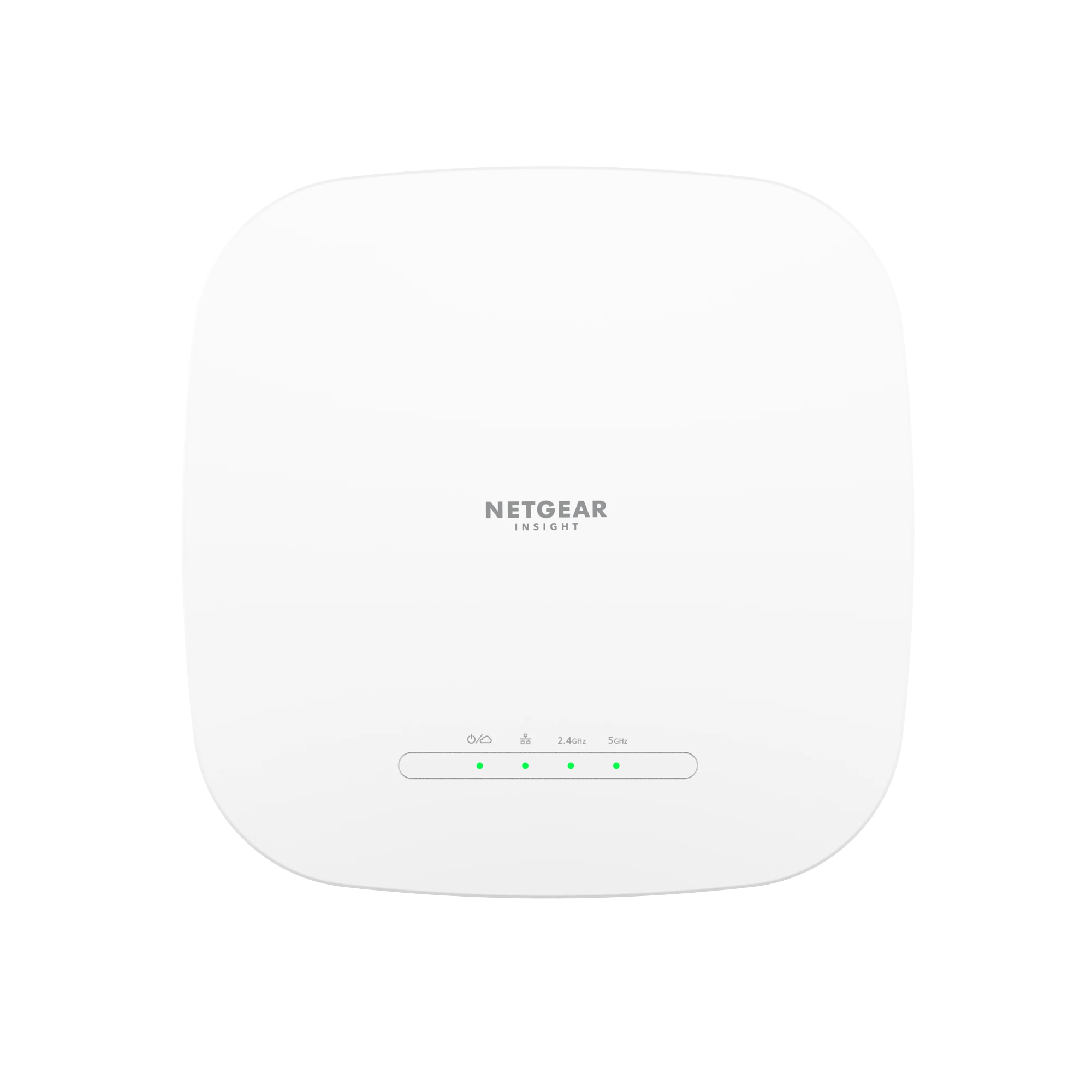
NETGEAR WAX615 manufacturer product image. Verify the installed access point’s power, uplink and management method before commissioning.
A NETGEAR WAX615 deployment is ready when the correct administrator can manage it, its power and uplink meet the design, and representative clients reach the services they are permitted to use. A visible Wi-Fi name or an online cloud status proves only part of that path.
This guide covers a wired-uplink WAX615 or WAX615PA in a business network. It does not substitute settings from a different WAX model, a home router or a mesh-only design. Confirm the exact label, region, installed firmware and current management method before changing an existing installation.
Choose the management owner and verify the physical uplink
The installation guide provides two cloud methods, Insight Cloud Portal and Insight app, plus standalone management in a local web browser. Choose the intended method before commissioning. For Insight, identify the business account, location, authorized administrators and the device entitlement or valid subscription; do not assume a used AP carries the same included term as a new purchase.[1][2][3]
| Item | What to establish | Evidence to retain |
|---|---|---|
| Management | Insight location and authorized owner, or documented standalone administration | Account/location record and a successful authorized sign-in |
| Power | 802.3at PoE+ from a suitable switch/injector, or the approved power adapter | Power-source model and available budget |
| Uplink | One Ethernet port supporting up to 2.5 GbE; the connected switch and cable determine the negotiated rate | Actual link speed and port/cable identifiers |
| Wireless use | Client types, locations, applications and security requirements | A short acceptance test list agreed before installation |
The WAX615 guide specifies 802.3at PoE+ or its power adapter. A 1 GbE switch can provide a working lower-speed uplink; a 2.5 GbE port on the AP does not create 2.5 GbE across a slower switch or WAN. Power capacity, Ethernet negotiation and application throughput are separate checks.[1]
Add one pilot AP to the intended Insight location
- Record the AP serial number, MAC address, physical location, switch port and current configuration. On an existing site, preserve the working configuration and an administrative recovery path first.
- Confirm the AP receives the intended management address, gateway and DNS service on the wired network. Check the actual DHCP lease rather than guessing its address.
- In the authorized Insight account, select the intended organization where applicable and the correct network location. Add the pilot by its device identity and verify that the resulting device record matches the physical label.
- Allow onboarding, configuration synchronization and any firmware-related restart to finish before judging connectivity. The installation guide warns that onboarding can update firmware and restart the AP.
- Sign in again using the intended ongoing administrative access and verify the pilot is manageable before adding the remaining APs.
Account creation, location selection and adding the AP are documented Insight setup stages. Onboarding into the wrong location can apply the wrong configuration. Investigate a previous owner or wrong-location record through the authorized account and vendor process rather than repeatedly resetting deployed hardware.[1][2]
If the wired network works but Insight remains unreachable, compare DNS resolution and outbound firewall policy against NETGEAR’s current domain/port list. Approve only the required outbound access; an AP management problem is not a reason to expose its administration to the public internet or disable the firewall.[5]
Make each SSID follow a deliberate VLAN path
A wireless VLAN setting must agree with the AP uplink, every intervening switch and the gateway. Keep AP management traffic distinct from the client SSID decision. The WAX615 manual documents 802.1Q, an untagged VLAN and a management VLAN; the Insight portal also exposes SSID VLAN assignment. Use the procedure for the management mode actually in use.[3][4]
| Network | Example intent | What must agree end to end |
|---|---|---|
| AP management | Approved administration network | AP management/untagged behavior, uplink membership, management address and permitted administration |
| Staff SSID / VLAN 20 | Approved work applications | SSID VLAN 20, tagged VLAN 20 along the uplink, gateway/DHCP and application policy |
| Guest SSID / VLAN 30 | Internet access with the agreed internal restrictions | SSID VLAN 30, tagged VLAN 30 along the uplink, gateway/DHCP and explicit isolation policy |
VLAN numbers 20 and 30 are examples, not required values. Before moving AP management to another VLAN, prove that the administrator still has a permitted path to its new address. Stage the change on the pilot with someone able to recover local access. A VLAN label and a captive portal do not establish that guest traffic is blocked from internal systems.
For a current Insight Cloud Portal 10.0 example, select the location, open Wi-Fi > SSID, edit or add the intended SSID, and set its VLAN assignment and approved security settings. Confirm the actual UI version and model capabilities first. Do not change radio security, VLANs and an unrelated guest-portal design together when a staged test can isolate failures.[3]
Accept the client workflow, not just the AP status
Test at an ordinary desk or work area and at the difficult location the design is meant to serve. Use a representative work device and a guest device. Record the associated SSID/AP, client address, gateway, DNS behavior, application outcome and time. Repeat with realistic occupancy or load when capacity is part of the requirement.
- Staff: join with the intended authentication, receive an address from the staff network, resolve the required service and complete a real work transaction.
- Guest: obtain internet access and prove the agreed internal destinations remain inaccessible using approved tests.
- Uplink: compare the actual negotiated Ethernet rate with the design. Investigate cabling or switch capability before treating a lower rate as an RF problem.
- Mobility: where multiple APs serve mobile work, repeat the actual call, scanner or application task while moving. Fast roaming is a separate client/application compatibility test.
Example: the AP is online and staff works, but guests receive no address. Compare the guest SSID VLAN, AP switch-port membership and gateway DHCP scope before moving the AP or increasing transmit power. If both SSIDs fail at the same moment the wired port loses link, investigate the shared power/cable/uplink path first.
Tune only after the network path is proven
Choose radio changes from measurements of the occupied space and affected clients. The documented Insight app radio workflow includes channel, channel width and output power, and requires the relevant automatic setting to be disabled before manual customization. Record the original settings, change one measured variable, and repeat the same client task.[6]
A wider channel or maximum transmit power is not an acceptance criterion. Keep region, allowed channels and installation requirements within the model documentation. Escalate a reproducible firmware-specific symptom with the exact version and evidence rather than applying a workaround from an unrelated WAX release.
Hand over a site record the next administrator can use
Retain the owner and management method, subscription responsibility, AP identity/location, switch/cable records, SSID/VLAN map, firmware, approved security settings and acceptance results. Store credentials and configuration material in the approved secure system, not in a general handoff email. Name the person who receives cloud alerts and who can authorize a disruptive change.
Use the business Wi-Fi site-survey guide for placement and capacity decisions. If a GS308EP or GS308EPP supplies the AP, the PoE and VLAN fault-isolation guide explains why power, link and client network are separate checks. For AV receivers on a separate managed switch, use the M4250 multicast validation guide rather than assuming ordinary internet access proves stream delivery. ALLMSP’s NETGEAR support page describes the available hardware, Wi-Fi and network support scope.
Frequently asked questions
Can a WAX615 be managed without Insight?
What power source does the WAX615 require?
The installation guide specifies an 802.3at PoE+ source or the approved power adapter. Confirm the switch or injector and available budget for the actual AP. An Ethernet link alone does not prove suitable power.
[1]Will a WAX615 work with a 1 GbE switch?
Its Ethernet port can negotiate below 2.5 GbE, so a suitable 1 GbE connection can work. The slower uplink limits that path; Wi-Fi marketing rates do not override the switch, cable, internet circuit or client capabilities.
[1]Why should I check the Insight location before adding an AP?
Does an online Insight status prove the guest network works?
Why can staff Wi-Fi work while the guest SSID has no internet?
Should the AP management VLAN be changed during first onboarding?
Only as part of a planned design with a proven administration path and local recovery option. A management VLAN change can remove access if the AP, switch port and gateway no longer agree. Prove one pilot before repeating it.
[4]What should I check when the AP works locally but is offline in Insight?
Should I set every AP to maximum transmit power?
No. Use measurements of coverage, interference, client behavior and the actual work locations. When making a manual Insight radio change, follow the documented control requirements and repeat the same client test before accepting it.
[6]What should be delivered after a WAX615 installation?
Sources
- NETGEAR WAX615 and WAX615PA Installation Guide ↩
- NETGEAR: Set up an Insight Managed Wireless Access Point ↩
- NETGEAR Insight Cloud Portal 10.0 technical FAQ ↩
- NETGEAR WAX615 User Manual ↩
- NETGEAR: Domains and ports required for Insight Managed devices ↩
- NETGEAR: Customize AP channels and power in the Insight app ↩


