





























































































































































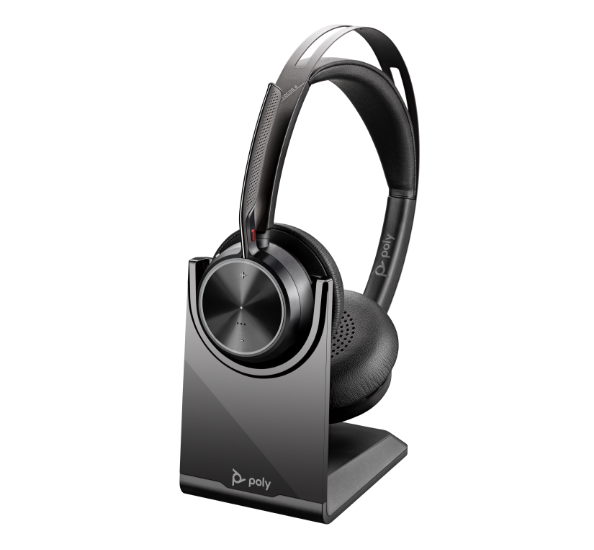
HP’s Voyager Focus 2 image shows the headset on an optional charging stand. The stand charges the headset; it is not the BT700 computer-audio connection. Identify your actual adapter or direct USB cable before following the checks below.[6]
A Voyager Focus 2 that works on a phone can still have a failed computer path. Identify whether the computer is using BT700, its own Bluetooth, or the headset’s USB corded mode before re-pairing or changing the meeting app. The charging stand is a separate clue: charging does not establish a computer-audio connection. This guide uses the Focus 2 UC manual and keeps adapter pairing, physical mute and the app’s selected microphone as separate tests.[1]
This is the Voyager Focus 2 UC example with a BT700 adapter. Read the actual headset and adapter labels. A Poly Office base, a different Voyager model or a Jabra headset needs its own instructions. Record the computer OS, meeting app and connection before changing anything.[1]
Find the computer path before re-pairing
| Path in use | What it establishes | Next useful check |
|---|---|---|
| BT700 in the computer | A USB adapter path; headset pairing is another link | Confirm the intended adapter/headset, then selected app input and output |
| Computer Bluetooth without BT700 | A different transport with model/OS call-control limits | Check the current connectivity matrix; do not promise identical mute sync |
| Direct USB corded mode | A documented Focus 2 comparison that removes the Bluetooth adapter | Use its actual cable and power-off procedure; test both audio directions |
| Optional charging stand | Charging, not proof of an audio endpoint | Find the real adapter or USB data path before changing app settings |
With BT700, the computer-to-adapter USB connection and the adapter-to-headset pairing are separate links. Select the intended input and output in the operating system and the meeting app. Keep the names you actually see in the test record; do not select a laptop microphone simply because it is the default.[1]
If the endpoint is listed but the microphone cannot be opened, check access for the affected application. In Windows, review the microphone and relevant desktop-app access under Privacy & security. On Mac, review System Settings > Privacy & Security > Microphone, including the browser/site permission for a browser meeting. A managed or unavailable control belongs with the administrator.[4][5]
Check physical mute during a real call
On Focus 2, raising the microphone boom to its clicked position mutes during an active call. Lower it and check the actual meeting mute state. The manual’s BT700 table identifies solid red as mute; identify the adapter and the active call before interpreting that indication. A red light on another Poly device can have another meaning.[1]
Have a recipient confirm a harmless test sentence, then confirm you hear their reply through the intended output. A moving microphone meter establishes input activity at that stage; it does not prove the recipient received it. Keep one intended audio system active so a second nearby laptop does not create feedback.
Pair the intended BT700 rather than every nearby device
If pairing is the failed link, connect the intended BT700 and use the currently supported management app for that adapter. Put Focus 2 into pairing mode using its power switch until it announces pairing. Select the intended adapter’s pairing action and follow the displayed workflow. The current Studio Desktop manual calls this Pair Bluetooth Audio; the headset manual uses the older Pair new device wording. The exact app build determines the label.[1][2]
Do not assume a USB adapter showing in the app means the intended headset has paired. Confirm the headset association, then repeat microphone and speaker tests. If management detection is the failed step, use the current Studio Desktop compatibility and detection guide before repeatedly reinstalling the app.[2][3]
Use the documented Focus 2 corded comparison
Outside an update, HP’s Focus 2 manual describes this comparison: remove the BT700 adapter, connect the supplied 1.5 m USB cable between the headset and computer, and power the headset off for USB corded mode. Select and test the resulting audio path. This is a Focus 2 procedure; do not replace it with generic advice to power every headset on or assume a charging-only cable supplies data.[1]
A clear corded call narrows the investigation to differences between the tested paths. It does not name a defective adapter, prove radio interference or restore the original wireless workflow. Record the test, then return to the approved normal connection and retest it.
Work through a phone-pass/computer-fail report
The following is a fictional controlled comparison, not a measured customer result. Keep the computer, app and test sentence constant while changing one connection at a time.
| Controlled comparison | Illustrative observation | Decision |
|---|---|---|
| Same computer and one meeting app; record headset and adapter | Phone works; computer call cuts out | The phone pass did not test BT700 |
| Outside an update, remove BT700 and use documented direct corded mode | The same computer call is clear in both directions | An alternate path passed; compare wireless next without declaring a failed part |
| Return to the approved BT700 path | Original symptom still needs a test | A temporary USB workaround is not proof the normal setup is restored |
| Repeat local media and recipient-confirmed call tests | Record each result separately | Escalate with app, endpoints and connection evidence |
Check media and the normal reconnect path
Calls and music can use different selected outputs. Check the operating system’s media output and the application’s output as well as the meeting speaker. HP’s manual contains a separate media-configuration step; a successful call does not establish that the computer will play media through the headset.[1]
Before closing the ticket, repeat the original wireless connection after the normal disconnect/reconnect, a recipient-confirmed call in both directions and a media sample. Record app, headset/adapter versions, selected endpoints and which comparisons passed. If only Zoom still fails, continue with the Zoom microphone and speaker test.
If the room is actually using a Studio V12 bar, test its USB data, power and selected audio separately. If the headset label says Jabra, use the Jabra audio and physical-mute guide rather than borrowing the Focus 2 power-off procedure.
Frequently asked questions
Why does my Focus 2 work with my phone but not the computer?
The phone and computer use different connections. A phone call does not test the BT700 USB path, its pairing to the headset, the computer’s selected endpoints or meeting-app access. Record the computer connection and test input and output there before replacing the headset.
[1]Should the meeting app show Poly BT700 or the headset name?
How do I pair a replacement BT700 with Focus 2?
Connect the intended BT700, put Focus 2 into pairing mode with its power switch, then use that adapter’s pairing workflow in the supported management app. Current Studio Desktop calls it Pair Bluetooth Audio; the older headset manual says Pair new device. Confirm the intended headset, then test both call directions.
[1][2]What does a red BT700 light mean during a call?
The Focus 2 manual’s BT700 indication table describes solid red as microphone mute. First confirm that this is the BT700 and that the call is active; do not apply that interpretation to every red Poly light. Check physical boom position and actual meeting mute state.
[1]Can rotating the Focus 2 boom mute the microphone?
Yes. During an active call, raising the Focus 2 boom to its clicked position mutes it. Lower the boom, check the app’s mute state and ask a recipient to confirm a test sentence. A moving meter alone does not confirm delivery.
[1]Does putting Focus 2 on its charging stand connect computer audio?
How do I test Focus 2 in USB corded mode?
Outside an update, follow the Focus 2 manual: remove BT700, connect the supplied 1.5 m USB cable to the computer and power the headset off for corded mode. Select and test that input/output. This model-specific comparison is not a general power-off instruction for other headsets.
[1]Why can calls work while music is silent?
The call and media application can use different outputs. Check the computer’s media output, application output and playback level separately from the meeting speaker. HP documents media configuration as a separate step; repeat a local media sample after a call passes.
[1]Does native Bluetooth offer every BT700 call-control feature?
What proves the original wireless problem is resolved?
Return from any temporary corded workaround to the normal approved wireless connection. Repeat its normal reconnect, a recipient-confirmed two-way call and media playback. Record the endpoints and versions; a successful phone or corded test alone does not prove BT700 was repaired.


