





























































































































































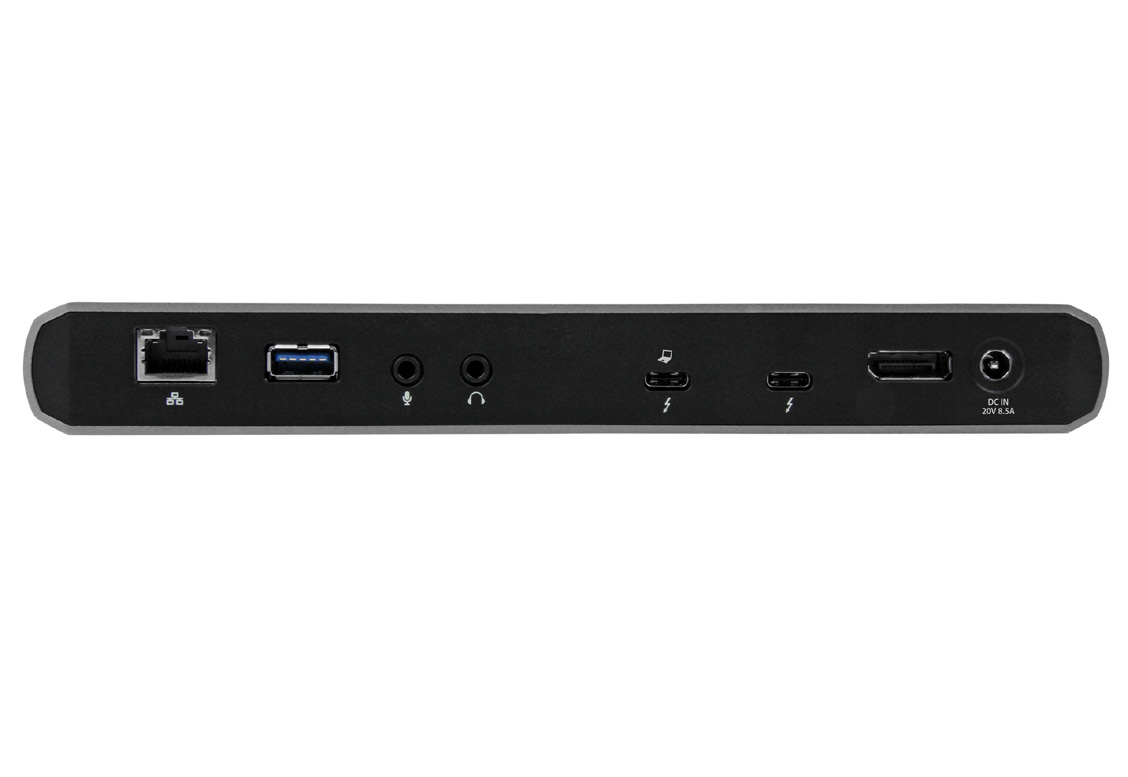
StarTech’s 2017 TB3DK2DPPD manual photo shows the rear laptop-icon Thunderbolt host port, separate peripheral Thunderbolt port and DC input marked 20V 8.5A. Use the designated host connection for the laptop. The DC input marking is not a claim of 170W laptop charging; the model specifies up to 85W host PD.[1] View full-size product image
If an installed StarTech TB3DK2DPPD passes video but the laptop loses battery, separate three possibilities: the host power path is wrong, the available charging capability is unsuitable for that laptop, or charging is intentionally paused by the laptop. A working screen, a lit dock and a phone charging from a USB port do not establish the laptop’s charging state.[1][2]
This guide uses the model’s 2017 manual for its physical port roles and the currently supplied official datasheet for its power specification. It supports diagnosis of an existing unit, not a recommendation to buy the older model. Check the exact laptop’s power and Thunderbolt compatibility documentation before changing firmware or replacing a supply.[1][2]
Read the two power ratings as different limits
StarTech lists a 170W dock power adapter and up to 85W USB Power Delivery to the laptop. The first number is not the laptop output rating. A larger brick alone does not turn the dock into a higher-wattage host charger. Compare the dock’s documented output with the laptop manufacturer’s required power and supported charging port, including the normal work the user expects to perform.[2]
Use the rear Thunderbolt host port identified by the laptop icon and the specified Thunderbolt connection to the laptop. The rear peripheral Thunderbolt port has another role, and the front USB-C port is downstream data only. A similar-looking socket or an ordinary USB-C cable does not establish this Thunderbolt host path. Follow the laptop manufacturer’s compatibility and cable guidance rather than assuming every USB4 or USB-C host behaves identically.[1][3]
| Observation | Controlled comparison | Meaningful next branch |
|---|---|---|
| Dock is not operating at all | Inspect the specified supply connection, DC input and known-working outlet | Resolve the dock supply path before diagnosing host negotiation |
| Video works; Windows reports slow charging | Record laptop-required power, actual host cable and selected port | Compare supported host charging capability; video is not a wattage test |
| Battery stays at a configured limit | Check the laptop’s documented battery-conservation state | A deliberate charge limit may explain the pause |
| Battery falls only during normal heavy work | Compare the same workload using the laptop’s approved charger | Investigate power suitability and workload before calling the battery defective |
Use a repeatable host comparison
Save work and record the starting battery percentage, charging message, workload and attached accessories. Compare the manufacturer-approved laptop charger directly with the dock path, under similar conditions. Keep the other accessories unchanged for that comparison. If removing a peripheral changes the result, add it back individually; do not infer an exact wattage allocation from the symptom.[3]
Some Windows 11 devices deliberately stop below 100% when Smart charging is active. Microsoft notes that implementation differs by manufacturer. Check the actual indicator and the laptop’s own battery settings rather than treating “stays at 80%” as a universal dock fault or disabling conservation on every computer.[4]
Battery percentage is a coarse observation, not a power meter. A five-point decline cannot tell you the negotiated PD profile. When a percentage trend and a charging warning disagree, keep both in the record and use the host manufacturer’s available diagnostics. Do not replace a battery merely because the dock path behaves differently from the approved direct charger.
| Test condition | Hypothetical observation | What to retain |
|---|---|---|
| Approved laptop charger, agreed workload | Charging is accepted and the battery trend is stable | Charger model/rating and the normal battery-conservation setting |
| TB3DK2DPPD, same workload and starting range | Slow-charger warning appears or the battery declines | Dock/supply identity, laptop-icon host port and cable identity |
| Same dock, approved known-working Thunderbolt cable | The warning changes or remains | The one changed variable; do not simultaneously update firmware |
| Normal reconnect and sleep/wake | Charging status is checked again after each | A recurring failure remains open even if one earlier test passed |
Escalate the specific incompatibility or failing component
If the documented laptop requirement exceeds the dock’s supported host output, stop trying random supplies or software as a capacity upgrade. If it should be compatible, retain the direct-charger comparison, the exact host-port specification and one-cable substitution result. Host firmware, controller software or security approval may require the laptop manufacturer’s specific instructions; a dated approval dialog from another system is not a universal Windows 11 step.[1][2][3]
For broader fleet charging choices, use the qualified Belkin charging workflow. If charging is healthy but an installed MST30C2DPPD loses its second screen, use its native video-path guide; the two docks do not have interchangeable display limits. A separate US1GC30B2 dongle that disappears after reconnect belongs in the USB Ethernet detection guide, not a blanket power reset.
Frequently asked questions
Why does a 170W TB3DK2DPPD power adapter not deliver 170W to my laptop?
The dock datasheet distinguishes its supply rating from up to 85W host Power Delivery. Do not substitute the input rating for the output specification or assume that a larger replacement brick increases host charging capability.
[2]Which TB3DK2DPPD port should the laptop use?
Use the rear Thunderbolt host port marked with a laptop icon, following the model manual. The other rear Thunderbolt port is for peripherals, and the front USB-C port is downstream data only. Matching the connector shape is insufficient.
[1]Can a normal USB-C charging cable replace the Thunderbolt host cable?
The laptop charges directly but drains through the dock. Is the battery bad?
Is a battery stopping below 100% always a charging fault?
No. Smart charging or another manufacturer battery-conservation feature can intentionally pause charging below full capacity. Check the actual laptop setting and indicator; there is no universal percentage threshold for every device.
[4]Can I calculate how much power the accessories get by subtracting 85W from 170W?
No. Those two ratings do not document a freely allocatable accessory budget. Use the model’s port specifications and actual attached-device requirements; conversion losses and internal allocations cannot be established from that subtraction.
[2]Does a working monitor prove the laptop is charging at 85W?
No. Successful video and the negotiated charging state are different observations. Record the OS charging message and battery trend under the agreed workload; percentage alone is not a negotiated-wattage measurement.
[3]Can I assume a newer USB4 laptop is compatible because its cable fits?
Should I update every BIOS and driver before checking the ports?
First record and compare the physical host path, supported power and cable. If a host update is justified, use that manufacturer’s exact package and instructions, change one component at a time and repeat the same test. An unrelated display or Ethernet driver is not a charging-capacity upgrade.
[1][3]What is a useful charging acceptance test?
Use the normal workload and approved accessories, record the real charging status and battery-conservation setting, then repeat normal reconnect and sleep/wake. Keep a recurring decline or warning open. One charging icon immediately after plugging in is not a complete result.


