





























































































































































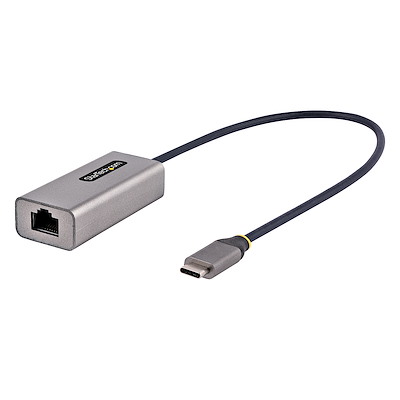
StarTech’s US1GC30B2 datasheet photo identifies the USB-C plug, attached cable and RJ45 socket. Check the full B2 model label and actual adapter status before selecting a driver. The photo does not prove a negotiated gigabit link, IP access or remote wake.[1] View full-size product image
When a StarTech US1GC30B2 Ethernet adapter fails, first locate the failure: USB detection, Ethernet link, network addressing or the application. “No internet” does not identify which layer failed. This Windows 11 guide uses the exact B2 model and does not apply its driver selection to an older US1GC30B or a dock’s built-in NIC.[1][2]
The distinction matters: the current B2 datasheet identifies ASIX AX88179A, while US1GC30B is a different Realtek-based product. Record the full model label, Device Manager status, Windows version/system architecture, cable and network outlet. A chipset or generic Ethernet name may appear instead of the retail model; identify the actual device before changing a driver.[1][2][3]
Check enumeration before changing the office network
Connect the adapter directly to an appropriate computer USB-C data port for the first comparison. If it is absent or has an error in Device Manager, record the exact device status and compare another suitable USB port before rebuilding network settings. Microsoft documents Windows Update and Device Manager driver paths; any manual package must match the actual device, Windows version and architecture.[3]
If the NetAdapter module is available, Get-NetAdapter is a read-only way to record interface identity and status. Compare the intended USB adapter with other interfaces; do not assume an “Ethernet 2” label permanently identifies the same hardware. A listed adapter is an enumeration result, not proof that the cable has negotiated the required link or the business application can connect.[5]
| Observation | Useful next comparison | Avoid this conclusion |
|---|---|---|
| Adapter absent or Device Manager reports an error | Direct USB port, exact device identity and supported driver path | That the office DHCP server is necessarily broken |
| Adapter present but cable/link is disconnected | Known-working patch cable and approved active outlet/switch port | That reinstalling Windows will repair a physical link |
| Link is up but expected network access is absent | Address, gateway/DNS and the network owner’s port/admission requirements | That a link light authorizes access to a managed network |
| Local resource works but one service fails | Test the specific destination, name resolution and application path | That every USB/Ethernet component must be replaced |
A gigabit link and a fast internet test are different measurements
US1GC30B2 is a 10/100/1000 Mbps adapter. The datasheet’s 2 Gbps full-duplex wording does not make it a 2.5 GbE adapter or promise a 2 Gbps download. Keep negotiated link speed separate from file-transfer or internet throughput. A USB 2.0 path, a 100 Mbps switch port or another endpoint can constrain the result even when the adapter itself supports gigabit.[1]
For a 100 Mbps link, compare the cable and approved network port before forcing speed/duplex or changing jumbo frames. Microsoft’s Ethernet troubleshooting begins with physical cable/path comparisons. On a managed office network, coordinate with its owner rather than restarting a shared router, moving into an unauthorized port or changing the NIC’s MAC identity to bypass admission.[4]
Use Get-NetIPConfiguration where available to record the intended interface’s address, gateway and DNS configuration. Then test an approved resource by its expected name through the intended wired path. A browser success while Wi-Fi is also connected may be using another route; retain enough interface evidence to know which path was actually tested.[6]
Test resume separately from remote Wake-on-LAN
A connection that returns after you manually wake the laptop is different from remotely waking it with a network packet. Record adapter presence, link and the approved resource test after the actual sleep/wake sequence before changing power settings. The model’s Wake-on-LAN feature listing is not an end-to-end guarantee for every laptop, USB power state, driver or network.[1]
For an approved Windows wake investigation, powercfg /a reports available sleep states and powercfg /devicequery wake_armed lists currently configured wake devices. These are observations, not a recipe to force unsupported firmware behavior or prove waking from shutdown. Keep remote wake requirements with the laptop and network owners.[7]
| Stage | Example observation to record | Pass evidence required |
|---|---|---|
| Direct connection | Correct B2 device is present without a recorded error | Exact interface/driver identity retained |
| Physical link | Link negotiates at the expected speed on the approved port | Cable and port used are recorded; speed alone is not app acceptance |
| Working path | Approved named resource opens using the intended wired interface | Address/DNS and the actual resource result are retained |
| Normal reconnect/resume | Device, link and resource checks are repeated | A failure after resume remains open; remote wake is a separate test |
This table is a proposed test record, not a measured client result or a throughput guarantee. If only this adapter fails on a known-working path, retain the one-port/one-cable comparisons and current driver version for support. If several endpoints fail at the same outlet or service, move the investigation to that shared path instead of repeatedly replacing USB adapters.
For an integrated Belkin dock NIC, start with the Belkin device-specific troubleshooting path. On a mixed desk, MST30C2DPPD display diagnosis and TB3DK2DPPD host charging diagnosis cover different transport and power branches. Their built-in Ethernet hardware is not this separate B2 dongle, so do not reuse this adapter’s driver package on those docks.
Frequently asked questions
Are US1GC30B and US1GC30B2 the same adapter for driver selection?
Why is there a driver problem if the product is described as driverless?
What if Windows does not show the adapter at all?
The adapter negotiates only 100 Mbps. Should I force 1 Gbps?
Does the 2 Gbps full-duplex specification promise a 2 Gbps download?
No. It describes the full-duplex gigabit Ethernet capability, not a single-direction 2 Gbps or 2.5 GbE link. Record negotiated link speed separately from application throughput and internet service performance.
[1]Why can the link be up but the company resource still fail?
Can a successful web page be using Wi-Fi instead of this adapter?
Does Wake-on-LAN support mean this dongle wakes every laptop from shutdown?
Should I enable jumbo frames on a Mac to fix a slow link?
No. The B2 datasheet explicitly says jumbo frames are no longer supported in macOS. This article’s Windows procedure is not a Mac driver recipe. Check the exact model/OS support and investigate the physical/link/application measurements first.
[1]What proves a resume-related disconnect is resolved?
Repeat the user’s normal sleep/wake and reconnect sequence, then confirm the same adapter is present, the expected link returns and the approved resource works over the intended wired path. A successful initial plug-in does not close a recurring resume failure.
Sources
- StarTech US1GC30B2 official datasheet ↩
- StarTech US1GC30B official datasheet (different model) ↩
- Microsoft: Update drivers through Device Manager ↩
- Microsoft: Fix Ethernet connection problems in Windows ↩
- Microsoft Learn: Get-NetAdapter ↩
- Microsoft Learn: Get-NetIPConfiguration ↩
- Microsoft Learn: Powercfg command-line options ↩


