





























































































































































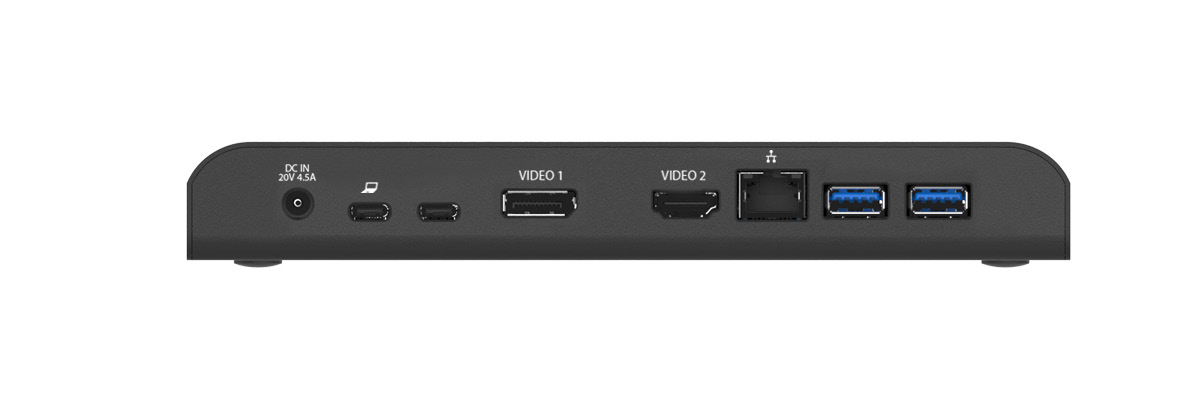
StarTech’s MST30C2DPPD manual photo shows the rear laptop-icon USB-C host port, a separate data-only USB-C port, VIDEO 1 DisplayPort and VIDEO 2 HDMI. Match these markings before testing each monitor alone. This 2018 manual image identifies connectors; it does not establish the laptop’s DP Alt Mode/MST support or a working dual-display mode.[1] View full-size product image
A working keyboard does not prove that a USB-C dock can receive video from the laptop. When one screen is missing, identify the video transport before replacing the dock or installing display software. This guide is for an installed StarTech MST30C2DPPD, using its HDMI and DisplayPort outputs with a compatible Windows host; it is not a buying recommendation.[1][2]
Write down the exact dock label, laptop model, Windows version, host-port specification, monitor models, cables and intended resolution/refresh rate. The physical-port instructions come from StarTech’s dated 2018 manual; use current Windows 11 controls for the OS steps. Confirm the laptop manufacturer documents DisplayPort Alt Mode and the required MST/display capability on the actual port. USB-C connector shape alone does not establish either.[1][2][5]
Check the upstream connection before the monitor layout
On this dock, the USB-C port marked with a laptop icon is the host connection. The neighboring unlabeled USB-C port is a downstream data port; it does not carry the laptop’s video input. Connect the specified dock power adapter and the proper host cable directly, leaving extra hubs and converters out of the initial test. The dock is not powered by the laptop.[1]
For this model, StarTech specifies dual HDMI plus DisplayPort at up to 1920 × 1200 at 60 Hz. Its single-screen 4K modes are different configurations, not a promise of dual 4K. Use a modest common mode that both monitors support for isolation. Do not extrapolate the limits of a newer StarTech model onto this one.[2]
Prove each screen separately, then test the pair
Choose the actual HDMI or DisplayPort input in each monitor’s own menu. Test screen A alone, then B alone, keeping a record of the cable and dock output. If possible, remove a converter and use a direct cable. In Windows 11, use Settings > System > Display, Identify and Detect as appropriate, then Windows + P > Extend. A numbered display and the correct desktop arrangement answer different questions.[3][4]
| Observed result | Next bounded test | Do not conclude |
|---|---|---|
| A fails alone; B works on the same output/cable | Compare A’s selected input and a known-working direct connection | That MST bandwidth is the first problem |
| Both work alone; one disappears when paired | Confirm the exact host’s MST/display support and the model’s dual-mode ceiling | That two successful single-screen tests prove the pair is supported |
| Both display the same desktop | Identify the screens and select Extend; check whether Windows detects them separately | That mirror mode by itself proves a broken dock |
| Neither works but a USB keyboard does | Recheck the laptop-icon host port, DP Alt Mode path and cable | That working USB data proves video transport |
Change one variable, and repeat the same arrangement. For example, swap only the HDMI cable while leaving the laptop, display mode and second screen unchanged. A failure that follows one cable is more useful evidence than a desk where cables, drivers and firmware all changed at once. If graphics software needs attention, use the laptop or GPU manufacturer’s supported package and record the old version; a separate USB-display driver is not a substitute for a missing native video path.[2][4]
Keep wake and dock-again tests in the acceptance record
The following log is an illustrative investigation, not an ALLMSP customer result. Replace the observations with what the actual desk does. Screens that appear once after a reboot have not yet passed the user’s ordinary reconnect and wake routine.
| Check | Illustrative observation | Useful decision |
|---|---|---|
| Inventory | The requested pair is two 4K displays at 60 Hz | The requested mode exceeds this model’s documented dual configuration |
| Supported comparison | Both screens are set to a supported common lower mode | Repeat the pair without also changing the cables or laptop |
| Independent desktop | Different test windows can be moved to the two identified displays | Record the actual mode and physical output for each |
| Normal use | Undock/redock and the usual sleep/wake test are repeated | Keep any missing-screen result open; one successful boot is not closure |
Escalate with the exact topology and the test matrix, not just “second monitor broken.” Include the host port’s documented capabilities, each direct-screen result, the requested versus tested mode and whether the failure follows a monitor, cable or host. Reproduce on a second approved compatible host where available before declaring the dock defective.
For a mixed desk fleet, identify Belkin’s Thunderbolt versus DisplayLink transport or use the Acer host/dock checks. Their compatibility lists and drivers are not MST30C2DPPD instructions. If the laptop’s battery is also the issue, the TB3DK2DPPD power guide illustrates a different dock’s host and power diagnosis. For a separate USB-C Ethernet dongle, use the US1GC30B2 connection guide; do not put that adapter’s driver onto this dock’s different network hardware.
Frequently asked questions
Why does my keyboard work through the MST30C2DPPD while both screens are black?
Which of the two rear USB-C ports connects to the laptop?
Use the port marked with a laptop icon. The adjacent unlabeled port is downstream USB data only. Match the actual markings with the model manual rather than choosing a port because the connector fits.
[1]Can this dock run two 4K screens at 60 Hz?
That is not the dual configuration documented for MST30C2DPPD. StarTech specifies its HDMI-plus-DisplayPort pair at up to 1920 × 1200 at 60 Hz. A single-output 4K capability must not be read as dual 4K support.
[2]Both screens work alone. What should I check next?
How do I change duplicated screens into an extended desktop in Windows 11?
Press Windows + P and select Extend, then use Settings > System > Display to Identify and arrange the detected screens. If only one external display is detected, investigate the host/video path instead of repeatedly rearranging the same single display.
[3]Should I install DisplayLink software to repair this native MST dock?
Do not treat software for another video transport as a repair. The MST30C2DPPD video path depends on the host’s native video capability; StarTech describes no separate display-driver setup for this model. Address any actual host graphics-driver issue with its manufacturer’s supported guidance.
[2][4]Can I assume a Mac will provide the same two independent screens?
Does the dock need its power adapter even if the laptop has its own charger?
Yes for this model: the manual says the docking station cannot receive its operating power from the host. Use the specified dock supply. A separately powered laptop does not make the dock’s DC input optional.
[1]The pair works after a reboot but fails after sleep. Is it fixed?
What evidence should I send before replacing the dock?
Send the exact laptop and dock models, host-port capability, cable/monitor/output map, requested and tested modes, each one-screen result and a repeatable failure sequence. A controlled result on a second compatible host is stronger evidence than a broad driver reinstall.


