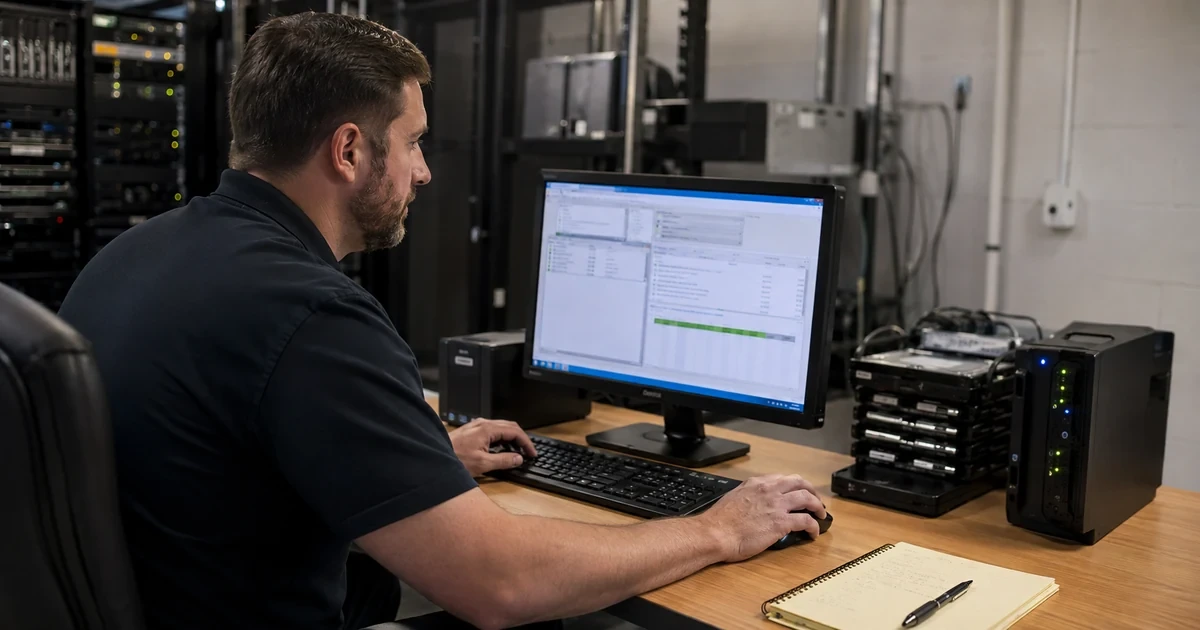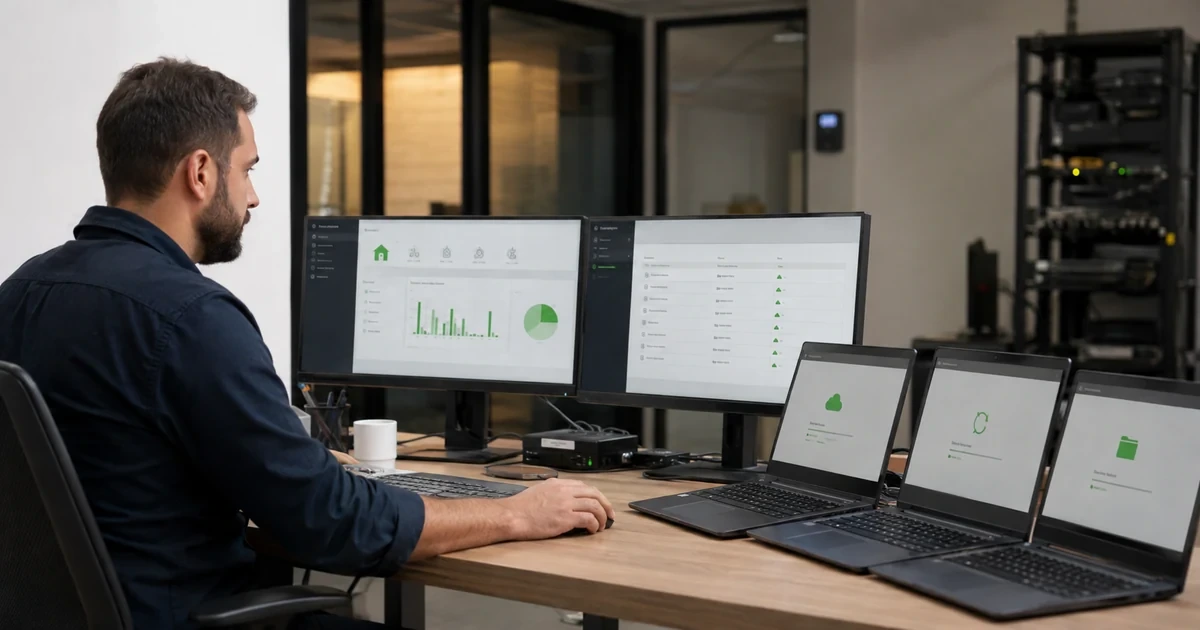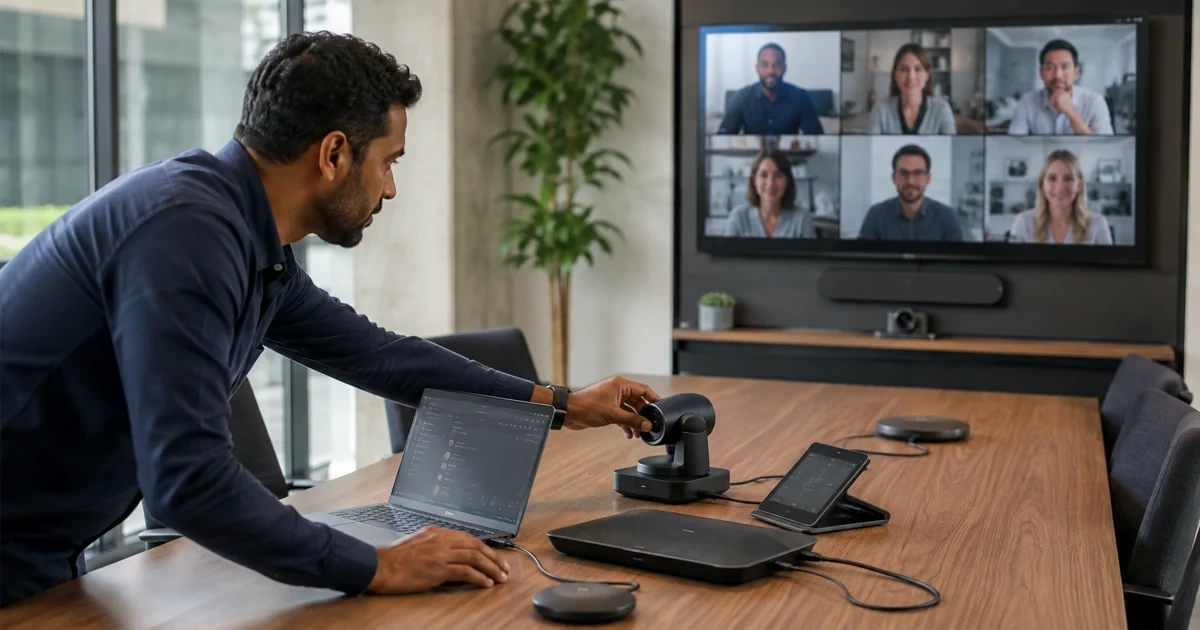
When a Google Meet call sounds bad or drops participants, the fastest answer is often the wrong one. Users blame the platform, the internet provider, the conference room, or a coworker’s laptop before anyone has enough evidence to know what failed.
A better troubleshooting process separates symptoms by user, location, device, browser, network, audio hardware, video behavior, and room setup. That makes support faster and helps leadership decide whether the fix is training, equipment, Wi-Fi, firewall review, or endpoint replacement.
This article gives Georgia businesses a practical way to investigate Google Meet quality. ALLMSP can help collect evidence, review network readiness, standardize meeting rooms, and use admin diagnostics responsibly.
Key decisions at a glance
- Poor Meet quality can come from Wi-Fi, bandwidth, firewalls, browsers, room equipment, microphones, cameras, endpoint load, or a remote participant’s connection.
- Support needs consistent ticket details so one bad meeting can be separated from a recurring office, device, or room pattern.
- Network readiness for video should be tested in the actual rooms and work areas where important calls happen.
- The Meet Quality Tool is most useful when the help desk already knows the affected meeting, users, locations, devices, and symptoms.
- Standardizing headsets, cameras, room kits, browser expectations, and pre-meeting checks can fix many quality complaints without changing platforms.
Separate Network, Device, Room, and User Symptoms
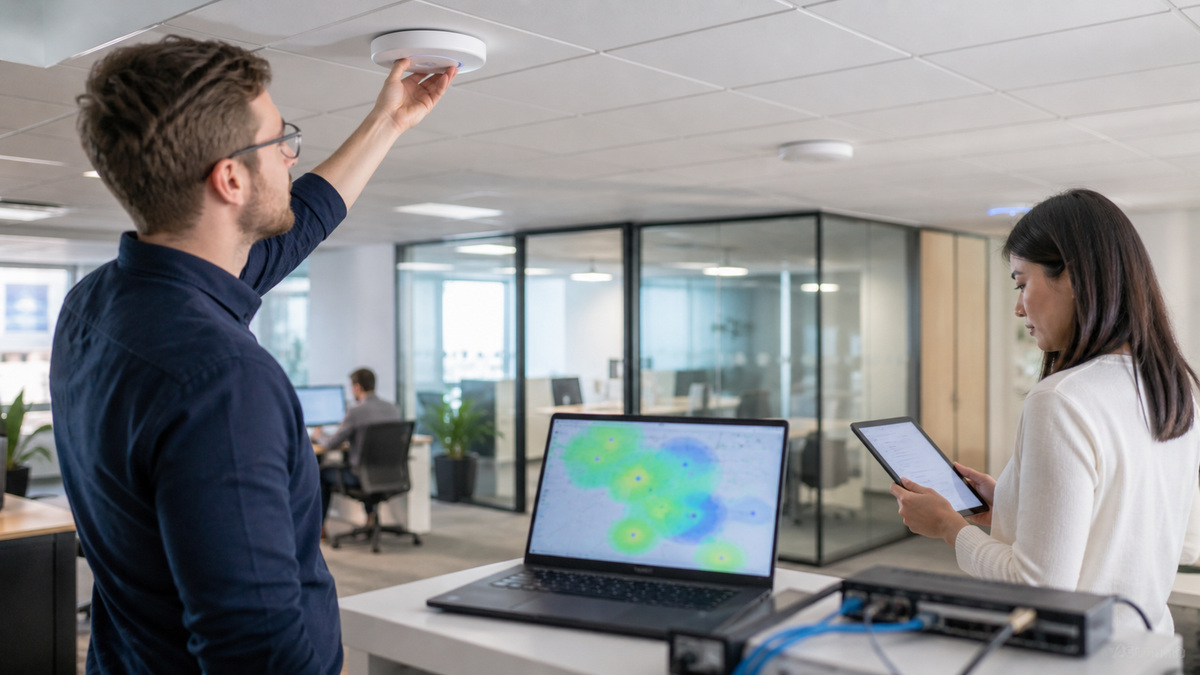
A bad Meet call can come from many places: weak Wi-Fi, overloaded internet, poor audio devices, old browsers, background apps, underpowered computers, camera placement, room echo, or a remote participant’s connection. Treating every complaint as a network problem wastes time and frustrates users.
Support should collect a consistent set of facts. Which meeting was affected, who had the issue, where were they located, what device and browser were used, was the problem audio, video, screen sharing, delay, or disconnects, and did other participants see the same symptom? That evidence helps separate a local device issue from a broader service or network problem.
ALLMSP can help build a Meet support checklist that is quick enough for the help desk and detailed enough to reveal patterns.
- Record meeting time, affected users, location, device, browser, network, and symptom type.
- Ask whether the issue affected one participant, several users, one office, or everyone.
- Check audio devices, cameras, browser permissions, CPU load, and Wi-Fi signal before blaming Meet.
- Compare home, office, and conference room reports to find location-specific patterns.
- Use consistent ticket fields so recurring problems become visible.
Prepare the Network for Video Before Complaints Start

Google Meet depends on stable network paths, enough bandwidth, working DNS, firewall allowance, and Wi-Fi that can handle real meeting load. A single speed test does not prove that a conference room, shared office, or training area is ready. Video meetings stress latency, packet loss, roaming, and upload capacity in ways ordinary browsing may not.
Network readiness should include office Wi-Fi coverage, wired room connections, firewall behavior, traffic prioritization where available, guest networks, and remote-worker expectations. If users frequently present large files or host hybrid meetings, test those scenarios before leadership meetings depend on them.
ALLMSP can review the network path, meeting-room equipment, and support history to find whether Meet problems are isolated incidents or infrastructure symptoms.
- Test Wi-Fi and wired connections in the exact rooms where important meetings happen.
- Validate DNS, firewall, proxy, and content-filter behavior for Meet traffic.
- Check upload capacity and latency during normal business hours, not only after hours.
- Confirm that guest networks do not block clients or room devices from joining.
- Document the expected support path for office, remote, and client-side quality complaints.
Use the Meet Quality Tool to Confirm Patterns

The Meet Quality Tool can help admins diagnose meeting issues with participant and call statistics. It is most useful when support already has the meeting context and knows what question it is trying to answer. Evidence from the tool can show whether symptoms align with network loss, device behavior, or a broader pattern.
Access to quality data should be limited to people who need it, because meeting diagnostics can expose sensitive context. The business should decide who can review quality data, how long evidence is kept, and how findings are summarized without oversharing participant details.
A good support report translates technical evidence into plain language: what happened, who was affected, likely cause, recommended fix, and whether the issue is local, office-wide, or recurring.
- Use the Meet Quality Tool after collecting meeting time, users, location, and symptoms.
- Limit diagnostic access to appropriate admin or support roles.
- Look for repeat patterns by location, network, device type, browser, or room system.
- Summarize evidence without exposing unnecessary participant or meeting details.
- Turn findings into fixes such as Wi-Fi changes, room equipment updates, training, or device replacement.
Fix the Small Things Users Notice Most
Many meeting complaints come from simple problems that feel unprofessional: poor microphones, echo, bad lighting, awkward camera angles, noisy rooms, outdated browsers, unmanaged headsets, and users who do not know how to switch devices. These issues rarely require a major platform change, but they do require ownership.
Create a standard for important meeting spaces and frequent presenters. That standard should include camera, microphone, speaker, display, lighting, network, cable, browser, and support expectations. Remote staff should have a similar checklist for headset, camera, workspace, and internet reliability.
ALLMSP can help standardize rooms and user setups so Meet quality becomes predictable rather than dependent on whoever joins first.
- Standardize headsets, cameras, room displays, microphones, and cables for frequent meeting hosts.
- Create a pre-meeting checklist for executives, sales, HR, and training sessions.
- Document how users switch microphones, cameras, and speakers during a call.
- Review recurring quality tickets before buying new conference-room equipment.
- Test important meeting rooms after every network or hardware change.
Official product documentation and ALLMSP resources
Frequently Asked Questions
What causes poor Google Meet quality?
Common causes include Wi-Fi issues, limited upload bandwidth, firewall problems, old browsers, overloaded devices, poor microphones, room echo, camera issues, and remote participant connections.
What should support ask when a Meet call is bad?
Ask who was affected, when it happened, where users were located, what devices and browsers they used, and whether the issue was audio, video, screen sharing, delay, or disconnects.
What is the Google Meet Quality Tool?
It is an admin tool for diagnosing and reviewing meeting quality and statistics so support can investigate call issues with evidence.
Can Google Meet problems be caused by office Wi-Fi?
Yes. Video calls are sensitive to coverage, roaming, latency, packet loss, upload capacity, and congestion, especially in conference rooms and training areas.
Should meeting rooms use wired network connections?
For important rooms, wired connections are often more predictable. Wi-Fi can work well, but it should be tested under real meeting conditions.
How can ALLMSP help with Meet quality?
ALLMSP can review network readiness, room equipment, endpoint standards, support tickets, and Meet Quality Tool evidence to recommend practical fixes.
Do poor microphones matter as much as network speed?
Yes. Bad audio can make a meeting feel broken even when the network is fine, so microphones, speakers, echo, and room acoustics should be checked.
How often should meeting rooms be tested?
Test rooms before important events, after equipment or network changes, and on a recurring schedule if they are used for client or executive meetings.
Can remote-worker home networks be part of the problem?
Yes. Home Wi-Fi, upload speed, old routers, VPNs, and device load can affect Meet quality for remote employees.
What should a quality report include?
Include the meeting, affected users, symptoms, evidence, likely cause, business impact, recommended fix, and whether the issue appears isolated or recurring.