





























































































































































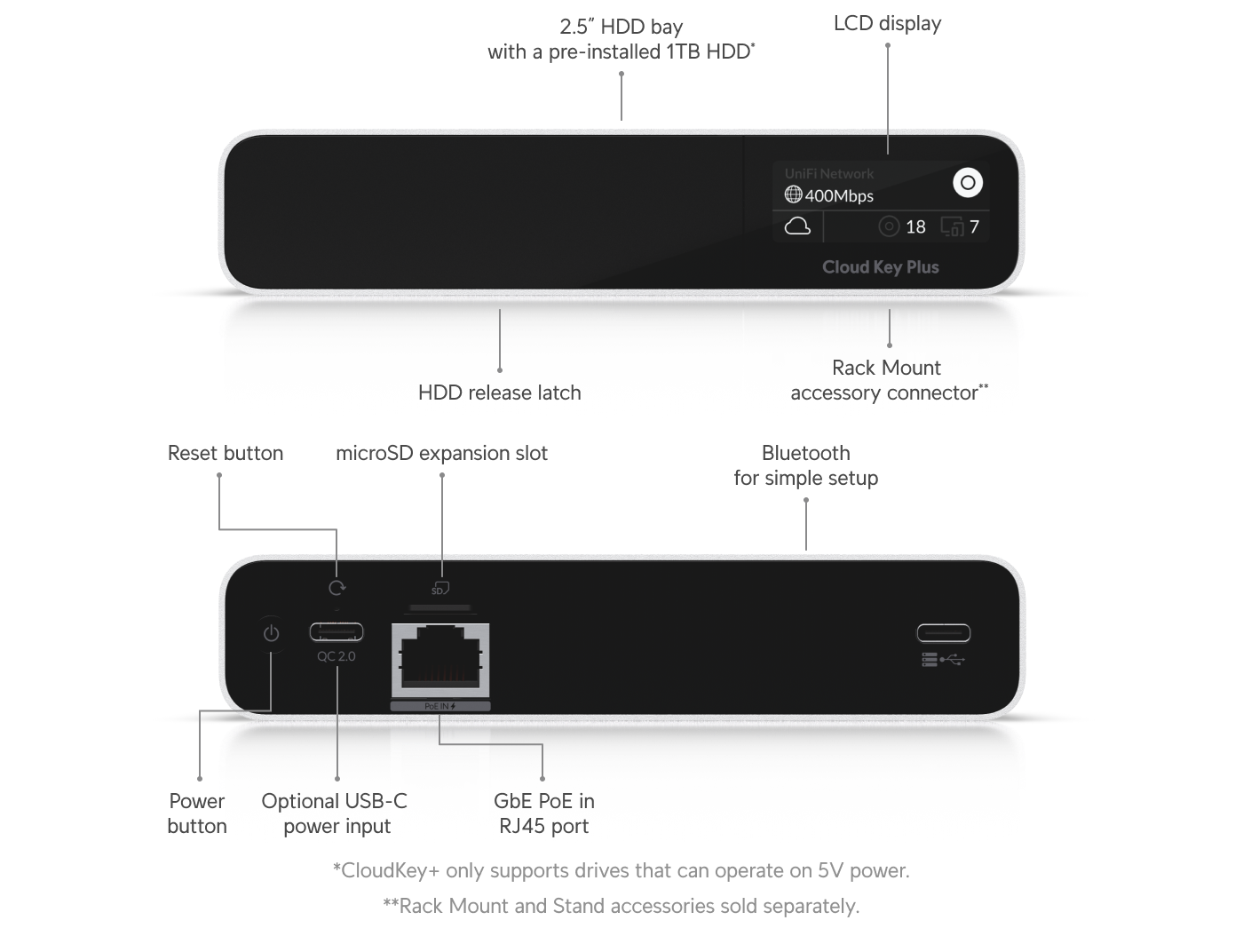
Ubiquiti’s CloudKey+ (UCK-G2-PLUS) view identifies the 2.5-inch drive bay, PoE Ethernet and optional USB-C power. Identify the actual host and storage before recovery, then check separately what the saved backup contains. A drive bay is not evidence of a tested recovery copy.[9] View full-size image
A useful UniFi backup is one an authorized administrator can retrieve, identify and restore through a supported recovery path. Review that path before an update or provider handoff. A recent timestamp alone does not establish that the file covers the right host, applications or device configuration.
Start by recording the host type, installed UniFi OS and application versions, device firmware, owner/admin model and intended recovery target. This guide focuses UniFi Network operations; Protect recordings and Access workflows need separate continuity decisions.
Match backup scope to the host you actually operate
For supported consoles, Ubiquiti recommends System Config Backups; Network-only backups cover Network settings and device configurations, especially for legacy or self-hosted Network Server scenarios. Check the actual backup method and contents instead of treating every downloaded file as a full system image.[1]
Cloud Gateway cloud backups are associated with the Owner’s UI account. Test retrieval from the accountable account, confirm recent backups actually exist, and retain an appropriately protected local export before a planned change.[1]
| Record | What to verify | What it does not establish |
|---|---|---|
| Host and applications | Which console/server, versions and applications the backup covers. | A filename does not prove a complete machine or disk image. |
| Backup and access | Usable export, creation time, authorized retrieval and protected storage. | An installer’s screenshot does not establish the company can retrieve it. |
| Recovery target | Replacement model, supported migration path and required software. | A backup is not a universal downgrade or hardware-compatibility promise. |
| External dependencies | WAN details, upstream firewall, DNS, identity, certificates and integrations. | Application configuration does not replace every external record. |
| Service acceptance | A plan to verify devices, clients, isolation and business applications. | A completed restore dialog does not prove ordinary work is restored. |
Keep recovery files and credentials under appropriate access control. Do not place configuration exports into an ordinary support ticket or a shared folder without reviewing their sensitivity. Record who may retrieve them and who authorizes a restore.
Make an update window a testable change
Inventory the three layers separately: the host/UniFi OS, the Network application and device firmware. Update Manager provides centralized visibility; console/application release-channel and automatic-update controls are under the Control Plane, while device updates are configured in the associated application. Legacy Network Server releases before 8.6 need the documented manual update method.[2]
Read the notes and prerequisites for the exact target release. Choose a maintenance window around the affected service, identify a representative pilot device, and record what will trigger a hold or recovery decision. “Everything is current” is not a sufficient change record if nobody knows which layer changed.
- Before: verify access, export the relevant backup, capture current versions and check power and upstream connectivity.
- Pilot: update a representative supported unit or bounded site first; retain local help when a gateway or management uplink is affected.
- Accept: check management visibility, client addressing, required applications, isolation and the actual user task.
- Expand: proceed only when the pilot meets the written checks and no unexplained failure remains.
A release channel determines which releases are offered; it is not an availability guarantee. Keep experiments out of a production change unless their purpose, support implications and recovery limits are understood. A production maintenance decision should be tied to the release and environment being changed.
Recover deliberately when a change does not pass
First distinguish a broken management view from a broken network service. Gather the affected device/version and last successful step before repeated restarts erase the sequence. Use the UniFi power, addressing and VLAN diagnostic guide to test that branch.
Use a supported restore or migration path and check the target’s version requirements. A restore can replace newer settings, so record which changes would be lost and who approved that tradeoff. A Protect configuration backup does not move existing recordings to a different console; recordings require a separate preservation decision.[1]
Recovery Mode is a last-resort, model-specific procedure for an unresponsive supported device when a normal reset cannot be performed. Ubiquiti’s guide has different procedures for gateways, APs and other products. Do not use one product’s IP address, firmware file or button sequence as a universal recovery recipe.[3]
After recovery, reconcile the inventory and retest clients through their normal path. Confirm the expected Network host manages the devices and that any old instance is retired through the documented migration process. Keep the incident record and replace any temporary exceptions with the approved design.
Prove ownership and access before a provider departs
Inventory owner/admin accounts, recovery email, remote and local access, protected device credentials, backups and integrations. A single-site Super Admin has substantial security authority, while some functions remain Owner-specific. Review the actual role model before deciding that an invitation completes a handoff.[4]
On supported UniFi OS consoles, the current Owner can select Transfer Ownership in the Control Plane and choose the intended administrator. The separate legacy self-hosted Network Server guidance uses Administrators rather than Owners.[5]
Current UniFi OS Server is a different self-hosting product from that legacy Network Server. Identify the installed product and use its actual role and migration controls; do not apply a legacy ownership screen by name alone.[6]
For an installer setting up a Cloud Gateway through the mobile app, Ubiquiti documents Remote Hand-Off: invite the client’s UI account, wait for acceptance and confirm the transfer. Treat that as a specific supported setup flow, not a blanket process for every UniFi host.[7]
Have the incoming administrator sign in, identify the right site, retrieve the relevant backup and perform an agreed non-disruptive administration check. Verify local access from the site network as well as remote access where enabled.[8] Only then remove obsolete access and rotate shared secrets or integration credentials according to their actual dependencies.
Example: a provider change coincides with new equipment
Imagine an office replacing its management console while changing support providers. The outgoing provider offers an export, but the business has not tested its own account or documented the upstream firewall. The handoff should pause until the incoming team knows the backup type, replacement requirements, WAN dependency and accountable owner.
The rehearsal checks a restore on the supported target, one representative AP and a staff and guest client. It records how the old host will be retired and which account retrieves future backups. This illustrative checklist exposes incomplete work before the live handoff; it does not promise a particular outage length or recovery outcome.
Connect recovery evidence to ongoing operations
Use UniFi deployment planning when the host architecture itself needs to change. Use the network equipment review to reconcile the surrounding switches, firewall and dependencies, then tune network monitoring so the responsible team receives useful failures rather than an unowned alert stream.
ALLMSP’s UniFi services include configuration, documentation, maintenance and integration support. Bring the current versions, host and ownership inventory, backup method and recent change record. Managed IT Services can help turn the accepted recovery procedure into recurring maintenance and accountability.
Frequently asked questions
Is a UniFi Network backup the same as a complete system backup?
No. Network-only and System Config backups have different scopes. Identify the host, applications and supported restore target before relying on the file.
[1]Who can retrieve Cloud Gateway cloud backups?
Ubiquiti associates them with the Owner’s UI account. Test the accountable account’s retrieval access before a handoff.
[1]Does a configuration backup transfer old Protect recordings?
No. Existing recordings do not transfer between consoles with the configuration backup; plan their preservation separately.
[1]Where do I review UniFi automatic updates and release channels?
Use the actual site’s Control Plane update settings for the console/application. Device update settings are within the associated application.
[2]Can a backup guarantee a safe firmware downgrade?
No. Confirm the supported recovery path, target version and equipment compatibility. Preserve the current state before attempting a restore.
Should Recovery Mode be my first response to an offline AP?
No. Investigate power and connectivity first. Recovery Mode is a last-resort procedure for supported unresponsive devices when a normal reset cannot be performed.
[3]Can a supported UniFi console’s owner transfer ownership?
Yes. The documented console process starts from the current Owner’s account in the Control Plane and selects the intended administrator.
[5]Do legacy Network Server and current UniFi OS Server use identical handoff instructions?
Does a Cloud Gateway Remote Hand-Off finish when the invite is sent?
No. The documented mobile flow requires client acceptance and confirmation of the transfer.
[7]When is it safe to remove the old provider’s access?
After the accountable incoming team has proven the required administration, backup retrieval, recovery records and local/remote access, and integration dependencies are reviewed.
Sources
- Backups and Migration in UniFi ↩
- UniFi Updates ↩
- UniFi Recovery Mode ↩
- UniFi Roles Explained: Admins and Users/Members ↩
- UniFi Password Recovery and Ownership Transfer ↩
- Self-Hosting UniFi ↩
- Remote Hand-Off ↩
- UniFi Local Management ↩
- UniFi CloudKey Plus host and drive identification — manufacturer technical reference ↩


