A new business computer should arrive ready for the employee’s real work, not as a box that begins a day of downloads, password resets, missing accessories, and support calls. The deployment starts before purchase by matching the device, operating system, ports, displays, dock, network, applications, security controls, and warranty to a defined job role. It ends only after the user can complete important tasks and the support team has an accurate record.
Standardization does not mean giving every employee identical hardware. It means using a controlled catalog of tested configurations and documented exceptions. A graphic designer, field technician, executive traveler, call center user, engineer, and front-desk employee may need different performance and accessories, but each device can still follow the same ownership, enrollment, encryption, patching, application, data, validation, and lifecycle process.
ALLMSP procures, stages, deploys, secures, and supports workstations and laptops for organizations in Lawrenceville, Suwanee, Gwinnett County, Metro Atlanta, and throughout Georgia. Our in-house team can assess roles, select hardware, coordinate delivery, register devices, apply standard builds, migrate data, configure accessories, test workflows, train users, document assets, and provide ongoing repair and replacement support.
Turn each new computer into a verified business workstation
- Define the role: Document applications, data, performance, mobility, displays, ports, accessories, security, accessibility, environment, and support needs.
- Choose a standard: Select a tested model and configuration, then record any justified difference with an owner, reason, risk, and review date.
- Control purchasing: Confirm seller, exact part number, warranty, delivery, enrollment, licensing, accessories, spares, returns, and receiving evidence.
- Stage the build: Update firmware and operating system, enroll management, apply policy, install approved software, configure security, and test hardware.
- Migrate and validate: Move approved data and settings, test identity and applications, connect peripherals, and complete user acceptance before handoff.
- Close the record: Assign the asset, store recovery information, update inventory, retain purchase and warranty data, and schedule support and replacement.
Translate each job role into a tested hardware and software standard
Interview the role owner and representative users before selecting equipment. Record business applications, browser workloads, local data, cloud storage, video meetings, voice, printing, scanning, specialized peripherals, virtual desktops, development tools, design work, engineering models, reporting, accessibility, and travel. Note where the device will operate, how often it moves, whether it connects to docks or multiple displays, how long it must run on battery, and what happens when it is unavailable. Separate current needs from likely growth over the intended service life.
Convert those requirements into measurable specifications. Consider processor class, memory, storage, graphics, display size and resolution, camera, microphone, wireless capability, wired networking, cellular options, ports, weight, durability, battery, power supply, dock, monitors, keyboard, mouse, headset, privacy filter, carrying case, mounting, and environmental limits. Verify that the operating system edition supports the business identity, encryption, device management, remote support, and security features. Confirm application and peripheral compatibility using the exact model and configuration rather than the product family name alone.
Create a small catalog of standard configurations by role or workload. Record manufacturer part number, approved substitutions, expected service life, warranty, repair route, replacement parts, dock and charger compatibility, spare strategy, operating system, drivers, firmware, applications, and test results. Document exceptions with a business owner, reason, security review, support impact, cost, expiration, and future replacement plan. Pilot a new model with difficult applications, accessories, and users before purchasing it broadly.
- Role profile: Capture applications, data, mobility, performance, peripherals, collaboration, accessibility, environment, downtime impact, and expected growth.
- Hardware specification: Define processor, memory, storage, graphics, display, camera, audio, wireless, ports, battery, durability, and physical limits.
- Accessory set: Match dock, power, monitors, keyboard, mouse, headset, adapters, privacy, case, mounting, cabling, and spare components.
- Platform fit: Verify operating system edition, identity, management, encryption, endpoint protection, remote support, updates, and application compatibility.
- Standard catalog: Record exact models, approved substitutions, warranty, service life, repair route, accessories, drivers, firmware, software, and tests.
- Exception control: Name owner, reason, risk, support effect, cost, approval, expiration, review date, and target replacement for every deviation.
A role-based standard gives employees suitable equipment while reducing the unsupported combinations that make deployment, repair, and replacement unpredictable.
Control procurement, receiving, enrollment, staging, and security configuration
Build the purchase order from exact specifications. Confirm an authorized seller, manufacturer part number, configuration, operating system, warranty term, accidental damage coverage where appropriate, delivery location, tax treatment, financing or ownership, return window, enrollment service, and accessories. Require serial numbers and hardware identifiers when the supplier can provide them. Record who approves substitutions because a similar listing may change the network adapter, display, storage, warranty, processor generation, or management capability.
Receive each device into a controlled inventory. Match the packing record, serial number, model, warranty, charger, dock, accessories, and physical condition. Assign an asset identifier and intended user or stock role. Register the device with the approved management and deployment platform before handoff. Microsoft describes Windows Autopilot as a way to apply settings, policy, applications, directory join, and management enrollment while retaining the manufacturer-provided Windows installation. Whether deployment uses Autopilot or another method, the business needs repeatable enrollment and a record of success.
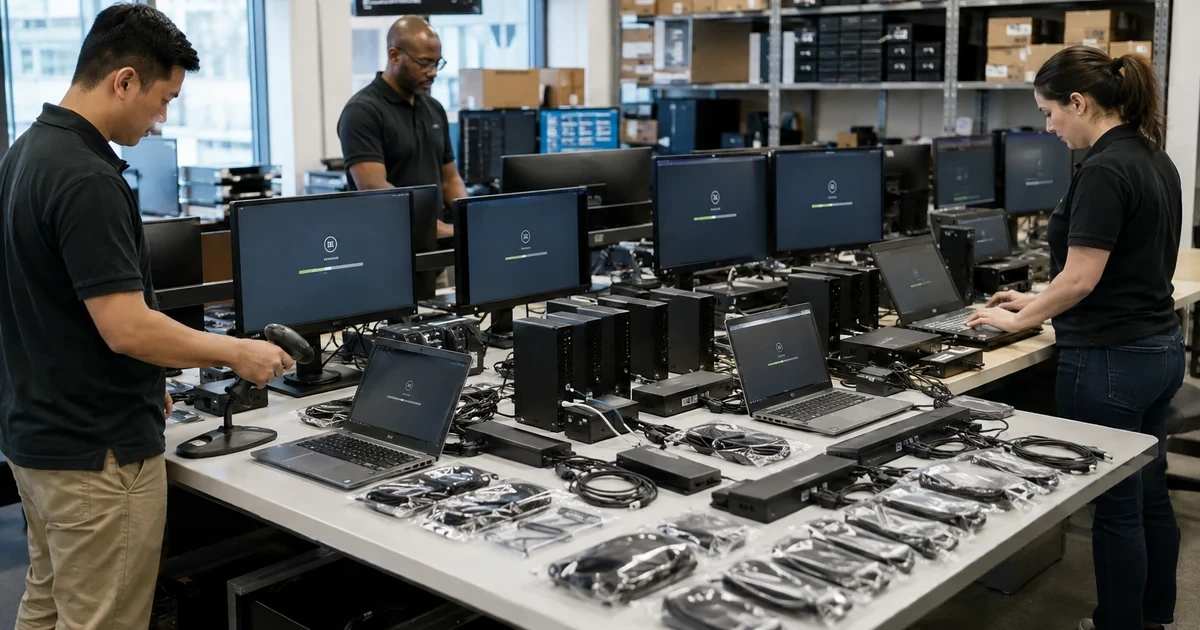
Stage and test the standard build. Apply supported firmware, operating system, drivers, updates, identity, management, security policy, disk encryption, endpoint protection, firewall, browser, approved applications, printers, network profiles, certificates, remote support, backup or file synchronization, and monitoring. Remove unauthorized trial software without breaking supported system components. Test ports, displays, dock, wireless, wired network, camera, microphone, speakers, headset, battery, sleep, power, biometric sign-in, updates, restart, and recovery. Capture failures before the device reaches the user’s desk.
- Purchase control: Confirm seller, part number, configuration, warranty, coverage, enrollment, accessories, delivery, returns, ownership, and substitution approval.
- Receiving record: Match serial, model, shipment, condition, charger, dock, accessories, warranty, destination, asset tag, and assigned purpose.
- Device registration: Associate the device with company identity and management, deployment profile, ownership classification, policy groups, and support records.
- Standard build: Apply firmware, system, drivers, identity, management, encryption, protection, firewall, applications, network, certificates, and monitoring.
- Hardware test: Validate ports, dock, displays, network, camera, microphone, audio, battery, power, biometric hardware, sleep, restart, and recovery.
- Build evidence: Retain enrollment, policy, encryption key escrow, update, application, protection, backup, test, exception, and technician results.
Controlled receiving and staging catch ordering, hardware, enrollment, policy, application, and accessory problems before they interrupt an employee’s first day.
Migrate data, test the employee workflow, and complete a supportable handoff
Plan data migration from an inventory rather than copying every old folder. Identify approved local files, cloud-synchronized libraries, email data, browser information, application settings, templates, certificates, encryption keys, databases, specialized profiles, and shared resources. Remove duplicates and prohibited data according to policy. Verify the destination, access permissions, synchronization state, backup, retention, and ownership. Preserve the original device until the business validates the migration and the approved rollback period ends.
Test the employee’s actual work before final acceptance. Verify sign-in, multifactor authentication, password recovery, email, calendar, chat, meetings, shared files, line-of-business applications, printing, scanning, voice, video, VPN or private access, remote support, browser extensions, bookmarks, accessibility features, external displays, dock behavior, sleep, battery, and off-site connectivity. Include role-specific transactions such as creating an estimate, opening a design file, joining a customer call, processing an order, reaching a file share, or running a report.
Complete the handoff with a concise orientation and a complete asset record. Show the user how to sign in, protect the device, store company files, connect accessories, request support, report loss, install approved software, and handle updates or restart prompts. Record the assigned person, location, serial, asset tag, model, purchase, warranty, configuration, enrollment, encryption, applications, accessories, exceptions, acceptance, and replacement target. Keep a tested spare or loaner plan for roles where downtime has a meaningful business cost.
- Migration inventory: Identify files, cloud data, mail, settings, templates, certificates, profiles, application data, permissions, ownership, and retention.
- Data validation: Compare source and destination, open representative files, confirm access and sync, test backup, and preserve rollback appropriately.
- Role acceptance: Complete identity, communication, files, applications, peripherals, remote work, security, recovery, and role-specific business tasks.
- User orientation: Cover sign-in, MFA, data storage, accessories, approved software, updates, support, loss reporting, safe use, and travel expectations.
- Asset closure: Record assignment, location, hardware, purchase, warranty, build, controls, software, accessories, exceptions, acceptance, and refresh date.
- Continuity option: Prepare spares, loaners, configuration profiles, recovery access, data availability, shipping, and escalation for important roles.
The deployment is finished when the employee can complete real work, the device is protected and recoverable, and support can identify its complete approved state.
Business workstation and laptop deployment from ALLMSP
ALLMSP can assess roles, create hardware standards, source business devices, manage receiving, register and stage systems, configure identity and security, install applications, migrate data, connect accessories, test workflows, train users, document assets, and support the deployed fleet through our in-house team.
We deploy workstations and laptops for businesses in Lawrenceville, Suwanee, Gwinnett County, Metro Atlanta, and throughout Georgia, including offices, field teams, professional services, healthcare, construction, manufacturing, education, retail, and multi-location organizations.
- Select: Match role, workload, environment, mobility, security, accessories, warranty, service life, and budget to a tested device standard.
- Deploy: Control purchasing, receiving, enrollment, firmware, system, policy, applications, protection, migration, testing, and handoff.
- Support: Maintain inventory, monitoring, documentation, remote help, repair, loaners, warranty, replacement, and lifecycle planning.
Primary guidance for business workstation deployment
Use current platform and security guidance to build the deployment standard, then validate every configuration against the organization’s actual applications, users, networks, and support process.
- Microsoft Windows Autopilot Overview. Explains cloud-based device setup, policy and application delivery, directory join, management enrollment, reset, reuse, and recovery.
- Microsoft Windows Deployment Documentation. Provides planning, readiness, deployment, update, compatibility, and management guidance for business Windows devices.
- NIST Enterprise Mobile Device Security. Addresses centralized management, endpoint protection, deployment, use, and disposal across the enterprise device lifecycle.
- ALLMSP Hardware Support. Business computer selection, procurement, deployment, repair, upgrades, accessories, lifecycle planning, and support.
Business workstation deployment FAQs
How should a business choose between a laptop and desktop workstation?
Compare mobility, performance, expansion, displays, environment, battery, repairability, security, accessories, downtime impact, expected life, and total support cost for the role.
Should every employee receive the same computer model?
Use a controlled catalog by role or workload. Standardize the process and supported configurations while documenting justified differences for specialized needs.
What should be included in a business laptop purchase?
Specify the exact model, operating system, memory, storage, warranty, charger, dock, displays, adapters, case, protection plan, enrollment, delivery, and return terms.
Why register a device before giving it to the employee?
Registration supports company ownership, automatic enrollment, policy and application delivery, inventory, security, recovery, reset, reassignment, and support.
What should be tested during workstation staging?
Test firmware, updates, ports, dock, displays, network, camera, audio, battery, power, identity, management, encryption, security, applications, restart, and recovery.
How should data be moved from an old computer?
Inventory approved data and settings, verify ownership and permissions, protect the source, move through an authorized method, validate the destination, and retain rollback only as allowed.
What is user acceptance testing for a new laptop?
A representative user completes real identity, communication, file, application, peripheral, remote-work, security, and role-specific tasks before final handoff.
Does a small business need spare computers?
Roles with costly downtime may justify tested loaners or spares with current builds, compatible accessories, recovery access, and a documented assignment process.
Can ALLMSP purchase and configure business computers?
Yes. ALLMSP handles selection, procurement, receiving, enrollment, staging, security, applications, migration, accessories, testing, documentation, and support in house.
Where does ALLMSP deploy workstations and laptops?
ALLMSP serves Lawrenceville, Suwanee, Gwinnett County, Metro Atlanta, and organizations across Georgia with local and remote deployment support.