Housecall Pro can show a full calendar and still leave a field-service company guessing. The failure usually appears between screens: an unassigned job lacks an owner, a dispatcher changes a window without checking the notification choice, or a technician finishes the repair without completing the record the office needs. The software becomes dependable only when the team agrees on what each state and handoff means.
Housecall Pro’s current Schedule documentation describes unscheduled and unassigned queues, several calendar views, employee and tag filters, ZIP-code Areas, and drag-and-drop scheduling. Its job and notification documentation connects scheduling with dispatched employees and with Scheduled, On My Way, and Finished messages. Those capabilities are useful, but a company must turn them into one operating sequence that matches its trade, staffing model, and customer promise.
The workflow below is designed for plumbing, HVAC, electrical, and other mobile service teams. It establishes a dispatch control point, a minimum viable job record, a field status contract, and a daily closeout review. The result is not merely a cleaner calendar, it is a chain of evidence that helps the office answer where the technician is, what the customer was told, what work was completed, and what must happen next.
ALLMSP handles Housecall Pro configuration, workflow, and support improvement to teams near Lawrenceville and Suwanee, elsewhere in Gwinnett County and Metro Atlanta, and throughout Georgia, with planning, configuration, testing, and support completed by the same in-house team.
Key decisions at a glance
- Treat unassigned and unscheduled work as controlled queues with named owners, not as a gray backlog on the calendar.
- Build each Housecall Pro job with the service address, scope, line items, notes, assigned team, and arrival window before dispatch.
- Define exactly when technicians use On My Way, Start, and Finish so status, travel time, and customer messages mean the same thing across the company.
- Review notification settings and exceptions before relying on automated texts or emails for schedule changes and visit updates.
- Require a complete closeout record before the office invoices, reschedules follow-up work, or sends data to accounting.
Use the Schedule as a Dispatch Control Surface

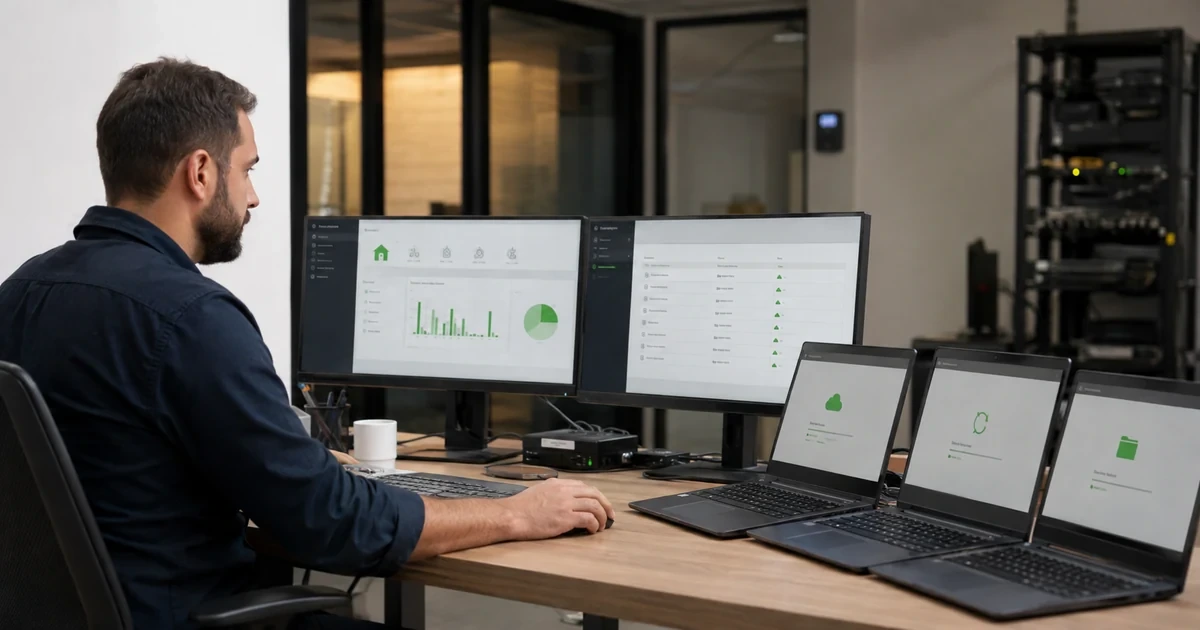
Start by deciding which Housecall Pro calendar view answers each operational question. Dispatch view is suited to active crew coordination, View by Employee makes capacity and double-booking risk easier to compare, and the unscheduled or unassigned lists expose work that has not yet received a firm commitment. A dispatcher should not have to scan every color block to learn whether demand is waiting outside the plan.
Housecall Pro allows schedule filtering by team member name or tag and can color jobs by employee or by an Area built from ZIP codes. Use those tools to express real constraints such as licensing, service territory, equipment capability, or on-call responsibility. Keep the tag vocabulary short and owned by one administrator, a filter loses operational value when several tags mean nearly the same thing.
Create a fixed dispatch cadence. At opening, assign every same-day job or give it an explicit exception owner. Before each arrival window, review travel feasibility, parts dependencies, and any unconfirmed customer contact. Near close, inspect tomorrow’s unassigned queue so the next shift starts with decisions rather than discovery.
- Name one dispatcher or duty manager who owns the unassigned and unscheduled queues during each coverage period.
- Use employee tags only for dispatch-relevant facts such as trade, certification, territory, or on-call rotation.
- Review calendar display settings so arrival window, address, job number, team, and other essential fields are visible without opening every tile.
- Document when a drag-and-drop move is a tentative plan and when it becomes a customer commitment.
Dispatch a Complete Job, Not Just a Calendar Block
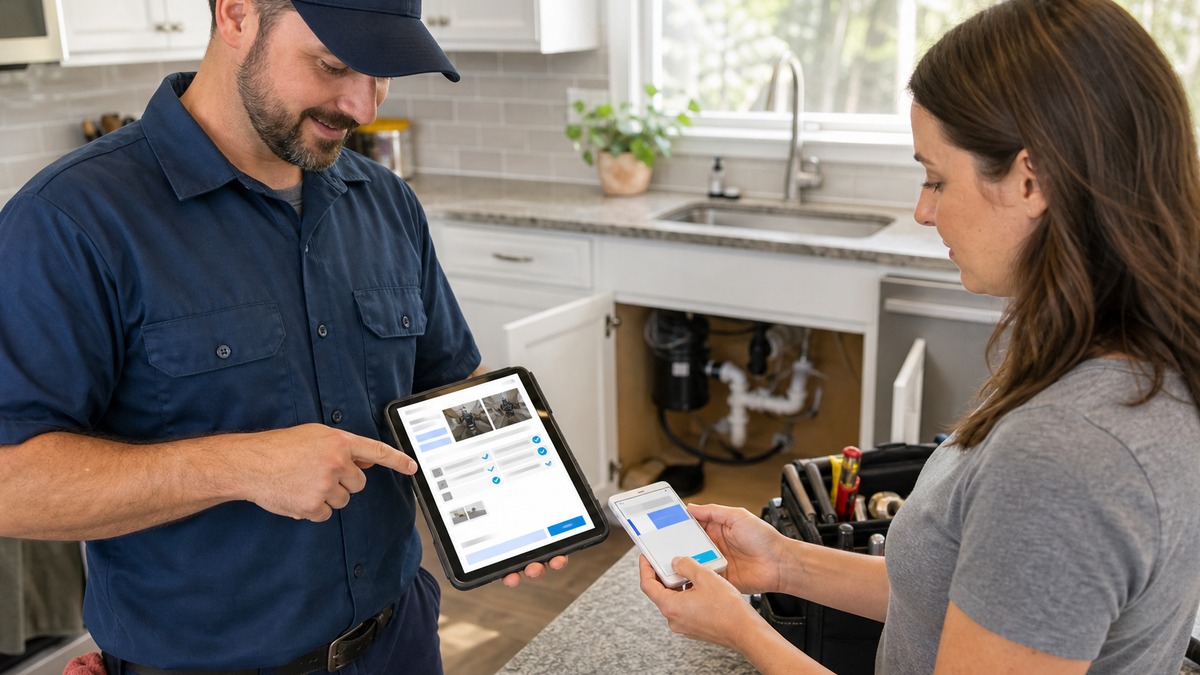
Housecall Pro’s job-creation guidance supports customer information, service line items, assigned team members, notes or files, and a schedule. Use those fields to define the minimum record that must exist before a technician is sent. The technician should not need a separate phone call to discover the unit, gate instructions, promised scope, or reason for the visit.
Separate customer-facing information from internal diagnostic context. The arrival window and confirmed contact details support communication, while private notes, photos, model information, and access instructions support execution. When a dispatcher changes the team or time, verify whether the customer should receive the resulting scheduled-job notification instead of assuming the automation will always choose correctly.
For multi-technician work, identify the practical lead and make ownership visible in the schedule and job notes. Housecall Pro’s scheduling FAQ explains that the first listed person is treated as lead when multiple team members are assigned. Pair that convention with a company rule for who updates status, who confirms the scope, and who completes the closeout to prevent two technicians from assuming the other handled it.
- Require a verified service address, primary contact, arrival window, dispatched team, job summary, and relevant line items.
- Attach only the photos, forms, or equipment details that help the assigned team perform the visit safely and correctly.
- Use a standard note for access constraints, pets, parking, shutdown requirements, or customer-approved contact methods.
- Confirm the notification choice whenever a schedule or dispatched employee change could affect the customer’s expectation.
Give Mobile Status Buttons an Operational Meaning
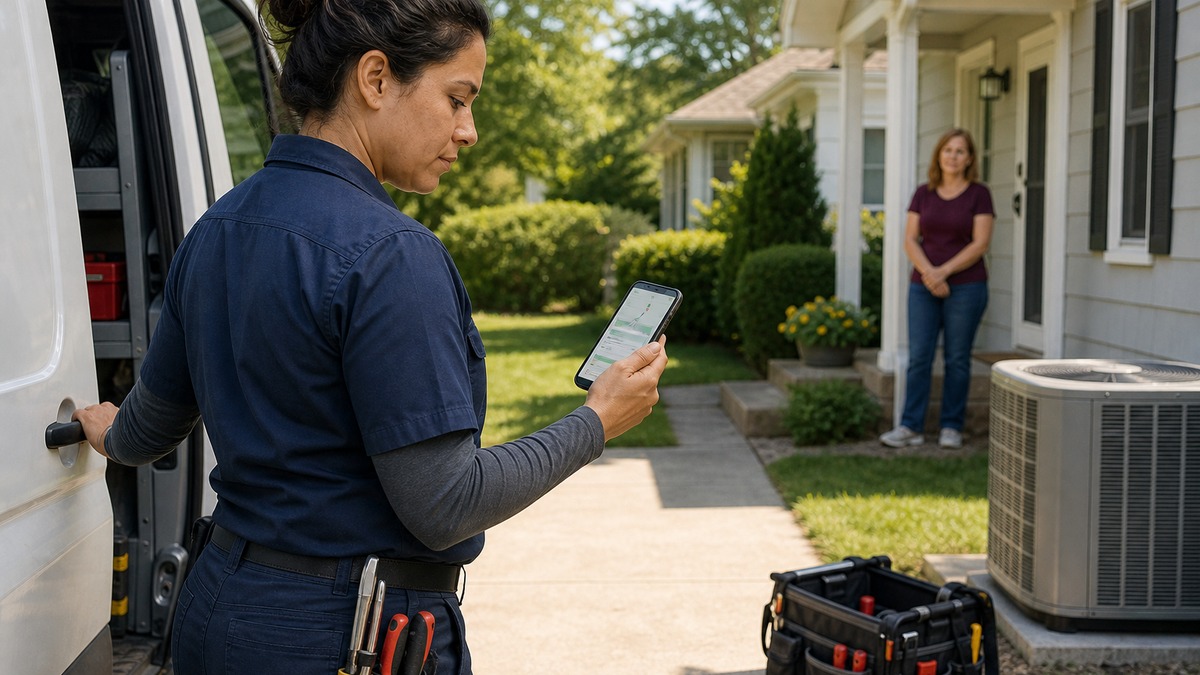
Define a field status contract before training technicians on taps. On My Way should mean the technician is actually departing for the service address, Start should mean work responsibility has begun, and Finish should mean the visit record is complete enough for the office’s next step. Consistent use makes the calendar, travel data, customer messages, and inbox routing more trustworthy.
Housecall Pro documents customer notifications for Scheduled, On My Way, and Finished events. It also notes that customer replies during an in-progress job can reach the assigned field technician in the mobile app, while office users retain visibility through their supported channels. Decide who watches replies, what response time is expected, and when a technician escalates a scope or schedule issue instead of leaving the message stranded.
Train for weak connectivity and mobile-app trouble without inventing a shadow workflow. A technician can capture essential facts, photos, and timestamps for later entry when service returns, but the dispatcher should know that the live status is temporarily unreliable. The Housecall Pro Mobile FAQ and troubleshooting guidance should be part of onboarding, along with the company’s supported device, update, and connectivity expectations.
- Publish one sentence that defines each required field status and the event that authorizes it.
- Have technicians verify the correct customer and address before sending an On My Way notification.
- Assign an office owner for customer replies that arrive before the job is in progress or when the field technician cannot respond.
- Create an offline exception procedure that preserves notes and evidence without claiming the live schedule is current.
Close the Job With Evidence the Office Can Use
A finished visit should explain what happened without relying on the technician’s memory. Before Finish, confirm the performed scope, line-item changes, job notes, relevant before-and-after photos, customer decisions, follow-up requirements, and payment disposition. If the customer declined work or a part is required, the next action and owner belong in the record.
Do not force a job to Finished merely to make the calendar look clean. Create explicit exception paths for return visits, incomplete approvals, missing parts, disputed scope, or payment follow-up. The correct state is the one that tells the next person what is true, not the one that produces the most attractive dashboard.
End each day with a short office review of jobs that were scheduled but never started, started but not finished, finished without required evidence, or moved without a confirmed customer update. Track the cause of each exception. Repeated misses often reveal a training, permission, template, or staffing problem that can be corrected once it is visible.
- Define the photos, notes, signatures, line-item updates, and payment status required for each major job type.
- Use named follow-up owners and due dates for return visits, estimates, parts, permits, or unresolved customer decisions.
- Review status exceptions daily and workflow trends weekly instead of correcting records only at invoice time.
- Test the complete workflow with one technician and one dispatcher after any significant permission, notification, or scheduling change.
Official product documentation and ALLMSP resources
- Housecall Pro: How to Use the Schedule Tab (Calendar)
- Housecall Pro: Scheduling Jobs and Estimates
- Housecall Pro: Customer Notifications Overview
- Housecall Pro: How to Create a Job
- Housecall Pro Mobile FAQ
- ALLMSP Software Support
- ALLMSP Housecall Pro Support
- ALLMSP Construction & Contracting
- ALLMSP Cybersecurity
- Contact ALLMSP
Frequently Asked Questions
Which Housecall Pro calendar view is best for dispatching technicians?
Dispatch view is useful for active coordination, while View by Employee makes side-by-side capacity easier to compare. Keep the unassigned and unscheduled queues visible so work without an owner does not disappear from the day’s plan.
Can Housecall Pro show unassigned and unscheduled jobs?
Yes. Housecall Pro documents separate visibility for unassigned jobs and an unscheduled jobs list. Assign an owner to those queues and review them at defined times instead of treating them as passive storage.
Can a dispatcher drag a Housecall Pro job to a different time?
The Schedule supports drag-and-drop scheduling and rescheduling. When a change affects a customer commitment, the dispatcher should make a deliberate notification choice and record any exception.
What information should be present before a Housecall Pro job is dispatched?
At minimum, verify the customer, service address, contact method, arrival window, assigned team, scope summary, relevant line items, and access or safety notes. Add photos or equipment details when they change how the technician prepares.
What should On My Way mean in Housecall Pro?
Use it only when the technician is genuinely departing for the verified service address. That rule keeps customer messages and travel information aligned with reality.
Who receives a customer's reply to a Housecall Pro notification?
Housecall Pro says replies during an in-progress job can reach the dispatched field technician in the mobile app, with supported office visibility as well. Define an office escalation owner so a reply is not missed when the technician is driving or working.
Should technicians mark a job Finished before completing notes and photos?
Usually no. Finish should represent the company’s agreed closeout standard, including the work record and next-step information the office needs. Use an exception state or follow-up task when the visit is not operationally complete.
How should a Housecall Pro team handle poor mobile connectivity?
Use a documented exception procedure that preserves essential notes, photos, and timestamps until service returns, and tell dispatch that the live status may be stale. Avoid creating a second permanent system that later conflicts with Housecall Pro.
Can Housecall Pro schedule several technicians on one job?
Multiple team members can be assigned, and Housecall Pro’s scheduling FAQ treats the first listed team member as the practical lead. Define who owns status changes, customer communication, and closeout when a crew shares the work.
What should a daily Housecall Pro dispatch audit check?
Review unassigned work, missed arrival windows, jobs never started, jobs left in progress, incomplete closeouts, and schedule changes without confirmed communication. Assign every exception a next action and owner before the day ends.