





























































































































































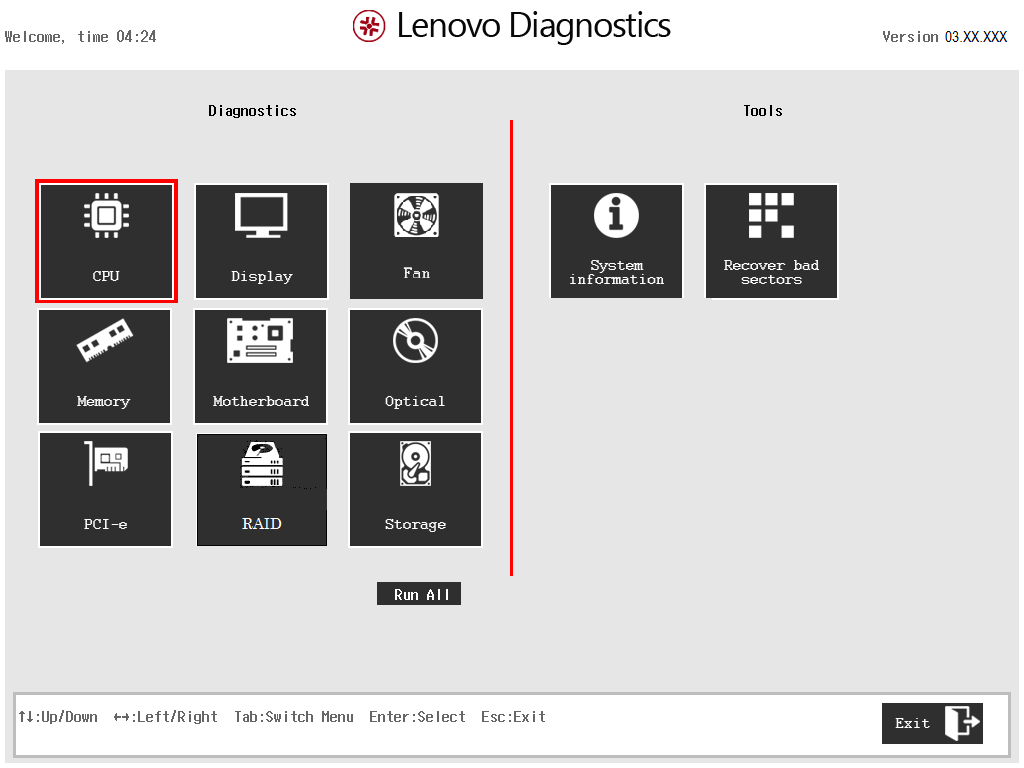
Lenovo’s older bootable-USB UEFI Diagnostics 3.8 guide shows the component-test menu with a placeholder version. Choose the supported tool for the actual machine and retain its result. Recover bad sectors is a separate storage-changing action, not a read-only diagnostic test.[6] View full-size image
Describe where the Lenovo PC stops before deciding what to replace. “Will not start” can mean no electrical response, no visible picture, failure before the operating system, a Windows error, or a recovery prompt. Record the machine type/model, last successful use, recent changes, lights/sounds and the exact point where progress stops.
If a firmware update or documented recovery is actively running, follow its model-specific instructions before interrupting power. Keep a photograph of any error and a short timeline; repeated resets can obscure the first useful symptom.
Choose the next test from the observed startup stage
| Observed result | Next controlled check | Do not conclude |
|---|---|---|
| No power indication | Verify the specified supply, outlet, connections and model procedure. | A Windows reinstall can repair an electrical path. |
| Lights/fans but no picture | Check display input and a known-good supported direct display path. | A black screen proves the computer never reached POST. |
| Logo, beep or diagnostic code; Windows never starts | Capture the exact code and use that model’s hardware diagnostic guidance. | Every code identifies a user-replaceable part. |
| Windows starts, then a task fails | Record the Windows/app error and compare a controlled configuration. | A hardware scan alone explains an account, application or network failure. |
| BitLocker recovery prompt | Match the recovery-key identifier to the authorized recovery record. | Clearing the TPM or reinstalling Windows is the first repair. |
Change one variable at a time. If removing the dock and using a supported direct path changes the result, record both configurations. Do not substitute an unsuitable power source merely because its connector fits.
Check the model’s preloaded diagnostics before depending on Windows
For the cited ThinkPad T14 Gen 5/T16 Gen 3/P14s Gen 5 guide, Lenovo documents connecting AC power and pressing F10 immediately at startup to enter UEFI Diagnostics. Follow the test instructions; leaving with Esc restarts the computer. That is a procedure for the cited model family, not a promise about every Lenovo keyboard or boot menu.[1]
The current ThinkCentre M70q Gen 5/M90q Gen 5 service manual also documents repeatedly pressing and releasing F10 while powering on. Its available tests and tools vary with hardware and the preinstalled diagnostic version. Choose the relevant non-destructive diagnostic test and retain the result before selecting a repair or recovery function.[2]
- Match the guide to the machine before following its startup key.
- Record the diagnostic tool/version and components actually tested.
- Keep the complete result, error/failure code and timestamp.
- If the documented tool is unavailable, use that model’s supported diagnostic or service route; do not assume another product’s image or boot instructions apply.
Separate a test result from the cause of the user’s complaint
A repeatable hardware failure is valuable escalation evidence. A passing test means that the selected components passed those tests under those conditions; it does not prove the dock, network, operating system or business application is healthy. An intermittent fault may need the original workload and power/peripheral state to reproduce it.
The ThinkCentre manual exposes diagnostics and tools in the same environment, including recovery-related options. Distinguish an observation from a write operation: testing memory is not the same decision as attempting storage repair. Preserve business data and use the authorized recovery process before a tool that changes stored information.[2]
If the PC reaches Windows, reproduce one failed task with a time and exact error. Compare a permitted second cable, display, network or account only when that comparison isolates the suspected path. Use the broader business computer repair guide for recurring faults across applications, storage, power and support history.
Recognize firmware activity and encryption prompts
On Intel models covered by the cited ThinkPad guide, a BIOS update that changes memory reference code can trigger memory retraining. The display can be blank while Esc/F1/F4 indicators show progress; Lenovo says not to interrupt that process with the power button. Use the exact model’s documented sequence rather than a fixed timer copied from a different PC.[3]
A BitLocker screen is a different branch. Match its key ID and have the authorized owner retrieve the recovery key from the actual saved location; an organization-managed machine may require the work/school account or IT administrator. Microsoft cannot recreate a lost key. Do not paste the key into a public ticket or confuse a successful hardware test with access to encrypted data.[4]
When the incident follows a BIOS or driver change, the Lenovo firmware and recovery handoff guide explains the version record, recovery choices and post-change acceptance checks. It does not justify repeating the same failed flash without evidence.
Investigate Commercial Vantage update failures as their own path
If Windows works but Commercial Vantage cannot retrieve or install updates, check its actual deployed components and effective policy before diagnosing a motherboard fault. Lenovo documents logs under %ProgramData%\Lenovo\Vantage\Logs\; logging is not enabled by default, so an authorized administrator may need to enable the documented scoped tracing before reproducing the failure.[5]
Record whether the failure is catalog retrieval, download, applicability, installation or restart. Preserve the package ID/version and exact result. Compare the managed network and application-control evidence, then correct the identified dependency. An empty update list alone does not prove that firmware is current, and a broad security-product exclusion is not a diagnostic conclusion.
If the components were never fully deployed, return to Lenovo deployment acceptance rather than trying unrelated repair utilities. Retain any approved logging change and its cleanup decision in the incident record.
Example: a dark docked screen is not enough to replace the laptop
Suppose a ThinkPad’s external screens are dark after waking, but the internal screen and a supported direct monitor path work. That observation narrows the next investigation to the docked path, its power/cable/display combination and relevant software history. It does not prove a particular dock component is defective.
The operator records the working and failing paths, changes one approved item, and repeats wake, reconnect and the original application task. This illustrative exercise produces evidence useful to repair support without inventing an observed customer result.
Escalate with evidence and accept the original task again
Provide the exact model, symptom stage, power/display connections, change timeline, error photographs, diagnostic version/results and controlled substitutions. The repair provider needs a reproducible failure and a data-custody decision, not only “it is slow.” Keep recovery secrets and unnecessary business content out of the evidence bundle.
After correction, repeat the original work and any relevant restart, sleep/wake or peripheral check. Document what was proved and what remains intermittent. ALLMSP Lenovo support includes troubleshooting and repair coordination; Hardware Support connects that device work to the rest of the office environment.
Frequently asked questions
What does “a Lenovo PC will not start” need to describe?
State the last successful stage: power response, picture, logo/POST, Windows sign-in or a particular application. Record lights, sounds, exact errors and recent changes.
How do I enter UEFI Diagnostics on the cited ThinkPad family?
The T14 Gen 5/T16 Gen 3/P14s Gen 5 guide says connect AC power, start the computer and press F10 immediately. Check the exact model guide before applying that procedure elsewhere.
[1]How does the cited ThinkCentre Gen 5 diagnostic procedure start?
The M70q Gen 5/M90q Gen 5 manual says repeatedly press and release F10 while powering on. Available diagnostic options depend on its hardware and tool version.
[2]Does a passed Lenovo hardware scan prove Windows and the dock are healthy?
No. It establishes the result of those component tests. Reproduce the original operating-system, accessory, network or application failure separately.
Should a storage-repair tool be treated like a read-only test?
No. A repair or recovery operation can change stored information. Preserve data and obtain the authorized recovery decision before proceeding.
[2]Can a blank screen after a BIOS update be normal on a supported ThinkPad?
Yes. The cited Intel-model guide documents memory retraining with a blank screen and progress indicators. Follow that model’s guidance and do not interrupt active retraining.
[3]Does a BitLocker recovery prompt mean the drive has failed?
No. Follow the recovery-key identifier and authorized key-retrieval process; a hardware diagnosis and access to encrypted data are separate questions.
[4]Where does Lenovo document Commercial Vantage logs?
The current technical FAQ places Commercial Vantage logs in the Lenovo, Vantage, Logs subfolders beneath the Windows ProgramData directory. Logging is not enabled by default; use the documented administrator procedure when tracing is needed.
[5]What should support receive with a Lenovo diagnostic result?
Provide model, symptom stage, exact code, diagnostic version, tests run, timestamps, change history and controlled substitutions, with the approved data-custody decision.
What closes a Lenovo repair investigation?
Repeat the original failed task and relevant power, restart or peripheral checks. Preserve the identified change, results and unresolved intermittent symptoms.
Sources
- Lenovo T14 Gen 5 family guide: UEFI Diagnostics ↩
- Lenovo ThinkCentre M70q Gen 5/M90q Gen 5 Hardware Maintenance Manual ↩
- Lenovo T14 Gen 5 family guide: Intel memory retraining ↩
- Microsoft Support: Find your BitLocker recovery key ↩
- Lenovo CDRT: Commercial Vantage technical FAQ ↩
- Lenovo UEFI bootable USB Diagnostics 3.8 guide — older primary manual ↩


